# Agent Instructions
This documentation is published with GitBook. GitBook is the documentation platform designed so that both humans and AI agents can read, navigate, and reason over technical content effectively. Learn more at gitbook.com.

## Querying This Documentation
This site has an agentic ask interface you may use to query the documentation dynamically by asking a question.

Perform an HTTP GET request on the following URL with the `ask` and `goal` query parameters:

```
GET https://docs.wingbits.com/index.md?ask=<question>&goal=<user_goal>
```

`ask` is the immediate question: it should be specific, self-contained, and written in natural language.
`goal` is what the user is ultimately trying to achieve, the reason they need the answer. Sharing it helps GitBook give you a better, more relevant answer. A goal is most helpful when it describes the outcome the user wants rather than restating the question. For example, with `ask=how do I create an API token`, a goal like `automate deployments from our CI pipeline` lets GitBook tailor the answer to that use case.

The response will contain a direct answer to the question and relevant excerpts and sources from the documentation.

---

# What is Wingbits?

Wingbits is a worldwide community of everyday individuals who receive rewards for monitoring aircraft in real-time with the help of specialized equipment.

*A global network creating the world’s largest virtual map of the sky.*

Using specially adapted hardware that is cryptographically-secured and provably accurate, Wingbits data is the most far-reaching, high-quality and reliable in the industry.

We are also the first reward-based flight tracking network, compensating users for the tracking data they contribute so they can both be a part of, and benefit from, the future of airspace management.

<figure><img src="https://lh7-rt.googleusercontent.com/docsz/AD_4nXc4H6wj30CuHucj1AnGCOXgNkqw6HLG-34aygjgOts5lBSgw9Pb3FqcfrhJo4vcbi_Ut9jntdUcx_kwmqjITY3Sw5TxtFFjOQvuWWR5g0cNmrmMD1m8Hg-FrUTSxU60tW3sRwaZ?key=-OWb_nq-c4a7O1S1PmmqVf20" alt=""><figcaption></figcaption></figure>

### What’s wrong with current flight tracking networks?

Few people realize that the $6 trillion aviation industry relies heavily on data collected by a dedicated community of unpaid volunteers around the world.

These individuals set up hardware in their personal spaces to track ADS-B signals transmitted by aircraft twice per second, providing crucial information that supports global aviation operations. Yet despite the industry's dependence on this highly-demanded data, contributors receive little (or zero) reward for their efforts.

The handful of flight tracking companies that exist, such as FlightRadar and FlightAware, turn this essentially free data into hundreds of millions in revenue, funneled through their B2B and B2C products.

This ineffective incentive model has led to unreliable setups, inconsistent quality and spoofed data, with limited control over where coverage expands. Global participation is also trending downwards, making it difficult to sustain and grow existing networks.

### How is Wingbits doing things differently?

Wingbits believes the volunteer-based, exploitative model is broken.

We have merged next-gen flight tracking hardware with blockchain technology to tokenize the data and reward contributors fairly and transparently.

Our partners have developed custom hardware equipped with ADS-B functionality, allowing anyone to track aircraft and earn rewards based on their proportional contributions. ADS-B technology is becoming increasingly common in aviation, as it provides more accurate and up-to-date information about aircraft movements, enabling better air traffic management and improved safety.

Plus, we already know we're onto something - our network is growing 6x faster than any other flight tracking network in history.

### Why should you join?

Wingbits is the first flight tracking network to reward its participants, allowing you to become an early adopter and part of a new opportunity that is still in its early stages, with more demand than supply.

It’s also the first network to innovate and bring much-needed change to the sector in over a decade, engineered for superior flight data that is cryptographically secure and accurate.

Wingbits demonstrates not only how the DePIN model can transform traditional industries, but how the power of a global community can make a difference and hold the aviation industry to a higher standard.

Register your account [here](https://wingbits.com/register).

### How are we making Wingbits the best flight tracking network?

#### <mark style="color:orange;">Earn daily rewards</mark>

No more reliance on unpaid, undervalued volunteers. Users are compensated based on the amount and quality of the data they contribute, ensuring users remain active participants in the network's growth and security.

#### <mark style="color:orange;">Best global coverage</mark>

Our model incentivizes optimal antenna placement and hardware performance. Users earn more rewards by strategically deploying hardware in underserved areas, ensuring the most optimized network coverage, including hard-to-reach areas.

#### <mark style="color:orange;">Most Secure & Accurate</mark>

With the only proof-of-location technology and cryptographically signed data, Wingbits offers unmatched security and accuracy, providing the most reliable tracking data with millimeter-level GPS precision.

#### <mark style="color:orange;">Disruptive by design</mark>

Wingbits is pioneering the first decentralized flight-tracking network, committed to enhancing aviation safety, efficiency and environmentalism. It is disrupting an industry which remained stagnant in its innovation for more than a decade.

#### <mark style="color:orange;">Built for the future</mark>

Wingbits is engineering its technology with growth built into its model. Ready to take on the huge drone tracking market that is still in its early stages and which needs a specialized approach.

#### <mark style="color:orange;">Social impact</mark>

Wingbits’ impact spreads beyond business. Flight data can create a more accurate picture of global carbon emissions, supply chain efficiency and generally improve safety for everyone.

<br>


# Who can use Wingbits Data?

There are many use cases for flight tracking data, the most common ones include:

* **Aviation companies**: Airlines, charter companies, and other aviation-related businesses use ADS-B data to improve their operations, improve route efficiency, reduce fuel costs and delays, and provide more accurate and up-to-date information to their customers.
* **Air traffic control organizations**: National and regional air traffic control organizations use ADS-B data to better manage traffic flow, monitoring airspace and maintain safety compliance.
* **Emergency services**: Police, fire, and other emergency services use this data to quickly locate aircraft in distress and provide assistance in emergency situations. Real-time data also helps first responders track and coordinate emergency aircraft
* **Aviation enthusiasts**: Aviation enthusiasts, such as plane spotters and hobbyists, track aircraft and monitor flight patterns.
* **Researchers and academics**: Researchers and academics studying air traffic patterns, weather, and other aviation-related topics can use our data to conduct research and gather insights.
* **Logistics firms**: for tracking shipments and managing supply chains with real-time data.
* **Government agencies**: for secure monitoring of airspace activity.
* **Drone and UAV operators**: For safer, regulated airspace navigation.
* **Travel platforms**: use Wingbits data to provide live updates to passengers, improving the travel experience.

If you are interested to explore our data products and services, head to our [website](https://www.wingbits.com/) and get in touch with our team.


# Terminology

**ADS-B**

ADS-B stands for Automatic Dependent Surveillance–Broadcast. Hardware devices with this functionality capture broadcast signals from aircraft (ADS-B signals) that include important data such as position, speed, and altitude. Most commercial aircraft transmit ADS-B signals and with new regulation, this is becoming the standardized tracking method.

**Stations**

The ADS-B hardware setup used in Wingbits network to track data, which comes with a built-in antenna.

**DePIN**

DePIN stands for Decentralized Physical Infrastructure Network, which is usually made up by a community of nodes. It’s a term that has been popularized with the emergence of blockchain and Web 3.0 technologies. Some popular examples of DePIN projects include Helium and Wingbits, which both use the Solana blockchain to distribute its rewards. Wingbits uses the DePIN model so we can more easily reward our community, tracking their data contributions and sending them $WINGS token as reward.

**Node**

Node is a device that helps power a network, and is capable of creating, receiving, or transmitting data. For those familiar with Web3, you can loosely compare a Wingbits station to a network node which captures and distributes data, though on a technical level they function differently. Your station will be associated with a cryptocurrency wallet address of your choice so you can receive rewards based on its performance.

**Solana**

Solana is a blockchain that the Wingbits network utilizes to distribute its rewards, the $WINGS token. When you set up your station, you will set your crypto wallet address that is compatible with Solana-based tokens. We will send $WINGS to your wallet, which is attached to your station’s node ID.

**$WINGS**

$WINGS is a type of cryptocurrency known as a utility token. Utility tokens act as a means of exchange within a particular network or platform. You can exchange $WINGS tokens for other cryptocurrency or exchange it for fiat like EUR or USD.

**Coverage hex**

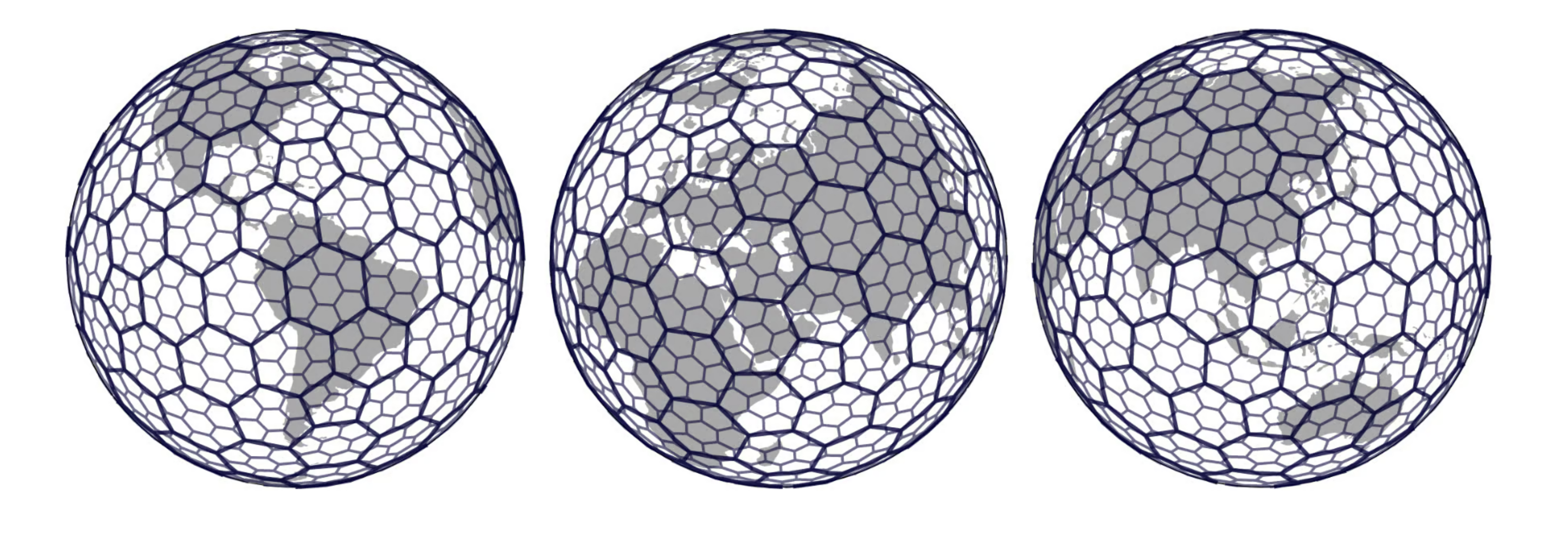
We divide the world map into larger hexagonal sections, or “hexes”, which correspond to daily rewards areas. Each hex represents one of many specific areas of the sky that a station can monitor, ensuring complete global coverage without overcrowding certain areas. Each coverage hex is resolution 3 in the H3 system. More on this under the “Rewards” section.

**Claimed Location**

Claimed location is the area of land that is claimed and locked to a single station, so no other stations can be setup too close. On the Wingbits map, with the Stations layer toggled on, any claimed location will appear as a very small hexagonal shape of about 36 km² (\~14 miles²). No one else is able to claim this area, to make sure rewards are not heavily diluted in more densely populated areas. This location is not involved in rewards calculations.

#### BYOD Station

BYOD is a "build your own device" or "bring your own device" station. These were allowed to join the network prior to Oct 14th, 2024, but new stations of this type can no longer be onboarded without a geosigner usb addon dongle present. Geosigners are no longer available so if you don't have one, or cannot obtain a used one, you will need to join the network using an approved hardware device.

#### Approved Hardware Station

Approved hardware stations are ready-to-run ADS-B stations that have all components necessary to participate in the project. These stations have been certified by Wingbits to meet the minimum hardware and performance specifications. Manufacturers will control the overall design and may opt to include additional features (dual-purpose, POE, expansion capabilities, and such).


# For the DePin Crew

Wingbits is the first Web3 aircraft-tracking community creating a real-time map of the sky. Built on Solana, users earn $WINGS tokens by running custom DePIN hardware, providing cryptographically-secure, live data streams that capture planes, helicopter and drone movements.

Wingbits is one of the few startups to be backed by VCs from both Web2 and Web3. Our decentralized network is innovating the traditional $22 billion flight tracking market, making the aviation industry more efficient, safe and transparent.

### What makes Wingbits a unique DePIN project?

#### High-demand for data

Unlike other DePIN projects, Wingbits already has a product and proven use case, with clients and a waitlist for its data services, even before mainnet. There is overwhelming demand for highly-secure, accurate data that DePIN-powered hardware provides vs. traditional Web2 competitors.

#### Balanced supply

Wingbits was designed for sustainable rewards and does not want to create unnecessary oversupply. We have made sure the real-world demand will meet a carefully maintained undiluted supply, so that contributors will continue to be rewarded appropriately.

#### Validated product-market-fit

Wingbits is pioneering the first decentralized flight-tracking network, disrupting a traditional industry which remained stagnant in its innovation for more than a decade. Regular customers are fed up with the volunteer-based model and turning to us for a superior solution.

#### Proven use cases and growth potential

Wingbits is building growth into its model. It already supports multiple business streams, but is preparing to take on the huge drone tracking market worth billions that is still in its early stages and requires our specialized approach.


# Official Wingbits Channels

The links below are to all official Wingbits channels - if a channel is not listed below it is not operated by or associated with Wingbits. As always, beware of scams!

**X:** [**https://x.com/wingbits**](https://x.com/wingbits)

**Discord:** [**https://discord.com/invite/zAt9m3aSm6**](https://discord.com/invite/zAt9m3aSm6)

**Reddit:** [**https://reddit.com/r/wingbits\_official**](https://reddit.com/r/wingbits_official)

**LinkedIn:** [**https://www.linkedin.com/company/wingbits/**](https://www.linkedin.com/company/wingbits/)

**Medium:** [**https://medium.com/@wingbits**](https://medium.com/@wingbits)

**Facebook:** [**https://www.facebook.com/wingbits/**](https://www.facebook.com/wingbits/)

**Youtube:** [**https://www.youtube.com/@Wingbits**](https://www.youtube.com/@Wingbits)

**TikTok:** [**https://www.tiktok.com/@wingbits**](https://www.tiktok.com/@wingbits)

**Website:** [**https://wingbits.com/**](https://wingbits.com/)

**Shop:** [**https://shop.wingbits.com**](https://shop.wingbits.com/)

**Docs (this site):** [**https://docs.wingbits.com**](https://docs.wingbits.com/)

**Email:** [**hi@wingbits.com**](mailto:hi@wingbits.com)


# Our Plan

Wingbits is embarking on an ambitious journey to transform the way the world tracks flights. Our goal is to create a globally decentralized, efficient and comprehensive flight tracking system that benefits everyone – from the aviation industry to individual enthusiasts.

### **Here's how we plan to achieve this:**

**Initial network establishment:**

Similar to how projects like Helium successfully deployed IoT infrastructure on a grand scale, Wingbits aims to rapidly expand its network of ADS-B receivers. This initial push is crucial to overcome the inertia of starting a new platform and establishing a presence in the global aviation data market.

**Incentivizing participation:**

Recognizing the importance of our community, we have introduced a token-based reward system to incentivize data providers. This approach mirrors successful strategies used by companies like Uber and Lyft but goes further by offering long-term, intrinsic value rather than short-term financial incentives. Our tokenomics is designed to provide sustainable growth for both Wingbits and its contributors.

**Expanding reach and capabilities:**

As we progress, we will continue to refine our systems, increase our global footprint, and introduce more features. This includes expanding the number of stations, improving data quality, and developing tools that allow for broader use cases and applications of our data.

**Community-driven evolution:**

Throughout this journey, we remain committed to our community. Feedback, participation, and collaboration with our users are vital. We believe in growing together, ensuring that as Wingbits evolves, it does so with the needs and aspirations of its community at its core.

**Monetizing data for long-term project sustainability:**

* **Phase 1:** When we reach certain validated coverage milestones, we monetize the data, which will in turn feed revenue back into the community over the long-term. This will allow us to build a network that can benefit participants over the long-term. We worked extensively to validate the model in the first few months which has led to successfully raising capital from non-crypto top-tier investors as we have proved that this is a validated, real-world business application with high revenue potential.
* **Phase 2:** Utilize the data to build various products and solutions for the aviation industry. On this side we have also validated several use cases where we have received commitments and LOI's from Airport Operations, Air Logistics and Crew Planning Companies and Travel Data Analytics providers.

By following this plan, Wingbits is not just building a flight tracking network; we are shaping the future of aviation data collection and utilization, making it more accessible, equitable, and useful for all.


# How to get involved

Everyone is invited to join our network and track flights from your available chosen location.

### Ready to jump in?

1. Check out our [live network map](https://wingbits.com/map) with the Stations layer on to see if your preferred location is available. You can also see the live (blue) stations in your region to check their weekly $WINGS rewards.
2. Decide which hardware station would serve you best from [Hardware needed](/get-started/hardware-needed), along with the information on any FAQ pages within.
3. Go through the order process and claim your location using [How to claim your station location](/get-started/how-to-claim-your-station-location).\
   *Pre-orders are currently open and* [*approved hardware*](/project/wingbits-approved-hardware-program) *started shipping in Q1 2025. You can* [*check with your preferred distributor*](/project/wingbits-approved-distributors) *for an up-to-date lead time. As part of the pre-order process your location area will be reserved for 6 months, from purchase date, so that you have time to receive the station and get it online.*
4. There are no special skills or knowledge required. However there will be some set up needed, once your station arrives, which our simple guides will walk you through.

\
**If you’re just curious to learn more, you can:**

🔍 Register a free account and explore the dashboard

🗺️ Check out the Wingbits map and see all the aircraft being tracked by our community in real-time

🖖 Join our amazing Discord community where you can ask questions, speak with our team and other community members, and get inspiration for your setup.


# ELI5 (Explain Like I'm 5)

We have **stations** (your Wingbits device) that listen for **airplane messages** in the sky.\
The sky is divided into **hexagons** (hexes), and each message comes from one of those hexes.

#### Two Ways We Look at the Network

* **Attention** – How much of a station’s listening is focused on each hex.
* **Coverage** – How much of a hex’s messages come from each station.

#### Scoring with PageRank

We connect these two views into one big map and use a special math tool called **PageRank**. PageRank gives each station and each hex a score based on how important they are in the whole network.

* If your station is linked to important hexes, your score goes up.
* If those hexes are linked to important stations, their score goes up.
* The influence bounces back and forth until we figure out everyone’s final score.

**Rewards (and Bonuses!)**

At the end of the day, your **rewards (tokens)** start with your station’s PageRank score — but that’s not the whole story.\
You can also earn **bonus rewards** on top:

* **Base Rewards** – The main payout based on your PageRank and the hexes you help cover.
* **Early Participant Rewards (EPR)** – Extra tokens for being part of the network early (only for a limited time).
* **Other Bonuses** – For example, upcoming **Low Altitude Rewards** for stations near airports.

Your station earns more if:

* It hears messages from **busy or valuable** hexes.
* It’s **well-connected** in the network (not just message count, but where and from whom those messages come).
* You qualify for bonus programs like EPR or Low Altitude Rewards.

**In short:** The more important your station’s position is in the network, and the more bonus rewards your station qualifies for, the more rewards you get.


# How rewards work

## TL;DR

You earn WINGS tokens by running a station that sees aircraft and sends useful positional data to the Wingbits network. Your rewards depend on:

* The **data contributions** of your station
* Whether you’re early to the network (EPR)
* How strategically important your data is (PageRank)
* Whether you're covering **new areas** or competing in busy ones

Your station's location (hex) has no direct impact on rewards earned.

## Data Contributed

The key component to participation is data, so to clarify:

* The source of your rewards are only **positional messages** contributed by your stations (using the Wingbits client) to the network.
* All other message types are not sent to the network, as they do not currently contain desirable data for the network.

{% hint style="info" %}
A discrepancy is visible when comparing tar1090 message rates vs input/server message rates on the station's Statistics tab. Instead you should compare positional message rates from graphs1090 to the input/server message rates.
{% endhint %}

## Rewards

Your station earns daily rewards from multiple sources:

* Base Network Rewards
* Early Participant Rewards (EPR)
* Additional Rewards (e.g., Low Altitude Rewards)

Each of these is explained in detail below in the various rewards sections.

### Base Rewards

These come from a global pool of tokens allocated daily based on **hex coverage**.

* Each coverage hex (area of the map) gets **24 WINGS** added to the reward pool **if at least one station contributed 100+ positional messages** that day.
* The total pool grows with new areas covered, but adding more stations to already-covered areas just **dilutes rewards**, it doesn’t increase them.

Your station’s share depends on a **PageRank** calculation involving:

* The importance of the hexes you contribute to (i.e. how strategically important they are in the network).
* The performance of your station (i.e. percentage of your contributions across monitored hexes).

{% hint style="info" %}
If you're the only station covering an area (hex), you earn more due to how the PageRank is calculated.
{% endhint %}

Read more about [PageRank algorithm use in our network](https://wingbits.com/blog/pagerank-reimagined).

Example daily Base Rewards:\
If 10,000 hexes are covered that day, that’s **240,000 WINGS** in the reward pool. If there were 2,400 equally ranked stations (hypothetically), each would get **100 WINGS**.

### Early Participant Rewards (EPR)

This is a **time-limited bonus** for contributing early to the network.

* You earn **2 WINGS per covered hex per day**.
* This lasts:
  * All of the pre-mainnet period
  * The **first year** after mainnet
  * Then it **drops 10% per year**, from the prior year rate, until it ends **5 years after mainnet**.

But to qualify:

* You must contribute **100+ positional messages** to the hex.
* You must beat the **bottom 10th percentile** of message counts per hex (across all stations globally), so low effort doesn’t qualify.

### Low Altitude Rewards (LAR)

{% hint style="info" %}
**Start Date:** Rewards began on Dec 23rd, 2025 for data contributed on Dec 22nd, 2025.\
\
Prior contributed low altitude data will not be rewarded.
{% endhint %}

Low Altitude Rewards (LAR) are bonus rewards for stations that receive and contribute **low-altitude aircraft data (≤ 6,000 feet)**, transmitted from eligible areas around **select airports** (currently \~500 airports). Airport selection is based on requests from data customers.

LAR are designed to incentivize coverage where low-altitude data is most valuable, using a reward mechanism similar to Base Rewards but applied to a smaller, airport-focused geographic area.

**How LAR Are Funded**

* Each eligible airport is represented by a **7-hex area using resolution-6 hexes**:
  * One hex centered on the airport’s official latitude/longitude
  * Six surrounding hexes
* Each eligible hex gets **24 WINGS** added to the daily LAR pool **if at least one station contributed 100+ positional messages** that day.
* The daily LAR pool grows with new areas covered, but adding more stations to already-covered areas just **dilutes rewards**, it doesn’t increase them.
* The total daily LAR pool is the product of: `eligible_airports × 7 hexes × 24 WINGS`

**How LAR Are Distributed**

* Reward shares are calculated using a **PageRank-based algorithm**, applied specifically to low-altitude data contributions.
* This algorithm evaluates both **data quality and relative contribution**, similar to Base Rewards.
* To be rewarded with LAR, the station must contribute **100+ positional messages** to the hex.
* LAR runs almost identically to Base Rewards, but:
  * Coverage is geographically limited to airport areas
  * Hexes are smaller
  * The contributor pool is more localized

**Example: One Day of LAR Distribution**

* If **500 airports** each have contributions across all **7 eligible hexes**:
  * `500 airports × 7 hexes × 24 WINGS = 84,000 WINGS`
  * **84,000 WINGS** are distributed from the daily LAR pool.
* If **2,000 stations** contributed equally to those airport hexes (purely hypothetical for easy math):
  * `84,000 WINGS ÷ 2,000 stations = 42 WINGS per station`

{% hint style="info" %}
Note: In practice, rewards are **not equal**, as PageRank weighting favors higher contribution counts and higher-value contributions.
{% endhint %}

**Summary**

* You earn LAR by contributing **≤ 6,000 ft altitude data** within **eligible airport hexes**.
* The **maximum daily LAR pool** is reached as all eligible airport hexes receive contributions:
  * `eligible_airports × 7 hexes × 24 WINGS`
* LAR complements Base Rewards by incentivizing **high-value, low-altitude coverage** where it matters most.

### Bonus for Pre-Mainnet Contributors

Stations that contributed before Mainnet can also earn a bonus on their retroactive rewards, which you can read about on [Devnet wallet and rewards](/tge-mainnet/devnet-wallet-and-rewards).

## Final Comments

Having a station located near a major airport, especially with line of sight to runways, is the ideal placement to generate earnings from Low Altitude Rewards.

Clear line of sight to the horizon, for 360 degrees and above all nearby obstacles, will increase all reward types.

Finally, keeping your system online 24/7 will maximize your contributions and reflect in increased Base Rewards daily versus a competing station, in your area, that does not stay online 24/7.


# How to maximize rewards

Wingbits rewards are based on the quality, uniqueness, and consistency of the aircraft data your station contributes to the network. To earn more WINGS tokens, your goal should be to **optimize signal reception**, **cover valuable areas**, and **stay online consistently**.

This page outlines best practices to help you get the most out of your setup.

## Overall optimizations

### 📡 1. Optimize Station Placement

The most important thing you can do is **maximize the antenna's line of sight to the horizon**. ADS-B signals from aircraft travel in straight lines, and obstacles like trees, buildings, and even certain windows can significantly degrade signal quality.

**Ideal placement:**

* Outdoors, as high as possible
* On the roof of a building or a pole mount
* Away from nearby obstructions (trees, walls, chimneys)

**Acceptable alternatives (with reduced performance):**

* Attic installations (only if the roof is non-metal and line of sight is good)
* Balcony setups (best when facing open sky, not walled-in)

**Avoid:**

* Window setups (modern windows can block RF)
* Basement or ground-level indoor installs
* Any installation under concrete, stucco, or metal

{% hint style="info" %}
Poor station placement doesn’t just reduce the number of aircraft you receive — it can also impact GPS lock and reduce the number of **valid positional messages**, which directly affects your rewards.
{% endhint %}

### ✈️ 2. Capture Unique Data Points

Wingbits rewards **stations that contribute unique, high-value coverage** — not just volume.

#### What counts as unique?

* Aircraft seen **at low altitudes**, especially close to the ground
* Data from aircraft while they are taxiing, taking off, or landing
* Planes on final approach or lining up on the runway
* Traffic that is **not picked up by other nearby stations**

**Best ways to achieve this:**

* Deploy near airports — both major and regional
* Have line of sight to the **runway**, not just the sky
* Cover gaps in existing network coverage (rural, mountainous, coastal)

This kind of data boosts your station’s **PageRank score**, which increases your share of the daily base rewards pool. It can also open up other reward pools for your stations to share from (upcoming low altitude rewards).

### 🔁 3. Stay Online and Stable

The reward system heavily favors stations that are **reliable over time**.

**Why it matters:**

* Stations must meet minimum message thresholds of 100 messages per hex per day to qualify for base rewards and also above the bottom 10th percentile (network-wide) to qualify for early participant rewards
* **PageRank is recalculated daily** based on 24-hour contribution windows
* Uptime can influence whether your contributions are factored into reward calculations

**Tips:**

* Use a battery backup (UPS) if your power is unreliable
* Ensure your internet connection doesn’t drop frequently
* Periodically check that your station is online and reporting positional data

{% hint style="info" %}
A station online 24/7 consistently earns more than one that drops offline frequently, even if they’re in the same location.
{% endhint %}

### 🔍 4. Target Underserved Hexes

Each day, 24 WINGS tokens are added to the base rewards pool **for each coverage hex with at least 100 messages** from a station.

But:

* **Adding more stations to already-covered hexes just dilutes the reward pool**
* **Being the sole contributor to a hex increases your value (pagerank) to the network**

### 📅 5. Plan for the Long Term

You can earn **Early Participant Rewards (EPR)** during the first years of the network — but to qualify, you need:

* 100+ messages to a hex per day
* To beat the global 10th percentile of message contribution for that hex

This means staying above the “low effort” line matters.

Also, keep an eye out for future reward types such as **Low Altitude Rewards**, which will further benefit stations positioned near runways and airports.

### 🧠 Summary Checklist

✅ Install station/antenna high, clear, and outdoors\
✅ Avoid windows, metal roofs, and dense obstacles\
✅ Find locations with low existing coverage\
✅ Cover low-altitude or on-ground aircraft near airports\
✅ Keep your station online 24/7\
✅ Monitor your data contribution through the Wingbits dashboard

## BYOD related optmizations

{% hint style="info" %}
This section currently applies to grandfathered BYOD stations
{% endhint %}

### **Optimizing Gain**

Whether you have a usb ADS-B station with an onboard LNA (Low Noise Amplifier) or an external pre-amp, using the proper gain setting can help your message/craft rates increase dramatically. The max gain setting is typically more detrimental than helpful. We also do not recommend using an auto-gain script if you are interested in achieving your best stats possible, but it will get you about 75+% of the way there. Spend the time required to set your gain manually and properly.

A video is available on our YouTube channel to assist you in getting your gain set properly:

{% embed url="<https://www.youtube.com/watch?v=cNxDYCMjaYM>" %}

### Cables

Most of the time you can get by with lower quality cables if your run from the antenna to the base station is short (under a couple meters). As the cable length requirement increases, so should your cable quality choice as you will increase signal loss over long runs using cheaper cables.

You can google for 'cable signal loss calculator' but one example from a well known manufacturer can be found here: <https://timesmicrowave.com/calculator/>


# Hardware needed

### About Your Station

The hardware you deploy is manufactured by a third-party partner and is fully compatible with the Wingbits network. While the physical device itself is produced and maintained by the manufacturer, once it’s connected it becomes a **Wingbits station,** contributing real-time data to the network and earning rewards.

* **Manufacturer**: Responsible for building the devices, managing supply chain operations (distributors/sales/shipping), handling firmware updates, and addressing hardware issues.
* **Wingbits**: Provides the network, reward system, and community support to ensure your station’s data is put to work.

This means your device is both a product of the manufacturer and a Wingbits station: the manufacturer makes the hardware, Wingbits powers what it does.

### Current Hardware Options

* HYFIX [WB200](https://www.businesswire.com/news/home/20240903536757/en/Wingbits-and-GEODNET-Enter-Partnership-to-Revolutionize-Global-Aviation-Flight-Tracking-Infrastructure) (Wingbits solo miner)
* HYFIX [MGW310](https://www.businesswire.com/news/home/20240903536757/en/Wingbits-and-GEODNET-Enter-Partnership-to-Revolutionize-Global-Aviation-Flight-Tracking-Infrastructure) (Wingbits / GEODNET dual miner)

These devices are currently available to purchase from a variety of [distributors](/project/wingbits-approved-distributors). Distributors may have different lead times on orders.

{% hint style="info" %}
If you are a manufacturer and would like to join the Wingbits Approved Hardware program you can [view all the details here](/project/wingbits-approved-hardware-program).
{% endhint %}


# HYFIX Information

All current HYFIX documentation is maintained in the dedicated [HYFIX](https://docs.wingbits.com/hyfix/) section.

Go there for hardware setup, Wingbits Onboarding, FAQs, and theoretical coverage range guidance.


# BYOD Information

BYOD stands for Build Your Own Device and was the sole onboarding option for new stations prior to October 14th, 2024.

While these stations are grandfathered into the network, the prerequisite hardware addon (GeoSigner) is no longer available for purchase after October 13th, 2024.

As the GeoSigner devices can be sold/traded and stations based on them will remain active on the network indefinitely, all BYOD station information has been moved to its own space on the docs site at [BYOD](https://docs.wingbits.com/byod/).


# How to claim your station location

To claim your station location/hexagon, you need to register and deploy your station.

To check if your area still has an open spot, please navigate to the [explorer in the dashboard](https://wingbits.com/dashboard/map) and then toggle on the stations view by clicking the cell tower icon (<picture><source srcset="/files/IwQjeNYjiRLYFMmFYhtH" media="(prefers-color-scheme: dark)"><img src="https://icons.iconarchive.com/icons/fa-team/fontawesome/48/FontAwesome-Tower-Cell-icon.png" alt="FontAwesome-Tower-Cell icon" data-size="line"></picture>) at the top right of the map. If you see that the location is open (no location hex present), you can follow the below instructions to reserve your location.

{% hint style="info" %}
After you claim your area, no one else can claim the same area, so all hexagons will only contain one station. The area/hexagon is not transferable.\
\
If you change the location of the station to outside of the claimed area, the previous hexagon will unlock immediately, opening it for others to claim.
{% endhint %}

## Wingbits approved hardware stations

There are three main steps for registering your station and claiming the [location hex](/project/wingbits-faq#what-is-the-difference-between-a-location-hex-and-a-rewards-hex) until your [Wingbits Approved Hardware](/project/wingbits-approved-hardware-program) arrives from the [distributor of your choice](/project/wingbits-approved-distributors).

1. Reserve your location and register your station.
2. Buy a Wingbits Approved Device from [one of the distributors](/project/wingbits-approved-distributors).
3. Extend the reservation to 6 months for free by entering the discount code received from the distributor. This 6 months gives you time to receive the station and bring it online. After that the reservation is closed and your location will be claimed.

## Video walk-through

We have created a walkthrough video showing you the process from start to finish which you can see below. However if you prefer a text guide you can jump to the [reserve your hex section below](#reserve-your-hex).

{% hint style="info" %}
The video is a little old as our UI has changed. All the same stuff is there but it will look different.
{% endhint %}

{% embed url="<https://www.youtube.com/watch?v=zk5yv0Z6zvc>" %}

## Written walk-through

### Reserve your hex

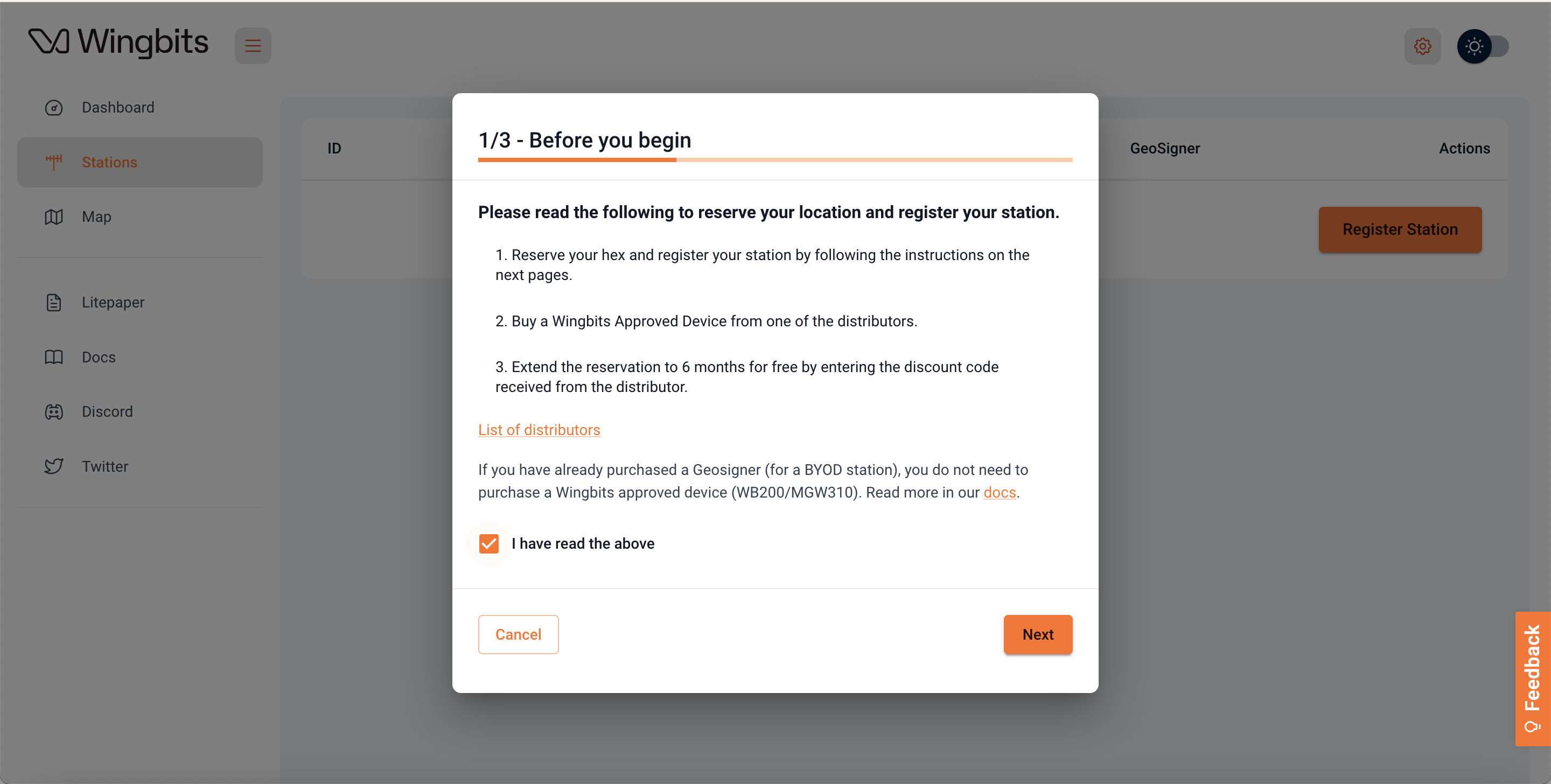
First you need to visit the [Stations page of the dashboard](https://wingbits.com/dashboard/stations). You will see a button that says "Register new station". Click this button and a modal will pop up. Read the instructions, and once you are happy you can tick the box confirming you have read the above and then click next.

<figure><img src="https://3679411810-files.gitbook.io/~/files/v0/b/gitbook-x-prod.appspot.com/o/spaces%2FQKvxPfdgB2XwoB9Zi3rX%2Fuploads%2F7oA6Q5YedoY4iitY1vas%2Fimage.png?alt=media&amp;token=6b341692-0359-4b48-894f-e699f202f399" alt=""><figcaption></figcaption></figure>

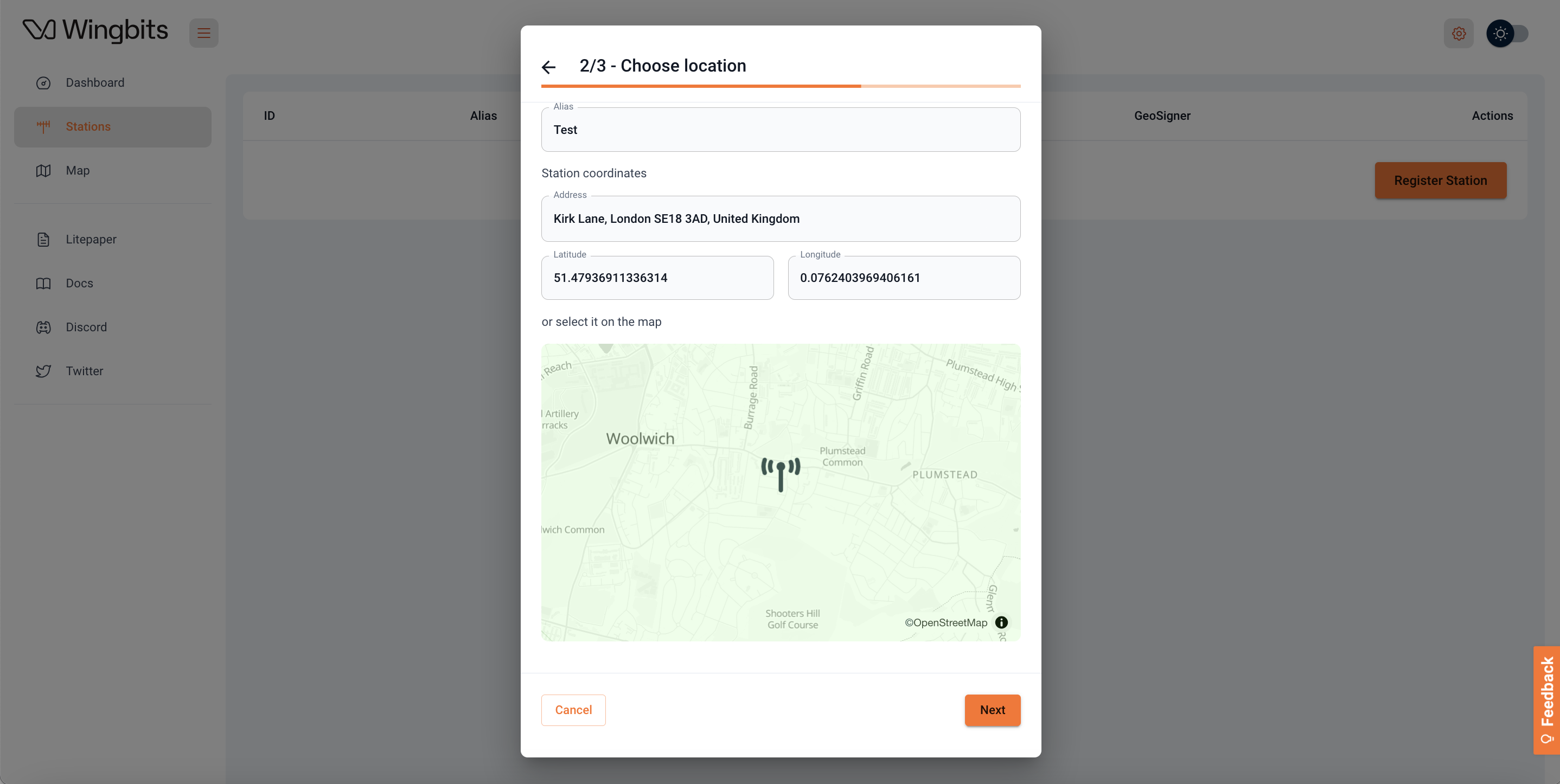
You will then see a screen where you need to enter the street address or map coordinates of the location you will install your Wingbits station. The Alias field is an required "friendly" name you can give your station. If the location is free, the background of the map area will appear green, and the Next button will turn from grey to orange. If the area is already taken, the background of the map area will appear red, the Next button will remain grey and you will see some red text saying "Unfortunately, this location is occupied right now."

{% hint style="info" %}
Double check your location by zooming in to confirm the building the station will be installed on/outside. If you choose the wrong location, you might reserve the wrong location hex and someone could take the right one over by the time you get the station. Using the exact installation spot latitude and longitude is the most reliable method to identify and reserve the proper location hex.
{% endhint %}

<figure><img src="https://3679411810-files.gitbook.io/~/files/v0/b/gitbook-x-prod.appspot.com/o/spaces%2FQKvxPfdgB2XwoB9Zi3rX%2Fuploads%2FkaDKMNd0J3YMsCXy3j6C%2Fimage.png?alt=media&amp;token=357099c0-65ea-4a18-87f4-f3e1032549b3" alt=""><figcaption></figcaption></figure>

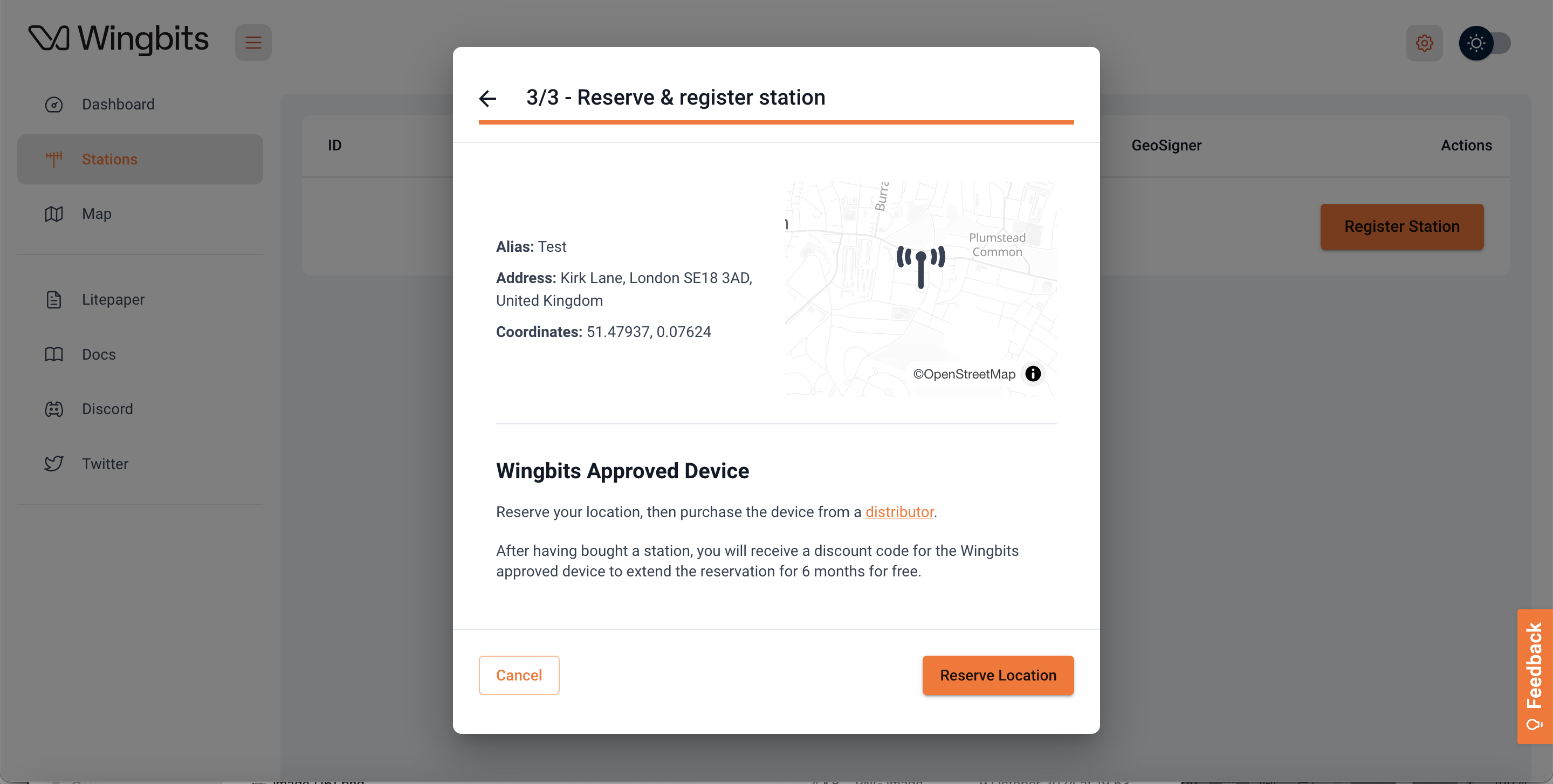
Once you click the Next button from the above, you are taken to a confirmation screen where you can confirm the address and other details. If you need to correct anything you can click the back arrow at the top of the modal. Otherwise in order to continue you can optionally click on the "distributor" link highlighted which will open a new tab/window with the list of the distributors. Then click the Reserve Location button.

<figure><img src="https://3679411810-files.gitbook.io/~/files/v0/b/gitbook-x-prod.appspot.com/o/spaces%2FQKvxPfdgB2XwoB9Zi3rX%2Fuploads%2FqJYGQwUkzNCO9jxMyTM6%2Fimage.png?alt=media&amp;token=3274d5e3-af05-48da-8f06-044018ad7cce" alt=""><figcaption></figcaption></figure>

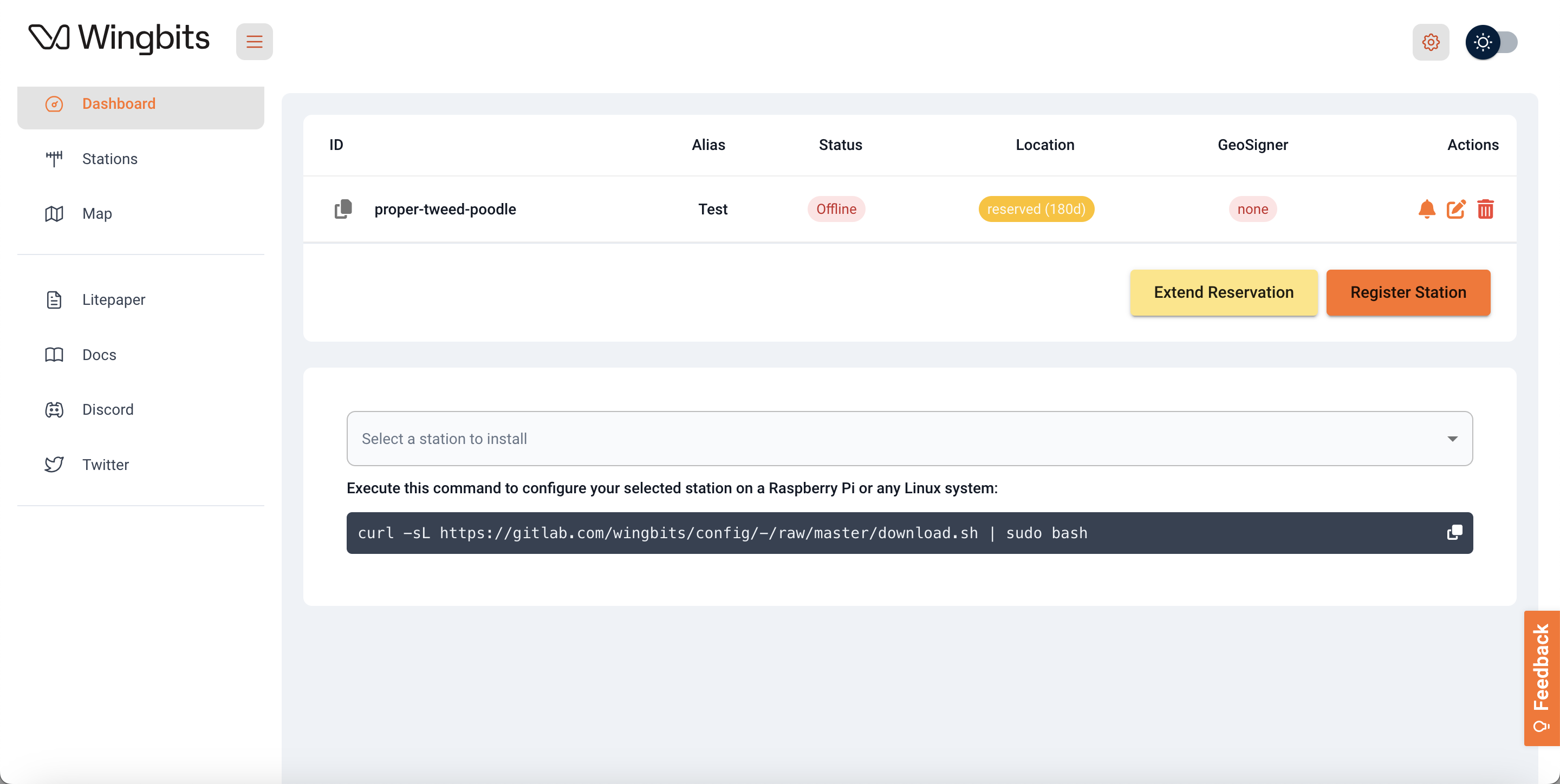
You will now see the location in your Stations list. You will notice that under the Location column the station you just added says it is reserved for 48 hours. You will now need to proceed to purchase your Wingbits station.

<figure><img src="https://3679411810-files.gitbook.io/~/files/v0/b/gitbook-x-prod.appspot.com/o/spaces%2FQKvxPfdgB2XwoB9Zi3rX%2Fuploads%2FcYuHSeX0qxeQJSBt7DAJ%2Fimage.png?alt=media&amp;token=4916d0c8-b215-4909-97b9-0761bdd30708" alt=""><figcaption></figcaption></figure>

### Buy a device

In order to see a list of Hyfix distributors you can visit the [Distributors of approved hardware](/project/wingbits-approved-distributors) page. We urge you to only buy a station from one of these distributors otherwise there is a chance you could get scammed by an unscrupulous seller.

Visit one of these sellers, select the device of your choice and proceed through the checkout as per normal.

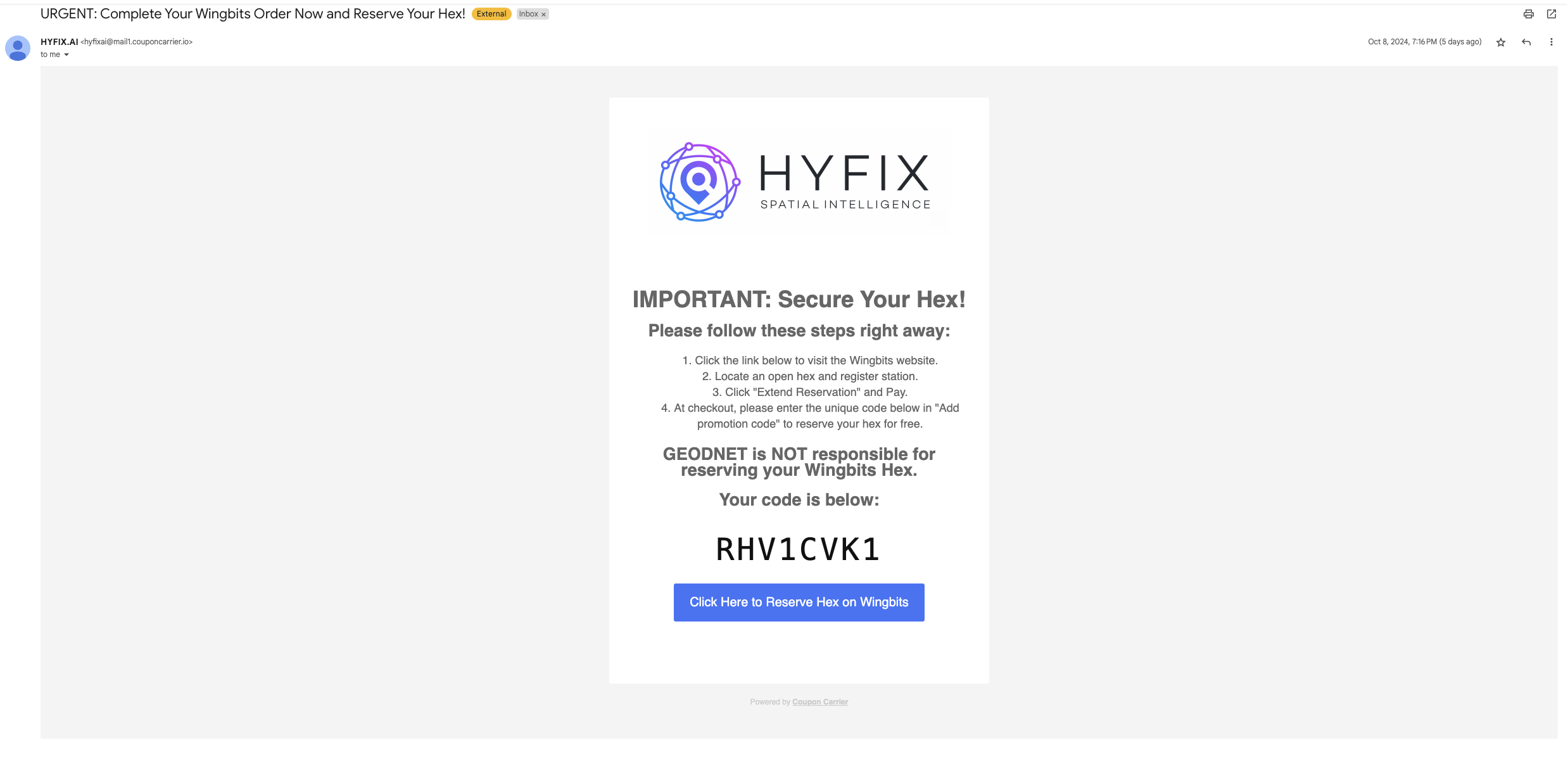
Once you have completed the order process, you should receive a "Discount Code" or "Hex Reservation Code" via email. An example from the HYFIX website is shown below:

<figure><img src="https://3679411810-files.gitbook.io/~/files/v0/b/gitbook-x-prod.appspot.com/o/spaces%2FQKvxPfdgB2XwoB9Zi3rX%2Fuploads%2F6mqCCyRqdAWeZEdQU2Ws%2Fimage.png?alt=media&amp;token=21a4cac0-56e2-4ac5-a87c-72becd6312e3" alt=""><figcaption></figcaption></figure>

Copy the code from the email, and then return back to the [Stations page](https://wingbits.com/dashboard/stations) of the Wingbits dashboard.

### Extend reservation

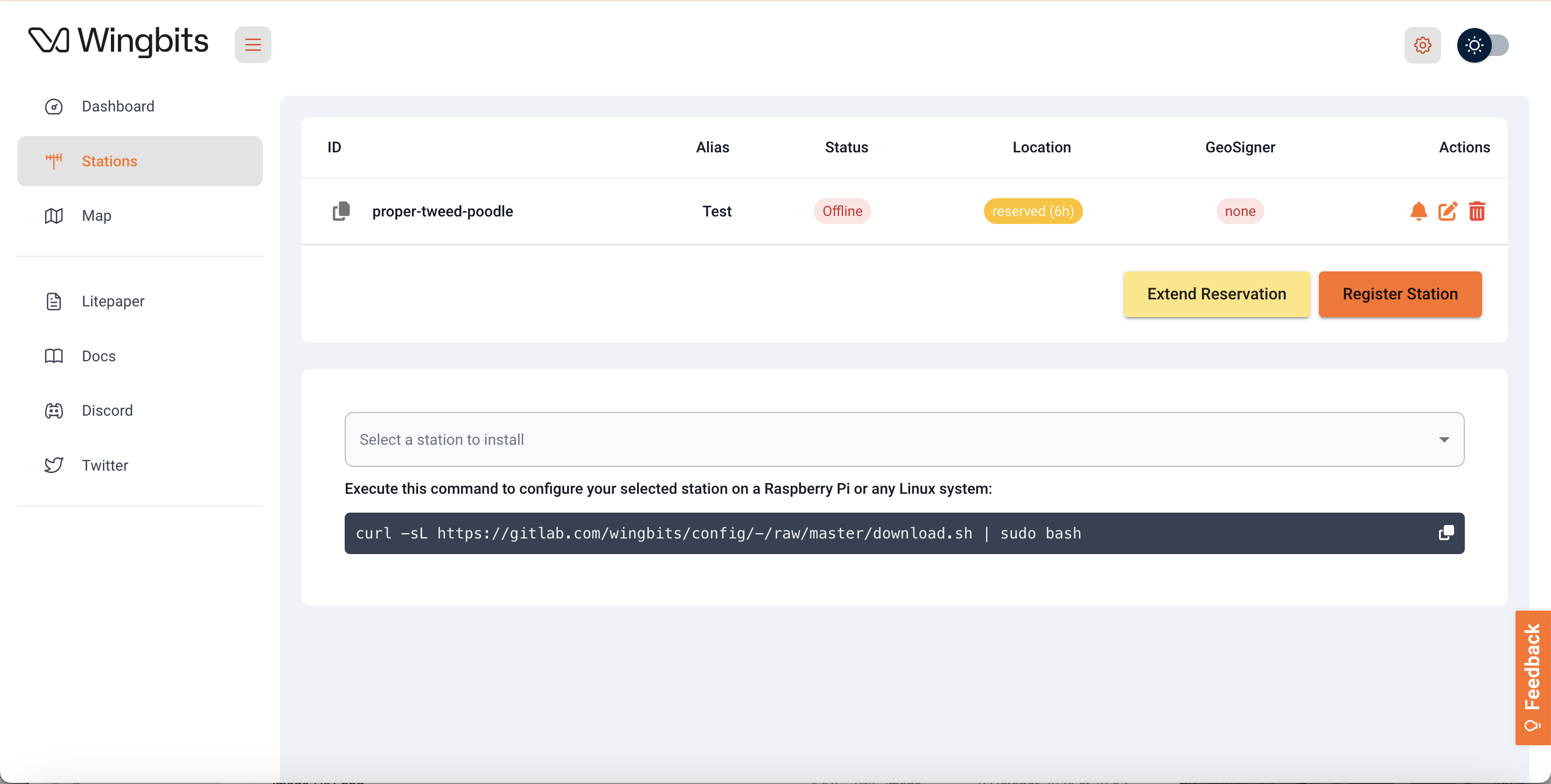
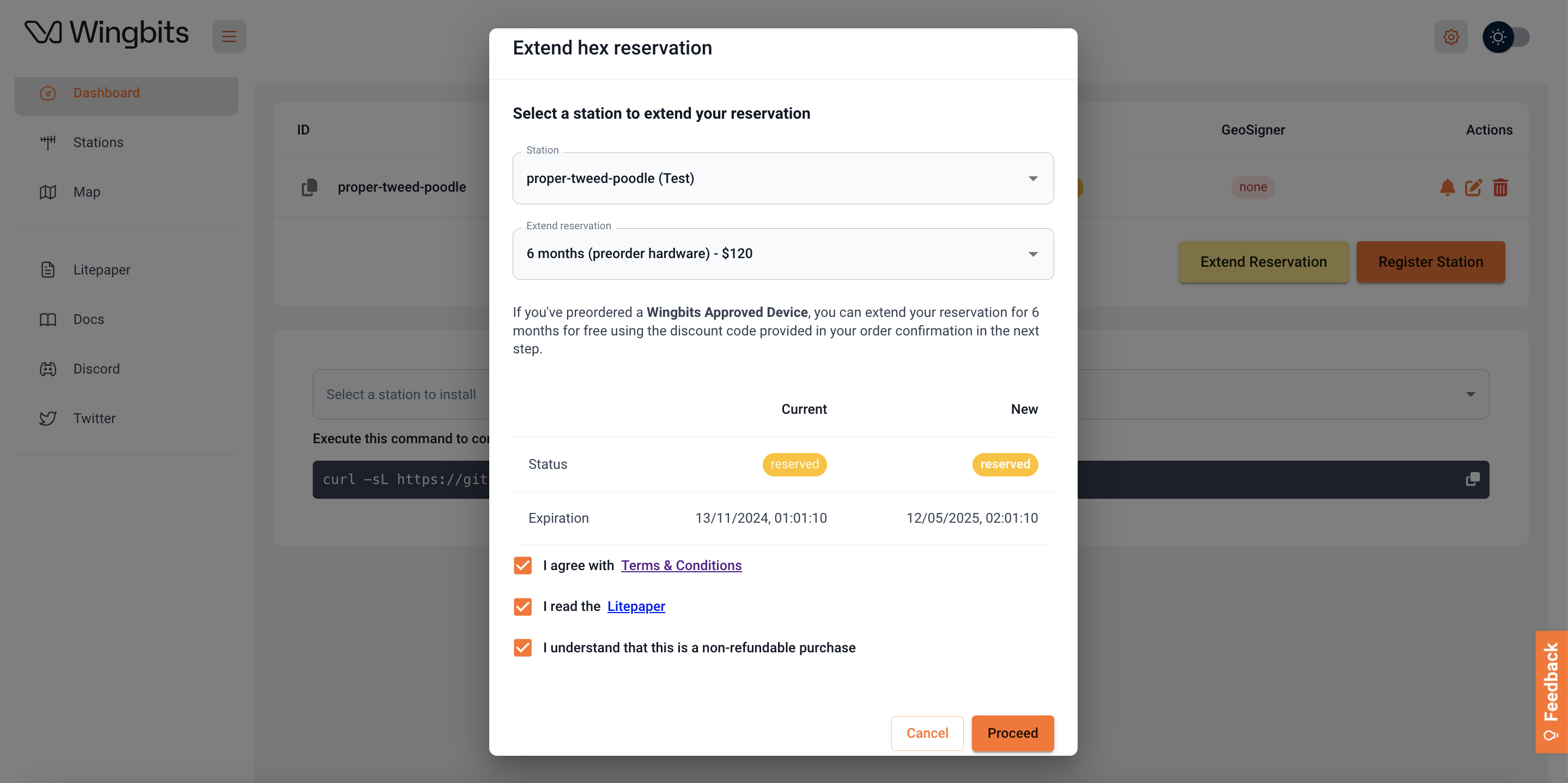
When you return back to the Stations page you will see a button that says Extend Reservation. Click this button and you will see a modal window pop up.

<figure><img src="https://3679411810-files.gitbook.io/~/files/v0/b/gitbook-x-prod.appspot.com/o/spaces%2FQKvxPfdgB2XwoB9Zi3rX%2Fuploads%2FEi7ODuMEMOuzKzSD5sby%2FScreenshot%202024-10-15%20at%2021.14.55.png?alt=media&amp;token=3f46cc3a-11e5-40c2-93be-3b093252aaa3" alt=""><figcaption></figcaption></figure>

Select the correct station in the top dropdown and in the second dropdown you should select the option "6 months (preorder hardware) - $120". You will notice it says there is a charge of $120, but the coupon code from the email in the previous section will reduce this down to 0. After you have read the [Terms & Conditions](https://app.termly.io/document/terms-of-service/7c8f72ba-7a66-43ba-991b-c69e34ab6290) and the [Litepaper](https://docs.wingbits.com/wingbits-litepaper) and ticked the appropriate boxes, you will then see the Proceed button turn from grey to orange. Click Proceed and you will be taken through to the Stripe payment page.

{% hint style="info" %}
If you don't see a payment page (example below) at this point, you likely have a popup blocker that needs to be disabled. Some blockers also will show the link they blocked, so you can alternatively click on that to checkout.
{% endhint %}

<figure><img src="https://3679411810-files.gitbook.io/~/files/v0/b/gitbook-x-prod.appspot.com/o/spaces%2FQKvxPfdgB2XwoB9Zi3rX%2Fuploads%2FiArjyf3huN55hYAqyKZB%2Fimage%20(24).png?alt=media&amp;token=1d9cbe08-0319-4749-8033-56e9a3d9e0a3" alt=""><figcaption></figcaption></figure>

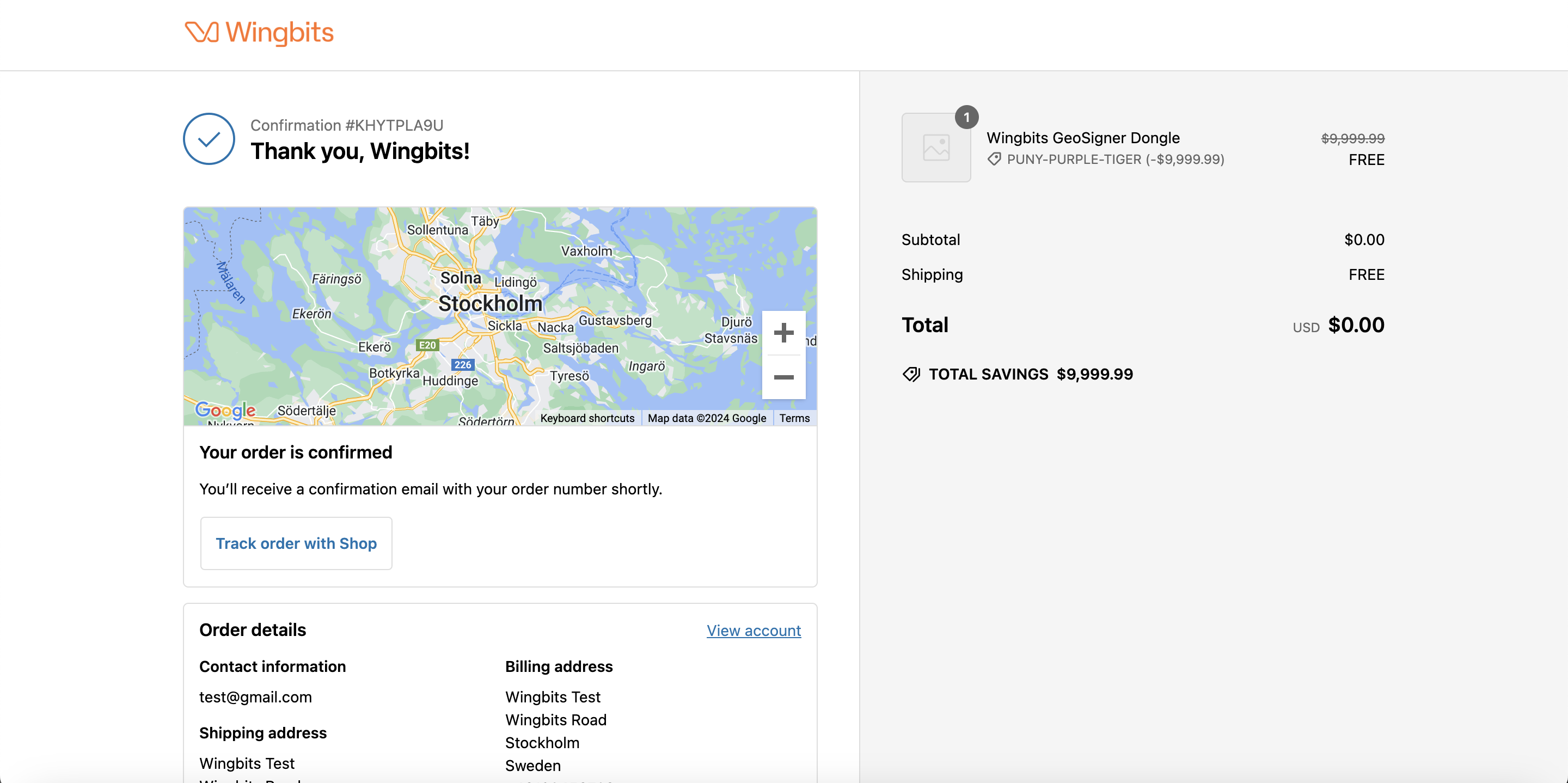
On the left hand side under the Subtotal section you will see a button that says "Add promotion code". Click this button, paste in the code that you copied from the email above and then click Apply next to the text area. Fill in your contact information on the right hand side (your email should auto-populate). Once complete, click Complete order and you will then be returned back to the Stations page on the Wingbits dashboard.

You will now see under the Location column that the location is reserved for 6 months (180 days). Ample time for your distributor to deliver your Wingbits station and you to set it up at the location!

<figure><img src="https://3679411810-files.gitbook.io/~/files/v0/b/gitbook-x-prod.appspot.com/o/spaces%2FQKvxPfdgB2XwoB9Zi3rX%2Fuploads%2FartH5PVGnnZ4zcUh9Wu8%2FScreenshot%202024-10-14%20at%2018.57.25.png?alt=media&amp;token=3bc3d970-098b-4c06-9cd2-1fe377cbc6bf" alt=""><figcaption></figcaption></figure>


# Add wallet address to your account

## Basics

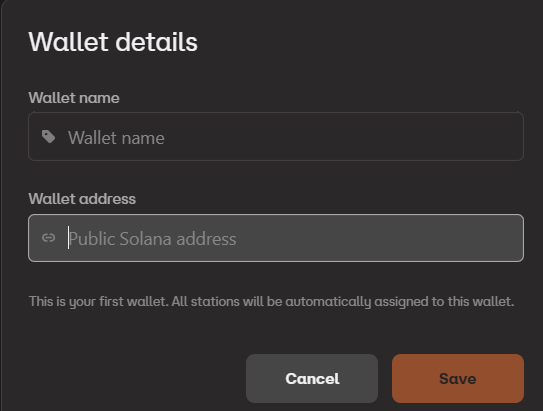
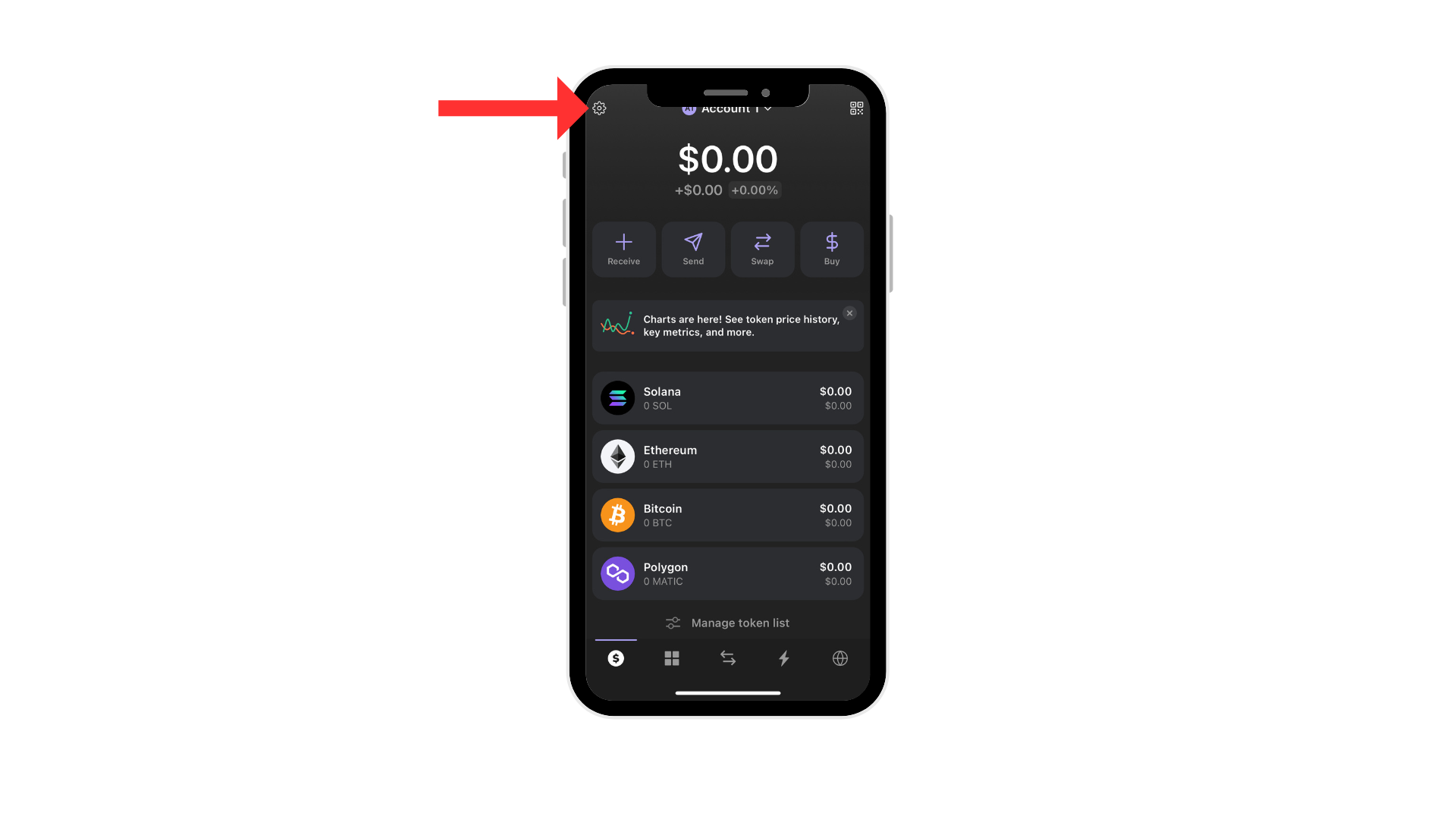
You will need to create a Solana wallet, if you don't already have one, and get a copy of the public address (typically easy to find and copy under the "Receive" option/button in your wallet app).

You can use any Solana based wallet app to create your wallet. Wingbits is now on Mainnet, so claimed WINGS appear like any other Solana SPL token. If you need to inspect historical or current activity, you may use [Solana Explorer](https://explorer.solana.com/) to search your public address and see token balances or transactions.

{% hint style="info" %}
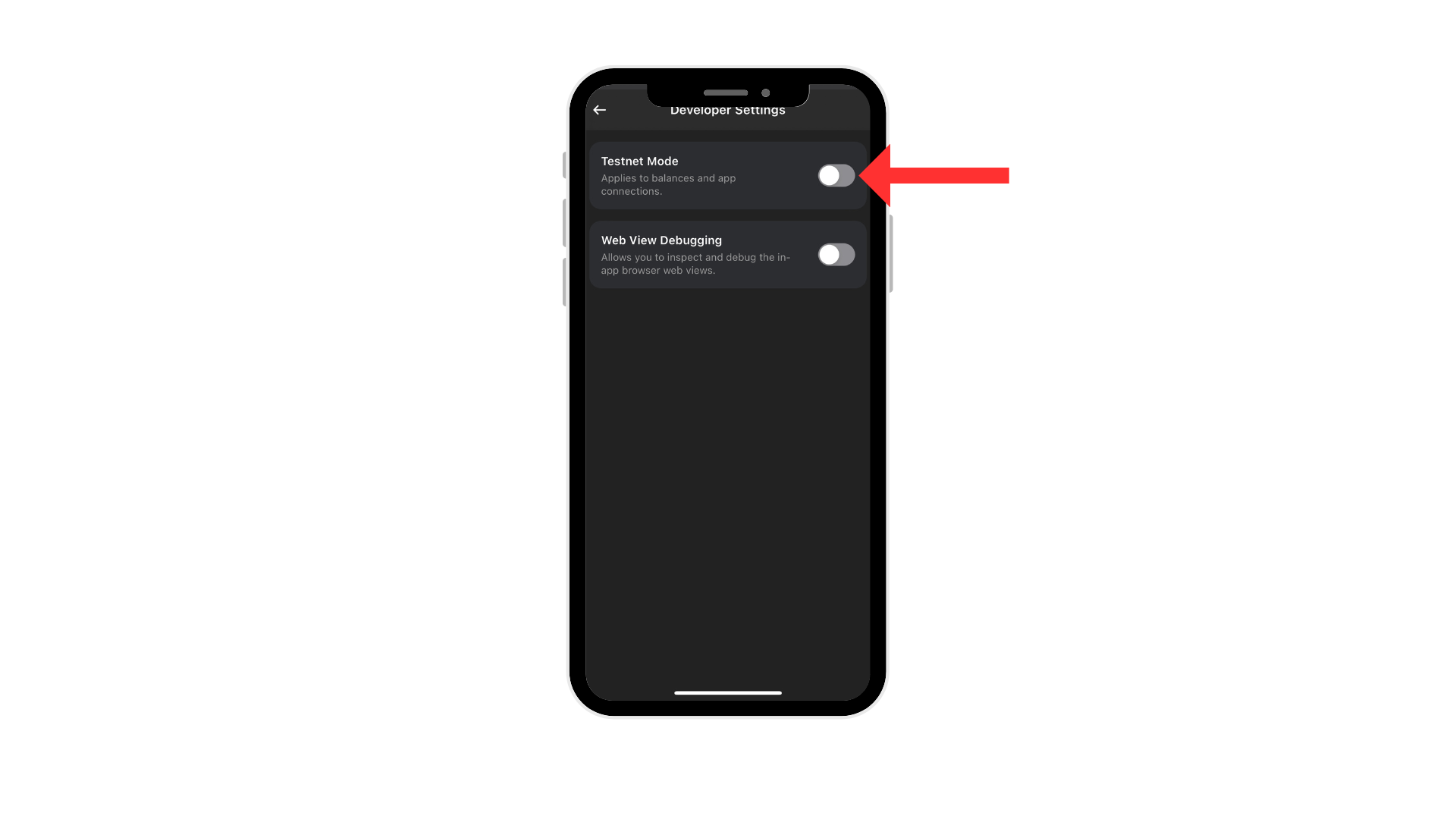
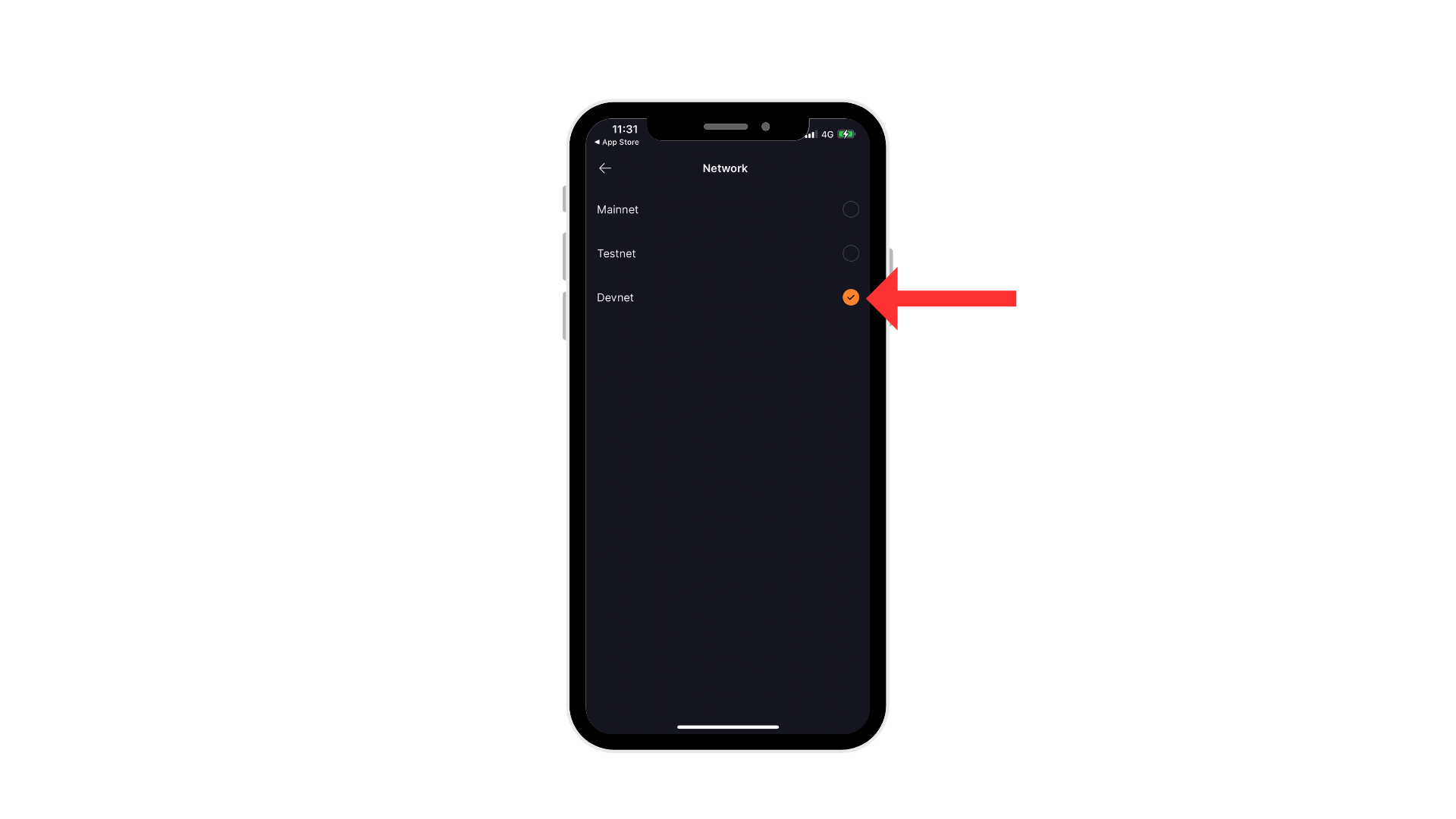
Your same public address works for Mainnet, devnet, and testnet. We do not use testnet. As long as you do not change your wallet address, claimed WINGS will appear like any other Solana SPL token you hold.
{% endhint %}

### Setup

Follow the steps on [Wallet Management](/general-help/add-wallet-address-to-your-account#owner-wallet).


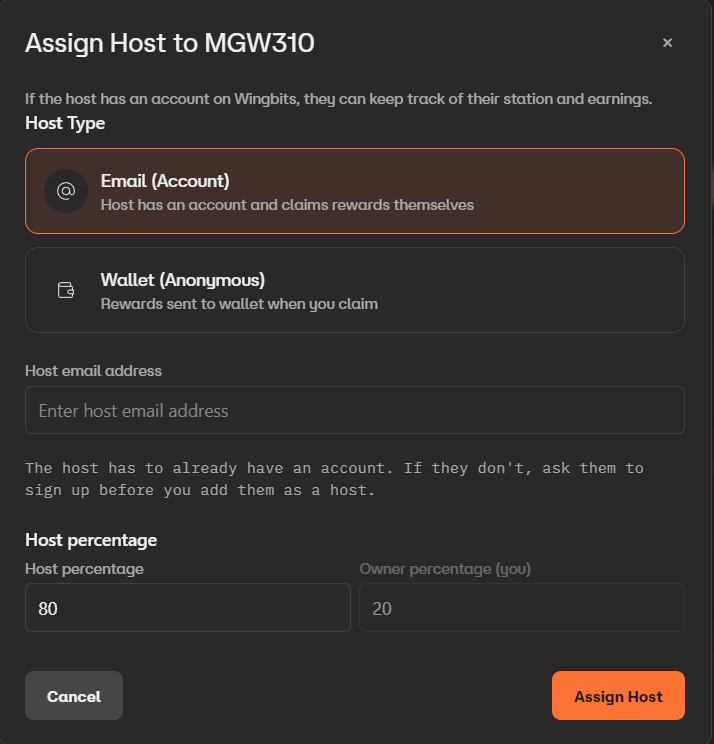
# Assign a host to a station

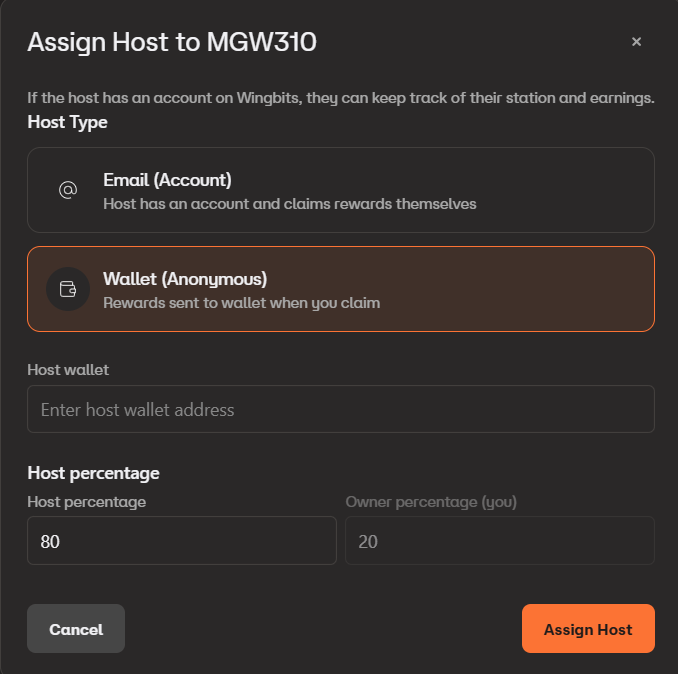
Learn how to assign a host to your Wingbits station to share ownership and rewards.

### Overview

You can assign a host to your Wingbits station to share ownership and rewards. When you assign a host, they become a co-owner of the station and will receive a percentage of the rewards based on the split you configure.

{% hint style="info" %}
You can remove the host again at any time. Doing so will change the split of future rewards. Not rewards already earned.
{% endhint %}

### Prerequisites

Before assigning a host, ensure you have either:

* The host's Solana wallet address
* The host's Wingbits login email address

### How to Assign a Host

If the host has a Wingbits account and wishes to manage their wallet address and when their rewards are claimed, follow [these steps](/general-help/add-wallet-address-to-your-account#owner--host-with-account-email).

If the host only wants to provide a wallet address and is ok with you claiming on your schedule for them, follow [these steps](/general-help/add-wallet-address-to-your-account#owner--host-without-account-anonymous) instead.

### After Host Assignment

Once the host is assigned:

* The host will start receiving their percentage of rewards for all future earnings
* If you provided the host's Wingbits account email address, the station will appear in their dashboard
* The reward split will be applied to all future reward distributions

### Troubleshooting

**Host not receiving rewards?**

* Verify the wallet address was entered correctly
* Check that rewards are being generated by the station
* Remember that new assignments only apply to future rewards, not past earnings

**Want to change the host or percentage split?**

* You can remove the host the same way you added it.

**Host can't see the station in their dashboard?**

* Ensure you entered their correct email address
* The host must have a registered Wingbits account
* The email address must match their account registration


# How to setup remote access for a station

### Summary

As of client version v1.6.0 the Tailscale remote access VPN client is now embedded in the Wingbits client.\
\
This means that you can now setup remote access to your Hyfix devices using Tailscale and view the device's WebUI, tar1090/graphs1090 (if enabled), and any future exposed web based ports.

{% hint style="info" %}
If you are running a BYOD station and already have Tailscale setup, you can change to use this method, but be aware that your access will be more limited such as ssh not being usable. Most BYOD users will probably want to keep an existing Tailscale setup.\
\
Note: Do not try and run both Tailscale setup on the device directly and through the Wingbits Client, as it will cause issues for Tailscale and will not be reliable.
{% endhint %}

### Prerequisites

While this can be done before or after the below setup, you will also need to have Tailscale installed on any other device you wish to use when connecting to the station. This can be a PC or a mobile device (using the Tailscale app).

Basically, Tailscale makes a vpn between any devices you setup, so they can all connect to each other like they are on a local network together.

### Setup

To facilitate this feature, there are some changes that have been made to the dashboard to enable the setup and linking with your Tailscale account.

You can follow the below steps to get it setup:

1. If you do not already have a Tailscale account, you will first need to create one by going to [tailscale.com](https://tailscale.com/) and create a new account.
2. Go to the [My Stations](https://wingbits.com/dashboard/stations) page of the Wingbits dashboard and click on your Hyfix station
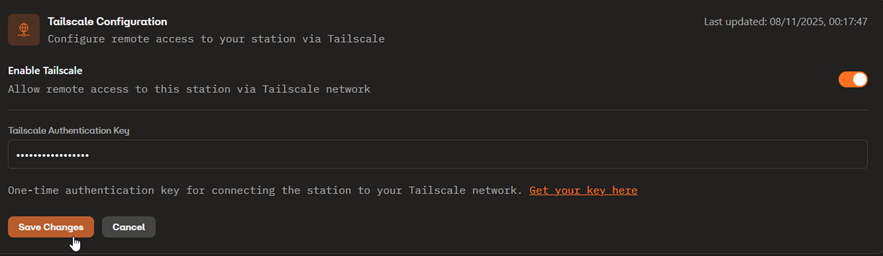
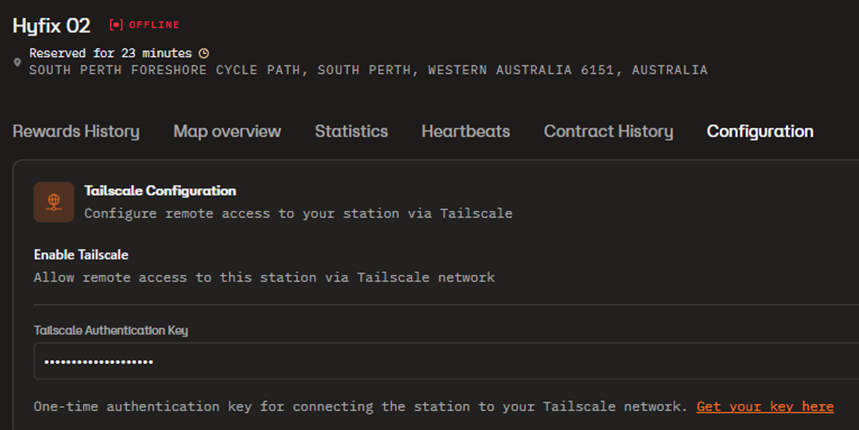
3. Select the Configuration option and click on “Get your key here” in orange.\
   If you are still logged into the Tailscale site it will take you to directly to the Keys section. If not you will need to login when prompted.<br>

   <figure><img src="https://3679411810-files.gitbook.io/~/files/v0/b/gitbook-x-prod.appspot.com/o/spaces%2FQKvxPfdgB2XwoB9Zi3rX%2Fuploads%2Fom9kmi5tth1iEpGQ5tJx%2Fimage.png?alt=media&amp;token=115816ca-8421-49c2-8528-a45c54eb3416" alt=""><figcaption></figcaption></figure>
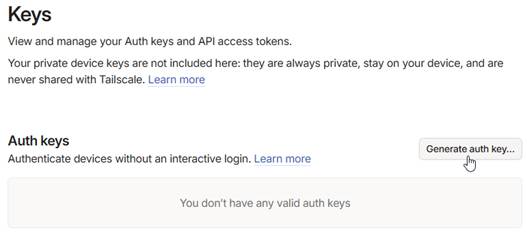
4. On the Tailscale Admin Console, in the Settings - Keys section, click “Generate auth key”

<figure><img src="https://3679411810-files.gitbook.io/~/files/v0/b/gitbook-x-prod.appspot.com/o/spaces%2FQKvxPfdgB2XwoB9Zi3rX%2Fuploads%2FZZCGS2SV9myk4qtzumgO%2Funknown.png?alt=media&amp;token=e657f807-249d-4e4d-85b3-6fe1dfe1b231" alt=""><figcaption></figcaption></figure>

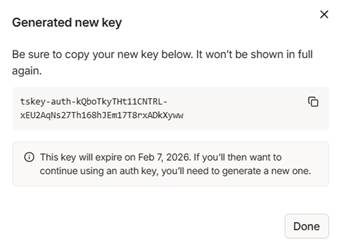
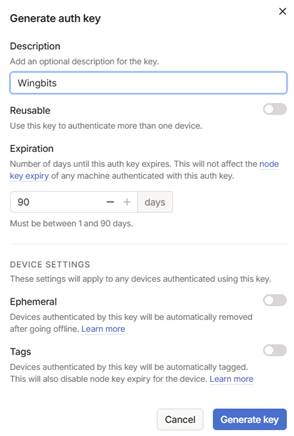
5. Give the key a name and leave the rest of the settings at defaults and click “Generate key”

<figure><img src="https://3679411810-files.gitbook.io/~/files/v0/b/gitbook-x-prod.appspot.com/o/spaces%2FQKvxPfdgB2XwoB9Zi3rX%2Fuploads%2FGPfwVBQxY3ZHXrQZqyf8%2Funknown.png?alt=media&amp;token=e7a18b8e-7f26-4733-bfc8-88c8818d4022" alt=""><figcaption></figcaption></figure>

6. Copy the key to the clipboard by pressing the boxes at the end of the line.

<figure><img src="https://3679411810-files.gitbook.io/~/files/v0/b/gitbook-x-prod.appspot.com/o/spaces%2FQKvxPfdgB2XwoB9Zi3rX%2Fuploads%2FFWyt9XSlxBbXhOn8CZjF%2Funknown.png?alt=media&amp;token=05fb3600-b87a-43bb-8f72-34b70d8834aa" alt=""><figcaption></figcaption></figure>

7. Go back to the Wingbits dashboard and paste the key and hit the “Save Changes” button to save.<br>

   <figure><img src="https://3679411810-files.gitbook.io/~/files/v0/b/gitbook-x-prod.appspot.com/o/spaces%2FQKvxPfdgB2XwoB9Zi3rX%2Fuploads%2FzjRlTnfNt3vhPdThuetQ%2Fimage.png?alt=media&amp;token=95e90fa8-77a6-49b9-bc78-ab44ff0e84d0" alt=""><figcaption></figcaption></figure>
8. Give it 30mins for the station client to pick up the Tailscale config and then you can try to access it.\
   When the station client has associated, you will see it come up in your Tailscale Admin Console under the Machines section.<br>
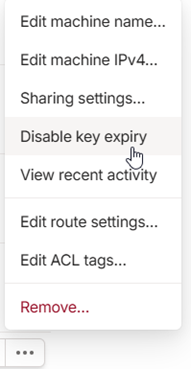
9. For that Machine in Tailscale, you probably want to disable key expiry by selecting the three dots icon at the end of the line and choose “Disable key expiry” otherwise the key will auto expire in the future, and you will have to set it up again.<br>

   <figure><img src="https://3679411810-files.gitbook.io/~/files/v0/b/gitbook-x-prod.appspot.com/o/spaces%2FQKvxPfdgB2XwoB9Zi3rX%2Fuploads%2FA9T8TGMTf4Jyc2m1f0Cp%2Fimage.png?alt=media&amp;token=95762219-9abc-425e-920a-e2b5ff668377" alt="" width="143"><figcaption></figcaption></figure>
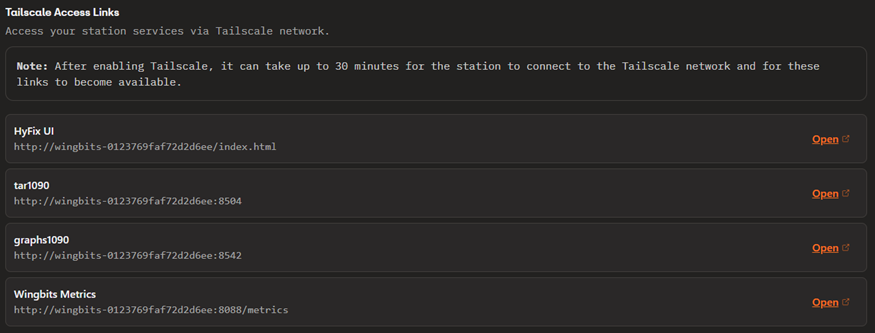
10. Once the station is linked in Tailscale, you can access it with the links on the Configuration page.\
    Note: The first time after linking or a reboot, they can take some time to respond, especially the Tar1090 page and it may require a refresh after it times out.<br>

    <figure><img src="https://3679411810-files.gitbook.io/~/files/v0/b/gitbook-x-prod.appspot.com/o/spaces%2FQKvxPfdgB2XwoB9Zi3rX%2Fuploads%2FO7oZqPsU32vY3Y2cLcl7%2Fimage.png?alt=media&amp;token=8583b7e7-cebc-4d83-a29f-a84f47beb24a" alt=""><figcaption></figcaption></figure>


# Monitor with Grafana cloud

This guide will help you set up monitoring for your Wingbits clients using Grafana Cloud.

## Prerequisites

* A Grafana Cloud account (free tier available at [grafana.com](https://grafana.com))

## Step 1: Install Grafana Alloy

Grafana Alloy is a collector that will gather metrics from your Wingbits clients.

1. Go to https\://{your-grafana-account}.grafana.net/a/grafana-collector-app/alloy
2. Follow the installation instructions
3. Enable Remote Configuration during setup

## Step 2: Configure Metrics Collection

1. Wait a few minutes for your server to appear under *Collector->Fleet Management*
2. Select *Remote Configuration* and click *Create Configuration Pipeline*
3. Choose *Custom Configuration*
4. Paste this configuration (replace the IPs with your Wingbits clients):

```yaml
prometheus.scrape "wingbits_hosts" {
    targets = [
        {__address__ = "192.168.10.1:8088", alias = "station1"},
        {__address__ = "192.168.10.2:8088", alias = "station2"},
    ]
    forward_to = [prometheus.remote_write.default.receiver]
}

prometheus.remote_write "default" {
    endpoint {
        url = sys.env("GCLOUD_HOSTED_METRICS_URL")
        basic_auth {
            username = sys.env("GCLOUD_HOSTED_METRICS_ID")
            password = sys.env("GCLOUD_RW_API_KEY")
        }
    }
}
```

5. Click *Test Configuration Pipeline*
6. Select matching attributes (e.g., os=linux)
7. Save the configuration

## Step 3: Create Dashboard

1. Go to Dashboards → *New → Import*
2. Paste the dashboard JSON below
3. Save and view your metrics

```json
{
  "annotations": {
    "list": [
      {
        "builtIn": 1,
        "datasource": {
          "type": "grafana",
          "uid": "-- Grafana --"
        },
        "enable": true,
        "hide": true,
        "iconColor": "rgba(0, 211, 255, 1)",
        "name": "Annotations & Alerts",
        "type": "dashboard"
      }
    ]
  },
  "editable": true,
  "fiscalYearStartMonth": 0,
  "graphTooltip": 0,
  "id": 27,
  "links": [],
  "panels": [
    {
      "datasource": {
        "type": "prometheus",
        "uid": "grafanacloud-prom"
      },
      "fieldConfig": {
        "defaults": {
          "color": {
            "mode": "palette-classic"
          },
          "custom": {
            "axisBorderShow": false,
            "axisCenteredZero": false,
            "axisColorMode": "text",
            "axisLabel": "",
            "axisPlacement": "auto",
            "barAlignment": 0,
            "barWidthFactor": 0.6,
            "drawStyle": "line",
            "fillOpacity": 0,
            "gradientMode": "none",
            "hideFrom": {
              "legend": false,
              "tooltip": false,
              "viz": false
            },
            "insertNulls": false,
            "lineInterpolation": "linear",
            "lineWidth": 1,
            "pointSize": 5,
            "scaleDistribution": {
              "type": "linear"
            },
            "showPoints": "auto",
            "spanNulls": false,
            "stacking": {
              "group": "A",
              "mode": "none"
            },
            "thresholdsStyle": {
              "mode": "off"
            }
          },
          "mappings": [],
          "thresholds": {
            "mode": "absolute",
            "steps": [
              {
                "color": "green"
              },
              {
                "color": "red",
                "value": 80
              }
            ]
          }
        },
        "overrides": []
      },
      "gridPos": {
        "h": 8,
        "w": 12,
        "x": 0,
        "y": 0
      },
      "id": 1,
      "options": {
        "legend": {
          "calcs": [],
          "displayMode": "list",
          "placement": "bottom",
          "showLegend": true
        },
        "tooltip": {
          "hideZeros": false,
          "mode": "single",
          "sort": "none"
        }
      },
      "pluginVersion": "12.0.0-85820.patch2-86140",
      "targets": [
        {
          "adhocFilters": [],
          "datasource": {
            "type": "prometheus",
            "uid": "grafanacloud-prom"
          },
          "disableTextWrap": false,
          "editorMode": "code",
          "expr": "sum by(alias) (rate(wingbits_readsb_received_total[$__rate_interval]))",
          "fromExploreMetrics": true,
          "fullMetaSearch": false,
          "includeNullMetadata": true,
          "instant": true,
          "interval": "",
          "legendFormat": "__auto",
          "range": true,
          "refId": "A",
          "useBackend": false
        }
      ],
      "title": "readsb recieved",
      "type": "timeseries"
    },
    {
      "datasource": {
        "type": "prometheus",
        "uid": "grafanacloud-prom"
      },
      "fieldConfig": {
        "defaults": {
          "color": {
            "mode": "palette-classic"
          },
          "custom": {
            "axisBorderShow": false,
            "axisCenteredZero": false,
            "axisColorMode": "text",
            "axisLabel": "",
            "axisPlacement": "auto",
            "barAlignment": 0,
            "barWidthFactor": 0.6,
            "drawStyle": "line",
            "fillOpacity": 0,
            "gradientMode": "none",
            "hideFrom": {
              "legend": false,
              "tooltip": false,
              "viz": false
            },
            "insertNulls": false,
            "lineInterpolation": "linear",
            "lineWidth": 1,
            "pointSize": 5,
            "scaleDistribution": {
              "type": "linear"
            },
            "showPoints": "auto",
            "spanNulls": false,
            "stacking": {
              "group": "A",
              "mode": "none"
            },
            "thresholdsStyle": {
              "mode": "off"
            }
          },
          "mappings": [],
          "thresholds": {
            "mode": "absolute",
            "steps": [
              {
                "color": "green"
              },
              {
                "color": "red",
                "value": 80
              }
            ]
          }
        },
        "overrides": []
      },
      "gridPos": {
        "h": 8,
        "w": 12,
        "x": 12,
        "y": 0
      },
      "id": 2,
      "options": {
        "legend": {
          "calcs": [],
          "displayMode": "list",
          "placement": "bottom",
          "showLegend": true
        },
        "tooltip": {
          "hideZeros": false,
          "mode": "single",
          "sort": "none"
        }
      },
      "pluginVersion": "12.0.0-85820.patch2-86140",
      "targets": [
        {
          "adhocFilters": [],
          "datasource": {
            "type": "prometheus",
            "uid": "grafanacloud-prom"
          },
          "disableTextWrap": false,
          "editorMode": "code",
          "expr": "sum by(alias) (rate(wingbits_server_sent_total[$__rate_interval]))",
          "fromExploreMetrics": true,
          "fullMetaSearch": false,
          "includeNullMetadata": true,
          "instant": true,
          "interval": "",
          "legendFormat": "__auto",
          "range": true,
          "refId": "A",
          "useBackend": false
        }
      ],
      "title": "server sent",
      "type": "timeseries"
    }
  ],
  "preload": false,
  "schemaVersion": 41,
  "tags": [],
  "templating": {
    "list": []
  },
  "time": {
    "from": "now-5m",
    "to": "now"
  },
  "timepicker": {},
  "timezone": "browser",
  "title": "wingbits",
  "uid": "0681a362-4b83-45ac-af58-4eecb1f84034",
  "version": 2
}
```

Your dashboard will now show two graphs:

* Readsb received: Shows the rate of data received by your Wingbits clients
* Server sent: Shows the rate of data sent by your server


# TGE Status Summary

Primary details about the TGE and Mainnet launch.

## What is TGE?

A **Token Generation Event (TGE)** is the moment when a crypto project officially mints/creates and distributes its tokens for the first time. It marks the transition from development and testing into a live ecosystem where tokens can circulate and be used.

For Wingbits, Mainnet and TGE were synonymous as we minted the token on the blockchain and opened claiming for rewards on mainnet around the same time.

## Token information

<table data-full-width="false"><thead><tr><th></th><th></th></tr></thead><tbody><tr><td><strong>Blockchain</strong></td><td>Solana</td></tr><tr><td><strong>TGE Date/Time</strong></td><td>April 22, 2026 - 15:00 UTC</td></tr><tr><td>Token Name</td><td><a href="https://explorer.solana.com/address/WingsAYbfs4qnEgcw8jpSvetqp8XHM3GkKvow54WLcd">WINGS</a></td></tr><tr><td><strong>Token Address</strong></td><td><a href="https://explorer.solana.com/address/WingsAYbfs4qnEgcw8jpSvetqp8XHM3GkKvow54WLcd">WingsAYbfs4qnEgcw8jpSvetqp8XHM3GkKvow54WLcd</a></td></tr><tr><td><strong>Token Supply</strong></td><td>10 billion</td></tr><tr><td><strong>Exchanges</strong></td><td>CEX: <a href="https://www.kraken.com/">Kraken</a><br>DEX: <a href="https://www.orca.so/pools/yXQzwv3hGxpEyaxPtbsQJdY31vjfh8E6fuVoGvYshio">Orca</a>, <a href="https://raydium.io/swap/?inputMint=WingsAYbfs4qnEgcw8jpSvetqp8XHM3GkKvow54WLcd&#x26;outputMint=EPjFWdd5AufqSSqeM2qN1xzybapC8G4wEGGkZwyTDt1v">Raydium</a></td></tr></tbody></table>

## TGE Events

### High-level details

* Phase 1: **Bonding Curve**. WINGS first became available through a bonding curve on Orca DEX around 10 minutes before scheduled launch. This step bootstrapped liquidity from real demand rather than artificially seeded markets.
* Phase 2: **Liquidity Deployment**. Once the bonding curve completed, the collected assets were used to automatically seed the main liquidity pool on Orca. A secondary pool was also planned on Raydium.
* Phase 3: **Open Market Trading**. After pools went live, trading opened on both CEX and DEX venues. Claimable rewards also became withdrawable from the dashboard to a Solana wallet.

### Important Notes

* This approach created organic price discovery, so trading opened with real demand-driven liquidity rather than assumptions.
* Pool launch timing depended on how quickly the bonding curve completed, up to a maximum of 10 minutes.
* Launch involved live coordination across several partners, and updates were shared throughout the rollout.

## Other TGE Related Events

### Token Refund - Original SkyHex Plan

{% hint style="info" %}
Refunds were processed after TGE launch and an issue was found. We reverted the refund tokens added to claimable and are re-issuing on April 23rd for those that didn't claim already.
{% endhint %}

Within 7 days of launch, refunds are being made available for claim for those who participated in the original SkyHex plan and purchased coverage hexes. These are the people who opted for a token refund at TGE and not an immediate fiat refund. Originally the payout was defined as a 12 month payout post-TGE, but it has been revised to a full one time payout.

* **Alpha participants** (online with station before November 3rd, 2023) will get 150% of hex purchase value in tokens.
* **Beta participants** (online with station on/after November 3rd, 2023) will get 110% of hex purchase value in tokens.


# Claiming Grace Period

### **What's the Claim Grace Period?**

All earned tokens will have a 7-day grace period before they become claimable. This means your daily rewards will be visible in your dashboard immediately but become available to claim after 7 days.

### **Why We Do This?**

Following best practices from successful projects in the space, this security buffer protects against unforeseen issues and ensures accurate token distribution. This is about protecting the long-term value and stability of the network for everyone.

**How It Works:**

* Earn today (for previous day) → Rewards placed in Pending
* After 7 days in Pending → Rewards available as Claimable

### **Important Notes for Beta Participants:**

* Your total beta rewards are based on all earnings prior to the 7 days before Mainnet.
* You'll have claimable tokens ready from day one.
* New stations on Mainnet follow the standard 7-day wait before their first rewards become claimable.


# What is a CEX/DEX?

A DEX (Decentralized Exchange) is a cryptocurrency trading platform that operates without a central authority, intermediary or custodian.

Unlike traditional centralized exchanges (CEXs), such as Binance, Bybit, and Coinbase, DEXs run on blockchain technology using smart contracts to facilitate peer-to-peer (P2P) trading directly between users' wallets.

In other words, a DEX fulfills one of crypto's core responsibilities: to enable financial transactions without the use or supervision of a middleman. Popular DEX platforms include Uniswap, PancakeSwap, Raydium, and Jupiter.

## How DEX trading works

When you trade on a DEX, you interact directly with smart contracts deployed on the blockchain. Your tokens never leave your wallet custody until the exact moment of trade execution.

Your wallet must be connected to the DEX interface to initiate trades. Each transaction requires blockchain gas fees.

## DEX vs CEX comparison

Centralized Exchanges (CEX) characteristics:

* Require account creation and often KYC verification
* Hold custody of your funds while trading
* Can freeze accounts or halt trading
* Offer customer support and insurance
* Generally higher liquidity and tighter spreads

Decentralized Exchanges (DEX) advantages:

* No account registration required
* You maintain custody of your funds at all times
* Cannot be shut down by any single authority
* Available 24/7 without maintenance windows
* Access to new tokens immediately upon launch
* Privacy-focused trading without KYC requirements


# Devnet wallet and rewards

## Current blockchain status

Wingbits project is on Mainnet on the Solana blockchain.\
\
All rewards that were distributed on devnet were test tokens with zero value. All beta rewards are being redistributed on Mainnet, as explained below.

## Current Wingbits rewards claiming

* Tokens claimed using the Wingbits dashboard claim functionality are distributed on mainnet cluster.
* Token does not need to be added to the wallet prior to claiming.
* New stations will not have a claimable balance until the rewards engine runs after midnight UTC the day the station starts contributing data.
* Initial "owner" wallet additions will not show a claimable balance until after the next nightly rewards calculation.

## Mainnet transition

Wingbits now runs all live token functionality on Mainnet only and devnet tokens are abandoned. This does not mean any previously rewarded tokens are lost. Instead, they are being distributed again on Mainnet under the schedule below. Think of devnet as a trial run with test tokens.

You can see your account/rewards transition details if you are logged in by going to your [Beta Rewards Journey](https://wingbits.com/dashboard/tge) page. The concepts on that page are explained in more detail below as well.

## Beta (retroactive) rewards and potential bonus

Seven days before Mainnet launched, we took a snapshot of all rewards earned on your account. These are referred to as "beta rewards." They include rewards from all stations under your account from the beginning of your participation, even if a station was later deleted.

These are being reissued as claimable rewards on Mainnet at a 1:1 ratio over 365 days. All beta rewards receive a 20% bonus if you maintain at least one station online daily that generated rewards for the prior day.

### Day 1 mainnet unlock

5% of your total beta rewards were unlocked in a lump sum immediately after TGE launch and are claimable to your wallet. This 5% also includes a 1.2x multiplier so all beta rewards can benefit from the bonus.

### Days 1-365 of mainnet

Remaining 95% of your total beta rewards will be claimable evenly over 365 days. For that your account will be checked for at least one online (generated rewards) station the previous day.

* If a station was online the previous day, your beta rewards for the day will be multiplied by 1.2.
* If no station was found to be online during the previous day, you will get the beta rewards without the bonus.

#### Example:

You earned 10,000 tokens before Mainnet...

* Week 1 (mainnet): 600 tokens unlocked immediately (5% base = 500 tokens + 20% bonus = 100 tokens)
* Days 1-365: 9,500 tokens claimable over 12 months (\~26 tokens/day)
  * Station online: \~26 tokens x 1.2 = \~31.23 tokens,
  * Station offline: \~26 tokens

{% hint style="info" %}
We may implement a station quality factor check, during the first 365 days of mainnet, which must be passed to qualify for the bonus to daily beta rewards.
{% endhint %}

## **Why are my rewards called "beta" rewards and not "alpha" rewards?**

We call them "beta" rewards because Wingbits entered its Beta phase in November 2023, and during that phase is when our current rewards system started.

Even though some of you joined during our Alpha phase (June-November 2023), everyone now earns rewards under the system we launched during beta phase. That's why all rewards in your dashboard show as "beta" - it's just the name of our current rewards program.

Don't worry - this is just a label. It doesn't change how much you earn or affect your retroactive rewards now that we're on Mainnet. Whether you joined in Alpha or Beta, all your data is being tracked and you'll be rewarded for everything you've contributed.


# Security Guide

## Security Guidelines

Protecting your tokens and accounts is critical, especially around major events like the Token Generation Event (TGE). Below are common scam tactics, recommended practices, and ways to keep your station and wallet safe.

***

### TGE-Specific Scam Warnings

Scammers become more active around high-profile events like TGE. Be alert for:

* **Fake airdrops or giveaways** - “Claim your bonus tokens” links are almost always scams.
* **Impersonation accounts** - attackers posing as Wingbits team members, moderators, or support staff... who are not on the Wingbits server but still may have "| Wingbits" in their name.
* **Urgent DMs** - scammers pressuring you to act quickly (“limited time,” “must verify now”).
* **Fake websites** - links that look like official dashboards but are designed to steal private keys.
* **Emails** - emails that do not come from the wingbits.com domain and contain information not announced also in Discord.

***

### Recommended Security Practices

* **Turn off Discord DMs** from non-friends to avoid unsolicited scam messages.
* **Stay in the official server** - never follow invites to other servers claiming to be “official" or "support".
* **Never click suspicious links** - always double-check URLs before interacting.
* **Do not share your seed phrase or private keys** - no legitimate reason will ever require this.
* **Use hardware wallets or cold wallets when possible,** for maximum security.

***

### How to Verify Official Announcements

* **Official announcements** will only come from the `#announcements` channel in the Wingbits Discord and the official website.
* **Cross-check dates and details**, from other sources, with pinned posts or blog updates.
* **Look for official team roles** - only accounts on the server with "**Team**" and "**Team also**" can speak on behalf of Wingbits. We may have accounts with the "Moderator” role, who are there to help answer general questions and guide you to the appropriate documentation.
* **Never trust screenshots** or forwarded messages as proof of authenticity.

***

### Support Scams

* Support is only available via the Wingbits website using the Chat icon on the bottom right of every page.
* Support does not use another Discord server, will not invite you to another server, and will never DM you first.
* Support staff will **never** ask you for:
  * Your seed phrase or private keys.
  * Direct wallet access.
  * To send tokens for “verification” or “unlocking.”
  * Your account password.

***

### Reporting Scam Attempts

If you encounter suspicious activity:

1. **Do not engage** with the scammer.
2. **Collect evidence** — screenshots, usernames, and any links provided.
3. **Report in the official server** using the `#report-scams` channel.
4. If the scam attempt was on Discord, use the **“Report”** feature to notify Discord directly.

***

✅ **Remember**: Staying safe is about skepticism. If something feels urgent, secret, or “too good to be true,” it almost always is.

***

## Quick Safety Checklist

* 🔒 If on Discord, **Turn off Discord DMs** from non-friends.
* 📢 **Trust only official channels** (`#announcements` on discord + official website).
* 🚫 **Never click suspicious links** or join “new official” servers or any for "support".
* 🛑 **Never share seed phrases, private keys, or passwords** — support will never ask.


# FAQ

Below are common questions about Mainnet and claiming.

<details>

<summary>Will I have to setup the Wingbits token in my wallet?</summary>

No, Wingbits will handle the process. When you claim rewards it will require no additional action.

</details>

<details>

<summary>My dashboard shows different amount than devnet wallet balance, is that normal?</summary>

Before TGE, various testing phases created cases where your "All" rewards total differed significantly from your devnet wallet balance, even if you claimed all your unclaimed rewards. This is expected. You can abandon your devnet token as all rewards are now being redistributed on mainnet.

</details>

<details>

<summary>When can I claim my rewards?</summary>

Mainnet claiming opened on April 22, 2026. You can claim your rewards now.

</details>

<details>

<summary>What if I don't claim for several days?</summary>

When you claim is entirely up to you and how you wish to manage them for tax purposes.

</details>

<details>

<summary>What happens to unclaimed rewards?</summary>

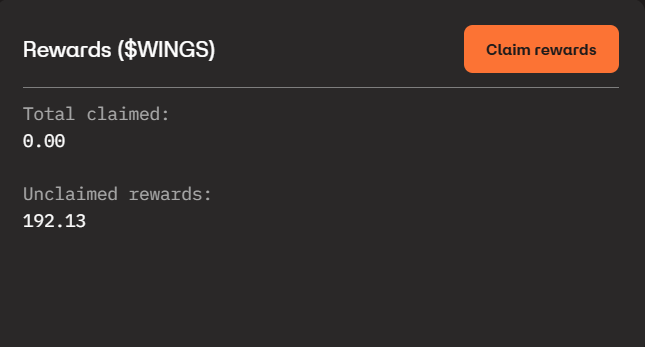
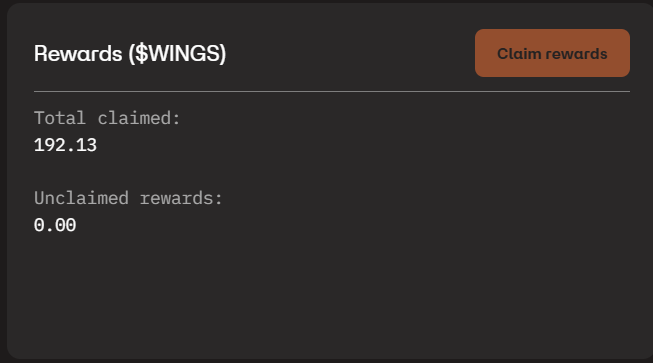
All earned rewards will be visible as "Unclaimed rewards" in the claim panel until you claim. Once you claim they will move to "Total claimed".

</details>

<details>

<summary>What happens if a rewards claim fails?</summary>

Any claim failures due to wallet issues or blockchain issues will result in those rewards being in an unclaimed but unclaimable state, which requires dev team intervention. No tokens are lost. Contact support via the chat link on the bottom right of any [dashboard](https://wingbits.com/dashboard) page.

</details>

<details>

<summary>Who pays the Solana fees on rewards claims?</summary>

The Wingbits project, as the sender of the tokens, will pay Solana fees for the transaction.

</details>

<details>

<summary>Can I change my wallet address?</summary>

You can [change your wallet](/general-help/add-wallet-address-to-your-account) at any time. Claims will be performed against the wallet that is saved in the system at the time of claiming.

</details>

<details>

<summary>Can I claim to a different wallet than my registered one?</summary>

For owner rewards, any claims will be sent to your owner wallet. Host rewards will be sent to the wallet setup either by the owner (for anonymous host setup) or by the host (for hosts with accounts).\
\
If you have lost access to your current wallet or it has been compromised, the wallet can be updated before claiming any unclaimed tokens by using [the normal process](/general-help/add-wallet-address-to-your-account#wallet-setup-steps).

</details>


# Wallet Management

## Wallet Setup Options

When setting up station wallets, there are three ways to configure how rewards are distributed and claimed:

### Owner Only

* All rewards go to the owner’s wallet.
* Applies by default to any station not configured with a host wallet.

### Owner + Host (No Account / Anonymous)

* A host wallet can be added with a defined percentage of rewards.
* When the owner claims, that share goes to the host wallet and the remainder goes to the owner.
* The host has no Wingbits account, only the wallet address is used.

### Owner + Host (With Account / Email)

* An existing Wingbits account can be added as host.
* Works like the anonymous option, except the host sets their own wallet address and **claims rewards independently**.
* The owner still controls the reward percentage, but the host decides when to claim (useful for managing tax events).

## Wallet Setup Steps

{% hint style="warning" %}
Wallet related actions require MFA/2FA verification (multifactor or two-factor authentication), to make sure you are actually the one modifying how your rewards are changed.
{% endhint %}

### Owner wallet

Your owner wallet is the default wallet for all stations without host rewards splitting setup. It is also the default wallet to receive any rewards not allocated to hosts (when splitting is setup).

Added on the [WALLETS](https://wingbits.com/dashboard/wallets) page of the Dashboard when logged in, using the "+ Add wallet" button.

Just enter an alias for the "Wallet name" as something you can easily understand to mean this public wallet address, then also copy/paste the public Solana address you obtained from your wallet app. Click "Save" when done.

<figure><img src="https://3679411810-files.gitbook.io/~/files/v0/b/gitbook-x-prod.appspot.com/o/spaces%2FQKvxPfdgB2XwoB9Zi3rX%2Fuploads%2FR2z22Civ4EuDwMXl1vSz%2Fimage.png?alt=media&amp;token=0202f82f-f039-4f34-9253-365eed1129cc" alt=""><figcaption></figcaption></figure>

{% hint style="info" %}
To update your owner wallet, go to the same WALLETS page, click on the 3 dots to the right of the current wallet, click "Edit", then update the Wallet address.
{% endhint %}

### Host wallet - Anonymous

Added under each station on the [MY STATIONS](https://wingbits.com/dashboard/stations) page of the Dashboard, when logged in, using the 3 dots menu and selecting "Assign Host":

1. Choose "Wallet (Anonymous)"
2. Under "Host wallet" enter the the host's public wallet.
3. Update the "Host percentage". This is the percentage of the rewards for this station, your owner wallet will get the remaining percentage. Both owner and host wallets will get their percentages when **you claim**.
4. Click "Assign Host"

<figure><img src="https://3679411810-files.gitbook.io/~/files/v0/b/gitbook-x-prod.appspot.com/o/spaces%2FQKvxPfdgB2XwoB9Zi3rX%2Fuploads%2Ftcvwf6efbgwAkKJiMgWz%2Fimage.png?alt=media&amp;token=21403350-5f9d-48e8-a95d-9e1ad079f74e" alt=""><figcaption><p>Setup host wallet for host without account</p></figcaption></figure>

### Host wallet - Email Account

Added under each station on the [MY STATIONS](https://wingbits.com/dashboard/stations) page of the Dashboard when, logged in, using the 3 dots menu and selecting "Assign Host":

1. Choose "Email (Account)"
2. Under "Host email address" enter an existing Wingbits account email (have the host create an account if they don't have one created already).
3. Update the "Host percentage". This is the percentage of the rewards for this station, your owner wallet will get the remaining percentage when **you claim**. They will get their percentage when **they claim**.
4. Click "Assign Host"

<figure><img src="https://3679411810-files.gitbook.io/~/files/v0/b/gitbook-x-prod.appspot.com/o/spaces%2FQKvxPfdgB2XwoB9Zi3rX%2Fuploads%2FvSqNL88LnqN23d3Z2BCI%2Fimage.png?alt=media&amp;token=d9eee070-82c9-4cb3-a3ae-002ec1b59293" alt=""><figcaption><p>Setup host wallet for host with account</p></figcaption></figure>

### Update Host wallet (either)

Under each station on the [MY STATIONS](https://wingbits.com/dashboard/stations) page of the Dashboard, when logged in, click the 3 dots menu and select "Update Host Contract".

From that point, you can follow the above setup options depending on how you want to setup the host.

### Remove Host from Station

Under each station on the [MY STATIONS](https://wingbits.com/dashboard/stations) page of the Dashboard, when logged in, click the 3 dots menu and select "Remove Host". The station will now be 100% owner wallet rewarded.


# Claiming Rewards

Claiming rewards is pretty simple on the Wingbits site.

### Prerequisites

* [Have your main "owner" wallet added](/general-help/add-wallet-address-to-your-account)
* Have at least 1 days worth of rewards sitting in "Unclaimed rewards" (if you just added wallet(s), you will need to wait for the next rewards engine nightly run currently)

{% hint style="info" %}
Be aware of how the [claiming grace period](/tge-mainnet/claiming-grace-period) works in the project. This will be more obvious the first 7 days of participation.
{% endhint %}

### Claim Rewards UI Area

On the top left of your Overview page, you will see a box that contains the Claim Rewards button and how many rewards you have already claimed and also how many rewards are currently unclaimed.

If you have unclaimed rewards, click the "Claim rewards" button.

<figure><img src="https://3679411810-files.gitbook.io/~/files/v0/b/gitbook-x-prod.appspot.com/o/spaces%2FQKvxPfdgB2XwoB9Zi3rX%2Fuploads%2FCCGupLvppSlvis8TGuQX%2Fimage.png?alt=media&amp;token=0d5e047b-eb4b-416a-a2f7-24acffda73f9" alt=""><figcaption></figcaption></figure>

### Confirm Claim Details

The next screen will list out all the proposed claim details. If you only have an owner wallet, you will see the screen below\... with the receiving wallet address and the amount of tokens to claim. If you have one or more host wallets (due to multiple stations with hosts for each), you will see all the host wallets listed as well and the amount of tokens that will be claimed for each.

<figure><img src="https://3679411810-files.gitbook.io/~/files/v0/b/gitbook-x-prod.appspot.com/o/spaces%2FQKvxPfdgB2XwoB9Zi3rX%2Fuploads%2FRNk6SixTyhDlhOpQxPxT%2Fimage.png?alt=media&amp;token=44aed644-73a1-40fa-862e-b6588962a4ad" alt=""><figcaption></figcaption></figure>

### Claim Success

If the claim was successful, you will see the following screen confirming that your claim(s) has/have been queued and you should see the updated Solana wallet transactions within a few minutes. Please refer to the page on [devnet wallet and rewards](/tge-mainnet/devnet-wallet-and-rewards) relating specifically to how this currently functions in project beta and on Solana devnet.

<figure><img src="https://3679411810-files.gitbook.io/~/files/v0/b/gitbook-x-prod.appspot.com/o/spaces%2FQKvxPfdgB2XwoB9Zi3rX%2Fuploads%2FzMqyEYrvTiw7V5KCA5Do%2Fimage.png?alt=media&amp;token=e5577ec1-affa-4dd3-b172-df591b94d10a" alt=""><figcaption></figcaption></figure>

### Claim Failure

If you have a claim failure, your issue might require team investigation of the issue, so please reach out to Wingbits support via the Chat icon shown on the bottom right of every page. Provide all the details regarding the failure (screenshots can be handy) and ask the bot for an agent or human.

### Updated Claim Rewards UI Area

Once you have successfully claimed, the Overview page's claim area should be updated to reflect the "unclaimed" tokens have moved to "claimed".

<figure><img src="https://3679411810-files.gitbook.io/~/files/v0/b/gitbook-x-prod.appspot.com/o/spaces%2FQKvxPfdgB2XwoB9Zi3rX%2Fuploads%2FOB2YnF955jUgkvIEvp7w%2Fimage.png?alt=media&amp;token=ae98ec84-97a7-4446-8b57-32a5eb8a3f6b" alt=""><figcaption></figcaption></figure>


# Change Location

You can change the location of a station whether the location is currently reserved for a future install or the station has been online already. If the location you are moving is a reservation, the reservation time will be moved to the new location.

The only requirement to move successfully is that the location hex you wish to move to is available (not already reserved or claimed).

### Edit location

1. Go to your [MY STATIONS](https://wingbits.com/dashboard/stations) page on the dashboard
2. Locate the station that you wish to move
3. Click on the 3 dots on the far right, then click Edit
4. Enter the new latitude and longitude, then click Continue
5. On the resulting screen click Save Changes

Finally, double check the new reserved/claimed location hex contains your install spot.

This is an easter egg.


# Change Password

To change the password for your Wingbits account, follow the below steps.

{% hint style="info" %}
Ensure you have any current popup blockers disabled. If you have any issues with finding or clicking the "Forgot password?" link below, [click here](https://wingbits.com/forgot).
{% endhint %}

### Forgot password

On the login page, click the "Forgot password?" link above the password field.

<figure><img src="https://3679411810-files.gitbook.io/~/files/v0/b/gitbook-x-prod.appspot.com/o/spaces%2FQKvxPfdgB2XwoB9Zi3rX%2Fuploads%2F3rPCPisw78fDQcom359p%2Fimage.png?alt=media&amp;token=f694c8e1-5279-49cf-8e58-6829ad39d11c" alt=""><figcaption><p>Login page</p></figcaption></figure>

### Enter email address

Now enter your Wingbits account email address in the Email field and click "Send reset link"

<figure><img src="https://3679411810-files.gitbook.io/~/files/v0/b/gitbook-x-prod.appspot.com/o/spaces%2FQKvxPfdgB2XwoB9Zi3rX%2Fuploads%2FP3Qq93cxjwL1yUeOVOgc%2Fimage.png?alt=media&amp;token=fa38d848-94f4-4144-8691-99f968fd46b3" alt=""><figcaption><p>Forgot your password panel</p></figcaption></figure>

### Check your e-mail

Go check your email account for an email from Wingbits with a subject of "Your verification code" and look inside for the 6 digit code, then click the "Go to reset" button on the following panel.

<figure><img src="https://3679411810-files.gitbook.io/~/files/v0/b/gitbook-x-prod.appspot.com/o/spaces%2FQKvxPfdgB2XwoB9Zi3rX%2Fuploads%2Fl2CvDCfuJPOM6T8BDt0T%2Fimage.png?alt=media&amp;token=1b43e034-a4cf-4b1d-98c3-fb2c42d707d2" alt=""><figcaption><p>Check your e-mail panel</p></figcaption></figure>

### Change password

Enter your new password in the Change password panel, both in the first box and the second box to confirm. Then copy the verification code from that email into the "Reset code" field and click the "Change password" button.

<figure><img src="https://3679411810-files.gitbook.io/~/files/v0/b/gitbook-x-prod.appspot.com/o/spaces%2FQKvxPfdgB2XwoB9Zi3rX%2Fuploads%2FaUkcMeNZz9rOJCOwMmiw%2Fimage.png?alt=media&amp;token=ff0bf142-8d4c-44b1-b1a2-67c7cb4b60c4" alt=""><figcaption><p>Change password panel</p></figcaption></figure>

### Password changed!

Provided your emails matched and the verification code was still valid (expires after 15 minutes), you should see the following results and be able to click on "Go to login" to use your new password along with your Wingbits account email address.

<figure><img src="https://3679411810-files.gitbook.io/~/files/v0/b/gitbook-x-prod.appspot.com/o/spaces%2FQKvxPfdgB2XwoB9Zi3rX%2Fuploads%2FZqrr0Sbc6jN96boOwlVH%2Fimage.png?alt=media&amp;token=782962c9-94b2-4e1d-88c7-12db90bfb3a0" alt=""><figcaption><p>Password changed!</p></figcaption></figure>


# Station Transfers

### Overview

This process is appropriate for anyone that wants to buy/sell (transfer) a station to another participant. This applies to all approved hardware stations (such as a Hyfix MGW310) and Geosigners (BYOD).

These instructions can also be followed for anyone looking to move an existing station to another account they manage (perhaps for a family member).

{% hint style="info" %}
If the approved hardware or geosigner has not been linked to a station on the network already, none of this is necessary. But, you may still want to run through the instructions to clean up your account's stations list.
{% endhint %}

## Seller's Steps

### Delete the station

Steps:

1. Go to your [MY STATIONS](https://wingbits.com/dashboard/stations) page on the dashboard
2. Locate the station that you wish to unlink/release prior to sale
3. Click on the 3 dots on the far right, then click Delete
4. You will see a popup prompt confirming the station name and that you want to delete, double check the name.
5. Click Delete.

Your station will be unlinked from your account, removed from the stations list, and any associated host will be also removed from the station.

{% hint style="info" %}
You don't lose any unclaimed rewards when deleting a station and the rewards history for that station will still show in on your Overview page's chart.
{% endhint %}

### Reset the device

After deleting the station from your account, if the approved device supports it, please reset to factory defaults before handing it over to someone else. This allows them to follow the normal onboarding process.

Geosigners are self-contained and have nothing to reset, but you still need to unlink them from your account/station using the deletion steps above.

## Buyer's Steps

### Confirm hardware was unlinked

If you are a buyer, verify with the seller that they have followed the [#sellers-steps](#sellers-steps "mention")above prior to selling/transfering the device to you.

{% hint style="warning" %}
If they have not unlinked the hardware by deleting the associated station, you will not be able to onboard and our support will be unable to help.
{% endhint %}

### Onboard normally

You will want to locate the pages on this docs site for creating a station and onboarding the device. From a Wingbits perspective, you are a participant with a brand new device (new to you).


# Station Replacement

### Steps to replace the station

If you’re replacing your Wingbits station hardware (for any reason), here’s the proper procedure to follow:

{% stepper %}
{% step %}

### Don't delete current station

Keep your current station on the Wingbits dashboard until your new device has arrived and you're ready to install it.\
\
*NOTE: Deleting it early will unlink the device and release your hex, making it available for someone else to reserve. Don't do this!*
{% endstep %}

{% step %}

### Get replacement station

Once your replacement device is in hand and ready to install, go ahead and delete the existing station from your Wingbits dashboard.
{% endstep %}

{% step %}

### Clear browser cache

Press Shift+Ctrl+R in your browser to fully refresh the page's cache (clears any cached location claim/reservation).
{% endstep %}

{% step %}

### Register new station

Create a new station in your Wingbits account using the same location as before.

This will start a new 48-hour reservation period to complete onboarding and linking of your new device, following the [normal setup](/hyfix) and [onboarding steps](/hyfix/wingbits-onboarding).
{% endstep %}
{% endstepper %}

### Additional notes

* You will not lose the rewards from the replaced station.
* Your rewards for the replaced station will still be visible on the rewards chart and paid out as expected.
* The new station will appear as a new color on the Overview page rewards chart.
* You will no longer see the replaced station on the My Stations page.


# Wingbits Litepaper

Version: 2026-04-22

## Summary

Wingbits is a community-powered flight tracking network that rewards data providers and delivers accurate flight tracking services to traditional enterprises and users. It allows anyone to participate by becoming a station operator and earn token rewards for collecting and providing ADS-B data.

The Wingbits token $WINGS is the utility token of the network, incentivizing participation, enabling transactions, and ensuring fair compensation for contributors. Our goal is to increase global flight observation density and improve the accuracy of flight information, especially for regions lacking in aviation infrastructure, while assisting aviation-sensitive businesses and organizations to optimize their operations.

Wingbits is designed (technically and financially) in such a way that the interests of all participants are aligned.

## 1. What is Wingbits?

### 1.1 The Wingbits project

Wingbits is a global flight tracking network which collects ADS-B (Automatic Dependent Surveillance-Broadcast) data transmitted by aircraft via a community of station hosts located all over the world. The company aggregates, cleans, and enriches the data, which is then sold to data buyers around the globe. How Wingbits is differentiated from the competition comes down to the model, network, and hardware.

Wingbits runs as a DePIN project on the Solana network and distributes rewards to its data providers based on performance. This approach allows Wingbits to optimize the network and increase its commercial value by creating strong incentives for data providers to optimize their stations, both in terms of hardware and location. Additionally, it enables Wingbits to strategically expand in areas that provide a competitive edge. This can be achieved by increasing rewards or issuing bounties in specific areas, such as airports or future vertiport locations, to encourage deployment, something none of the competitors can match.

### 1.2 Our value

ADS-B data is a type of aircraft tracking data that is transmitted by aircraft in real-time. It includes information such as the aircraft's position, velocity, altitude etc., and is broadcast to other aircraft and ground-based stations. This technology is becoming increasingly common in aviation, as it provides more accurate and up-to-date information about aircraft movements, enabling better air traffic management and improved safety.

The core value that we provide is the flight tracking data feeds for both live and historic flights. This is valuable for developers to easily access real-time aircraft data and integrate it into their applications. There are a variety of potential clients, including:

* Aviation companies: Airlines, charter companies, and other aviation-related businesses could use ADS-B data to improve their operations and provide more accurate and up-to-date information to their customers.
* Air traffic control organizations: National and regional air traffic control organizations could use ADS-B data to better manage traffic flow and improve safety in their airspace.
* Financial sector: Aircraft lessors, asset managers, and insurance companies need accurate ADS-B data for compliance tracking, overflight fee reconciliation, and fleet risk assessment.
* MRO & engine manufactures: Operational insights from ADS-B data help refine product designs and improve service offerings. These include “power by the hour” billing models, engine health monitoring, and predictive maintenance.
* Data analytics & carbon accounting: ADS-B data powers analytics for operational efficiency, carbon footprint tracking, and route optimization.
* Emergency services: Police, fire, and other emergency services could use ADS-B data to quickly locate aircraft in distress and provide assistance in emergency situations.
* Aviation enthusiasts: Aviation enthusiasts, such as plane spotters and hobbyists, could use ADS-B data to track aircraft and monitor flight patterns.
* Researchers and academics: Researchers and academics studying air traffic patterns, weather, and other aviation-related topics could use ADS-B data to conduct research and gather insights.

## 2. How does it work?

### 2.1 Coverage

Our mission is to offer stable and affordable global coverage while still rewarding stations who provide the data. Anyone in the world can become a Wingbits participant and get rewarded for monitoring the skies.

To build a more efficient network, we created a reliable and cost-effective coverage model using Uber's h3 hex system at resolution 3. This system divides the globe into unique hexagons, each with a distinct code. Our coverage is similarly segmented, with sky sections monitored by our data providers.

<figure><img src="https://3679411810-files.gitbook.io/~/files/v0/b/gitbook-x-prod.appspot.com/o/spaces%2FQKvxPfdgB2XwoB9Zi3rX%2Fuploads%2FrXEbjWwfQyqNHotV1mvY%2Fh3.be6d0548eb448072ac94.png?alt=media&amp;token=4c5d3812-58a0-4074-939e-dd68ceda27d3" alt=""><figcaption><p>Visual example of H3 hexes mapped on the globe, shown at resolution 1 and 2.<br>These hex resolutions are not used in our system.</p></figcaption></figure>

### 2.2 Asserting location

Once a station is registered on the system it will be assigned a location area (h3 hex at resolution 6) for a given time window. When the station starts contributing positional flight messages to Wingbits servers, within that time window, the location area will be claimed by that station. No other station can be installed in a claimed location area.

The goal of this location area management is to prevent over-saturation of rewards while still providing the data quality necessary for customers.

{% hint style="info" %}
These location areas (res 6 hexes) are not related to station rewards.
{% endhint %}

Any location area(s) may be enabled or disabled for new onboardings based on regular reviews of project data coverage and redundancy performance of the coverage (rewards) hexes, by Wingbits.

### 2.3 Rewards

The flight tracking industry relies on volunteers who run stations at their own expense to collect data. However, this system may be seen as unfair. To address this, we have implemented a solution using blockchain technology to tokenize the data and reward the stations in a transparent and equitable manner based on their contribution.

Rewards for our data providers are allocated using the coverage model. In this model, each resolution 3 hexagon provides a fixed daily reward, distributed among providers based on the amount of data sent and their commitment to the network via uptime. This model also aligns rewards with each participant's capabilities, aiding in our mission to establish widespread and dependable global coverage.

## 3. Tokenomics

$WINGS is a Solana SPL token with a fixed supply of 10 billion tokens, allocated as in the table below. In total, 51% of all tokens are allocated for the community and community support related initiatives.

<figure><img src="https://3679411810-files.gitbook.io/~/files/v0/b/gitbook-x-prod.appspot.com/o/spaces%2FQKvxPfdgB2XwoB9Zi3rX%2Fuploads%2Fgit-blob-abcd7008a101b865e28dcc789a2afc27604fdfb9%2Fwings-token-allocation.png?alt=media" alt=""><figcaption></figcaption></figure>

<table data-header-hidden><thead><tr><th width="149">%</th><th width="217.1817626953125">Usage</th><th>Details</th></tr></thead><tbody><tr><td><strong>Allocation %</strong></td><td>U<strong>sage</strong></td><td><strong>Details</strong></td></tr><tr><td>40%</td><td>Daily Station Rewards</td><td>4B tokens are reserved purely for contributor rewards, given to station owners for providing data to the network.</td></tr><tr><td>11%</td><td>Ecosystem</td><td>1.1B tokens will be used for ecosystem growth initiatives and token-related ops and management; Exchanges: 2%, Market makers: 1%, Treasury: 3%, Liquidity: 3%, Marketing initiatives: 2%</td></tr><tr><td>24.5%</td><td>Investors &#x26; Early Backers</td><td>Allocated to capital partners, such as those who helped with initial seed funding, and used in additional funding rounds</td></tr><tr><td>19%</td><td>Team</td><td>Allocated to founders and core team members that are dedicated to building Wingbits, including both current and future employees over the course of the project's life</td></tr><tr><td>5.5%</td><td>Advisors, Consultants, Partnerships</td><td>Reserved for key advisors and partners who contribute to the growth and success of Wingbits.</td></tr></tbody></table>

### 3.1 Early Backers & Investors

Investors vest their tokens over 1.5 years. There is a 6 month lock-in after TGE, after which investors receive 10% of their share. The remaining 90% vests over the next 12 months on a linear monthly schedule.

### 3.2 Team, Advisors, Consultants

The team and core contributors vest their tokens over 3 years. There is a 12 month lock-in period after TGE, after which the team starts a linear vesting schedule. The team tokens vest over the following 24 months on a linear monthly unlock schedule.

### 3.3 Ecosystem

11% of the token supply is allocated for the ecosystem and token management. This allocation will be used for exchange liquidity, partnership collaborations, marketing and other initiatives supporting the growth and health of the community and tokenomics.

### 3.4 Daily Station Rewards

The remaining 4 billion are allocated to reward participants based on their performance over a period of 20 years, ensuring sustainable growth and long-term network participation. In a first phase (from year 1 until year 8) the allocation is divided into two distinct reward buckets to incentivize specific behaviors and contributions:

1. Base Rewards Bucket (3 Billion Tokens)
2. Early Participation Bucket (1 Billion Tokens)

Additionally, a dedicated pool will be allocated for bonus rewards derived from the unclaimed rewards. These bonus rewards will support initiatives such as area-specific bounties, low-altitude incentives, and other efforts to encourage station deployment and network optimization. While the bonus budget is not explicitly shown in the Phase 1 chart, the unclaimed supply allows flexibility for these incentives.

#### 3.4.1 Phase 1 (year 1 to year 8)

The tokens will be distributed to the following pools/vaults (Network Score to be replaced by "Base Rewards" in the image below):

<figure><img src="https://lh7-rt.googleusercontent.com/docsz/AD_4nXdwZ-9xYSned1yRhIjkQQHTv1yD2c2oI1AAf3j1Uee8yCtmk6cPbxsTyW96o_irZX7cXZM9aQYvX1C7ZkcyHpQCSTwOHdvSKg8vraXhDIE9BGtNkVRAtq5D0TZC3m5KOqcsK7ulXQ?key=9w8J6orTepjJ-u5oiAvB7MMB" alt=""><figcaption></figcaption></figure>

Each station's rewards in Phase 1 are calculated using the following formula:

$$
BaseRewards + Early ParticipationRewards(EPR) + Bonuses
$$

#### **3.4.1.2 Base Rewards Bucket**

A total of 3 billion tokens will be allocated to the Base Rewards Bucket. These tokens will also be distributed evenly across 8 years. This bucket rewards participants based on their Network Score, which evaluates the relative importance of a station’s contributions using the PageRank algorithm, a well-known metric for evaluating the importance of a node in a network. The Network Score accounts for the amount of data provided, as well as the relative contribution in providing data points for each hexagons.

#### **3.4.2.2 Early Participation Bucket**

The Early Participation Bucket is designed to incentivize both early participation and geographical coverage. A total of 1 billion tokens will be distributed over the first 5 years. The Early Participation reward will allocate a higher proportion of tokens, with an annual 10% reduction in rewards each year. This approach rewards early contributors while maintaining ongoing incentives for coverage. It is calculated as:

$$
EPRPerHex \* NumberOfCoveredHexes
$$

#### 3.4.2 Phase 2 (year 9 to year 20)

In a second phase (from year 9 to year 20) the remaining allocation of the pool of unclaimed tokens from Phase 1, is divided into extending the Base Rewards and the Bonus rewards.

<figure><img src="https://lh7-rt.googleusercontent.com/docsz/AD_4nXcKuwAppgL6bIKNE4YiinEDyK-0Hll2wOKNoQD4MeuTY86VZM6aQkVE6bAtku5GOAnVP8tw_2mAWZoQR3F2NcjV7BVHZPedg-v-IVTDvCCNqvjfdN7ISk6dzyhcD_roo_Wtm1MDfQ?key=9w8J6orTepjJ-u5oiAvB7MMB" alt=""><figcaption></figcaption></figure>

Each station's rewards in Phase 2 are calculated using the following formula:

#### **3.4.2.1 Unclaimed Base Rewards supply & Bonus**

As global coverage has not yet been fully achieved, and approximately 40% of hexagons remain uncovered due to geographical constraints, these unclaimed areas will be added to another fund. This fund is designed for extending the Base Rewards in the second phase and also provides bonus rewards.

#### 3.4.3 Process for claiming rewards

Claiming rewards is a manual process to give users control and potentially avoid creating daily taxable events. In many jurisdictions, each token transfer is taxable, so automatic daily payouts would create an administrative burden. With manual claiming, station operators can choose when to convert reward points into tokens sent to their personal wallet - daily, weekly, monthly, or less frequently - based on their preferences or local tax rules. Unclaimed rewards remain accessible and can still be used within the platform (e.g., for perks or data access) without triggering a taxable transaction. This flexible design balances ease of use, regulatory considerations, and platform engagement.

### 3.5 Token Flow

Buyers can access the data from the Foundation with our native $WINGS token, USDC and in the future, also via bank wires. The funds flowing into the foundation will be used as follows:

* Approximately 25% will be used to cover operational costs.
* 50% of revenue will be used to buy back and burn tokens.
* 25% of funds will be used to add to the wingbits treasury.

<figure><img src="https://lh7-rt.googleusercontent.com/docsz/AD_4nXeGi3UAe7__kAD86iffMia_M2hZ3sb65pZNDB7igKqzVFayyf4eHobIzSYLEkGO3NuwsJp2G0fCPyu4594gFYTeesYv554vPqp0Sbi7f5td8LkocD_c_6dArN67MTH8V4cQMz_JoQ?key=9w8J6orTepjJ-u5oiAvB7MMB" alt=""><figcaption></figcaption></figure>

### 3.6 Sinks & Faucets

<table data-header-hidden><thead><tr><th valign="top"></th><th valign="top"></th></tr></thead><tbody><tr><td valign="top"><strong>Sinks</strong><br>Purpose: Support long-term value and stability</td><td valign="top"><strong>Faucets</strong><br>Purpose: Increase usage &#x26; increase participation</td></tr><tr><td valign="top"><ol><li>Staking Multiplier (temporary)</li><li>$WINGS store</li><li>Holder levels (temporary)</li><li>Buyback &#x26; burn program</li><li>Pay for data access &#x26; burn</li></ol></td><td valign="top"><ol><li>Miner rewards</li><li>Staking multiplier rewards</li><li>Airdrops (minimal)</li><li>Bonuses (low altitude, bounties etc.)</li></ol></td></tr></tbody></table>

#### 3.6.1 Token Holding Multiplier

We may introduce various staking multipliers that would automatically start when a participant reaches certain rewards balance thresholds and leave the rewards unclaimed.

For instance:

* Reaching X number of rewards could earn a 1.05x multiplier.
* Reaching X number of rewards could earn a 1.1x multiplier.
* Reaching X number of rewards could earn a 1.15x multiplier.
* Reaching X number of rewards could earn a 1.2x multiplier.

Note: levels to be set.

#### 3.6.2 Rewards Hub

Wingbits is introducing a Rewards Hub as part of its ecosystem, designed as a loyalty and rewards redemption programme for network contributors.

Participants may choose to allocate their participation rewards toward curated perks, experiences and partner offerings made available within the Hub. These may include digital services, access-based benefits, or limited-edition items. Contributors may elect to either claim their rewards as $WINGS tokens, or redeem them for available perks through the Rewards Hub.

Wingbits may, at its discretion, adjust the catalogue of available rewards, allocation mechanisms, and redemption conditions over time to reflect partner availability and ecosystem development.

#### 3.6.3 Holder Level Perks

Users can achieve higher holder levels by retaining their unclaimed tokens over time. As users reach higher levels, they unlock exclusive benefits and privileges. Perks can include:

Community Perks

* Profile badges or titles
* Unlocking additional platform features as a Diamond or Gold user

Access Perks

* Early access to new products
* Invitations to product discussions and other exciting developments
* Invitations to exclusive events

Tangible Rewards

* Limited edition merchandise
* Access to NFTs

#### 3.6.4 Buy back and burn program

When Wingbits sells data, 50% of the revenue generated will be utilized to buy-back and burn $WINGS tokens.

#### 3.6.5 Pay for data access & burn

$WINGS can be used by third parties to pay for raw or enriched ADS-B data from Wingbits for commercial, research, or personal use. Each payment contributes to the ecosystem by burning a portion of the $WINGS and reducing the circulating supply.

## 4. Project milestones

### 4.1 Past milestones 2024

* Raised $9.2 million in funding from investors.
* Expanded the global network to 2,100 live stations across 85 countries.
* Secured pre-orders for 2,000 new devices, with delivery set for February 2025, and achieving 10-15 orders daily.
* Projected to exceed 4,500 total live stations by March 2025.
* Built a thriving community with over 5,000 active Discord members, 10,000+ Twitter followers, and 8,500+ registered platform users.
* Secured paying customers who validated the business case and model.
* Released a successful testnet with continuous rewards distribution without issues.
* Demonstrated network security expertise in discussions with a major American aerospace and defense company, showcasing advanced capabilities in data integrity and protection.
* Established industry leadership through innovations like RTK technology integration and the proprietary Geosigner USB security dongle.
* Benchmarked superior station coverage against market leaders, proving higher performance and reliability.
* Onboarded our first paying customer, an American aerospace company, and advancing multiple pilot programs with aviation analytics and intelligence organizations.
* Gained recognition from industry stakeholders, including Eurocontrol representatives, emphasizing innovation in flight tracking after a decade of stagnation.

### 4.2 Next milestones

* Mainnet:\
  Mainnet is live and supports token-based rewards, contributor claiming, and token-based transactions.
* Product development:\
  Wingbits will enhance the user experience for its community with initiatives like improved platform usability, gamification features, and a mobile app, and for B2B customers new data products will be introduced.
* Network growth:\
  Strategic marketing, community-building efforts, and active engagement with industry stakeholders will drive awareness, adoption, and contributor participation. These efforts continue to expand global coverage and improve network value.
* Market expansion:\
  Wingbits will pursue sales opportunities to capture a significant share of the ADS-B data market. By leveraging its existing pipeline, the company will target industries such as aviation, finance, and data analytics to maximize its market impact.

## **5. Additional Rules/Details**

* All participants from the alpha and beta stages receive retroactive rewards based on their historic data contributions. These rewards are paid out daily for 365 days.
* Validation of station coordinates (lat/lon) will be carried out regularly and stations running outside their claimed location will not earn rewards until returned to the proper location.
* Each claimable location corresponds to an h3 hexagon at resolution 6, with a theoretical max of 14,117,882 locations/antennas. About 70% of these hexes are water locked and most will not be generally available/usable.
* Wingbits reserves the right to limit location availability, based on regular reviews of project data coverage and redundancy performance.
* If a participant's station is unable to provide data for over 100 days, Wingbits reserves the right to release the location (res 6 hex) and make it available to others.
* Stations may only submit data received by that station's receiver/decoder from the attached antenna. No 3rd party data or data from other devices is allowed.
* Breaking or attempting to bypass any project rules, or in general cause harm to the project, will result in an immediate ban, loss of hexes, and loss of future rewards.

## White Paper

The current official white paper can be found at <https://wingbits.com/assets/documents/wingbits-white-paper.pdf>

{% hint style="info" %}
**Important**: Some details above may still change as we continue to refine the network and token ecosystem.
{% endhint %}


# Wingbits FAQ

Answers for the most commonly asked questions.

## General Project

<details>

<summary>Is there a token yet? What blockchain?</summary>

Wingbits is live on Mainnet on Solana. Mainnet rewards and claiming are now active. Devnet only remains relevant for historical test activity.

</details>

<details>

<summary>Why should I participate now?</summary>

We could try to sell you on how it would help build the network, how it is an amazing community, and even that the ability to watch planes on your own hardware is pretty fun.<br>

But, if that wasn't going to be enough, all your submitted data is stored and pre-Mainnet contributions are eligible for retroactive rewards on Mainnet.

\
You will be in very early.

</details>

<details>

<summary>Are there any restricted countries/locations for participation?</summary>

Currently we are unable to allow participation for stations that will be located within the following countries' borders:

* Belarus
* China
* Cuba
* Iran
* North Korea
* Russia
* Syria

</details>

<details>

<summary>What is the difference between a location and a coverage hex?</summary>

A location is a res6 H3 hex that is used to claim your own station area that no one else can also install a station within. It is not used for any rewards calculation. This size was chosen as it allows many participants to still be a part of the project, while preventing extreme amounts of duplicate data (for example you and your closest neighbor running identical setups in a dense suburb and providing identical data).

A coverage hex is a res3 H3 hex that is used to break up the sky into coverage sections that are rewarded daily to all contributors to that hex. This size was chosen based on evaluation of the geography around the globe and the processing requirements of smaller hexes.

**Locations** are shown on the map when you toggle on the stations layer

**Coverage hexes** are shown when you select a station on the map and it was online for the previous day.\
\
Below are examples from a common web based H3 hex viewer:

Example of the Atlanta, GA area coverage hex size:\
![](https://3679411810-files.gitbook.io/~/files/v0/b/gitbook-x-prod.appspot.com/o/spaces%2FQKvxPfdgB2XwoB9Zi3rX%2Fuploads%2FMjQ9y1gfUxAKSMvkRbxv%2Fimage.png?alt=media\&token=3f1cbeb1-cfa2-4e1d-bb66-fceee5f69468)

Example of the same Atlanta, GA area showing claimable locations:\
![](https://3679411810-files.gitbook.io/~/files/v0/b/gitbook-x-prod.appspot.com/o/spaces%2FQKvxPfdgB2XwoB9Zi3rX%2Fuploads%2Fap7mklhuSxSCBCX0zn24%2Fimage.png?alt=media\&token=62917fa6-f42d-4c3c-8bd0-de9925bac513)

</details>

<details>

<summary>Can I setup a device locally that will be deployed at another location?</summary>

You can image/prepare a unit locally by setting up the station in the dashboard with the appropriate future lat/lon details and then using those and the new station ID to configure the device, as you would with a local install. You should also make sure you have the usb receiver and the antenna/cable all connected during this setup/testing.

You may also want to look into a remote access solution such as Tailscale, so that you may remotely adjust gain or wifi settings (provided the host will hook up to ethernet initially).

**Warning**: To prevent the project from flagging the unit as improperly located on the network, please shut down the machine within 60 minutes of the initial "Online" status change.

</details>

<details>

<summary>How accurate does the reserved location need to be?</summary>

The station GPS will be very accurate, showing the correct physical location of the station within a few centimeters. The station must be installed inside the borders of the reserved/claimed location hex. Because of this, using the latitude and longitude of the expected installation spot ensures that you reserve the correct location hex.

You will be unable to install a station outside of the borders of your reserved/claimed location hex, even if it is just meters outside, and still be rewarded.

</details>

<details>

<summary>How much bandwidth will this project use? How much am I using now?</summary>

Estimating bandwidth usage is very difficult as it varies drastically depending on your location. Some locations have very high air traffic daily while others have much less. We have seen usage of 5 GB a month all the way up to over 50 GB a month.

**If you are already running and wish to calculate your current usage:**\
There is Bandwidth Usage graph on your ip/graphs1090/ url with an avg in and out kiloBytes per sec. Change your tab to a period that doesn't include your install (like 7 days as long as your install was over 7 days ago) and add those 2 numbers. Then ask google to convert that to gigabytes per day (google search "xx.x kB/s to gb per day"), then multiply by 30 or 31 days.

</details>

<details>

<summary>Do you plan on collecting Mode S (MLAT) or 978 MHz (UAT) messages?</summary>

We are regularly evaluating addition of MLAT functionality and 978 MHz messaging based on business needs. Once we have plans to add either to the system, we will work with participants to implement.

</details>

## Website

<details>

<summary>Location shows as owned or reserved by someone else?</summary>

If you have just created your station, please clear browser cache and reload map by using SHIFT+F5 (Windows/Chrome) or Option+Command+E (Mac/Safari). Typically this will resolve this display issue.

If you are trying to create a new station and the location is owned/reserved by someone else, you will be unable to setup a station as the project only allows one station to be physically installed within a location hex.

</details>

## Stats / tar1090 / graphs1090

<details>

<summary>What is a good number of planes or messages on tar1090?</summary>

As for what is a good range or target number, there isn't actually a good answer. Your stats are primarily limited by the traffic your location can see, and then by the effectiveness of your setup to gather as many of those available messages as possible. It may sound like we are being difficult here, but let us provide an example:

{% code overflow="wrap" fullWidth="false" %}

```
If I asked you to go to the closest street corner in your location and count cars that pass by for 30 minutes, and also asked someone else in the project to go do the same... the results would likely be very different.  If you counted 10 cars, that may be normal for your area.  If they counted 324 cars, that might be their normal.

If I tell both of you that ~300 cars is good and ~10 cars is bad, you will feel like you are underperforming when you are not.

All you can reasonably do is to make sure you count as many cars as you can.  
```

{% endcode %}

In the case here, get the antenna outdoors and up high enough to have clear 360 degree line of sight (no obstructions) and configure your optimal gain based on your setup. You can't do any better than that and for us to tell you any number or even range would be potentially very misleading.

</details>


# Distributors of approved hardware

From October 14th, 2024 all new devices joining the network will need to be [Wingbits Approved Hardware](/project/wingbits-approved-hardware-program).

The following is a list of distributors that are authorized to sell the Wingbits Approved Hardware. In order to avoid unscrupulous sellers and scam websites, please ensure you only purchase from one of the below vendors.

{% hint style="info" %}
Please check the short [list of countries](/project/wingbits-faq#are-there-any-restricted-countries-locations-for-participation) that are currently not able to participate in the project, before ordering.
{% endhint %}

<table data-full-width="true"><thead><tr><th>Logo</th><th>Company</th><th width="100">Regions Served</th><th>Product Links</th><th>Support Info</th></tr></thead><tbody><tr><td><img src="https://3679411810-files.gitbook.io/~/files/v0/b/gitbook-x-prod.appspot.com/o/spaces%2FQKvxPfdgB2XwoB9Zi3rX%2Fuploads%2Fe6Zr52o6iJBJBqXLNpQU%2Fhyfix.png?alt=media&amp;token=af26576c-3578-4778-943a-343703ec54e1" alt="" data-size="original"></td><td><a href="https://store.geodnet.com/">GEODNET</a></td><td>Global</td><td><a href="https://store.geodnet.com/pages/manuals">WB200</a><br><a href="https://store.geodnet.com/pages/manuals">MGW310</a></td><td>Email: <a href="mailto:support@geodnet.com">support@geodnet.com</a><br><br>Discord: <a href="https://discord.gg/geodnet">https://discord.gg/geodnet</a><br><br>Telegram: <a href="https://t.me/geodnet">https://t.me/geodnet</a></td></tr><tr><td><picture><source srcset="/files/ka2C8jKKMenq1HSS6cva" media="(prefers-color-scheme: dark)"><img src="https://3679411810-files.gitbook.io/~/files/v0/b/gitbook-x-prod.appspot.com/o/spaces%2FQKvxPfdgB2XwoB9Zi3rX%2Fuploads%2Fn8twJu5HfIxfWXjU4Ay1%2Fnovyx-light.png?alt=media&amp;token=a07ab16c-8e4c-4af3-a1e4-24b68f8ac9d9" alt="" data-size="original"></picture></td><td><a href="https://www.novyx.tech/product-category/depin-blockchain/wingbits/">Novyx.Tech</a></td><td>Global</td><td><a href="https://www.novyx.tech/store/depin-blockchain/wingbits/wingbits-wb200/">WB200</a><br><a href="https://www.novyx.tech/store/depin-blockchain/geodnet/mgw310-geodnet-wingbits/">MGW310</a></td><td>Email: <a href="mailto:support@novyx.tech">support@novyx.tech</a><br><br>Website: <a href="https://www.novyx.tech/support/">https://www.novyx.tech/support/</a></td></tr><tr><td><img src="https://3679411810-files.gitbook.io/~/files/v0/b/gitbook-x-prod.appspot.com/o/spaces%2FQKvxPfdgB2XwoB9Zi3rX%2Fuploads%2Fq6MIHjfUHvp2HY6bmFgW%2Ffreshminers-light2.png?alt=media&amp;token=d01dc4d9-03af-4e4a-9cd3-c2b00f807364" alt="" data-size="original"></td><td><a href="https://freshminers.com/brands/wingbits/">FreshMiners</a></td><td>Europe</td><td><a href="https://freshminers.com/product/wingbits-wb200/">WB200</a><br><a href="https://freshminers.com/product/mgw310_multi_patform_station/">MGW310</a></td><td>Email: <a href="mailto:info@freshminers.com">info@freshminers.com</a><br><br>Telegram: <a href="https://t.me/freshminers">https://t.me/freshminers</a></td></tr><tr><td><picture><source srcset="/files/dXYMh6BvIMr2tjvVBGnP" media="(prefers-color-scheme: dark)"><img src="https://3679411810-files.gitbook.io/~/files/v0/b/gitbook-x-prod.appspot.com/o/spaces%2FQKvxPfdgB2XwoB9Zi3rX%2Fuploads%2FnxyDRhkalCROY9s3yzFL%2Fdepinsa-dark.png?alt=media&amp;token=dc79900d-0e6c-498c-8c82-b25c27eb642a" alt="" data-size="original"></picture></td><td><a href="https://depin.co.za/product-category/wingbits/">Depinsa</a></td><td>Africa</td><td><a href="https://depin.co.za/product/wingbits-wb200/">WB200</a><br><a href="https://depin.co.za/product/wingbits-mgw310/">MGW310</a></td><td>Email: <a href="mailto:info@depin.co.za">info@depin.co.za</a></td></tr><tr><td><picture><source srcset="/files/kcT7e03hymhqAEcxzPQm" media="(prefers-color-scheme: dark)"><img src="https://3679411810-files.gitbook.io/~/files/v0/b/gitbook-x-prod.appspot.com/o/spaces%2FQKvxPfdgB2XwoB9Zi3rX%2Fuploads%2FW6OrjGnUFy61kfoTk84A%2Ftechnostore-light.png?alt=media&amp;token=d188f652-53d3-49f9-8505-dfce008eee96" alt="" data-size="original"></picture></td><td><a href="https://www.technostorex.com/wingbits">TechnostoreX</a></td><td>Turkey</td><td><a href="https://www.technostorex.com/product-page/wingbits-wv200-adsb-alicisi">WB200</a><br><a href="https://www.technostorex.com/product-page/mgw310-wingbits-geodnet-combo">MGW310</a></td><td>Email: <a href="mailto:info@technostorex.com">info@technostorex.com</a><br><br>Telegram: <a href="https://t.me/technostorex">https://t.me/technostorex</a></td></tr><tr><td><picture><source srcset="/files/cnorhhMhcgtPivUVEjI3" media="(prefers-color-scheme: dark)"><img src="https://3679411810-files.gitbook.io/~/files/v0/b/gitbook-x-prod.appspot.com/o/spaces%2FQKvxPfdgB2XwoB9Zi3rX%2Fuploads%2FJZCBz36vYkhLjG4FpFry%2Fcrypship-light.png?alt=media&amp;token=56db7f31-dc4a-4320-a9cf-4c62cb7a4542" alt="" data-size="original"></picture></td><td><a href="https://crypship.io/product-category/wingbits/">Crypship.io</a></td><td>Global</td><td><a href="https://crypship.io/product/wingbits-wb200/">WB200</a><br><a href="https://crypship.io/product/wingbits-mgw310/">MGW310</a></td><td>Email: <a href="mailto:support@crypship.io">support@crypship.io</a></td></tr><tr><td><picture><source srcset="/files/R4BUdmYvTjYgl40jJ8FD" media="(prefers-color-scheme: dark)"><img src="https://3679411810-files.gitbook.io/~/files/v0/b/gitbook-x-prod.appspot.com/o/spaces%2FQKvxPfdgB2XwoB9Zi3rX%2Fuploads%2Fnc7PVFxh0yvp7CBdObMP%2Fvillage-island.png?alt=media&amp;token=d9033145-28db-47d3-8744-4f2957bbe965" alt="" data-size="original"></picture></td><td><a href="https://www.village-island.com/products/hyfix_main/">Village Island</a></td><td>Japan, East Asia and Oceania</td><td><a href="https://www.village-island.com/wb200/">WB200</a><br><a href="https://www.village-island.com/mgw310/">MGW310</a></td><td>Email: <a href="mailto:sales@village-island.com">sales@village-island.com</a></td></tr><tr><td><img src="https://3679411810-files.gitbook.io/~/files/v0/b/gitbook-x-prod.appspot.com/o/spaces%2FQKvxPfdgB2XwoB9Zi3rX%2Fuploads%2FHngKMWIQmC1JOUW3hbb8%2Fparadox-wireless.png?alt=media&amp;token=57e64bfd-8409-4fe1-bdda-007a3d12deaf" alt="" data-size="original"></td><td><a href="https://www.paradoxwireless.com/hardware/">Paradox Wireless</a></td><td>USA</td><td><a href="https://www.paradoxwireless.com/hardware/wb200/">WB200</a><br><a href="https://www.paradoxwireless.com/hardware/mgw310/">MGW310</a></td><td>Email: <a href="mailto:paradoxwirelesshnt@gmail.com">paradoxwirelesshnt@gmail.com</a></td></tr></tbody></table>


# Wingbits Approved Hardware Program

On August 5th 2024 we announced ([Discord](https://discord.com/channels/1082294632689455154/1087693013112848424/1270040770296152064), [Medium](https://medium.com/@wingbits/securing-the-wingbits-network-b59006b62d28)) our plans for the future of the Wingbits network, especially as it relates to hardware and the quality and security of data feeding into the network. The reasons for this transition and the importance to the network are discussed in more detail in the linked articles. This page is to introduce the “Wingbits Approved” hardware program and application process.

### Hardware and Software

**The hardware requirements will be:**

* RTL-SDR or equivalent ADS-B receiver (FPGA or dedicated ADS-B module based hardware is also accepted). This can be either directly onboard or via an mPCIe module or similar. It is mandatory that this supports 1090MHz “Mode S Extended Squitter” (UAT at 978 MHz is optional but recommended where possible).
* Cryptographic security chip (Microchip ATECC608 recommended) which will need an [ECC P-256 compact keypair](https://datatracker.ietf.org/doc/html/draft-jivsov-ecc-compact-05.html) and the ability to sign and verify data.
* GNSS chip - must at a minimum support GPS (ideally also Galileo, GLONASS and BeiDou). The higher the precision the better, but the current minimum requirement is 2.5m (CEP50) positioning precision. RTK and Galileo OSN-MA capability not required but recommended where possible.
* Must have Ethernet connection (WiFi is optional but recommended).

**The software requirements will be:**

* Must be able to run Wingbits on-device client (this is used for location proofs using the GPS and security chip so if running in a docker container this application will need access to these hardware items as well as the ADS-B radio).
* Must be able to run [readsb](https://github.com/wiedehopf/readsb) ADS-B decoder software and be able to output the resulting data to Wingbits backend over a web socket.
* Ability for easy updates OTA either directly [through Wingbits](https://gitlab.com/wingbits/config/-/blob/master/update.sh?ref_type=heads) or via your own system.

The following software is optional but **highly** recommended:

* [tar1090](https://github.com/wiedehopf/tar1090) or similar local web visualization interface.
* [graphs1090](https://github.com/wiedehopf/graphs1090) or similar performance graphs.
* A web interface for changing tuner gain as well as any other configurable settings.
* Availability of debugging logs and other information for support.

### Manufacturing Data

The following manufacturing information is required to onboard the device to the Wingbits network. We ingest this data from a CSV file and also require that it is printed onto a label on the device and optionally on the product packaging. Devices will only work once whitelisted on Wingbits backend by providing this information.

* Public key from ECC keypair.
* Animal name (generated from public key using [angry-purple-tiger](https://github.com/helium/angry-purple-tiger-rs)).
* Ethernet MAC address.
* (if available) WiFi MAC address.
* (if available) GPS chip serial number.
* (if available) any other identifiable hard coded info from chips.
* (optional) Manufacturer specific serial number.

### Application Process

In order to verify potential hardware manufacturers, we will require any potential vendors to submit KYC documentation for proof of identity and proof of business as well as signing a partnership agreement.

At this time, the application process is simply to reach out via an email to <hi@wingbits.com> to introduce yourselves.

We do want to have a good range of different hardware options and price points available, however please note that we reserve the right to turn down any applications without giving a reason as well as to limit the number of hardware vendors.

### Fees

There will be no onboarding fee or hardware enablement fee for at least the first three approved manufacturers. We reserve the right to change this in the future if necessary.

### Other information

* Wingbits Approved manufacturers cannot sell and/or collect pre-orders for hardware without prior written approval from Wingbits for the specific revision and model being sold.
* Wingbits name, logo and trademarks can only be used on a limited basis for the purpose of hardware sales and only once granted written approval of the same.
* The hardware and software that runs on the device will need to be tested and vetted by our team. You will need to provide a minimum of 2 hardware samples for this purpose.
* Wingbits currently has no plans to sell our own hardware in the future however we reserve the right to change this at any time without prior notice.
* We expect Wingbits Approved hardware manufacturers to do shipping/order support and technical support for their hardware. For Wingbits specific software we can provide support directly to your tech team behind the scenes, but you are responsible for the customer support of your hardware.
* Wingbits reserves the right to temporarily or permanently suspend any individual ADS-B station or all stations from a certain manufacturer if gaming issues, security issues, or anomalies are identified. Wingbits is not responsible for any damages as a result of such suspensions.

### Currently available hardware

* HYFIX [WB200](https://www.businesswire.com/news/home/20240903536757/en/Wingbits-and-GEODNET-Enter-Partnership-to-Revolutionize-Global-Aviation-Flight-Tracking-Infrastructure) (Wingbits solo miner)
* HYFIX [MGW310](https://www.businesswire.com/news/home/20240903536757/en/Wingbits-and-GEODNET-Enter-Partnership-to-Revolutionize-Global-Aviation-Flight-Tracking-Infrastructure) (Wingbits / GEODNET dual miner)


# HYFIX Hardware Setup

How to set up your HYFIX WB200 or HYFIX MGW310 hardware.

The below guide has been created by the Wingbits team. There are also separate guides made by the HYFIX team for the [WB200](https://cdn.shopify.com/s/files/1/0617/8360/5461/files/HYFIX_WB200_Manual_Main_Customers.pdf?v=1741296392) and [MGW310](https://cdn.shopify.com/s/files/1/0617/8360/5461/files/HYFIX_MGW310_Manual_Main_Customers.pdf?v=1741296392).

{% hint style="danger" %}
**WARNING: the HYFIX devices are precision RF instruments. Treat them with care!**\
\
Please pay particular attention to the following:

* Carry the device by the main body or the mounting post only. Do not lift or carry the device by the antenna or cables.
* Do not use pliers to tighten screw collars on the cables or antennas - firmly hand tighten only.
* Do not power on the unit without an antenna attached to the top.
* Do not rip or cut off the "dust cap" from the top TNC connector.
* Underneath the QR code label is a vent. Do not unscrew or modify this in any way.
* If you use a 3rd party antenna, never use one over 65cm tall or over 300g weight connected directly to the top connector. If your antenna is larger you must use a cable.

If you do not follow the above instructions it is possible that the waterproofing could fail or the RF components in the device can be irreparably damaged.
{% endhint %}

## Device assembly/power

Remove your device, the ADS-B antenna, the 10m combined power and Ethernet cable and the power supply from the packaging box.

<figure><img src="https://lh7-rt.googleusercontent.com/docsz/AD_4nXeaHRPXW4QP5zrDm1-lV6dS3ZR9rClrrW_vIBngTJGgjVglfNdqO_l1xPfkaunf_3n10jbeV_aiua1qToTUEgSWY1YyVtv4wlrR1K31Xu0sPBTAA8_EqIzxeBGqhzsiRrgwg6ZHvA?key=R6fCekkbEHfmUiguGq_1Ormt" alt=""><figcaption><p>HYFIX device, ADS-B antenna, cable and power supply</p></figcaption></figure>

There is a protective cap on the TNC antenna connector on the top of the device - move this to one side as shown below (it is recommended to not rip or cut off this dust cap or it can lead to problems with moisture ingress). Grab the ADS-B antenna and push the connector on the bottom of the antenna onto the connector on the top of the device. Once they are pushed together, you can then screw the “collar” of the antenna side until it is finger tight.

<figure><img src="https://3186240306-files.gitbook.io/~/files/v0/b/gitbook-x-prod.appspot.com/o/spaces%2Fnbjjg7nGERQyZZZcAh7D%2Fuploads%2F0aKbwa5DGNWL4C3Wy2sb%2FScreenshot%202025-03-04%20at%2021.29.04.png?alt=media&amp;token=665b6679-add0-4b5c-8767-182398a8cb6e" alt=""><figcaption><p>ADS-B antenna connector</p></figcaption></figure>

Grab the moulded right-angle end of the cable as below. If you look at the end of the cable and the corresponding connector on the right hand side of the device, you will see that both of them have a notch at the bottom. Line up the two notches, and then push the cable end into the connector, making sure to push it in as far as you can. Once it is pushed in, you can then screw the “collar” of the cable end onto the connector until it is finger tight to secure the cable to the device (and make sure it stays watertight).

<figure><img src="https://3186240306-files.gitbook.io/~/files/v0/b/gitbook-x-prod.appspot.com/o/spaces%2Fnbjjg7nGERQyZZZcAh7D%2Fuploads%2FSeK35KreKrDKehMEZx9W%2FScreenshot%202025-03-04%20at%2021.31.47.png?alt=media&amp;token=5c18284f-347d-474c-8f6a-ca8244cf7731" alt=""><figcaption><p>Combined power and Ethernet cable - moulded right angle connector</p></figcaption></figure>

Plug in the power adapter to a wall socket, and plug the DC jack end of the adapter into the corresponding socket on the end of the cable. The miner will power on and you will see some lights start to flash on the side (you can read more about the [functionality of the LEDs below](#led-behaviour)).

<figure><img src="https://3186240306-files.gitbook.io/~/files/v0/b/gitbook-x-prod.appspot.com/o/spaces%2Fnbjjg7nGERQyZZZcAh7D%2Fuploads%2FOnTeFl6yqqMQS5BovnYn%2Fimage.png?alt=media&amp;token=eb03d043-50cb-48f7-acf7-78e3cff0f7ef" alt=""><figcaption><p>Power adapter and DC jack connector</p></figcaption></figure>

## Wi-Fi setup

{% hint style="info" %}
If you plan to use Ethernet only, or both Ethernet and WiFi/LTE you can skip to the [Ethernet setup section](#ethernet-setup). If you plan to use 4G LTE only you can skip to the [4G LTE setup section](#id-4g-lte-setup).
{% endhint %}

If you plan to use WiFi only, you do not need to plug in the Ethernet cable and can just leave it loose. Shortly after the device powers up, you will see a WiFi Access Point appear called MGW310\_XXXXXX or WB200\_XXXXXX where the Xs are the last 6 digits of the SN/G serial number of your device. Connect to this WiFi AP, using your miner serial number (labeled SN/G on the side sticker) as the password.

<figure><img src="https://lh7-rt.googleusercontent.com/docsz/AD_4nXcxnlU1015L17lqVI0qjvEC2_Zz7S86Ssey5bnU44-AVzFU7W1yZilAPr0YQhtolmEnZzGmnbRvuhB-Fm6bI4wcrhTibidVsG_Y9YWRCqTDZ_RSi9s0RlPxpElMVBb7GDcs0yZxfg?key=R6fCekkbEHfmUiguGq_1Ormt" alt=""><figcaption><p>Connect to WiFi AP using SN/G serial number</p></figcaption></figure>

### Device setup page

Once you connect successfully, open a web browser window and visit the URL <http://192.168.10.1>. This will take you to the device setup page. Fill in your WiFi SSID and password of the network you want to connect to.

{% hint style="warning" %}
If you have an MGW310 you also need to configure your Miner Key which needs to be 12 to 18 alphanumeric characters, with no special characters. You choose this key and it is only used to link later on the GEODNET console.
{% endhint %}

You can then click “Save”.

<figure><img src="https://3186240306-files.gitbook.io/~/files/v0/b/gitbook-x-prod.appspot.com/o/spaces%2Fnbjjg7nGERQyZZZcAh7D%2Fuploads%2FF2T3NK8AVncZk5khqf9Y%2Fimage.png?alt=media&amp;token=cf354b99-3fc1-443c-b93e-58514b9064a4" alt=""><figcaption><p>MGW310 and WB200 "Device Setup" page</p></figcaption></figure>

After saving, you will see the below status page saying "Applying settings..." and once it gets to 100% it will redirect you to the GEODNET website (if MGW310).

<figure><img src="https://3186240306-files.gitbook.io/~/files/v0/b/gitbook-x-prod.appspot.com/o/spaces%2Fnbjjg7nGERQyZZZcAh7D%2Fuploads%2Fy74OuRgZLo2DqxVIBWmY%2FScreenshot%202025-02-26%20at%2016.12.30.png?alt=media&amp;token=9f449593-dd4e-4b65-9774-2235c33abf47" alt=""><figcaption><p>Applying settings page</p></figcaption></figure>

## Ethernet setup

Plug the Ethernet cable into your router, switch, or similar network device. The network device must provide an internet connection for the HYFIX station.

## 4G LTE setup

<details>

<summary>LTE Setup Instructions (expand this section if applicable)</summary>

In order to setup your HYFIX WB200 or MGW310 device for use with a 4G LTE network there are both hardware and software steps that you will need to complete. You can use the 4G LTE either as the main internet connection, or as a backup to an Ethernet and/or WiFi connection - the setup steps are the same regardless.

### Hardware steps

To start with, you will need to acquire the following hardware items (these are quite common items and are usually available from a variety of vendors):

* Quectel EG25-G mPCIe module - with or without onboard SIM card slot (there are also other alternatives discussed in the [HYFIX Hardware FAQ](/hyfix/hyfix-faq#what-4g-lte-modules-are-compatible-with-the-devices)). Note that the 4G LTE antenna itself is already built into the unit so you do not need to purchase any antenna with this mPCIe radio module.
* SIM card (if using an EG25-G mPCIe module with onboard SIM card slot it needs to be a Standard/Mini SIM, however if you are using the side SIM slot on the HYFIX device it accepts a Nano SIM).
* 5cm uFL/IPEX plug-to-plug cable (for example Hirose U.FL-2LPHF6-088N1T-A-50).
* Two M2.5 x 6mm pan-head Phillips screws.

You will also need the following tools:

* A small Phillips J1 screwdriver.
* Tweezers.

<figure><img src="https://3186240306-files.gitbook.io/~/files/v0/b/gitbook-x-prod.appspot.com/o/spaces%2Fnbjjg7nGERQyZZZcAh7D%2Fuploads%2FMH0OqRJSFeva5zw66xs7%2F20250709_154124.jpg?alt=media&amp;token=0d9f6cf1-3bd6-4db7-b36a-1f146f17e2f8" alt=""><figcaption><p>Required parts and tools for 4G LTE setup</p></figcaption></figure>

Once you have these items in hand, grab your HYFIX device and remove the antenna from the top and any cables from the side (this is important to ensure that you do not damage the device or electrocute yourself).

#### Inserting the SIM card

If your mPCIe module has a SIM card slot on the back, you can insert the Standard/Mini SIM into the back of the module as shown in the left hand picture below.

If your mPCIe module is the version without a SIM card slot you can open the small side panel of the HYFIX device and insert the Nano SIM with the "cutout" corner of the SIM at the bottom right as shown in the pictures below. The Nano SIM card slot on the side of the HYFIX is of the "push-push" type meaning when you push it into the slot it should click when it is fully inserted, and if you need to remove it later you just push it in and it should un-click and pop out. Once inserted, make sure the side panel screws are done up tightly afterwards (being careful not to cross thread them) otherwise the device may not be completely watertight.

<figure><img src="https://3186240306-files.gitbook.io/~/files/v0/b/gitbook-x-prod.appspot.com/o/spaces%2Fnbjjg7nGERQyZZZcAh7D%2Fuploads%2FiVhPGFboqvtSted8aeWM%2FScreenshot%202025-07-09%20at%2016.21.38.png?alt=media&amp;token=865915ea-10a5-480e-b107-18a7cd35fef4" alt=""><figcaption><p>Inserting the SIM card into the mPCIe module or HYFIX device</p></figcaption></figure>

#### Installing the mPCIe module

Flip over your HYFIX unit and you will see on the bottom two panels labelled AUX1 and AUX2. AUX1 is where the ADS-B radio module lives and AUX2 is where we will insert the 4G LTE module.

<figure><img src="https://lh7-rt.googleusercontent.com/docsz/AD_4nXfefMJaTHUzGzzYTqbNda7VgMjSX4sYI_CtIDwA52pEZIgTatryClrLn77fxBl_56ZOvKEvwD-v8dM5zOb7hDX1GQ_VTfDFcc3XvU6CfEhk_6e9x4kSAT_ytVBHZqFUi9Ad8rjpOg?key=oi30MBdAptvR9cxBoxsAhg" alt=""><figcaption><p>Bottom of HYFIX device showing the AUX1 and AUX2 expansion slot panels</p></figcaption></figure>

Remove the three screws surrounding the AUX2 expansion slot and once removed you can use your finger at the cutout at the top of the cover panel to lift and remove the panel. Underneath you will see an empty mPCIe slot as shown in the picture below:

<figure><img src="https://3186240306-files.gitbook.io/~/files/v0/b/gitbook-x-prod.appspot.com/o/spaces%2Fnbjjg7nGERQyZZZcAh7D%2Fuploads%2FZpO16W5fI27hk25AlldZ%2Fimage.png?alt=media&amp;token=6c44139e-7438-4cd9-8f9a-8aa6d335f8fc" alt=""><figcaption><p>Remove the screws and lid from the AUX2 slot and you will see an empty mPCIe slot beneath</p></figcaption></figure>

You will see in the right-hand side picture above that there are two mounting posts but they are covered by an orange/brown film - this is a protective film used in manufacturing. Use your tweezers to remove the film to expose the hole in the middle of each mounting post. You will also notice in the picture above-right a small uFL/IPEX cable attached to a connector labelled "4G" with some red coloured glue covering it. Use the tweezers to remove the red glue (it's only there to stop the connectors from dislodging during shipping) and then to remove the cable from the connector labelled "4G". You can simply put the cable to one side as we will not use this cable for anything.

Next, grab the 5cm uFL/IPEX plug-to-plug cable and carefully attach one end of it to the connector on the circuit board that is labelled "4G". At this point your assembly should look like the picture below on the left hand side. After that, pick up your mPCIe module and place it into the mPCIe slot at a 45 degree angle as shown in the image below-right (you will notice that it is a “keyed” connector - so it will only fit one way).

<figure><img src="https://3186240306-files.gitbook.io/~/files/v0/b/gitbook-x-prod.appspot.com/o/spaces%2Fnbjjg7nGERQyZZZcAh7D%2Fuploads%2FrkxXsoSXv6u40HXLZ0nN%2Fimage.png?alt=media&amp;token=9c3785fe-39ea-4aaf-bdbd-2f8cebe19237" alt=""><figcaption><p>Adding the uFL/IPEX cable and inserting the 4G LTE mPCIe module</p></figcaption></figure>

You can then, either with your tweezers or (if you are dextrous enough) with your fingers connect the unconnected end of the uFL/IPEX plug-to-plug cable to the uFL/IPEX connector labelled "MAIN" on the mPCIe module as shown in the picture below-left.

Carefully rotate the mPCIe module from 45 degrees back down to flat, making sure that the connector at the bottom stays mated correctly as you do. You will be able to tell if it is still correctly mated when it gets down to parallel to the board beneath it, because the mounting holes on the mPCIe module will be lined up with the posts - if the mounting holes are not lined up with the posts, you will need to take the mPCIe module back to 45 degrees, re-mate the connector correctly and then carefully move it back down again. When everything is lined up correctly, grab the M2.5x6mm mounting screws for the mPCIe module and screw them into place as shown below-right.

<figure><img src="https://3186240306-files.gitbook.io/~/files/v0/b/gitbook-x-prod.appspot.com/o/spaces%2Fnbjjg7nGERQyZZZcAh7D%2Fuploads%2FSEYV4SyGWMV3Qw3WkPs5%2Fimage.png?alt=media&amp;token=d01fdeb0-423a-42e3-b2c2-7b3a3861789d" alt=""><figcaption><p>Attach the uFL/IPEX cable to the mPCIe module and then screw in the mounting screws</p></figcaption></figure>

Finally, grab the cover panel and place it back over the hole and then screw in the three screws to secure it in place. Make sure these screws are done up tightly and are flush with the device base (as shown in the picture at the [top of this section](#installing-the-mpcie-module)), otherwise the device will not be watertight any longer.

You can now re-connect the ADS-B antenna to the top of the unit, re-connect the power cable and then move to the software steps section below.

### Software steps

{% hint style="info" %}
4G LTE support requires HYFIX firmware version v2.0.36 or higher. If your station's firmware version is below v2.0.36 (check at the bottom of the main "Device Status" page) please reach out to support for help to push the upgrade.
{% endhint %}

Once you have completed the hardware steps above it is time to move to the software steps and verifying the connection. For this you will need to connect to the miner webUI. You can access the webUI either via Ethernet/WiFi (if you will use the 4G LTE as a backup) or via the devices own WiFi AP (if you will use the 4G LTE as your main connection).

If your network provider does not need any APN settings to be filled in, or if they say to fill in just the APN but that you don't need a username or password, you may not need to do any software configuration at all and the 4G LTE connection should just automatically connect (as shown in the top screenshot below with `LTE: CONNECTED` and a number other than "-999" showing next to `LTE Signal Quality`).

<figure><img src="https://3186240306-files.gitbook.io/~/files/v0/b/gitbook-x-prod.appspot.com/o/spaces%2Fnbjjg7nGERQyZZZcAh7D%2Fuploads%2FDFPGYH0o9ivBouWI4l7T%2Fimage.png?alt=media&amp;token=4fdff45e-6d94-47be-bd55-0249fe98c654" alt=""><figcaption><p>Device status page showing a successful LTE connection (top) and an unsuccessful connection (bottom)</p></figcaption></figure>

If your webUI shows `LTE: OFF` and `LTE Signal Quality: -999` as in the bottom screenshot above, you may need to configure some APN settings in order to properly connect to the network. In order to do this, navigate to the Settings -> Network page from the top menu. When the page loads, scroll down to the bottom and you will see some LTE configuration fields as shown below.

<figure><img src="https://3186240306-files.gitbook.io/~/files/v0/b/gitbook-x-prod.appspot.com/o/spaces%2Fnbjjg7nGERQyZZZcAh7D%2Fuploads%2FY7wao9bcfH17c4fCTDRt%2Fimage.png?alt=media&amp;token=f981595d-f53b-480a-9b25-bbad6b3dc9ea" alt=""><figcaption><p>HYFIX LTE Configuration menu section for APN settings</p></figcaption></figure>

Turn the APN Switch option to ON, and then fill in the APN, User Name and Password fields with the details given to you by your network provider. You can then click Save.

Wait a couple of minutes, navigate back to the main Device Status page and press Shift+F5 on your keyboard to force-refresh the page. If the 4G LTE connection is successful you should now see the `LTE: CONNECTED` and a number other than "-999" showing next to `LTE Signal Quality`.

</details>

## Get the IP of the device

Once the device is connected to your network, you can then visit the backend webpage of your internet router. Alternatively you can use an app like [Fing](https://www.fing.com/app/) or [Network Analyzer](https://techet.net/netanalyzer/) on your mobile device connected to the same network. Once there you should see a device labelled either MGW310\_XXXXXX or WB200\_XXXXXX where the Xs are the last 6 digits of the SN/G serial number of your device.

<figure><img src="https://3186240306-files.gitbook.io/~/files/v0/b/gitbook-x-prod.appspot.com/o/spaces%2Fnbjjg7nGERQyZZZcAh7D%2Fuploads%2FhTdhFOTezxr2jVRNNqvO%2FScreenshot_20250304_225809_Orbi.jpg?alt=media&amp;token=0556d2c9-e466-49f7-aede-c107208a8b71" alt=""><figcaption><p>Device showing in router app</p></figcaption></figure>

<figure><img src="https://3186240306-files.gitbook.io/~/files/v0/b/gitbook-x-prod.appspot.com/o/spaces%2Fnbjjg7nGERQyZZZcAh7D%2Fuploads%2F4FNErbVD12xJXIt2CQcm%2Fimage.png?alt=media&amp;token=cdc02bfd-3603-4377-bb37-69308ec4429f" alt=""><figcaption><p>Device showing in router web dashboard</p></figcaption></figure>

Click into the device in your router or app and you should find the IP address of your miner as shown below.

<figure><img src="https://3186240306-files.gitbook.io/~/files/v0/b/gitbook-x-prod.appspot.com/o/spaces%2Fnbjjg7nGERQyZZZcAh7D%2Fuploads%2Fwn9PkDgjYmnpnqTYF6QB%2FScreenshot_20250302_234233_Orbi.jpg?alt=media&amp;token=79818606-1f12-41b3-bb1b-5823bbbf725d" alt=""><figcaption><p>Device info page on router app</p></figcaption></figure>

<figure><img src="https://3186240306-files.gitbook.io/~/files/v0/b/gitbook-x-prod.appspot.com/o/spaces%2Fnbjjg7nGERQyZZZcAh7D%2Fuploads%2F1HwhtUezww70jjSsGyuF%2Fimage.png?alt=media&amp;token=75c9dae7-3e31-4476-b9ba-d2e6afed57c8" alt=""><figcaption><p>Device info page on router web dashboard</p></figcaption></figure>

## Login to the device

Enter the IP address of the HYFIX device into a browser on a device on the same network.

{% hint style="info" %}
You can also access the miner webUI using an mDNS domain name. For example <http://mgw310_xxxxxx.local> or <http://wb200_xxxxxx.local> where the Xs are the last 6 digits of the SN/G serial number of your device. However, this does not work on all systems and browsers so we recommend using the IP address where possible.
{% endhint %}

Once you see the webUI login page, enter the miner serial number (SN/G on the side label on the device) as the password and click the “Login” button.

<figure><img src="https://3186240306-files.gitbook.io/~/files/v0/b/gitbook-x-prod.appspot.com/o/spaces%2Fnbjjg7nGERQyZZZcAh7D%2Fuploads%2FjioJBdPjt5pPKBAipyMP%2Fimage.png?alt=media&amp;token=59b93f82-317f-401d-b2bf-f19a01301371" alt=""><figcaption><p>WB200 and MGW310 "Login" pages</p></figcaption></figure>

## Device Status page

You will then arrive on the “Device Status” page. If you want to configure WiFi you need to click on the Settings dropdown menu and then on “Network”. Fill in your SSID and Password and click “Connect WiFi”.

<figure><img src="https://3186240306-files.gitbook.io/~/files/v0/b/gitbook-x-prod.appspot.com/o/spaces%2Fnbjjg7nGERQyZZZcAh7D%2Fuploads%2FOHSeZyrykXsl68HHlscY%2FScreenshot%202025-03-04%20at%2020.51.22.png?alt=media&amp;token=7e8775c1-63ec-4191-aa9d-1a768e4ff28b" alt=""><figcaption><p>MGW310 "Device Status" page</p></figcaption></figure>

<figure><img src="https://3186240306-files.gitbook.io/~/files/v0/b/gitbook-x-prod.appspot.com/o/spaces%2Fnbjjg7nGERQyZZZcAh7D%2Fuploads%2Fgo9FszHiXTKceqnawsUi%2Fimagewb200.png?alt=media&amp;token=bd5dade7-c035-4dd7-a0b2-6a0d9015d5b5" alt=""><figcaption><p>WB200 "Device Status" page</p></figcaption></figure>

You can see that the WB200 and MGW310 "Device Status" pages are similar but the WB200 has a few less fields that are only relevant to the GEODNET mining on the MGW310.

## Change/Disable Wi-Fi

If you need to change your WiFi settings in the future (or if the ["Device setup" page](#device-setup-page) did not appear for you for any reason like you setup on ethernet originally), you can click on Settings and then Network and you will see a page where you can configure WiFi. If you want to disconnect WiFi altogether, you can click the button "Go to AP Mode".

<figure><img src="https://3186240306-files.gitbook.io/~/files/v0/b/gitbook-x-prod.appspot.com/o/spaces%2Fnbjjg7nGERQyZZZcAh7D%2Fuploads%2FR8hTzRbAX5FXlanXKCNv%2FScreenshot%202025-03-04%20at%2023.29.33.png?alt=media&amp;token=060b7be4-4821-476e-83e2-071c062fbb02" alt=""><figcaption><p>Network settings page</p></figcaption></figure>

## Miner Key change

If you have a MGW310 and need to change your Miner Key to something different (or forgot what it was before you onboarded to GEODNET) you can:

* Visit the "Miner Settings" page by clicking the Settings dropdown and then on Miner.
* Remember that the key must be between 12 and 18 characters long and cannot contain any special characters.
* If you update the key at any point, make sure click “Save” and then reboot or power cycle your device to make sure the new key gets picked up on the GEODNET console.

You can also use this page at any time (on WB200 or MGW310) to reboot your device, or to turn off the graphs1090/tar1090 interface (by changing the "Graphs Switch" setting to off).

<figure><img src="https://3186240306-files.gitbook.io/~/files/v0/b/gitbook-x-prod.appspot.com/o/spaces%2Fnbjjg7nGERQyZZZcAh7D%2Fuploads%2FN6Q6GE1nEpkwfLg4QCgA%2FScreenshot%202025-03-04%20at%2023.29.55.png?alt=media&amp;token=48ef49df-d126-4392-a1d8-2f17902ce379" alt=""><figcaption><p>MGW310 miner settings page</p></figcaption></figure>

## Onboard with Wingbits and/or GEODNET

You can now move on to [onboarding your device to the Wingbits network](/hyfix/wingbits-onboarding).

If you purchased an MGW310 you can also [onboard it to the GEODNET network](https://docs.geodnet.com/geodnet-console-platform-basics/add-a-base-station-to-console).

## Other details

### LED Behavior

On the HYFIX WB200 and MGW310 there are three LEDs on the side of each device labelled "POWER", "PPS" and "Status". You can see below a table of the various LED statuses.

<figure><img src="https://lh7-rt.googleusercontent.com/docsz/AD_4nXem3HKkwl1ESjvBglnL5IpuSSmHOw3EC4w_sTjoTlxbJH5Px4G2k-VVNfmCcPLJgFAC4dYpmbpwsB__4Tr-CTSq6iX4NFSJXV6KTiOnK3DoRMzvG58JQy-0P9EwuaClEAhMiPPSHg?key=R6fCekkbEHfmUiguGq_1Ormt" alt=""><figcaption><p>LED status key</p></figcaption></figure>

<figure><img src="https://lh7-rt.googleusercontent.com/docsz/AD_4nXeAfFDE_-eZ7Jzqr2UvkX2yuAVh1itBrW25U7YPqBP7MbCEVCGwA_enhugR38yOsxqeH5Em1pSIEThmclaBEdj6ATrdF4lcGS_E5PtNoqdhNTTBkxTQHc3iViEM9_qJ4K_0mi2M3Q?key=R6fCekkbEHfmUiguGq_1Ormt" alt=""><figcaption><p>HYFIX LED statuses</p></figcaption></figure>

### Mounting Hardware

Inside the box you will also find a 5/8"-11 threaded rod (12 inches long) and three sets of mounting clips as shown below.

<figure><img src="https://lh7-rt.googleusercontent.com/docsz/AD_4nXesaS0d9DyonoVhZXYas4DzBqDAZvqTXuOB-df8mfTqmKrLY2JH2eIM5h75jBoKDf4ji9ke7-Y5nb90jtILMOStZuPz8xOtAzGCQQhUgxvEJ0IAZwwdJP_bhDtMZRkG6uj9ocTs6A?key=R6fCekkbEHfmUiguGq_1Ormt" alt=""><figcaption><p>Threaded rod and mounting clips</p></figcaption></figure>

The threaded rod screws into the flange on the bottom of the device as shown below. To ensure that the device is mounted securely, you should screw it in by hand as tightly as you can.

<figure><img src="https://lh7-rt.googleusercontent.com/docsz/AD_4nXe9-KLCo5wUBNwCZRmyskneQhK-izzveD3HS2ytLbQB8TONeMtwRtZu1rUgC1ftpzjxfwbPcOEXDqkhUlq9Qy2kUbiu8wugeWNKbRXRFNIfH-TCbj855bEBK9FILn0APtvBO0m5JQ?key=R6fCekkbEHfmUiguGq_1Ormt" alt=""><figcaption><p>Threaded rod screws into the bottom of the device</p></figcaption></figure>

The self-tapping threaded screws mount each clip to a wall or post. After you screw each one to the wall in a straight line (using a spirit level or similar) you can then clip the threaded rod into the clips and secure the rod in place tightly using the bolt, nut and washer. When fully mounted it will look something similar to the below pictures.

<figure><img src="https://lh7-rt.googleusercontent.com/docsz/AD_4nXf48BcJWFodLQhypp4lRnzQtFU-gptBWd26F_4ubTIcXX2TtsS9hZDQNuOMlsl4t_ZrldWH_uMQeF241C4IyZ4a23Hv_swJMw9mNDnDDJSximrW5wS5e7Dd116jrL7vGUC1qHkh6g?key=R6fCekkbEHfmUiguGq_1Ormt" alt=""><figcaption><p>How the clips will look when mounted</p></figcaption></figure>

<figure><img src="https://3186240306-files.gitbook.io/~/files/v0/b/gitbook-x-prod.appspot.com/o/spaces%2Fnbjjg7nGERQyZZZcAh7D%2Fuploads%2Fz7gMudY3nBNKB54wS2AH%2FWhatsApp%20Image%202025-03-05%20at%2000.12.19.jpeg?alt=media&amp;token=bde9ca3e-3e5c-4c1d-9e66-68d25141a22f" alt=""><figcaption><p>WB200 mounted to wall with clips and mounting rod</p></figcaption></figure>


# Wingbits Onboarding

A quick guide on how to onboard your Wingbits approved hardware to the network.

## Login to Wingbits site

Visit the [Wingbits dashboard](https://wingbits.com/dashboard) and either sign into your existing account or create a new account.

## Register station

{% hint style="info" %}
If you have a station setup with a reserved location, you can skip to the next section
{% endhint %}

If you have not already registered a station and reserved a hex, you will need to visit the “My stations” page and click “Register new station” and follow the prompts to add your new station.  You will not be able to add a station in a location that has already been claimed by another station.

<figure><img src="https://lh7-rt.googleusercontent.com/docsz/AD_4nXeNbS6apXSJb8NT24rVa79JdmQHC8qB928HoqujD1rQEGDNeRRadEZFEAoE27GQh_IAp8HMsJM1Q3C564S9f_EdyM6sLMXxtHc9RJrVeHG986Fy2yafF7oJtg4bwK8hjlVak_oVoA?key=lRN6O-yEeOp46G611NhOK3Sw" alt=""><figcaption><p>Wingbits "My stations" page</p></figcaption></figure>

{% hint style="warning" %}
**Do not delete your station at any point in this process.**  You will remove your reservation on your location and another user will be able to immediately reserve it for themselves.  This will result in you being unable to deploy the device in the intended location.
{% endhint %}

## Onboarding process

If you have a camera or phone that can scan a QR code, the easiest way to onboard your station to the Wingbits network is by scanning the QR code on the label on the bottom of your HYFIX device. This will pre-populate the Device Serial and Device Secret needed.

If you do not have a phone or other device that can scan a QR code, go to the onboarding page [via this link](https://wingbits.com/setup?device=hyfix).

<figure><img src="https://lh7-rt.googleusercontent.com/docsz/AD_4nXdLHzVvvNvZUMNpLiGigaudAzjEumzaqhMMq8nmnJnk1cD5AgTreawbYPBNelGdC3GFQpbyXihvV819YwaxD9xhi9GxWJaIp178suVOUUHqEGWSuWIMfji3td_5IMm87I6KIeCpag?key=lRN6O-yEeOp46G611NhOK3Sw" alt=""><figcaption><p>QR code label on bottom of HYFIX device</p></figcaption></figure>

### Wingbits Onboarding page

After scanning the QR code or clicking the link, it will take you to the “Welcome Onboard” page. Scroll down and click on the “Proceed to Dashboard” button.

<figure><img src="https://lh7-rt.googleusercontent.com/docsz/AD_4nXdeEhJ2ea6f0FBeiIU7L5gMuKSlcq0gvZIYhVpz0si05Q2AeKKaBULQumiPy3qR_uOTb4I-TJPeEuYSPkbLyxiVQVQT62c07xkhoANhUM8ozakEPfPcg6kZZuZVc6_KF_m2rpuHaw?key=lRN6O-yEeOp46G611NhOK3Sw" alt=""><figcaption><p>HYFIX Welcome Onboard Page</p></figcaption></figure>

### Locating Link button

You will now arrive at the “My stations” page, and you should see a button next to your pre-registered station that says “Link HYFIX”. Click this button and you will see a pop-up window.

<figure><img src="https://3186240306-files.gitbook.io/~/files/v0/b/gitbook-x-prod.appspot.com/o/spaces%2Fnbjjg7nGERQyZZZcAh7D%2Fuploads%2FFa04y3tKPyyMYOAsCfm5%2FScreenshot%202025-04-02%20120259.png?alt=media&amp;token=505c7732-45b7-4ea8-8859-d6ec39ffb7d7" alt=""><figcaption><p>"My stations" page showing "Link HYFIX" button</p></figcaption></figure>

If the "Link HYFIX" button is red, your location reservation has expired and your location is not currently claimed.  Only in this case, delete the station and immediately create a new one claiming the available location, which will put a 6 hour reservation on that location.  Then proceed with linking the device.

<figure><img src="https://3186240306-files.gitbook.io/~/files/v0/b/gitbook-x-prod.appspot.com/o/spaces%2Fnbjjg7nGERQyZZZcAh7D%2Fuploads%2FC69E5jKsKlzIuCVMO9MF%2FScreenshot%202025-04-02%20120319.png?alt=media&amp;token=84a79b96-dd84-4822-b7bf-72e7b6ba13fa" alt=""><figcaption><p>Station without reservation, can't link</p></figcaption></figure>

If the Link HYFIX button is missing and you are on a mobile device, try turning the screen to landscape mode as it may be a visible space issue.  If you still don't see it, click on the 3 dots on the right hand side of the station row and select the Link Hyfix link.  If all this fails, we suggest trying again on a desktop pc.

### Link Device

If you started by scanning the QR code, the Link Device pop-up should have the Device Serial and Device Secret information pre-filled. If you did not scan the QR code, these fields will be blank. However you can find the Device Serial labelled SN/W on the side label and the Device Secret on the bottom label.

{% hint style="warning" %}
The first 100 MGW310 devices do not have the WB serial number on the side label.  If you do not use the QR code, you can find this serial number at the bottom of the page on the device's dashboard when you login to the device IP.  It will be on the Wingbits Serial Number line and start with 0123.
{% endhint %}

<figure><img src="https://lh7-rt.googleusercontent.com/docsz/AD_4nXeznuleKUYC4Q_1jZVYGT2Jj54UMeqKF70Kru7UCcy22mW1oUh_gpY70mXXiG-a_tEMe6266CKLasV2B_mwE62DIhjwPhRE4rdQIa3ui5smLcU8uNbYzUJ2GxTZjXklc9BLm0UqKQ?key=lRN6O-yEeOp46G611NhOK3Sw" alt=""><figcaption><p>Side label with serial numbers and bottom label with secret</p></figcaption></figure>

<figure><img src="https://lh7-rt.googleusercontent.com/docsz/AD_4nXerXVNmR5o8A3vk8nKiSfYrwVmmov5jqYvX6MT4YsA6x_mKl06RAE0GVmOfRrJSXHdTeIqd_AJZDWAuVexVt9dx5_PDR3kJfvUKxc9kax5SXhLghC9pe19GyRzUxb7EBp3Jc5lE2g?key=lRN6O-yEeOp46G611NhOK3Sw" alt=""><figcaption><p>Link Device popup</p></figcaption></figure>

Once the information is filled in, click the “Link Device” button on the bottom right of the pop-up. After processing, you should see a popup at the bottom right of the screen saying “Device linked successfully”.

<figure><img src="https://lh7-rt.googleusercontent.com/docsz/AD_4nXfNU3tAKMCeUhRpx9Zmovlx5XHQ9i5EUTqngdDfTCkJvD9TaxAtJV_B44l6WRFEOLSPb8R2uad67Ci46kt2xG8OirBMr4o_wzd-R60biZJ1M8U-kW4QoK858g6YFlAIW4erSQTLTg?key=lRN6O-yEeOp46G611NhOK3Sw" alt=""><figcaption><p>"Device linked successfully" popup</p></figcaption></figure>

## Confirming Link

The page should now update and you should see a serial number populated. Assuming your station is online and has a GPS signal, you should see an “Online” status as well as a tick next to the location field, indicating it has been successfully claimed. If you do not see the page update, wait a few minutes and then refresh the “My stations” page and it should update.

<figure><img src="https://3186240306-files.gitbook.io/~/files/v0/b/gitbook-x-prod.appspot.com/o/spaces%2Fnbjjg7nGERQyZZZcAh7D%2Fuploads%2FG5wUgfBFqm95FjYFif1T%2FScreenshot%202025-04-02%20115534.png?alt=media&amp;token=1d3a9a33-7972-4d82-9daf-8cb3e32f0906" alt=""><figcaption><p>"My stations" page showing successfully linked Hyfix device</p></figcaption></figure>

If you see an "Action needed" bar and when clicked it shows the below, please ensure the device base is outside and can see the satellites, then give it additional time to obtain GPS satellite locks and identify the location properly.  "-1 meters" means it hasn't obtained that GPS information yet.

<figure><img src="https://3186240306-files.gitbook.io/~/files/v0/b/gitbook-x-prod.appspot.com/o/spaces%2Fnbjjg7nGERQyZZZcAh7D%2Fuploads%2Fne2NeYi2tWLECrpBLW27%2Fbadgps.png?alt=media&amp;token=1fd84e80-58bf-40a5-aeb2-43b0c08c7abe" alt=""><figcaption><p>Station that hasn't gotten GPS data yet.</p></figcaption></figure>

### Station statistics

If you click on the station name, and then on the “Statistics” tab, you should see more info about the station, such as the last heartbeat time and other information from the client as shown below.  This information may not be available until after the first heartbeat is sent from the station (every 10 minutes).

<figure><img src="https://3186240306-files.gitbook.io/~/files/v0/b/gitbook-x-prod.appspot.com/o/spaces%2Fnbjjg7nGERQyZZZcAh7D%2Fuploads%2FtGSgtyBeZ6iXS5GJRqme%2Fimage.png?alt=media&amp;token=499c9ee8-ed87-4061-902a-2156d0750bb0" alt=""><figcaption></figcaption></figure>

If your station is changing between online and offline status, check your firmware version on the Station's statistics page or the device's webui (at the bottom).  If the version is less than 2.0.36 please just keep the station powered and connected to the internet and the firmware will be updated by Hyfix within a couple business days.

The same applies if you see the station online but the Station's statistics page shows red values in multiple boxes relating to Input and Server messages.  There is no need to make a support ticket if the firmware version is less than 2.0.36 (or shows as 1.0.0) until the station has had a couple business days to have the firmware updated.

## GEODNET onboarding

If you purchased a device which can also mine GEOD token such as the HYFIX MGW310 then you can now visit the GEODNET documentation website and follow the guide to [add a base station to the console](https://docs.geodnet.com/geodnet-console-platform-basics/add-a-base-station-to-console).


# HYFIX Firmware Update

Update Hyfix Device Firmware and Client versions

**Hyfix Device Firmware:** The firmware that your device shipped with may not be the latest and may not function as intended until it is updated. You can find the current firmware version at the bottom of the Hyfix WebUI Device Status page.\
\
The latest available firmware version from HYFIX is `v2.0.51`.\
\
If the firmware version is prior to v2.0.36 it will need a manual update pushed to the device by Hyfix.\
Hyfix check the devices that need an update each business day and push an update to those that require it. \
\
If your station has a firmware version older than v2.0.36, make sure it is connected to the internet and wait a couple of business days for it to be updated. If it is still not updated, contact Wingbits Support and we will prompt HYFIX to update your station.

If the firmware version is at or above v2.0.36, you can update to the latest version yourself by going to the Firmware Upgrade menu and selecting "Upgrade FW".\
It should take about 10-15mins depending on internet speed and will reboot at the end.

Once the firmware update is complete, turn the station off at the power for 30 seconds. This resets the hardware modules.

Hyfix will push out any firmware updates that are critical for normal functioning of the device. Updates that are cosmetic or do not affect the regular functioning of the device can be updated manually if you wish.

<figure><img src="https://3186240306-files.gitbook.io/~/files/v0/b/gitbook-x-prod.appspot.com/o/spaces%2Fnbjjg7nGERQyZZZcAh7D%2Fuploads%2Fiq9XOeMn3K6ZStP0Lj2b%2Fimage.png?alt=media&amp;token=e9824014-949a-4586-be25-fb1dface41f9" alt=""><figcaption></figcaption></figure>

**Wingbits Client version:** The Wingbits client on the device will automatically update as new versions are available. However, if your device came with a very old version of the client, it may not be able to automatically update and may require a manual download.\
\
You can check the client version in the Hyfix WebUI Device Status page by clicking on the "Open Wingbits Metrics" link. It will open a new tab with a list of metrics. The client version is available at the bottom of the list.\
\
If the client version is older than v1.10.1 or is the older style with letters and numbers (eg. 4c6d1b44, 95f4b2bd, b6c05f44), you will need to manually update it.\
This can be done by pressing the "Upgrade Wingbits" button on the Firmware Upgrade page.\
It should take about 5-10mins depending on internet speed.<br>


# Manually Update HYFIX Firmware prior to Version v2.0.36

If your Hyfix station is running firmware version v2.0.36 or later, you can update it to the latest version in the Hyfix WebUI - [HYFIX Firmware Update](/hyfix/hyfix-firmware-update)

If your station has a firmware version prior to v2.0.36, you can follow the below steps to trigger the firmware update process.

It can be triggered from **Google Chrome** on a computer connected to the same network as your station. This method will not work if the station is remote, or not on the same network as the computer that triggers it.

### Before you start

* A computer on the **same network** (WiFi or router connection) as your station.
* **Google Chrome.**
* Your station's **address** — the one you use to open its local page (for example `http://192.168.1.xx`). You can find it in your router's device list or with a network scanner tool.\
  [HYFIX Hardware Setup](/hyfix#get-the-ip-of-the-device)

### Update steps

#### 1. Login to your Hyfix station's Web UI page in Google Chrome

In Google Chrome, type your station's address into the address bar and press **Enter**. You'll see your station's login page. Proceed to login and you will be shown the Hyfix Device Status page.

<figure><img src="https://3186240306-files.gitbook.io/~/files/v0/b/gitbook-x-prod.appspot.com/o/spaces%2Fnbjjg7nGERQyZZZcAh7D%2Fuploads%2Fl8q4WBypi5UBdoTddD5A%2Fimage.png?alt=media&amp;token=e443e204-c834-405d-acf5-c2f0114fcde4" alt=""><figcaption></figcaption></figure>

#### 2. Open the Chrome Console

Press **F12**. A panel opens at the side or bottom of the page — click the **Console** tab.\
(If you are on a laptop, you may need to use **fn + F12** or **ctrl+shift+j**)

#### 3. Paste the update command

Copy the code below - with the Copy button, click once inside the Console, paste it (**Ctrl + V**, or **Cmd + V** on a Mac), and press **Enter**.

```javascript
(async () => {
  const st = await (await fetch('/action/devStatus')).json();
  if (st.inupgrade !== '0') return alert('An update is already running — please wait for it to finish.');
  if (!confirm(`Station ${st.sn}\nFirmware now: ${st.fwVer}\n\nUpdate to the latest version now?\nIt downloads, installs and restarts itself (5–8 min).\n\nDo NOT cut power or unplug during that time.`)) return;
  const token = (await (await fetch('/action/login', {
    method: 'POST',
    headers: { 'Content-Type': 'application/x-www-form-urlencoded' },
    body: 'mkey=' + st.sn
  })).text()).trim();
  document.cookie = 'USER=' + token + ';path=/';
  const res = (await (await fetch('/action/ota_online', {
    method: 'POST',
    credentials: 'same-origin',
    headers: { 'Content-Type': 'application/x-www-form-urlencoded' },
    body: 'protocol=ftp'
  })).text()).trim();
  alert(`Update started (station replied: ${res}).\nLeave it powered for about 5–8 minutes. It will restart on the new version — you can close this page.`);
})();
```

> ℹ️ If Chrome asks you to type **allow pasting** before it will let you paste, type those two words, press **Enter**, then paste again. Chrome only asks this the first time.

<figure><img src="https://3186240306-files.gitbook.io/~/files/v0/b/gitbook-x-prod.appspot.com/o/spaces%2Fnbjjg7nGERQyZZZcAh7D%2Fuploads%2FCZtBh8YyKLvovwOhfC8r%2Fimage.png?alt=media&amp;token=ca0eb39f-4de4-4fb8-9223-7f96ce00abf0" alt=""><figcaption></figcaption></figure>

#### 4. Confirm

A box appears showing your station's serial and current firmware. Click **OK** to start the update, or **Cancel** to stop with nothing changed.

<figure><img src="https://3186240306-files.gitbook.io/~/files/v0/b/gitbook-x-prod.appspot.com/o/spaces%2Fnbjjg7nGERQyZZZcAh7D%2Fuploads%2Fm0w08yMP3QOyZOUThh1N%2Fimage.png?alt=media&amp;token=546b76e0-1706-4ad2-b418-f9540fe56f2c" alt=""><figcaption></figcaption></figure>

#### 5. Wait, and leave it alone

Your station now downloads the update, installs it, and restarts by itself. \
The lights may blink and it may restart more than once — that's normal. **Keep the power and network connected** until it's fully back online.

#### 6. Check it worked

After about 15 minutes, open your station's Web UI page again and refresh. The **firmware version** stated at the bottom of the Device Status page should now show the latest version.

### Troubleshooting

<details>

<summary>The page won't open in Chrome</summary>

Check the address, and make sure your computer is on the **same WiFi/router** as the station. Try the address shown in your router's device list or use a network scanner program to find it. [HYFIX Hardware Setup](/hyfix#get-the-ip-of-the-device)\
If you just restarted the station, give it a minute and try again.

</details>

<details>

<summary>I don't see a "Console" tab</summary>

Look along the top row of the panel for the word **Console** and click it. If **F12** did nothing, try **Fn + F12** on a laptop, or right-click the page → **Inspect**, then click **Console** or even **ctrl+shift+j**

</details>

<details>

<summary>It said "an update is already running"</summary>

Nothing to do — your station is already updating. Leave it powered, wait about 8 minutes, then check the version.

</details>

<details>

<summary>The version didn't change</summary>

Your station may already be on the latest version. If you're sure an update is due and it still won't change after two tries, contact support with your station **serial number** and the **firmware version** shown — don't keep retrying.

</details>


# HYFIX FAQ

### Summary

HYFIX devices are all-in-one units that will need to be mounted outside and which only require connecting power and ethernet (unless using wifi). As with any ADS-B station, clear line of sight to the sky/horizon is important to maximize contributions and rewards.

Below you will find a collection of information we have gathered including datasheets and frequently asked questions about the HYFIX Wingbits stations.

### Datasheets

[HYFIX WB200](https://drive.google.com/file/d/1VF98svJcIu3e67j-jGoQKXQbwHu6-HNw/view) (Wingbits)

[HYFIX MGW310](https://drive.google.com/file/d/1VEE2n383AtKu2AIuLc_g2BAA2449LdWc/view) (Wingbits and GEODNET)

### Additional docs/certifications

[CE Certification Documents](https://drive.google.com/file/d/14gy5JbQSIRqyZyZiWGVRwg6D5LjWVfev/view?usp=sharing)

{% file src="/files/kLrK4FbQS9eSVFLWKyoR" %}

### Externals

<details>

<summary>What type of connectors are used for the top and side antenna ports?</summary>

* The antenna connector on the top of each unit is TNC female.
* The two antenna connectors on the side of each unit (labelled AUX1/AUX2) are also both TNC female. These are for future options and ship internally disconnected.

As of February 27, 2025, HYFIX no longer includes `TNC male to SMA female` and `TNC male to N-Type male` adapters. You can buy these adapters from Amazon and other retailers if needed.

</details>

<details>

<summary>What power and ethernet connectors do the HYFIX devices use and what length are they?</summary>

The HYFIX devices use a proprietary cable that combines both power and Ethernet into a single cable.

* On the device side, the cable uses an M16 14 pin connector.
* On the "wall end" of the cable there is a DC jack socket (female) that accepts a 5.5x2.5mm DC jack input (male).
* The DC jack is center positive and can accept a voltage range of 9-16V. The recommended power output of any power supply is minimum 12W.
* The Ethernet portion uses a male RJ45 plug.
* The cable is 10m in length, but the bundled 12V power supply has a \~1.5m cable as well.

</details>

<details>

<summary>What is the specification of the power supply included with the devices?</summary>

The bundled power supply is a 12V DC adapter with a 5.5x2.5mm male DC jack, centre positive.

The power supply includes multi-country exchangeable plugs (EU, UK, US).

The cable length of the AC-DC adapter is \~1.5m.

</details>

<details>

<summary>What is the specification of the included ADS-B antenna?</summary>

Fiberglass 3dBi 1090MHz.

</details>

<details>

<summary>Should you upgrade from the included ADS-B antenna?</summary>

Our official recommendation is to use the included antenna with your HYFIX station. While it is popular to use 5dBi antennas in ADS-B, the included antenna will increase message reception from closer aircraft while losing a little range. This aligns with the project goals and rewards calculations to provide better long term rewards for your station.\
\
There are unique situations where a 5dBi or 6dBi antenna might be better suited, such as your location has no flight traffic around for a couple hundred miles and the extra range would be needed to participate. Note that using a typically N-type connector antenna would involve an adapter or a short cable run for conversion to TNC, which can decrease signal strength and be counter productive to the intention of "upgrading".

We have suitable antennas available [in our shop](https://shop.wingbits.com/collections/hardware). You can also find options locally on Amazon or from hobbyist electronics and RF retailers.

</details>

### Internals

<details>

<summary>What is the specification of the ADS-B radio receiver?</summary>

The ADS-B portion of the device uses an mPCIe module which contains an RTL2838U w/ R820T2 mPCIe module. R8202T is now also known as R860.

There is 1090MHz filtering and LNA on the main board but the LNA can be bypassed.

</details>

<details>

<summary>What GPS chipset do these units use?</summary>

We are confirming this with HYFIX. We will add the answer here when available.

</details>

<details>

<summary>What 4G LTE modules are compatible with the devices?</summary>

On the underside of the devices you will see a slot marked AUX2 (on some older devices it may be marked LTE/AUX). This can accept an LTE card either as a backup internet connection, or as your main backhaul.

We recommend using either the Quectel EG25-G mPCIe or Quectel EC25-x mPCIe. Both of these mPCIe modules come in two variants - one equipped with a SIM card slot, and one without a SIM card slot on board.

Either of these types will work, as there is an onboard SIM slot on the HYFIX devices as well.

The EG25-G is a global module so will work in most of the world, whereas the EC25 comes in a number of variants for specific areas (for example EC25-A, EC25-E etc). The EC25 tends to be a little bit cheaper than the EG25-G, however if you use the EC25, you need to be careful to get the correct variant that works where you are deploying the devices.

The 4G LTE setup steps can be found in the [HYFIX Hardware Setup guide](/hyfix#id-4g-lte-setup).

</details>

<details>

<summary>I have seen AIS and RemoteID are potential "future upgrades" - what does this mean and how do I get these features?</summary>

As Wingbits expands we expect to add other features to the network. We do not have any fixed plans for this yet.

Included in the hardware is the ability to later use the same hardware for RemoteID (drone tracking) via a simple software update.

Supporting other radio-frequency tracking like AIS (ships) or UAT (978 MHz plane tracking for general aviation in North America) is also possible in the future via the purchase of an add-on mPCIe module that would slot into the LTE/AUX slot.

Please be aware that we make no guarantees that we will definitely add these in the future, but we wanted to make sure that the hardware would support such features.

</details>

### Software

<details>

<summary>What is AP mode?</summary>

During initial setup the HYFIX station runs in AP mode (Access Point mode). This means the station runs its own wifi network and exposes itself at 192.168.10.1. You can join the HYFIX wifi network by selecting it from available networks on a mobile device or any wifi enabled laptop/desktop. The network will not have internet access and is only used to configure the proper wifi information on the device.

If you have the device connected to your network via ethernet cable only, this mode can also be enabled via the device's WebUI under Settings -> Network by clicking the "Go To AP Mode" button. This will be the default if you have not setup wifi for the device.

{% hint style="info" %}
If your station is setup to only use wifi and it is unable to connect to your network for 5 minutes at boot, it will revert to AP mode so that you can resolve any issues. This can be very useful in the case of a wifi network SSID and/or password change.
{% endhint %}

</details>

### Miscellaneous

<details>

<summary>What are the dimensions and weight?</summary>

* Dimensions - 94.17 x 159.64 x 159.64 mm without the antenna on top (WB200 and MGW310)
* Weights
  * WB200 approximately 915g (1015g w/ included antenna)
  * MGW310 approximately 925g (1025g w/ included antenna)

</details>

<details>

<summary>What is the specification of the mounting pole?</summary>

5/8"-11 threaded rod (12" length, 100g) screws directly into flanged base of unit.

You can then attach this rod directly to a wall using the included mounting bracket or clamp it to a pole or similar.

</details>

<details>

<summary>What is the IP rating of these devices?</summary>

Both units have passed the negative pressure pump test and met the IP67 level requirements.

If you need more details on the exact testing performed, please contact HYFIX directly.

</details>

<details>

<summary>What is the temperature rating of these devices?</summary>

Both units are rated for storage temperature of -40 to +85 degrees Celsius and operating temperature of -20 to +70 degrees Celsius.

Keep in mind these ranges apply to ambient temperature (the air temp in your location) and not the temp shown on the WebUI. The "Temperature" value on the WebUI's main page refers to the processor temp and can be show temps far higher than the ranges above. It is not uncommon to see that number reach into the 90s or higher.

Also note the stations are sealed (except for a pressure valve), so they are meant to run in all but the most extreme outdoor conditions without any additional cooling or temperature management.

</details>

<details>

<summary>What is the electrical power usage of these devices?</summary>

* WB200 - 5 watts
* MGW310 - 5.5 watts

</details>

<details>

<summary>Do I need to open any ports on my router?</summary>

The HYFIX WB200 and MGW310 require the following ports to be open on your router for outbound traffic:<br>

* Port 443 for Wingbits client
* Port 123 for NTP time sync
* Port 53 for DNS
* Ports 2201 and 2500 for HYFIX management and updates

You do not need to do any port forwarding for inbound traffic.

</details>

<details>

<summary>Do the devices have a warranty?</summary>

HYFIX provides a 12 month manufacturer warranty. As Wingbits does not manufacture these stations, contact HYFIX for warranty details.

</details>

<details>

<summary>What product certifications do the devices have?</summary>

The WB200 and MGW310 both have CE and FCC certification.

* FCC ID: Coming soon
* [CE Certification Documents](https://drive.google.com/file/d/14gy5JbQSIRqyZyZiWGVRwg6D5LjWVfev/view?usp=sharing)
* Operating Frequency Declaration

</details>


# Theoretical range of coverage

This page describes how to create a panorama for assessing 1090 MHz reception range and how to integrate this data into the tar1090 map, to visualize your theoretical aircraft tracking range.

To judge the actual range, one needs to first know what kind of range is even possible for the station's location. 1090 MHz reception requires a direct line of sight through air to what you want to receive, thus depends on obstacles and the curvature of the earth. To get that theoretical range for a location, follow these steps.

## **Create theoretical range panorama**

<figure><img src="https://3186240306-files.gitbook.io/~/files/v0/b/gitbook-x-prod.appspot.com/o/spaces%2Fnbjjg7nGERQyZZZcAh7D%2Fuploads%2FyCsWO173MeNeVTSi7Ncz%2FScreenshot%202025-07-07%20at%2020.29.13.png?alt=media&amp;token=a5c06eeb-9b39-48cc-a06f-48b9a9d7ffa0" alt=""><figcaption></figcaption></figure>

* Visit <http://www.heywhatsthat.com/>.
* Click "New Panorama" at the top and you will see a page similar to the above screenshot.
  * For step 1, set the location (via address or lat/lon)  for your antenna precisely. Alternatively you can drag and zoom the map and click on the correct location.
  * Skip step 2.
  * For step 3, enter the height of the antenna for your install in feet above ground, making sure to leave the radio button as "above ground".
  * For step 4, enter a title and click Submit Request.
* Wait for the request to finish and load a new page.

## View the theoretical range

<figure><img src="https://3186240306-files.gitbook.io/~/files/v0/b/gitbook-x-prod.appspot.com/o/spaces%2Fnbjjg7nGERQyZZZcAh7D%2Fuploads%2Fui0UrX9b6NZNZCKonkFp%2FScreenshot%202025-07-07%20at%2020.34.04.png?alt=media&amp;token=0d591532-9589-4dee-8c80-779af0c69c5a" alt=""><figcaption></figcaption></figure>

* Scroll down to the map and click the "Up in the Air" button on the top right of the map.
* Change the "30000" value below the map to "40000" (this is the maximum expected altitude of flights in your area).
  * You can change the altitudes (ft) below the map to view different outlines for your location.
  * Those outlines tell you how far you can receive aircraft at the associated altitudes.
* Zoom out a few times with the "-" (minus sign) on the map until you can see the theoretical coverage outlines. These are the orange (10,000ft) and blue (40,000ft) outlines shown in the above image.
* The panorama does not take into account obstacles closer to the antenna than approximately 100 ft, trees are also not considered but can block reception.

## **Integrate outline into tar1090**

<figure><img src="https://3186240306-files.gitbook.io/~/files/v0/b/gitbook-x-prod.appspot.com/o/spaces%2Fnbjjg7nGERQyZZZcAh7D%2Fuploads%2FVonlIvTXZaiYdAb8ZrZP%2FScreenshot%202025-07-07%20at%2020.22.39.png?alt=media&amp;token=ae240fb2-a756-459d-8e3d-264cdf927c91" alt=""><figcaption></figcaption></figure>

On the top left of the page, an URL to revisit the panorama is displayed under the title. You can see the URL in the above image `https://www.heywhatsthat.com/?view=VDEX64QI`. Copy the 8 character code at the end of the URL (VDEX64QI in this case, but yours will be different) as we will use this in the next step.

### HYFIX WB200 and MGW310

<figure><img src="https://3186240306-files.gitbook.io/~/files/v0/b/gitbook-x-prod.appspot.com/o/spaces%2Fnbjjg7nGERQyZZZcAh7D%2Fuploads%2Ff1uadFg6SEAdoVUnlacn%2FScreenshot%202025-07-07%20at%2020.43.22.png?alt=media&amp;token=26319dbf-bf0d-4e53-b162-4927b5193c98" alt=""><figcaption></figcaption></figure>

On the HYFIX WB200 or MGW310, click on Settings and then Miner as shown in the above screenshot. Once the page loads you will see an option called HEYWHATSTHAT URL CODE. Paste the 8 character code you copied from the above step into the box and click Apply. You will also need to make sure the "Graphs Switch" option is set to ON so that the local tar1090 map is enabled, if you haven't previously enabled it.

{% hint style="info" %}
HEYWHATSTHAT URL CODE option requires HYFIX firmware version v2.0.36 or higher. If your station's firmware version is below v2.0.36 (check at the bottom of the main "Device Status" page) please reach out to support for help to push the upgrade.
{% endhint %}

You can now view the theoretical range outline by navigating back to the Device Status page and clicking on Open Tar1090. When the tar1090 display loads, if you still do not see the range outline rings please try to force-refresh the page by pressing Shift+F5. This will clear the browser cache and the range rings should now appear.&#x20;

### BYOD Devices

Replace the XXXXXXXX in the following command with the 8 character value copied from your panorama URL in the previous step, then run the command on your Raspberry Pi or other device:

```
sudo /usr/local/share/tar1090/getupintheair.sh XXXXXXXX 3048,12192
```

After this completes, refresh the tar1090 display (you may need to use Shift+F5 to clear the browser cache) and you should now see the theoretical range outline for aircraft at both 10000ft and 40000 ft on the map.

## Toggling, updating or permanently deleting the theoretical range rings

### Toggling the range rings on and off

<figure><img src="https://3186240306-files.gitbook.io/~/files/v0/b/gitbook-x-prod.appspot.com/o/spaces%2Fnbjjg7nGERQyZZZcAh7D%2Fuploads%2FHuT9nfUcF7kEuDW6IatC%2FScreenshot%202025-07-07%20at%2020.55.40.png?alt=media&amp;token=88b27a32-ef2f-4120-8e69-cb06e1354ae6" alt=""><figcaption></figcaption></figure>

If you would like to toggle the range rings on and off (without permanently deleting them) you can do this using the tar1090 layer picker. In the above screenshot, click on the indicated Layers/Legend button as shown on the top right of the map.

<figure><img src="https://3186240306-files.gitbook.io/~/files/v0/b/gitbook-x-prod.appspot.com/o/spaces%2Fnbjjg7nGERQyZZZcAh7D%2Fuploads%2FOVj42EAmcM0RhoXxzUa6%2FScreenshot%202025-07-07%20at%2020.56.35.png?alt=media&amp;token=1606babb-67c6-48df-a10f-ba0a8ef45498" alt=""><figcaption></figcaption></figure>

You will see an item in the list called "terrain-based range outline". If you untick this option the range rings will no longer show on the display. You can toggle this on and off at any time.

### Updating the range rings

At times, you may want to update the range rings (for example you made a mistake on the panorama details or you are moving the station to a new location). This is very simple to do regardless of whether you have an approved hardware or BYOD device. First, create your new panorama and [copy the 8 character code](#integrate-outline-into-tar1090).

To update the range rings on a WB200 or MGW310 you can just follow the [original setup steps](#hyfix-wb200-and-mgw310) again - paste the new 8 character code into the HEYWHATSTHAT URL CODE box and then click Apply.

On BYOD devices you run the [command in the previous step](#byod-devices) again, but with the new 8 character code in place of the XXXXXXXX. The new panorama will be downloaded and overwrite the old one.

### Permanently deleting the range rings

#### On WB200 or MGW310

If you want to permanently remove the theoretical range rings on a WB200 or MGW310 device, navigate back to the Settings -> Miner page, remove the code from the HEYWHATSTHAT URL CODE box so it is empty (you may see some placeholder text) and then click Apply. After clicking Apply you may see an error saying "Warning! Failed download" or similar, however if you return to the tar1090 map you will see the theoretical range rings are no longer displayed.

#### On BYOD

To permanently remove the theoretical range rings on a BYOD station open a command line terminal on your Raspberry Pi or other device and issue the following command to delete the range outline:

```
sudo rm /usr/local/share/tar1090/html/upintheair.json
```


# BYOD Stations

{% hint style="danger" %}
As of Oct 14th, 2024 no new BYOD stations can be onboarded without a GeoSigner installed. You are no longer able to purchase a GeoSigner device.
{% endhint %}

Pages within this subsection remain as reference for grandfathered BYOD participants who need to:

* Replace [hardware and need links](/byod/grandfathered-byod-diy-info/hardware-suggestions)
* [Reinstall the Wingbits setup](/byod/grandfathered-byod-diy-info/setup-steps-guide) on their BYOD hardware
* Access [wb-config](/byod/grandfathered-byod-diy-info/install-wb-config-tool) or the [debug](/byod/grandfathered-byod-diy-info/debug-your-station) tools.

If you are running a ready-to-run [Wingbits approved device](/get-started/hardware-needed), these sub-pages will not provide any useful information.


# Hardware needed

### Hardware needed for building your own device (BYOD)

{% hint style="danger" %}
This information remains as reference for existing BYOD station owners looking for replacement hardware. &#x20;

No new BYOD stations can be onboarded and no more GeoSigners can be purchased as of Oct 14th, 2024. Please see the [approved hardware program](/project/wingbits-approved-hardware-program) page for a list of [currently available hardware](/get-started/hardware-needed) for use on the Wingbits network.
{% endhint %}

1. **Computing Device:**
   * Raspberry Pi (3B or newer, including Zero 2 W)
   * Le Potato
   * Orange Pi
   * Most Helium hotspots (if they are based on a Raspberry Pi)
2. **ADS-B USB Receiver:**
   * FlightAware
   * RadarBox
   * ADS-B Exchange
   * Other SDR (Software-Defined Radio) dongles
3. **Antenna and Connectivity:**
   * 1090MHz Antenna
   * Cable to connect the antenna to the receiver (N-Type Male -> SMA Male)
4. [**Wingbits USB GeoSigner**](/byod/grandfathered-byod-diy-info/geosigner-faq) **(release date: Q4 2024):**
   * This cryptographically enhanced usb GPS device will be available only for the "build your own device" stations and will have to be purchased through the Wingbits project.  This device will be plugged into an open USB port in addition to the existing ADS-B usb receiver. The GeoSigner can be purchased currently during station registration, until all units have been sold out.  Note: *Until the device is released/shipped and the deadline is met to have it connected, stations can still participate and earn rewards without it.*
5. **Optional Components:**
   * Filter (reduces signal noise for clearer reception, if receiver doesn't include onboard)

{% hint style="warning" %}
If you do not wish to purchase the GeoSigner dongle, you should not create or onboard a "build your own device" station.  Instead, a future "ready to run" device might be a better option.
{% endhint %}

Make sure each component is compatible with your setup to ensure efficient signal capturing.

Some specific hardware suggestions with external purchase links can be found on the [Hardware suggestions](/byod/grandfathered-byod-diy-info/hardware-suggestions) page.&#x20;


# Hardware suggestions

Please see links to suggested Wingbits project "build your own device" related hardware below (mostly sourced on Amazon), broken down by region.

{% hint style="danger" %}
This information remains as reference for existing BYOD station owners looking for replacement hardware. &#x20;

No new BYOD stations can be onboarded and no more GeoSigners can be purchased as of Oct 14th, 2024. Please see the [approved hardware program](/project/wingbits-approved-distributors) page for a list of [currently available hardware](/get-started/hardware-needed) for use on the Wingbits network.
{% endhint %}

Unless you already have a component, you need to choose an option from both the Raspberry Pi section and ADS-B components section. ADS-B component options may require you to pick an item from multiple categories (making sure you end up with a receiver, antenna, and cable).&#x20;

{% hint style="warning" %}
Please make sure that if you use a Raspberry Pi that you use their official power supply block/cable. An underpowered Pi (using a two amp / 2A phone charger block, for example) may be able to boot up, but does not provide enough power for the USB receiver also. This is a **very** common mistake people make.
{% endhint %}

## **United States**

### Raspberry Pi

{% tabs %}
{% tab title="Option 1 - Pi 4 Kit" %}
This is a ready to assemble kit with the Pi 4 (4GB version), case, microSD card, fan, heatsinks, power switch, and USB card reader. The 2GB version is only a few dollar less. So the 4GB is better bang for the buck, especially if you intend to use for other purposes as well.

<https://www.amazon.com/CanaKit-Raspberry-4GB-Starter-Kit/dp/B07V5JTMV9>
{% endtab %}

{% tab title="Option 2 - Pi 3B+ Kit" %}
This is a ready to assemble kit with the Pi 3B+, case, microSD card, fan, heatsinks, power switch, and USB card reader. This is slower than the Pi 4 and is only a 1GB RAM model, but is still sufficient for just running Wingbits and some other lightweight tools.

<https://www.amazon.com/CanaKit-Raspberry-Premium-Clear-Supply/dp/B07BC7BMHY>
{% endtab %}

{% tab title="Option 3 - Pi 4 parts" %}
This option would be for sourcing most of the components you would find in a kit. You will save some money but it won't come with instructions on assembly (check YouTube) and it won't be warrantied by a single company. This is most helpful if you already have some of the items and a kit would result in duplication.

* [Raspberry Pi](<https://amzn.to/3SaDtkf >)
* [Micro SD card](<https://amzn.to/3HyyJQh >)
* [Power supply](<https://amzn.to/3HttpOi >)
* [Raspberry Pi case](<https://amzn.to/3HsifJB >)
* [Micro SD card reader](https://amzn.to/3Srjqzg) (Optional, if needed)
  {% endtab %}
  {% endtabs %}

### ADS-B component suggestions

{% tabs %}
{% tab title="Option 1 - Pick your items" %}
ADS-B USB Receiver (pick one)

* <https://www.amazon.com/AirNav-RadarBox-FlightStick-Advanced-Receiver/dp/B07K47P7XD>
* <https://www.amazon.com/ADSBexchange-com-RTL2832U-Antenna-Software-Industrial/dp/B09F2ND4R6>
* [Flightaware Pro Stick Plus](https://flightaware.store/products/pro-stick-plus)

{% hint style="info" %}
There are other SDR sticks that are not ADS-B specific (lack 1090 MHz filter and amp). Those will likely require additional components beyond the scope of this page, in order to compete with the above. Discord server's [#hardware](https://discord.com/channels/1082294632689455154/1181282200822489088) channel is a good place to discuss those options.
{% endhint %}

***

1090 MHz Antenna (pick one)

* <https://www.amazon.com/ADSBexchange-5-5dBi-N-Type-Female-Antenna/dp/B089Q4BVCB>
* [https://www.amazon.com/dp/B09P19H1Q8](https://www.amazon.com/dp/B09P19H1Q8/ref=twister_B0B5TFF6X9)
* [Flightaware 1090MHz Antenna](https://flightaware.store/products/antenna-1090mhz)

{% hint style="info" %}
Do not choose an antenna that is <= 3dBi or over 6dBi unless you know why you are doing it.
{% endhint %}

***

Cable (if not already included w/ chosen antenna):

You will want a cable that is an appropriate length for your install without having too much excess. Excess cable will add to signal loss (ADS-B messages lost). Ideally you want the best quality within your budget for the length needed. We suggest LMR400 or other 400 trademarked model for least loss. LMR 240/195 is reasonable for shorter runs (less than 15 feet). Don't use RG58 if you can help it, as it has the most loss per foot of all the typical cables you will find.  \
\
TLDR: Buy the best (highest type/number option of 58/195/240/400) cable you can afford for the length you need.

* Example with multiple cable sizes/length options:\
  [Proxicast N male to SMA male cable](https://www.amazon.com/Proxicast-Premium-Low-Loss-Arrester-ANT-140-220-03/dp/B071DFQGXY)
  {% endtab %}

{% tab title="Option 2 - Antenna/Adapter Kit" %}
When cheaper previously, this was considered a decent value for the price.  This kit comes with a USB receiver, antenna, and cable. You should be aware that the cable cannot be removed from the antenna and it is 30ft long of likely RG58 quality. This could be considered a negative for some who prefer the cable be sized for actual install, has less signal loss, and that it be removable from the antenna. ***Perhaps go with this if you don't want to build your own kit from Option 1, but you should really only chose this as a last option. It will not be as performant as other solutions using a proper cable.***

* [Antenna/adapter kit](<https://www.amazon.com/dp/B07TZG3KMQ/ref=cm_sw_r_as_gl_api_gl_i_0N6BM9PS908SSTGMMCXY?linkCode=ml2\&tag=wingbits-20 >)
  {% endtab %}
  {% endtabs %}

## **Europe**

### Raspberry Pi

{% tabs %}
{% tab title="Option 1 - Pi 4 parts" %}
This option would be for sourcing most of the components you would find in a kit. You will save some money but it won't come with instructions on assembly (check YouTube) and it won't be warrantied by a single company. This is most helpful if you already have some of the items and a kit would result in duplication.

* [Raspberry Pi](https://amzn.to/3vFwcRH)
* [Micro SD card](https://amzn.to/3Sq1eWD)
* [EU/UK Power supply](https://amzn.to/3U69CMk)
* [Raspberry Pi Case](https://amzn.to/3UqSbGH)
* [Micro SD card reader](https://amzn.to/490fviu) (Optional, if needed)
  {% endtab %}
  {% endtabs %}

### ADS-B components

{% tabs %}
{% tab title="Option 1 - Pick your items" %}
ADS-B USB Receiver (pick one)

* <https://www.amazon.co.uk/AirNav-RadarBox-FlightStick-Advanced-Receiver/dp/B07K47P7XD>
* <https://www.amazon.co.uk/ADSBexchange-com-RTL2832U-based-Software-Industrial-MicroSD/dp/B09F2ND4R6>
* [FlightAware Pro Stick Plus](https://www.amazon.co.uk/FlightAware-Stick-ADS-B-Receiver-Raspberry/dp/B06W2M16PM) (Amazon)
* [FlightAware Pro Stick Plus](https://thepihut.com/products/flightaware-pro-stick-plus-usb-sdr-ads-b-receiver) (PiHut)

{% hint style="info" %}
There are other SDR sticks that are not ADS-B specific (lack 1090 MHz filter and amp). Those will likely require additional components beyond the scope of this page, in order to compete with the above. Discord server's [#hardware](https://discord.com/channels/1082294632689455154/1181282200822489088) channel is a good place to discuss those options.
{% endhint %}

***

1090 MHz Antenna (pick one)

* <https://www.amazon.co.uk/ADSBexchange-5-5dBi-N-Type-Female-Antenna/dp/B089Q4BVCB>
* <https://www.amazon.co.uk/AirNav-ADS-B-Outdoor-antenna-connector/dp/B07K7YW1XJ>
* <https://www.amazon.co.uk/1090MHz-Antenna-Fiberglass-SMA-Male-Extension/dp/B09BQ4H26L>
* [The Pi Hut 1090 MHz antenna](https://thepihut.com/products/60cm-1090mhz-antenna-for-ads-b)

{% hint style="info" %}
Do not choose an antenna that is <= 3dBi or over 6dBi unless you know why you are doing it.
{% endhint %}

***

Cable (if not already included w/ chosen antenna):

You will want a cable that is an appropriate length for your install without having too much excess. Excess cable will add to signal loss (ADS-B messages lost). Ideally you want the best quality within your budget for the length needed. We suggest LMR400 or other 400 trademarked model for least loss. LMR 240/195 is reasonable for shorter runs (less than 15 feet). Don't use RG58 if you can help it, as it has the most loss per foot of all the typical cables you will find.  \
\
TLDR: Buy the best (highest type/number option of 58/195/240/400) cable you can afford for the length you need.

* Example with multiple cable sizes/length options:\
  [Proxicast N male to SMA male cable](https://www.amazon.com/Proxicast-Premium-Low-Loss-Arrester-ANT-140-220-03/dp/B071DFQGXY)
* [The Pi Hut N-Type Male to SMA Male cable](https://thepihut.com/products/sma-male-to-n-type-male-antenna-cable-5m?variant=37546385604803) (would only suggest the 1m length if you intend to use an RG58 cable)
  {% endtab %}

{% tab title="Option 2 - Antenna/Adapter Kit" %}
When cheaper previously, this was considered a decent value for the price. This kit comes with a USB receiver, antenna, and cable. You should be aware that the cable cannot be removed from the antenna and it is 30ft long of likely RG58 quality. This could be considered a negative for some who prefer the cable be sized for actual install, has less signal loss, and that it be removable from the antenna. ***Perhaps go with this if you don't want to build your own kit from Option 1, but you should really only chose this as a last option. It will not be as performant as other solutions using a proper cable.***

[Antenna/adapter kit](https://amzn.to/3U8gclm)
{% endtab %}
{% endtabs %}

## **Asia**

Raspberry Pi

* [Raspberry Pi](https://amzn.to/4aZfHQV)
* [Micro SD card](https://amzn.to/3SrzwJ9)
* [Power supply](https://amzn.to/3HsjxnV)
* [Raspberry Pi case](https://amzn.to/48DGoJl)
* [Micro SD card reader](https://amzn.to/3SrkPWy) (Optional, if needed)

ADS-B components

* [Antenna/adapter kit](https://amzn.to/3SnZkWy)
* [N male to SMA male cable](https://amzn.to/3U9drAC) (if you don't get kit)


# GeoSigner FAQ

{% hint style="danger" %}
This information remains as reference for existing BYOD station owners looking for replacement hardware. &#x20;

No new BYOD stations can be onboarded and no more GeoSigners can be purchased as of Oct 14th, 2024. Please see the [approved hardware program](/project/wingbits-approved-distributors) page for a list of [currently available hardware](/get-started/hardware-needed) for use on the Wingbits network.
{% endhint %}

Below you will find a collection of information we have gathered including datasheets and frequently asked questions about the Wingbits GeoSigner USB dongle.

### Datasheet

Full datasheet coming soon.

### Hardware

<details>

<summary>What antenna connector does the GeoSigner use?</summary>

The GeoSigner uses an SMA female antenna connector on the board. The GPS antenna itself has an SMA male connector to pair with this.

</details>

<details>

<summary>What GPS antenna does the GeoSigner use and how long is the cable?</summary>

We use a 29dB±3dB (LNA amplifier) GNSS antenna. The antenna itself is capable of receiving signals from all of the major GNSS networks (GPS, GLONAS, Galileo, BeiDou). The antenna is IP68 rated so can be left outside (the dongle should not be outside though - see the FAQ below).

The antenna cable is 3 meters long. The antenna and cable together weigh 65 grams and the dimensions of the antenna (not including cable) are 5 x 3.9 x 1.8cm.

</details>

<details>

<summary>How do I mount the GPS antenna?</summary>

The GPS antenna has a magnetic base, so you can directly mount it to a suitable metal surface. Additionally, we include a double-sided self-adhesive pad so you can mount it to other surfaces as necessary.

</details>

<details>

<summary>Do I need to place the GPS antenna outside?</summary>

The GPS antenna will get the best and quickest GPS lock if you place it outside with an unobstructed view of the sky. However, it may be fine mounted on the inside of a window or on the inside window sill, if the window does not have any coating or metallic material in the glass and radio waves can travel through easily.

It may work if you place it inside not near a window, but you may struggle to get a GPS lock and this will set the station to Offline status and affect your rewards if it cannot get a GPS fix.

</details>

<details>

<summary>Can I extend or replace the GPS antenna cable?</summary>

The antenna cable is 3 meters long, and on the antenna side of the cable it is fixed into the unit. So the cable itself is not easily replaceable. However, spare GPS antennas are readily available for sale from many online sites, like Amazon.

If you need to extend the antenna cable, you can do so with any male to female SMA cable. We do not recommend going over 10m total length.

</details>

<details>

<summary>What if my ADS-B radio is too big and blocks the other USB ports?</summary>

In our testing, we have noticed that some RTL-SDR radio dongles such as the FlightAware dongle are very wide and when inserted directly into the USB ports of the Raspberry Pi can block the other available ports.

A USB extension cable can be used so you can have one of the dongles a bit further away to avoid any mechanical clashes.

</details>

<details>

<summary>Will the GeoSigner cause interference with my ADS-B dongle?</summary>

The GPS portion of the GeoSigner is just a receiver, so it will not cause any interference. The GeoSigner also has Bluetooth and WiFi (\~2400MHz) on board, and these should not interfere with the ADS-B (1090MHz).&#x20;

However, if you are concerned about interference, you can use a short USB cable to connect both of the dongles and move them apart from each other. Just make sure to use a good quality USB data cable.

</details>

<details>

<summary>What do the "R" and "B" labels on the enclosure mean?</summary>

The "R" and "B" labels on the plastic enclosure of the GeoSigner are for the Reset and Boot buttons respectively. These are small buttons that can be pressed with a paperclip.

The reset button does what you would expect - resets the GeoSigner. The Boot button is used to force the GeoSigner into firmware update mode.

Neither of these buttons are particularly useful during normal operation of the GeoSigner, and are only needed in rare cases where it is not possible to update the GeoSigner firmware in the usual way.&#x20;

Essentially, they are a failsafe, but otherwise should never need to be used. You should only need to use them if explicitly told to do so by a member of the Wingbits team.

</details>

### Software

<details>

<summary>Do I need to install new software for my GeoSigner to work?</summary>

If you used the standard Wingbits installation instructions, the new GeoSigner compatible Wingbits client will automatically install on your station using the usual built-in update process from the 1st February 2025. You can check if you have the latest version by running `cat /etc/wingbits/version`or `sudo wb-config`from the command line. After the update the version will show as 0.0.9. If your version still shows as 0.0.8 it means your device has not yet got the update.

**Note:** If you are using software provided by 3rd parties such as Crankk or BHS you will need to run a version of their software that has the newer client. And if you are using your own custom docker-based or other installation, you will need to manually update to this new client.

</details>

<details>

<summary>How will my GeoSigner get updates in the future?</summary>

We have built a mechanism into the GeoSigner so that we can update the firmware on the dongle over USB from the Wingbits client on your Raspberry Pi. The process will be automated as part of the existing update flow of the Wingbits software.

</details>

### Shipping

<details>

<summary>Where will the GeoSigner ship from? Can I get a waybill or shipping invoice?</summary>

The GeoSigners will ship from Shenzhen, China and the shipping will include a tracking number which will automatically be sent to you via email from our [Wingbits Shop](https://shop.wingbits.com). You will also be able to find the tracking number (after shipping) on the [Wingbits Orders](https://orders.wingbits.com) page.

Shipping invoices for customs clearance are attached to every package when shipping out. Unfortunately, our third party logistics provider is not able to provide individual shipping invoices automatically to each customer by email. However, if you need one of these for [customs purposes](#will-i-have-to-pay-customs-clearance-fees-or-import-vat-duties), we can manually provide one for you. Just reach out to us via [Discord](https://discord.gg/wingbits) or by email to <support@wingbits.com>.

</details>

<details>

<summary>Will I have to pay customs clearance fees or import VAT / duties?</summary>

Please be aware that the following information only relates to shipping of the GeoSigner and does not apply to any other shipping of merchandise, accessories or other 3rd party hardware stations (for example HYFIX WB200 and MGW310).

**Delivery duty paid (DDP) destinations**

If your shipping destination is in one of the following listed countries, your shipment will be sent DDP (delivery duty paid), meaning that the items will be cleared through customs automatically and all duties and taxes will already be paid as part of the shipping charges. In most cases, shipments to these countries should get through and be delivered to the destination address (door-to-door) without any further input from the recipient.&#x20;

Australia, Austria, Bahrain, Belgium, Bulgaria, Canada, Chile, Columbia, Croatia, Cyprus, Czech Republic, Denmark, Estonia, Finland, France, Germany, Greece, Hungary, Ireland, Israel, Italy, Japan, Jordan, Kuwait, Latvia, Lithuania, Luxembourg, Malaysia, Malta, Netherlands, New Zealand, Norway, Poland, Portugal, Qatar, Romania, Saudi Arabia, Singapore, Slovakia, Slovenia, South Africa, Spain, Sweden, Switzerland, Thailand, Turkey, United Arab Emirates, United Kingdom, USA.

**Other destinations**

If your delivery country is not in the above list, shipments will be sent DDU (delivery duty unpaid) which means that they will only be cleared through customs once they reach the destination country. **Depending on your local import tax and duty regulations, you may then have to pay a fee for the clearance of the items through customs - Wingbits cannot pay these fees.** Often this includes a percentage fee for taxes/duties and a one-off fee for the customs clearance agent (usually the shipping carrier) to clear the items through customs. It is common that you have to pay these fees before the shipping carrier is allowed to release the item to you and deliver it to the final destination.

As per standard international rules, the goods will be declared at their actual cost price even though we have issued ("granted") some of the GeoSigners to station owners free of charge.

**PLEASE NOTE: Unfortunately, worldwide shipping and customs clearance can be quite complicated and this information is just provided as a guideline. Most countries reserve the right to vary their import terms and conditions in certain circumstances and on certain shipments and it is hard to predict these situations in advance. As always, we will do our best to resolve any particular issues as they arise and if you have any questions and concerns you can reach us by creating a support ticket on** [**Discord**](https://discord.gg/wingbits) **or via email to** [**support@wingbits.com**](mailto:support@wingbits.com)**.**

</details>

### Miscellaneous

<details>

<summary>What are the dimensions and weight of the GeoSigner?</summary>

The dongle is 1.3 x 1.8 x 10.0cm and weighs 15g.

The GPS antenna is 5 x 3.9 x 1.8cm (not including cable) and weighs 65g.

The packaging box that the GeoSigner and antenna arrive in is 12 x 12 x 3.5cm and weighs approximately 175g in total.

</details>

<details>

<summary>What is the temperature rating of the GeoSigner and antenna?</summary>

The GeoSigner and antenna are both rated for -40 to +85 degrees Celsius.

</details>

<details>

<summary>Can I put the GeoSigner dongle outside? Is it IP rated?</summary>

The GeoSigner dongle itself is not IP rated and should not be installed outside.

If your GeoSigner is deployed outside and gets wet it is likely to fail and this will not be covered by our warranty.

If you need to deploy the dongle outside, please make sure to place it inside an IP67 (or higher) rated enclosure to keep it out of the elements.

As noted above, the antenna itself is IP68 rated and can be placed outside.

</details>

<details>

<summary>What is the electrical power usage of the GeoSigner dongle?</summary>

The average power draw is under 0.5 Watts (5 Volts at <120mA).

</details>

<details>

<summary>Does the GeoSigner come with a warranty?</summary>

We provide a 12 month manufacturers warranty.

</details>

<details>

<summary>What product certifications does the GeoSigner have?</summary>

The GeoSigner dongle has CE, FCC, UKCA and IC certifications. As well as RoHS and REACH compliance.

* FCC ID: [2BKJ9-GEOSIGNER](https://fccid.io/2BKJ9-GEOSIGNER) ([Download Documents](https://drive.google.com/file/d/1BiYgeqdT_f4nUt0HTvWRa2O3sQc6kP0C/view?usp=sharing))
* IC ID: 32966-GEOSIGNER ([Download Documents](https://drive.google.com/file/d/1a9XrVEufLIxzsNbnRguGrjYP0M1YnzFd/view?usp=sharing))
* [CE Certification Documents](https://drive.google.com/file/d/1cDruS28L-KDSetPWm0lUvqQnFypyG4Iy/view?usp=sharing)
* [UKCA Certification Documents](https://drive.google.com/file/d/1s8cfqoHywg1KwN6fNFhXVGbzyN5EUmIm/view?usp=sharing)

**Note:** the GeoSigner also contains FCC ID: [2AC7Z-ESPC3MINI1](https://fccid.io/2AC7Z-ESPC3MINI1) (ESP32-C3-MINI-1 microcontroller module)\
\
**FCC Statement**

1. This device complies with Part 15 of the FCC Rules. Operation is subject to the following two conditions:\
   \
   (1) This device may not cause harmful interference.\
   (2) This device must accept any interference received, including interference that may cause undesired operation.&#x20;
2. Changes or modifications not expressly approved by the party responsible for compliance could void the user's authority to operate the equipment.&#x20;

NOTE: This equipment has been tested and found to comply with the limits for a Class B digital device, pursuant to Part 15 of the FCC Rules. These limits are designed to provide reasonable protection against harmful interference in a residential installation. This equipment generates uses and can radiate radio frequency energy and, if not installed and used in accordance with the instructions, may cause harmful interference to radio communications. However, there is no guarantee that interference will not occur in a particular installation. If this equipment does cause harmful interference to radio or television reception, which can be determined by turning the equipment off and on, the user is encouraged to try to correct the interference by one or more of the following measures:

* Reorient or relocate the receiving antenna.
* Increase the separation between the equipment and receiver.
* Connect the equipment into an outlet on a circuit different from that to which the receiver is connected.
* Consult the dealer or an experienced radio/TV technician for help.&#x20;

**SAR Information Statement**

Your device is a radio transmitter and receiver. It is designed and manufactured not to exceed the emission limits for exposure to radio frequency (RF) energy set by the Federal Communications Commission of the U.S. Government. These limits are part of comprehensive guidelines and establish permitted levels of RF energy for the general population. The guidelines are based on standards that were developed by independent scientific organizations through periodic and thorough evaluation of scientific studies. The standards include a substantial safety margin designed to assure the safety of all persons, regardless of age and health. The exposure standard for devices employs a unit of measurement known as the Specific Absorption Rate, or SAR. The SAR limit set by the FCC is 1.6 W/kg\*. Tests for SAR are conducted with the device transmitting at its highest certified power level in all tested frequency bands. Although the SAR is determined at the highest certified power level, the actual SAR level of the device while operating can be well below the maximum value. This is because the device is designed to operate at multiple power levels so as to use only the power required to reach the network. In general, the closer you are to a wireless base station antenna, the lower the power output. Before a device model is available for sale to the public, it must be tested and certified to the FCC that it does not exceed the limit established by the government adopted requirement for safe exposure. The tests are performed in positions and locations (e.g. at the ear and worn on the body) as required by the FCC for each model. The highest SAR value for this model device when worn on the body, as described in this user guide, is 1.101W/Kg (Body-worn measurements differ among device models, depending upon available accessories and FCC requirements). While there may be differences between the SAR levels of various devices and at various positions, they all meet the government requirement for safe exposure. The FCC has granted an Equipment Authorization for this model device with all reported SAR levels evaluated as in compliance with the FCC RF exposure guidelines. SAR information on this model device is on file with the FCC and can be found under the Display Grant section of <http://www.fcc.gov/oet/fccid> after searching for FCC ID: 2BKJ9-GEOSIGNER. Additional information on Specific Absorption Rates (SAR) can be found on the Cellular Telecommunications Industry Association (CTIA) website at <https://www.ctia.org/>.

\* In the United States and Canada, the SAR limit for a device used by the public is 1.6 watts/kg (W/kg) averaged over one gram of tissue. The standard incorporates a substantial margin of safety to give additional protection for the public and to account for any variations in measurements.

**Body-worn Operation**

This device was tested for typical body-worn operations. To comply with RF exposure requirements, a minimum separation distance of 5mm must be maintained between the user’s body and the device, including the antenna. Third-party belt-clips, holsters, and similar accessories used by this device should not contain any metallic components. Body-worn accessories that do not meet these requirements may not comply with RF exposure requirements and should be avoided. Use only the supplied or an approved antenna.

**Industry Canada (IC) Statement**

This device complies with Industry Canada licence-exempt RSS standard(s).

Operation is subject to the following two conditions:&#x20;

(1) This device may not cause interference, and\
(2) This device must accept any interference, including interference that may cause undesired operation of the device.

This equipment complies with IC radiation exposure limits set forth for an uncontrolled environment. End user must follow the specific operating instructions for satisfying RF exposure compliance. This transmitter must not be co-located or operating in conjunction with any other antenna or transmitter. These requirements set a SAR limit of 1.6 W/kg averaged over one gram of tissue. This device was tested for typical body-worn operations. The highest SAR value for this model device when tested for body-worn operations is 1.101 W/Kg. To comply with RF exposure requirements, a minimum separation distance of 5mm must be maintained between the user’s body and the device, including the antenna. Third-party belt-clips, holsters, and similar accessories used by this device should not contain any metallic components. Body-worn accessories that do not meet these requirements may not comply with RF exposure requirements and should be avoided. Use only the supplied or an approved antenna.&#x20;

**Déclaration d'Industrie Canada (IC)**

Le présent appareil est conforme aux CNR d'Industrie Canada applicables aux appareils radio exempts de licence.

L'exploitation est autorisée aux deux conditions suivantes:

(1) l'appareil ne doit pas produire de brouillage, et \
(2) l'utilisateur de l'appareil doit accepter tout brouillage radioélectrique subi, même si le brouillage est susceptible d'en compromettre le fonctionnement.

Cet équipement est conforme avec l'exposition aux radiations IC définies pour un environnement non contrôlé. L'utilisateur final doit respecter les instructions de fonctionnement spécifiques pour satisfaire la conformité aux expositions RF. Cet émetteur ne doit pas être co-localisées ou opérant en conjonction avec une autre antenne ou transmetteur. Ces exigences définissent la valeur SAR limite à 1.6 W / kg en moyenne par gramme de tissu. La valeur SAR la plus élevée pour ce modèle de appareil testé lorsque porté sur le corps est 1.101 W/Kg. Cet appareil a été testé pour des opérations portés sur le corps typiques. Pour se conformer aux exigences d'exposition aux radiofréquences, une distance minimale de 5 mm doit être maintenue entre le corps de l'utilisateur et le combiné, y compris l'antenne. Les pinces de ceinture, les étuis et autres accessoires similaires utilisés par cet appareil ne doivent pas contenir de composants métalliques. Les accessoires portatifs qui ne répondent pas à ces exigences peuvent ne pas se conformer aux exigences d'exposition RF et doit être évitée. Utilisez uniquement l'antenne fournie ou une antenne approuvée.

</details>

<details>

<summary>How do I purchase a GeoSigner?</summary>

As of Oct 14th, 2024 no more GeoSigners can be purchased and accordingly no more BYOD / DIY stations can be onboarded to the network.&#x20;

Please see the [Distributors of approved hardware](/project/wingbits-approved-distributors) page for hardware available for use on the Wingbits network.

</details>


# Setup steps guide

## Wingbits station setup

These guides will walk you through setting up your local system and onboarding to the Wingbits project.  We realize some people prefer written steps, while others prefer video walk-throughs.  You can choose from either below.

### Hardware Setup

1. Keep PI powered down
2. Connect the antenna to your cable (if your antenna does not have cable permanently attached) by screwing cable connector onto antenna base.
3. Connect other end of cable to USB receiver (dongle), by gently screwing the smaller connector onto it.
4. Plug USB receiver into PI usb slot
5. Connect the GeoSigner GPS antenna to the GeoSigner and insert it into a free USB port on the PI.
6. Proceed with either Video or Written Guides.

### OS setup

The video guide will walk through imaging an OS onto the SD card, while the written guide assumes an OS is already installed on the PI.  In either case, we **strongly suggest** using the latest Debian lite 64 bit distribution. While other distributions may work, they also can result in different failure issues that cause your install to take much longer than needed.

{% hint style="info" %}
Distribution used must be Debian based (if you don't use the recommended Debian itself).
{% endhint %}

### Video Guide

This guide will walk through all the steps including imaging your SD card with the OS, signing up on the website, installing Wingbits software, and finally verifying it is online.

{% embed url="<https://www.youtube.com/watch?v=OxBZpvtuxh4>" %}

### Written Guide

This guide is for those using a Raspberry Pi. It assumes you can SSH into your Pi already (OS has been installed/setup) and that you have the permissions to install software.

{% hint style="warning" %}
This section is only for existing BYOD station owners now to rerun the install, so please skip down to step 5 below as you should already have an account and registered station.

{% endhint %}

1. Make sure you have all the [hardware required](/byod/grandfathered-byod-diy-info/hardware-needed) and that it is all (PI, usb receiver, cable, antenna and GeoSigner) connected.
2. **Register for an Account:**
   * Go to [wingbits.com](https://wingbits.com/register) and create an account.
   * Check your email for a verification link and click on it to verify your account.
3. **Log In to Your Dashboard:**
   * Once your account is verified, log in to your dashboard on wingbits.com.
4. **Register Your Station:**
   * In the dashboard, find the 'My Stations' page, click on it, then click on 'Register new station' button on the right.
   * Use the auto-complete address field, enter the coordinates of your station, or select its location on the map (zoom in and be precise).
5. **Set Up Your Station:**

   * SSH into your device.

   * On the dashboard's 'My Stations' page, for the appropriate station, click the "BYOD Install" button.

   * Copy the updated curl command (using the copy button to the far right of the command)<br>

     <figure><img src="https://content.gitbook.com/content/ExhTPqBRPz7r3x59gC7E/blobs/TZuAd0jalUajJ5vsvdkU/image.png" alt="" width="375"><figcaption></figcaption></figure>

   * Paste this command (on windows: shift-insert or right click mouse) into your SSH window and hit enter.

   * The install script will run, install needed software, and automatically configure the PI based on the station's information.

   * After the script finishes, take note of the GeoSigner ID and restart your device by running \
     `sudo reboot`
6. **Link GeoSigner and Check Station Status:**

   * Go back to the dashboard, under the My Stations page, and click the Link Device button<br>

     <figure><img src="https://3987131359-files.gitbook.io/~/files/v0/b/gitbook-x-prod.appspot.com/o/spaces%2FExhTPqBRPz7r3x59gC7E%2Fuploads%2FoOcuXBXL0ojXE7bMQDwc%2Fimage.png?alt=media&amp;token=f8d2596f-bd40-42d8-92bf-760bffed6b1e" alt="" width="563"><figcaption></figcaption></figure>

   * Enter the GeoSigner ID and the Secret that are listed on the sticker inside the GeoSigner box lid and select Link Device.\
     The GeoSigner ID should be the same as was shown at the end of the software install.<br>

     <figure><img src="https://3987131359-files.gitbook.io/~/files/v0/b/gitbook-x-prod.appspot.com/o/spaces%2FExhTPqBRPz7r3x59gC7E%2Fuploads%2FqnkinfNSpi8UL4n3F1zm%2Fimage.png?alt=media&amp;token=a34dc336-c66b-4f22-a014-56eefffabeb5" alt="" width="372"><figcaption></figcaption></figure>

   * It should display 'Online' within 15 minutes, if the GeoSigner GPS antenna can see more than 6 satellites (it should be outdoors for best performance), the station is in the correct location, and it is sending data to the servers.

   * Hit F5 to refresh the browser to update Online/Offline status.
7. **Troubleshooting:**
   * Make sure all the hardware is connected, including the antenna/cable being attached to the usb receiver and the GeoSigner GPS antenna is outdoors with a clear view to the sky.
   * If your station still doesn't show as 'Online', follow the troubleshooting steps provided in  [Debug your station](/byod/grandfathered-byod-diy-info/debug-your-station) to resolve the issue.


# Installing new client

{% hint style="warning" %}
This page should only be followed if you were instructed by Wingbits staff.

All stations as of Feb 13th, 2025 (at 6pm local time) should automatically have the new client installed, which means you just have to install the GeoSigner and verify it is working.
{% endhint %}

## Install the new client

We have a new Wingbits client that replaces Vector to feed data to the Wingbits servers and facilitates enhanced security by utilizing the cryptographic feature of the GeoSigner and accurate GPS coordinates.

{% hint style="info" %}
Please note that the new client utilizes outgoing port :443 requests for several tasks and this is a change from the previous transport tool.  Ensure that any firewall/dns tools are not blocking these requests if you previously set one up for this purpose (you should know if this applies to you).
{% endhint %}

#### To install the client, run the following command:

```sh
curl -sL https://gitlab.com/wingbits/config/-/raw/master/install-client.sh | sudo bash
```

## Install the GeoSigner

Refer to the [GeoSigner physical installation](/byod/grandfathered-byod-diy-info/install-geosigner#physical-steps) instructions.

### Confirm status of the client and GeoSigner (if installed)

The status command below will show if you have an adequate signal. Please give it at least 15mins to acquire enough satellites if it is indoors.

To verify everything is working:

```sh
sudo wingbits status
```

You should see something like the following:

If your GeoSigner is connected:

```sh
✓ Wingbits Service: OK
✓ Data Input Status: OK
✓ Wingbits connection: OK
✓ Geosigner: OK (19 satellites)
```

If your GeoSigner is not connected:

```sh
✓ Wingbits Service: OK
✓ Data Input Status: OK
✓ Wingbits connection: OK
✗ Geosigner: Failed
```

If you recently connected your GeoSigner, you might see it being updated:

```sh
✓ Data Input Status: OK
✓ Wingbits connection: OK
✓ Geosigner: OK (14 satellites)
GeoSigner Status: Updating
Step 3 of 4: Setting up environment
```

## Dashboard & Rewards Changes

When a geosigner is linked, the station is replaced by a new one that is unique based off the geosigner’s serial number. Until rewards are calculated for the day it links (1am UTC the following day), it will have no rewards visible on the Station's details page, just like if you setup a new station... as it basically is a new station.

You have not lost any rewards.

Your old station id from "prior to linking" will continue to show historical rewards on the [Overview page](https://wingbits.com/dashboard).  The new station will show as a different color (as will happen whenever you have multiple stations) in charts.

{% hint style="info" %}

* New geosigner stations will take on the previous station's alias as their name in the UI, if the old station had an alias.
* If no alias was set, the previous animal name will be used instead.
* The geosigner serial is visible under the GeoSigner area for each stations in the [Stations page](https://wingbits.com/dashboard/stations).
  {% endhint %}

## Troubleshooting

### `Data Input Status: Failed`

If you see this message, readsb is no longer receiving messages from your ADS-B SDR.  Most likely cause is that it was bumped during install of the GeoSigner (without powering the station down) or it is no longer firmly seated in the USB port.  First just try a reboot and check again.  If you still see failed, shut it down again and check the seating of the devices in the USB ports.

### `Error: GeoSigner not available`

Obviously first ensure that the GeoSigner is physically installed.  If you haven't received it yet from shipping or you haven't installed it, this is to be expected.

If it is installed, please wait 5 minutes before running `sudo wingbits status` again to verify it is still not showing before proceeding.

If it still not showing the GeoSigner flashing progress or OK with the number of satellites, there is a good chance that the initial flashing of the GeoSigner was interrupted by power issues or failed in some other way.  To resolve, do the following:

```sh
sudo systemctl stop wingbits readsb && sudo wingbits geosigner flash
```

You should see the system flash the GeoSigner over the next minute (or longer on slower hardware) and the output should end with:

```
Firmware flashed successfully
GeoSigner firmware updated successfully
```

If this fails flashing part way through, run the above command again.

If you do see success, you can run the following command to restart the services and the issue should be resolved:

```sh
sudo systemctl start wingbits readsb
```

### `Location not available, ensure antenna is facing the sky`

This output means that the GeoSigner's antenna is unable to obtain see enough satellites to calculate the location. &#x20;

Please double check that you have the included gps antenna attached and the connector has been fully (but gently) screwed onto the GeoSigner. &#x20;

It is also possible that the environment around the antenna is too restrictive for the RF signals to reach the antenna... such as in a metal box, basement room with no window, or even an attic with solar panels directly above.  Try changing it's location to see if the GeoSigner starts showing OK and a satellite count.

### `Warning: No connection to server`

This will typically be shown only as the client negotiates a connection with the Wingbits servers and will change to `Wingbits connection: OK` within a minute.  If it still continues to show the error after 5 minutes, please join the discord server and ask for help in the #general or #newbies channel.

## FAQ

<details>

<summary><strong>How do I update the client?</strong></summary>

You don't have to, the client will update itself, it will check for updates your local time sometime between 18:00 and 19:00.

</details>

<details>

<summary><strong>How do I know what version I have?</strong></summary>

`wingbits -v` will display a buildhash and at what time it was built.

</details>

<details>

<summary><strong>I'm using Docker, anything I should know?</strong></summary>

Since the client can update itself and restart, make sure you have "--restart=always" when you start your container.

</details>


# Install GeoSigner

{% hint style="warning" %}
The GeoSigner is used **in addition** to your existing ADS-B SDR (RadarBox, FlightAware etc) - do not remove your existing USB receiver or antenna setup.
{% endhint %}

## Install the GeoSigner

*The deadline to have your GeoSigner installed is March 17th, 2025.*

This page also assumes you have the [wingbits client installed](/byod/grandfathered-byod-diy-info/installing-the-client) already.

### OS Requirements

The recommended OS is Raspberry Pi OS Lite Bookworm (64 bit), for PI based system.

The recommended minimum required OS is Raspberry Pi OS Lite Bullseye (64 bit)

Any older version or other OS type may require a lot of work to install the required prerequisites.

All our testing is performed with the latest version of Raspberry Pi OS Lite and we may not be able to assist with OS or versions other than the above.

### Inside the Box

<div><figure><img src="https://content.gitbook.com/content/ExhTPqBRPz7r3x59gC7E/blobs/jPgox9uxDnj82eWX6ZLA/IMG_1354.jpg" alt=""><figcaption><p>GeoSigner USB device</p></figcaption></figure> <figure><img src="https://content.gitbook.com/content/ExhTPqBRPz7r3x59gC7E/blobs/TWWJBSOCuTMfG3hXvmXm/IMG_1355.jpg" alt=""><figcaption><p>GeoSigner holder removed, exposing the required GPS antenna and optional USB extension cable</p></figcaption></figure></div>

### Physical Steps

{% hint style="info" %}
When you physically install, we recommend to first shutdown the pi with a `sudo shutdown now`.

We are noticing that almost any bump to the SDR (your usb adsb receiver already plugged in) can result in it going offline for receiving messages... as they can be finicky. This bumping is quite easy to do based on the size of most SDRs and the close proximity of the other USB ports on your station.

Once the GeoSigner is installed, you can power the station back up.
{% endhint %}

* Remove GeoSigner from box
* Attach included GPS puck antenna (located under GeoSigner in box) by gently screwing the SMA connector fully onto the matching connector on the side of the GeoSigner
* Insert the GeoSigner into an open USB port on your station, using the USB extension if needed for space issues.  It might be easier with some SDRs to add the USB extension on the receiver and plug the thinner GeoSigner directly into the usb slot.
* Ensure both the GeoSigner addon device and the original ADSB USB receiver are both properly seated in the USB ports and they are not putting strain on each other due to space.
* Place the GPS antenna where it should have reasonable access to the satellite signals it will receive (preferably outdoors, but try different locations based on reported number of satellites).  The GPS antenna is IP68 rated, so water/weather is not a concern (the GeoSigner dongle itself must be indoors).

<figure><img src="https://content.gitbook.com/content/ExhTPqBRPz7r3x59gC7E/blobs/onQI0acgCfqaVo6tKtHN/2025-01-29_22_56_06-IMG_6296.JPG_-_IrfanView_Zoom__1235_x_926.jpg" alt=""><figcaption><p>Example setup, both SDR and GeoSigner addon connected. Note GeoSigner connected to GPS antenna.</p></figcaption></figure>

{% hint style="warning" %}
***Please do not remove the GeoSigner or power down the station for at least 30mins after you insert it.  This time is needed for it to update its firmware and link properly.***
{% endhint %}

## Dashboard & Rewards Changes

When a GeoSigner has completed setup and linked, the station is replaced by a new one that is unique based off the GeoSigner’s serial number. Until rewards are calculated for the day it links (around 1am UTC the following day), it will have no rewards visible on the Station's details page, just like if you setup a new station... as it basically is a new station.

You have not lost any rewards.

Your old station id from "prior to linking" will continue to show historical rewards on the [Overview page](https://wingbits.com/dashboard).  The new station will show as a different color (as will happen whenever you have multiple stations) in charts.

{% hint style="info" %}

* New GeoSigner stations will take on the previous station's alias as their name in the UI, if the old station had an alias.
* If no alias was set, the previous animal name will be used instead.
  {% endhint %}

## Confirm status of the GeoSigner

The GeoSigner will need approximately 30 minutes to update itself and acquire satellites.  After that time, you can see the status of your station by viewing it on the My Stations page.

1. First click "GET STARTED" on the top of the site:

   <img src="https://content.gitbook.com/content/ExhTPqBRPz7r3x59gC7E/blobs/a7BQ830lpsF5jGvZksTI/image.png" alt="" data-size="original">
2. Then click on "MY STATIONS":\ <img src="https://content.gitbook.com/content/ExhTPqBRPz7r3x59gC7E/blobs/6di1LN1z51CZhLOdVt9X/image.png" alt="" data-size="original">
3. Below the station's name you will see when the last message was received and when the last GeoSigner heartbeat was received (should be about every 10 minutes).\
   ![](https://3987131359-files.gitbook.io/~/files/v0/b/gitbook-x-prod.appspot.com/o/spaces%2FExhTPqBRPz7r3x59gC7E%2Fuploads%2F9I5ITlpQNOMyjrHgP010%2Fimage.png?alt=media\&token=70d0a86f-e5b8-4ed3-b99e-e795820d8670)

Please also check out the stats page by clicking on the station's name and then clicking on the Statistics link.  This page will provide additional information about the wingbits client and the GeoSigner.

## FAQ
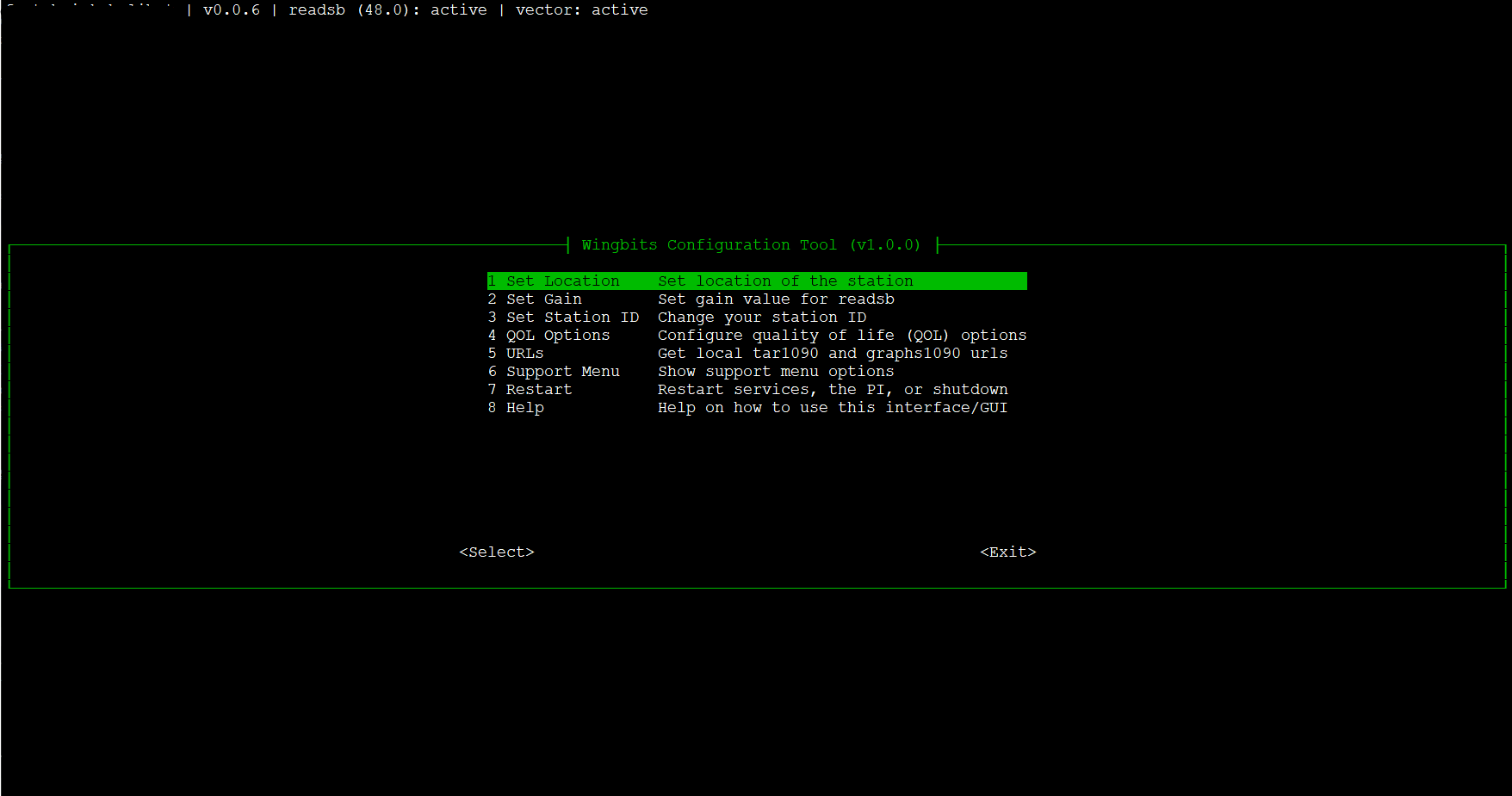
<details>

<summary><strong>What do I do with the Secret on the sticker in the box?</strong></summary>

The GeoSigner serial and secret on the sticker inside the lid of the box are both required when you want to link the Geosigner to a newly created station.

</details>

<details>

<summary><strong>I plugged in my GeoSigner, how do I know it's working?</strong></summary>

On the station's command line, run `sudo wingbits status` and look for "✓ Geosigner: OK".  If you want to check via the site, [check above](#confirm-status-of-the-geosigner).

</details>

<details>

<summary><strong>Can I move my GeoSigner to another station once it has been plugged in?</strong></summary>

Once the GeoSigner is onboarded, your GeoSigner is considered the station. If you wish to move it to another hardware system and install the Wingbits Client on the new machine then that is fine. It will be considered the same station, as the GeoSigner is the unique identifier.

</details>

<details>

<summary><strong>What if I want to reload my station from scratch with a new OS image?</strong></summary>

Follow the usual install process from the Stations page in the Dashboard, using the Install button. It has been updated to the new Wingbits Client. Make sure the GeoSigner is installed as that is now the unique ID for the station.

</details>


# Debug your station

Please note that this debug functionality is now included with [wb-config](/byod/grandfathered-byod-diy-info/install-wb-config-tool), but can be run independently with either of the below commands.

{% hint style="warning" %}
If your status is offline, make sure all the hardware is connected, including the antenna/cable being attached to the usb receiver, and the device is powered on.
{% endhint %}

Start by running this command that will check for the most common issues:

```sh
curl -sL https://gitlab.com/wingbits/config/-/raw/master/debug.sh | sudo bash
```

If that fails with an error like "command not found" (different Linux distributions may include different tools by default), try this instead:

```sh
wget -q -O- https://gitlab.com/wingbits/config/-/raw/master/debug.sh | sudo bash
```

If you still need help with debugging, please join our Discord and open a support ticket.


# Install wb-config tool

### Summary

Wingbits has created a menu driven general configuration tool for BYOD ADS-B stations, with specific features focused on the Wingbits project and maintaining your station.  Our goal is to take all the commands people run more frequently and provide a single interface, so there is less typing and command reference lookups.  The same holds true with regards to support-related features, where we can streamline the entire process from after opening a ticket to getting resolution for your issue, by having you leverage the tool.

<figure><img src="https://content.gitbook.com/content/ExhTPqBRPz7r3x59gC7E/blobs/bF3eIhhqOZfZQPYf70VW/image.png" alt=""><figcaption><p>wb-config main menu v1.0.0</p></figcaption></figure>

### Installation & Running

{% hint style="danger" %}
As of Sept 10, 2024: wb-config is automatically installed/updated during daily software sync of the station at 6pm localtime.  You will not need to install with the below command, unless you setup your station today and need wb-config before 6pm your local time.
{% endhint %}

To install the latest version of wb-config, run the following on your device through an ssh session:

```bash
curl -sL https://gitlab.com/wingbits/config/-/raw/master/wb-config/install.sh | sudo bash
```

Once run, you should see output on the screen stating it has been downloaded and how to run it:

```bash
sudo wb-config
```

{% hint style="info" %}
For best results, run on a PC or Mac using an ssh client (termius/putty/cmd/terminal) and maximize the window.  Smaller screens may work but limit the amount of visible data for logs and similar output.  Mobile SSH clients may or may not properly display menus.
{% endhint %}

### Usage video

{% embed url="<https://www.youtube.com/watch?v=JmTv9bLIccI>" %}

### Features

This tool can be used for configuration tasks such as:

* Set/update location
* Change SDR gain for readsb
* Update the station ID
* Quality of life (QOL) options - such as dark/light mode for graphs1090, add/remove route info from tar1090, and enable/disable heatmap data for tar1090

Or other operations/support tasks such as:

* Restarting services (Wingbits client/readsb/tar1090)
* Restarting or shutting down the device itself
* Running the Wingbits debug script
* View/upload logs from services or installation (upload requires installation of netcat, which can be done via the tool as well in the same menu).

### Getting around in the tool

This tool is based on an infrastructure that provides a TUI (text-based user interface) within terminal based system.  Basically, that means you get a text based menuing system that looks like it is from an 80s or 90s movie.  Because that does not allow for mouse input, everything is controlled by keyboard.  Don't worry, you will get used it it pretty quick as there are only a few controls.

<table><thead><tr><th width="212">Keyboard Key</th><th>Usage</th></tr></thead><tbody><tr><td>Up Arrow</td><td>Move up menu item, up a selection list, or scroll up on long output line by line.</td></tr><tr><td>Down Arrow</td><td>Move down menu item, down a selection list, or scroll down on long output line by line</td></tr><tr><td>PDUP / PGDN</td><td>Faster scrolling (by page) either up or down on long output.</td></tr><tr><td>SPACEBAR</td><td>Select current item in a selection window with multiple options (such as a listing of gain values)</td></tr><tr><td>TAB</td><td>Cycle focus between menus and buttons (yes/no, ok/back, or between the menu and those options).  Typically followed by hitting ENTER or SPACE to select/confirm.</td></tr><tr><td>ENTER</td><td>Select highlighted menu itme (like left mouse clicking in windows on the focused item).</td></tr><tr><td>ESC</td><td>Back out of the current menu/screen.  If on the main menu, exit to shell.</td></tr></tbody></table>

{% hint style="info" %}
Sometimes SPACEBAR and ENTER can be used interchangeably based on the screen and context... just to add more spice to your journey.
{% endhint %}

### Issues

Please post in discord if you have any feedback, issues, or suggestions related to the tool. &#x20;

Current known issues:

* Log-related output windows are not sizing dynamically based on terminal size - if you have a lot of screen real estate, it should be wider and show more lines.
* When running longer commands (uploading all recent logs), the delay before showing the next screen can be quite long (which presents as you seeing the shell during that time).  This happens between every screen when an action is chosen, but might be confusing when first encountered on an action that takes more than a second.


# Theoretical range of coverage

This page describes how to create a panorama for assessing 1090 MHz reception range and how to integrate this data into the tar1090 map, to visualize your theoretical aircraft tracking range.

To judge the actual range, one needs to first know what kind of range is even possible for the station's location. 1090 MHz reception requires a direct line of sight through air to what you want to receive, thus depends on obstacles and the curvature of the earth. To get that theoretical range for a location, follow these steps.

{% hint style="info" %}
The first step can be done by anyone running either a BYOD station or an approved hardware station.  The second step is specific to BYOD stations and cannot be done on an approved hardware station.
{% endhint %}

#### **1: Create panorama and look at your outline on heywhatsthat.com**

* Visit <http://www.heywhatsthat.com/>
* Click "New Panorama" at the top
  * For Step 1, set the location (via address or lat/lon)  for your antenna precisely
  * Skip step 2.
  * For step 3 enter the height of the antenna for your install location, leave the radio button as "above ground".
  * For step 4, enter a title and click Submit Request
* Wait for the request to finish and load a new page.
* Scroll down to the map and click the "Up in the Air" button on the top right of the map
* Change the "30000" value below the map to "40000" (this is maximum expected altitude of flights in your area).
  * You can change the altitudes (ft) below the map to view different outlines for your location
  * Those outlines tell you how far you can receive aircraft at the associated altitudes
* Zoom out a few times with the "-" (minus sign) on the map until you can see the theoretical coverage outlines.
* The panorama does not take into account obstacles closer to the antenna than approximately 100 ft, trees are also not considered but can block reception

#### **2: Integrate theoretical range outline into your local tar1090 display**

* On the top left of the page, an URL to revisit the panorama is mentioned.  It will look something like:\
  <https://www.heywhatsthat.com/?view=**JM6Q9FQQ>\*\*
* Replace the XXXXX in the following command with the value after view= in your panorama URL, then run the command on your pi:

```
sudo /usr/local/share/tar1090/getupintheair.sh XXXXX
```

* You should now have a range outline for the theoretical range for aircraft at 40000 ft on your tar1090 map

{% hint style="info" %}
If you wish to turn the outline off or on in tar1090, use the Legend/Layers button on the top of tar1090 screen and select/unselect the "terrain-based range outline" checkbox.
{% endhint %}

<figure><img src="https://content.gitbook.com/content/ExhTPqBRPz7r3x59gC7E/blobs/nhRuWybmstWMUg7snqSS/image.png" alt=""><figcaption><p>Your actual coverage</p></figcaption></figure>


# Beast mode configuration

After using the JSON format for aircraft data transmission since inception, Wingbits are now making the move to using the Beast format for encoding aircraft data for transmission to the servers.\
\
This will reduce data transmission usage by approximately 30-50% in most cases. This will be particularly helpful for those using LTE services or other limited data plans.

The same data that is being received by your station will continue to flow through but it will be encoded in a more efficient format before being sent to the servers.

#### Here's what this means for you, depending on your setup

**Standard BYOD installs**&#x20;

([as per the official install guide/script](https://docs.wingbits.com/byod/grandfathered-byod-diy-info/setup-steps-guide)) — automatically handled, no changes needed.\
Wingbits will migrate your station to the new data transmission format automatically.

**Container setups**&#x20;

If you're running one of the container setups listed in the **byod-unofficial-tools** channel on the Discord server, the respective authors have already been advised of this change. \
Please **reach out to them directly** for a timeline on when the updated version will be available for you to adopt.&#x20;

**Custom container or other custom setups**

&#x20;If you've built your own container setup, you can make the change based on the below information or reference the **standard BYOD install script** or any of the tools listed in the **byod-unofficial-tools** channel that have already implemented the change, as a guide for updating your setup.&#x20;

**The deadline to complete this migration is 20 April 2026**

After this date, the old endpoint will be removed and stations that have not been changed over will stop sending data to the Wingbits servers.

#### Configure Beast mode for readsb

The following configuration will need to be added to the readsb config. On a standard installation, the readsb config file is located at /etc/default/readsb

**Add the following to the NET\_OPTIONS section of the config:**

```
--net-connector localhost,30015,beast_reduce_out --net-beast-reduce-optimize-for-mlat --net-beast-reduce-interval=0.125
```

For example, a complete standard install readsb config with the above added would look similar to this:

```bash
RECEIVER_OPTIONS="--device 0 --device-type rtlsdr --gain auto --ppm 0"
DECODER_OPTIONS="--lat -12.123456 --lon 123.123456 --max-range 450 --write-json-every 1"
NET_OPTIONS="--net --net-ri-port 30001 --net-ro-port 30002 --net-sbs-port 30003 --net-bi-port 30004,30104 --net-bo-port 30005 --net-connector localhost,30006,json_out --net-connector localhost,30015,beast_reduce_out --net-beast-reduce-optimize-for-mlat --net-beast-reduce-interval=0.125"
JSON_OPTIONS="--json-location-accuracy 2 --range-outline-hours 24"
```

{% hint style="warning" %}
**Note: The existing json configuration must remain as it is still utilised for some of the communications**
{% endhint %}

#### How to verify your station is using Beast mode

Once you have changed your readsb config, the station will start to send Beast formatted data to the Wingbits client. The team will check this on a regular basis and if it all looks good, will change the station over to Beast mode.\
\
You can verify that your station has been changed over to Beast mode by going to the Statistics page for that station in the Wingbits Dashboard. One of the stats at the top is Readsb Mode and that will show as "Beast" when it has been changed over.

<figure><img src="https://3987131359-files.gitbook.io/~/files/v0/b/gitbook-x-prod.appspot.com/o/spaces%2FExhTPqBRPz7r3x59gC7E%2Fuploads%2F9P3u54tisMne8SNM6Ysh%2Fimage.png?alt=media&amp;token=0ea33978-11f6-488c-a1a4-abf6bc1d54ae" alt=""><figcaption></figcaption></figure>


# BYOD FAQ

This page only applies to participants who currently own a Geosigner dongle and have a BYOD station or have obtained a Geosigner and are trying to setup a BYOD station.  Geosigners were only made available for station owners in the BYOD onboarding phase, which ended on October 14th, 2024.

## BYOD Stations Frequently Asked Questions

<details>

<summary>How can I get a Geosigner?</summary>

Geosigners are not available to purchase anymore. They were gifted to everyone that met online requirements during the BYOD phase of the project, and then allowed to be purchased for a short period during the transition from BYOD to ready-to-run stations from approved manufacturers.

</details>

<details>

<summary>Can I use a helium device to participate in Wingbits?</summary>

This answer only applies to participants that currently have a Geosigner dongle.

This really depends on your goals with the device and the device type.

If you have an old helium device that contains a raspberry pi and you don't wish to dual-mine with Helium, then it is likely you can reimage the OS on the memory card (which may take a step or 2 for access) and use our [Setup steps guide](/byod/grandfathered-byod-diy-info/setup-steps-guide) to accomplish this.

If you wish to continue mining helium tokens and you have ssh access to the device (you may have to google this or ask in discord), it is likely you can do the same as the above but without  reimaging the OS.

If the device doesn't have ssh access and you still want to mine helium, there may be a 3rd party option.  Come check our discord under the #unofficial\_tools channel to see if there is a solution that will work.

</details>

<details>

<summary>Do I need a filter?</summary>

A filter takes all incoming signals and attenuates those signals the further they deviate from the filter's tuning point (1090 mhz in this case).  This stops out of band signals (everything else) from hitting the decoder and having to be dropped via software.  Because of that, the decoder will have more available bandwidth for handling messages we care about.

The adsb specific receivers, that people buy most often, typically come with an LNA (amp) and a 1090mhz filter onboard.  Check before buying to make sure you got the model with both as some brands have an option for no filter.

Most of the time you will not need an additional filter in that case (but likely would if your unit didn't include one), as it will cause a 3 db loss to your signal and only serve to further attenuate out of band signals.

</details>

<details>

<summary>Which Pi version is best?</summary>

Either Pi Zero 2 W or Pi 3B will suffice as a reasonable base for your setup. They will not have enough onboard RAM to accomplish multiple tasks if you wish to use them for more than just Wingbits. The Pi Zero 2 W has a really small form factor but are WiFi-only (no Ethernet) and require a microUSB to USB cable adapter to connect the USB ADS-B receiver.  It is also much cheaper typically than a 3B.

Using a Pi 4, of any memory size, will open up the option for using the unit with more than just Wingbits as they start with at least 1 GB.

Using a Pi 5 is overkill based on specs and cost.  Typically if you are choosing this, it is because you have intent to use it for other reasons already.

</details>

<details>

<summary>How do I replace my Pi in case of hardware failure?</summary>

If your Pi hardware failed but the SD card is still working, you can simply move the SD card to your replacement Pi and let it boot up.  Everything should come up as before unless you are downgrading Pi from a Pi 4 to a Pi 2 and the older Pi can't run the same OS.

If your SD card and/or the Pi failed (perhaps unrecoverable surge damage), you can just follow the install steps again to image the OS onto the card and run the wingbits setup script.  You will then use the original antenna ID during install.  Don't forget to set location and gain again for readsb.

</details>

<details>

<summary>How do I set the location?</summary>

You can change the location from the command line with the following command (replace \<lat> and \<lon> with the values from the Antennas page on the Dashboard).

```bash
sudo readsb-set-location <lat> <lon>
```

Note: This may only work on a standard Wingbits install (not using a 3rd party solution).

</details>

<details>

<summary>How do I change the gain?</summary>

You can change your gain using the following command (replace xx.x with a valid gain number).  Note that the command will not output anything, unlike the location command.

```bash
sudo readsb-gain xx.x
```

Valid gain numbers are below.  If you type in any other number, it will choose the closest valid option. The -10 option, for adsb, will essentially set the gain to 58.0.

{% code overflow="wrap" %}

```
0.0 0.9 1.4 2.7 3.7 7.7 8.7 12.5 14.4 15.7 16.6 19.7 20.7 22.9 25.4 28.0 29.7 32.8 33.8 36.4 37.2 38.6 40.2 42.1 43.4 43.9 44.5 48.0 49.6 -10
```

{% endcode %}

Note: -10 / 58.0 is almost always not the ideal gain.

</details>

<details>

<summary>How do I optimize my gain?</summary>

If you like videos, watch this one:&#x20;

<https://www.youtube.com/watch?v=cNxDYCMjaYM>

If instead you just want quick guidelines in text, keep reading.

Optimizing your gain is both art and science based on all your components, your installation, and the flight traffic available in your area. Some basic guidelines to find the "sweet spot" using your local <http://ip/graphs1090/> url are:

* Weakest signal line should be somewhere between -26db and -32db on Signal Level chart.
* On top chart, Messages > -3dbfs should be under 10% (the closer to overhead flight paths and airports, the closer to 10% is acceptable).
* For a standard 1090 antenna using an average cable w/ adsb focused usb receiver (like radarbox green), your best gain is likely between 43.4 and 49.6.
* Currently, keep an eye primarily on messages/second received (with an eye also on avg max range, average aircraft tracked, and avg message rate/craft). You want these all as high as possible without breaking the previous guidelines.

Ultimately, you are trying to optimize for positions per second, which will be shown on your top/main chart as positions/s (RHS).  RHS stands for 'use the right hand side scale of the chart'.  The challenge is, it is difficult to just watch that one line and optimize, so we use all the above mentioned stuff to guide us to the intended results.

</details>

<details>

<summary>How can I see heatmaps on tar1090 like the ones pasted in discord?</summary>

*This is for people comfortable using the basic text editor 'nano' under Linux.*

SSH into your device and run the following:

```sh
sudo mkdir /var/globe_history
sudo chown readsb /var/globe_history
sudo nano /etc/default/readsb
```

During the nano edit of /etc/default/readsb, just update JSON\_OPTIONS line to include the heatmap stuff, should look like the following when done:

{% code overflow="wrap" %}

```
JSON_OPTIONS="--json-location-accuracy 2 --range-outline-hours 24 --write-json=/run/readsb/ --heatmap-dir /var/globe_history --heatmap 30"
```

{% endcode %}

Restart readsb:

```sh
sudo systemctl restart readsb
```

Now wait maybe an hour (or longer if not during the busy air traffic part of the day). Although, you can start watching it in just a few minutes if you just want to see something happen... even though it won't be that useful yet.

After waiting, visit your tar1090 url in a browser as you would normally.  Then update the url to add the ? and all the args and values after it, like in the two examples below, and hit enter.

#### Positional message heatmap (more like dotmap) - showing lat/lon positions where messages were sent from (colored by altitude):

`http://192.168.x.xxx/tar1090/?heatmap=200000&heatRadius=2&heatAlpha=6`

![](https://content.gitbook.com/content/ExhTPqBRPz7r3x59gC7E/blobs/tNhHfEDAZaVhkwrMkv1o/image.png)

#### "Real" Heatmap - what we normally expect of a heatmap style with bluring and heat type coloring:

`http://192.168.x.xxx/tar1090/?heatmap=200000&realHeat&heatRadius=3`

![](https://content.gitbook.com/content/ExhTPqBRPz7r3x59gC7E/blobs/z16Ryo2DqtfAn5X3d9MT/image.png)

Information on additional options you can use on the url can be found at the below link.  Some of these can be really handy to compare stuff between 2 time windows, for example.

<https://github.com/wiedehopf/tar1090?tab=readme-ov-file#heatmap-in-conjunction-with-readsb-wiedehopf-fork---heatmap-feature>

</details>

<details>

<summary>Why is my station showing as Offline?</summary>

These are the **most common reasons** for a BYOD station to show offline on the Wingbits Stations page:

* You haven't hit F5 to refresh the stations page.
* The antenna is not plugged into the usb SDR via cable.
* The SDR has been knocked or dislodged causing it to fall off the USB bus. A simple re-seat of the SDR in the port and reboot usually resolves this issue.
* The antenna is not of the right type to receive 1090Mhz messages, such as a wifi antenna (or possibly even 868mhz or 915mhz).
* The cable is not SMA Male (middle pin exists) on the SDR end, possibly reused from helium and you need an SMA adapter.
* There are currently no flights being picked up (either due to zero flight traffic or one of the reasons above), which means zero data being sent to Wingbits, which means the server thinks you are offline.

If none of these resolved your offline status, make a post in Discord using the #setup-support channel and we may escalate to a ticket if needed.

</details>

<details>

<summary>Why is my range graph on /graphs1090/ empty?</summary>

You have not set your location on your station for readsb.  If the decoder doesn't know where you are, it can't figure out how far planes are away from you.  Please check below for "how do I set the location". &#x20;

Note: In the future the installation will automatically set this for you.

</details>

<details>

<summary>Why is /graphs1090/ url missing the Misc graph (which contains gain)?</summary>

This can sometimes happen during a slightly failed install, even though all other graphs are showing.  Run the [command on the author's site](https://github.com/wiedehopf/graphs1090?tab=readme-ov-file#installation--update-to-current-version) to reinstall.  In almost every case this will resolve it.

</details>


# Introduction

Build a live aircraft display with WingView.

## WingView

**A desk radar for live aircraft on a round touchscreen.**

<div align="left"><figure><img src="https://2869929647-files.gitbook.io/~/files/v0/b/gitbook-x-prod.appspot.com/o/spaces%2F2Ym95m3jp5iEzcC3Pj55%2Fuploads%2Fc6sSJA75aro0VRDZm4v4%2Fimage.png?alt=media&amp;token=2b769988-69bd-44c0-a43c-01d68c996cd2" alt="" width="563"><figcaption><p>Elecrow device on left, Waveshare device on right</p></figcaption></figure></div>

WingView shows aircraft above any place you choose. Use your street, a nearby airport, or a former hometown. It draws aircraft on a local street map.

Turn the knob to change the range. Choose from three to 100 nautical miles. Touch an aircraft to view its identity, altitude, speed, and climb or descent.

The firmware is free. You supply an off-the-shelf device costing about $45–55 USD. Wingbits provides the flight data.

### What it does

* Shows live aircraft at ranges from three to 100 nautical miles.
* Offers a street map, classic radar scope, and controller-style text list.
* Lets you save eight locations, each with maps stored on the station.
* Provides local web pages for settings, nearby traffic, logs, and firmware updates.
* Shows a clock or dark screen while idle.
* Updates overnight and restores the previous version after a failed update.

### What you need

* One supported board.
* A 2.4 GHz Wi-Fi network. These boards do not support 5 GHz Wi-Fi.
* A phone or computer on the same network for setup.
* A Wingbits API key. Wingbits station operators can obtain one at no cost. Details are coming soon.
* USB power. After setup, any USB charger works.

### Supported boards

One firmware runs on both boards. WingView detects the board during startup. You never need to choose a firmware version.

|             | **Waveshare 1.8 inch**                                                                                                  | **Elecrow CrowPanel 2.1 inch**                                                                                                                                                  |
| ----------- | ----------------------------------------------------------------------------------------------------------------------- | ------------------------------------------------------------------------------------------------------------------------------------------------------------------------------- |
| Screen      | 360 × 360 round display                                                                                                 | 480 × 480 round display with a larger physical screen                                                                                                                           |
| Body        | Metal case with an integrated stand                                                                                     | Bare board that needs your own stand                                                                                                                                            |
| Cable       | USB-C in the base                                                                                                       | Supplied clip-on connector with USB-A. No USB-C socket.                                                                                                                         |
| Knob        | Metal knob with stronger detents. It does not press.                                                                    | Pressable, clickable knob.                                                                                                                                                      |
| Vendor name | ESP32-S3-Knob-Touch-LCD-1.8                                                                                             | CrowPanel 2.1inch-HMI                                                                                                                                                           |
| Buy         | [Waveshare](https://www.waveshare.com/esp32-s3-knob-touch-lcd-1.8.htm) · [Amazon](https://www.amazon.com/dp/B0FDL4FJ13) | [Elecrow](https://www.elecrow.com/crowpanel-2-1inch-hmi-esp32-rotary-display-480-480-ips-round-touch-knob-screen.html) · [Amazon](https://www.amazon.com/gp/product/B0G5PQYM98) |

Choose based on your preferred form factor. Both boards support every documented feature.

The Waveshare is a more finished object. The Elecrow has a larger screen and pressable knob.

{% hint style="info" %}
**Board difference:** The Waveshare knob does not press. Use touch controls where guides mention a knob press.
{% endhint %}

### Where to go next

{% content-ref url="/spaces/2Ym95m3jp5iEzcC3Pj55/pages/ILjmJZCBZ1bvlUzH0NYf" %}
[Setup Guide](/wingview/setup-guide)
{% endcontent-ref %}

{% content-ref url="/spaces/2Ym95m3jp5iEzcC3Pj55/pages/7e0d548ed57bd88bc609cb2d564189df916d455d" %}
[User Guide](/wingview/user-guide)
{% endcontent-ref %}

{% content-ref url="/spaces/2Ym95m3jp5iEzcC3Pj55/pages/F1hqzt0za3OR6D18rw2T" %}
[Troubleshooting](/wingview/troubleshooting)
{% endcontent-ref %}

{% content-ref url="/spaces/2Ym95m3jp5iEzcC3Pj55/pages/dnjMct6ZbesXjZYQaqck" %}
[Privacy and Security](/wingview/privacy-and-security)
{% endcontent-ref %}

{% content-ref url="/spaces/2Ym95m3jp5iEzcC3Pj55/pages/VMFXW6JQlVB83flkLZel" %}
[Recovery Guide](/wingview/troubleshooting/recovery-guide)
{% endcontent-ref %}


# Setup Guide

Set up your WingView from a fresh board to live aircraft data.

Some features are still **TBD**. We mark these gaps clearly.

### What you need

* One supported board. Choose the **Waveshare 1.8 inch** or **Elecrow CrowPanel 2.1 inch**. The Waveshare uses USB-C and stands alone. The larger Elecrow needs your own stand and cable arrangement.
* The cable included with your board. The Elecrow cable clips to the PCB and ends in USB-A. It has no USB-C socket. The Waveshare uses USB-C. One firmware supports both boards.
* A data-capable cable for flashing. Charge-only cables power the board but remain invisible to the installer.
* A 2.4 GHz Wi-Fi network. The board cannot see 5 GHz-only networks.
* A phone or computer on the same Wi-Fi network.
* A Wingbits API key. It is free for Wingbits station owners contributing to the network. Instructions for getting a key are **TBD**.

{% hint style="warning" %}
On the Waveshare, plug USB-C in the correct orientation. Each side reaches a different chip. If the installer finds the wrong chip or shows `CH340`, reverse the plug and try again. Nothing is harmed.
{% endhint %}

After flashing, the board only needs power. Use any USB-A charger, hub, or extension cable.

{% stepper %}
{% step %}

### Install the firmware

Open [the WingView install page](https://wingbits.com/wingview/) in Chrome or Edge. Plug the board into the same computer. Then click **Install**.

The browser writes the firmware over USB. You do not need to download files or install drivers.

Before you start, keep these details in mind:

* Your board appears as **USB JTAG/serial debug unit**. Unplug any other ESP32 boards first, including boards only receiving power. Installing to the wrong board erases it.
* Never choose **Communications Port**. That is your computer's own hardware.
* Choose not to erase when reinstalling your own WingView. Your Wi-Fi, API key, locations, and maps stay saved.
* Choose erase for a board changing hands. It returns to a new state.

Installing takes about one minute. The board restarts when it finishes.
{% endstep %}

{% step %}

### Start the board

Plug in the board. For the first five seconds, it shows a title screen. Touch the screen or turn the knob to skip it.

Next, you see a moving map with amber aircraft and a **DEMO MODE** banner. This is not live traffic. The board shows Los Angeles whenever it has no working feed.

A setup card appears:

```
SET UP
1  Join this Wi-Fi        WingView-A1B2C3
2  Open in a browser      http://192.168.4.1
3  Passphrase             xxxxxxxx
```

The card stays open for five minutes. Its countdown pauses while a phone or computer is connected.

It closes about 30 seconds after the board joins your Wi-Fi. Your phone can then return to your own network.

If the card disappears, press the **N** button. Select **Wi-Fi setup** to show it again.
{% endstep %}

{% step %}

### Join the board and open setup

Join the `WingView-` network on your phone or computer. It has no password.

Open `http://192.168.4.1`. Leave the username blank. Enter the eight-character passphrase shown on the setup card.

Use **home** during setup. The links at the top navigate between pages. On a phone, they wrap to two lines.

Each board has a unique, lowercase passphrase. Hold the **N** button to show the status screen. You can also replace it through **Settings** → **New passphrase**.
{% endstep %}

{% step %}

### Connect to Wi-Fi

Enter your network name and password. Save the form. The board tries them immediately.

If it connects, the page shows the new local address. It takes you there after your phone rejoins your Wi-Fi. If it does not, select the address link.

Enter the passphrase again at the new address. Your browser treats it as a different site. The page displays the passphrase beside the link.

If the connection fails, use the message below to fix it:

| Message                          | What to do                                                                       |
| -------------------------------- | -------------------------------------------------------------------------------- |
| No network of that name answered | Check the name. Confirm the network supports 2.4 GHz. Move closer to the router. |
| That password was rejected       | Check and re-enter the password.                                                 |

The setup network stays available after a failure. The board also keeps retrying in the background.

{% hint style="info" %}
If you see **Still trying** for 30 seconds, check your details. The board has not stopped trying.
{% endhint %}

You can safely screenshot most pages. They never display your Wi-Fi name, password, API key, or coordinates. Check for the passphrase and your location names before sharing.

{% hint style="warning" %}
The **locations** page contains coordinates in its source. They do not appear in screenshots. Do not save the page or share its source if you need to keep coordinates private.
{% endhint %}
{% endstep %}

{% step %}

### Add a location

Your location sets the map center. Use your Wingbits station location, an airport, or any other place. You can add multiple locations and switch between them.

Enter a name of up to 12 characters. Paste a coordinate into the location field.

Google Maps coordinates work directly. For example:

```
40.641311, -73.778139
```

Choose a point a few streets away if you prefer not to store your exact address. The map looks the same at every range.
{% endstep %}

{% step %}

### Build maps

New locations do not have maps. The location list shows **No map installed**.

Open **locations**. Select **Build map** beside the location. Your browser builds seven map discs and uploads them.

The board shows progress and remains unavailable during the build. It takes a few minutes.

Your phone or computer needs internet access. The browser renders maps because the board does not have a graphics stack.

If a build fails, the board returns to normal. The page identifies the failed tile. No incomplete map stays installed.
{% endstep %}

{% step %}

### Enter your Wingbits API key

Paste your API key into the key field and save it. The key applies on the next poll.

Within seconds, **DEMO MODE** should disappear. Live aircraft replace demo traffic.

If the key is invalid, demo traffic continues. The board uses demo traffic whenever it has no working feed.
{% endstep %}
{% endstepper %}

### Check that it worked

Hold the **N** button to open the status screen:

```
feed (rate)  ok (6s)
view         map, 50 nm
contacts     38
station      home
plan         Starter  12/min
quota        4812 / 20000
build        0.0.14
address      192.168.1.42   (yours will differ)
page pass    xxxxxxxx
free         99315 B
```

`feed ok` and a contact count above zero confirms that WingView is working.

* `api down` means our API did not answer. No action is needed. The board retries, then backs off to once per minute.
* `no internet` means the board cannot reach the internet. Check the Wi-Fi, router, and connection.
* `throttled` means the API refused the request due to rate limits.
* `no auth` means the key was rejected. Enter it again.
* `acquiring` is normal for a few seconds after restarting. If it persists, check network access.

`plan` and `quota` appear after the first successful request. Wait a few seconds if they are missing.

### Troubleshooting

For blank screens, flashing, persistent demo traffic, missing maps, and unreachable pages, see [Troubleshooting](/wingview/troubleshooting).

Your WingView is ready when the status screen shows `feed ok` and contacts above zero.


# User Guide

Everything the device does, and how to reach it.

Setting one up for the first time is in the [Setup Guide](/wingview/setup-guide).

## The controls

A knob you can turn, four buttons around the rim at the compass points, and the screen itself. Everything is reachable from those, and everything is also reachable from a web page if you would rather not touch the device.

{% hint style="info" %}
**One difference between the two boards.** The Elecrow's knob also presses; the Waveshare's does not - its knob is flat to the body and there is nothing to push. Everything in this guide works on both. Where the Elecrow's press is a shortcut, it is called out as one.
{% endhint %}

### The knob

**Turn** does one of two things depending on which mode you are in. In zoom mode it steps through the range rings. In scan mode it moves through the aircraft on screen, one at a time, going clockwise by bearing.

**Hold W** switches between those two modes. A message appears briefly in the middle of the screen telling you which one you are now in, then fades. *On the Elecrow you can press the knob instead, which does the same thing.*

Turning clockwise zooms in. If you are used to a map application where scrolling up zooms out, this will feel backwards for about a minute.

### The four buttons

**N** opens the settings menu. Holding it opens the status screen instead. Pressing N again closes whichever is open.

**S** cycles the view: map, radar, ATC. See below.

**W** hides and shows the two information blocks over the map. A brief message says `INFO OFF` or `INFO ON`. If you have an aircraft selected the blocks stay visible regardless, because a selected aircraft with no readout is pointless. Deselect it and they will go.

**Holding W** switches the knob between zoom and scan, as above.

**E** is not assigned yet. Pressing it says `TBD`.

**Holding E** puts the device to sleep straight away, without waiting out the idle timeout. A brief message says `SLEEPING`. The screen goes dark - or shows a clock, if you have asked for one and the device knows the time - and it stops polling until you touch it again. Use it when you are finished looking and would rather not spend the day's API allowance on a screen nobody is watching.

It is a hold rather than a press because the rim is buttons and the middle is aircraft: a finger aimed at a plane near the right-hand edge lands on E, and a short press there would blank a screen you were reading.

### Touch

The screen is a touchscreen, and **touch does everything the knob press does** - which is how the board without a knob press works at all.

| where you are       | tap                                                                                                                           |
| ------------------- | ----------------------------------------------------------------------------------------------------------------------------- |
| the map             | an aircraft selects it and switches to scan mode; empty map clears the selection                                              |
| the settings menu   | anywhere in the panel acts on the highlighted row, the same as pressing the knob would. Turn the knob to choose the row first |
| the status screen   | anywhere closes it                                                                                                            |
| a confirmation card | **touch and hold**, see [the erase page](#the-erase-page)                                                                     |

Tapping in a menu deliberately acts on whichever row is already highlighted rather than on the row under your finger. The rows are close together on a small screen and a fingertip covers most of two of them, so aiming at nothing cannot miss.

Whether tapping empty map also leaves scan mode depends on how you got there. If you tapped an aircraft to enter scan mode, tapping away is plainly "never mind" and returns you to zoom. If you chose scan mode deliberately - by holding W, or by pressing the knob on an Elecrow - it stays, because a tap that missed a small moving target is the common case and should not undo a deliberate choice.

## The three views

**Map** is the default. A dark street map under altitude-colored aircraft silhouettes. On a very busy screen those silhouettes become plain dots. See [when the aircraft turn into dots](#when-the-aircraft-turn-into-dots).

**Radar** is a phosphor green display with a sweeping line and a data block beside each contact. It looks like a radar screen because that is the point.

**ATC** is closer to what a controller sees: white squares rather than aircraft shapes, short history trails behind each one, and leader lines to the data blocks.

The view is remembered across restarts, as is the range, so the device comes back the way you left it. Brightness, units, trails, the sleep timeout and whether the information blocks are showing are remembered too.

## Ranges

Seven rings: 3, 6, 10, 15, 25, 50 and 100 nautical miles. The number shown is the radius, so the outer edge of the circle is exactly that far away.

Two things change with the range. The map disc underneath swaps for one drawn at that scale, and the device asks the API for a matching radius. Wider views also poll less often, because an aircraft crossing a 100 NM display takes fifteen minutes and there is nothing to be gained from asking every two seconds.

Aircraft on the ground are only drawn at 25 NM and below. Further out they are clutter, and at a busy airport there can be a lot of them.

### When the aircraft turn into dots

Above roughly 110 aircraft on screen the display switches every contact to a plain dot, and it switches back once the count falls below about 85. The two numbers differ on purpose, so that traffic hovering around the threshold does not flicker between the two styles every few seconds.

This is not a fault and nothing has been dropped. Every aircraft is still there, and the one you have selected keeps its shape so you can still see what it is. Trails get shorter rather than disappearing, because movement is the point of a wide view.

The reason is legibility rather than speed. At that density the little directional shapes overlap into a mess, and a dot has no direction of its own, so a curving trail behind it reads as an aircraft turning instead of a bent arrow. Zoom in one stop and the shapes come back.

## Settings

Press N. Turn to move, press to change. The rows are ordered by how often you would touch them.

**Location** switches between the places you have set up. Press to move to the next one. Switching re-centers the map, swaps the discs, and clears the trails, because a trail that spans two locations shows an aircraft apparently flying between them.

**Trails** turns the short history behind each aircraft on and off.

**Demo** cycles how demo mode behaves: automatic (the default), always on, or off. Automatic means it appears only when there is no live feed.

**Sleep after** is the screen timeout: 15, 30 or 60 minutes. The screen goes dark - or shows a clock, see the next row - and polling stops, so a sleeping device costs nothing. Touch anything to wake it. Holding **E** sleeps it immediately, without waiting the timeout out. The scope comes back empty for a second or two rather than showing what was there before, because nothing was watched while it slept and positions from then would be a picture of the past.

**When asleep** chooses what the panel does once it sleeps: go dark, or show a clock. The clock needs the time, which the device learns from your network and from the browser the first time you open one of its pages, so this row reads `clock (no time yet)` on a device that has never managed either - and such a device goes dark rather than showing a face with nothing on it.

While the clock is showing, **turning the knob changes its brightness** and nothing else, with the level shown for a couple of seconds as you turn. That level is remembered separately from the brightness the scope uses, because a clock across a dark room and a scope you are reading up close are not the same screen. It also means the knob no longer wakes the device: touch the screen for that.

The clock reads the hour the way your browser does, 12 or 24 hour, unless you have said otherwise on the settings page.

**Brightness** is the only row with a sub-mode. Press to start adjusting, turn to change, press again to finish. It never goes fully dark, because a black screen reads as a dead one.

**Units** switches between nautical miles and kilometers for everything displayed. It does not change the ranges themselves, only how they are labeled, and kilometer values are rounded to the nearest half so the top of the screen is not full of decimals.

**Wi-Fi setup** brings back the device's own network so you can reach its web pages. Useful if your wifi password changed, or if the setup window closed before you got to it.

**New passphrase** replaces the page passphrase. Use it if somebody has seen the old one, for example if you showed the status screen on a video call. The new one appears briefly on screen and afterwards lives on the status screen.

**Close** closes the menu.

## Status screen

Hold N. This is the first place to look when something seems wrong.

| row           | meaning                                                                                                             |
| ------------- | ------------------------------------------------------------------------------------------------------------------- |
| `feed (rate)` | `acquiring`, `ok`, `throttled`, `api down`, `no internet`, or `no auth`, with how often it is asking in parentheses |
| `view`        | map, radar or atc, and the current ring                                                                             |
| `contacts`    | how many aircraft the device is holding                                                                             |
| `station`     | the current location's name                                                                                         |
| `plan`        | your API plan and the requests a minute it allows                                                                   |
| `quota`       | requests used this month against the allowance                                                                      |
| `build`       | firmware version                                                                                                    |
| `address`     | where the device's web pages are on your network                                                                    |
| `page pass`   | the passphrase for that page                                                                                        |
| `free`        | free internal memory, which is the scarce kind                                                                      |

The rate in parentheses beside `feed` is worth knowing about, because it is sometimes slower than you expect and that is deliberate. Every plan allows a certain number of requests a minute, and at the closest ranges the device would ask more often than the plan permits if nothing stopped it. So it asks as often as it is allowed to and no more. If the number looks high for the range you are on, that is what you are seeing.

`acquiring` means the device has not finished a request yet, which is normal for the first few seconds after a restart. It is deliberately not `ok`: nothing has been asked, so nothing can be reported.

There is no coordinate on this screen. That is on purpose, so the device can be photographed or filmed without giving away where it is. If you need to check the exact position it is measuring from, the locations page links each one to a map of where it sits.

`api down` and `no internet` are the same failure to the device and a completely different one to you. It tells them apart by checking whether two well-known addresses answer, the same trick your phone uses to spot a hotel wifi login page, and only after the feed has already failed.

The small arc around the N button is the same information at a glance. Nothing means healthy. A quarter, a half or a full ring means increasing trouble, and the size changes as well as the color so it is readable without relying on color vision.

## Demo mode

When the device has no live feed it shows recorded Los Angeles traffic instead of an empty screen. Three things make that obvious: an amber palette instead of the normal colors, a DEMO MODE banner, and a map of Los Angeles, which is unmistakably not where you are (unless that is actually where you are, in which case, sorry).

It is automatic. As soon as a real response arrives it hands over. You can force it on or off from the settings menu, which is useful for showing the device to somebody.

## When the map is missing

Bare rings and aircraft, with no imagery behind them. Nothing appears on screen to explain it: everything else draws as usual and the map is simply absent.

Usually the location has no maps built yet, and the locations page says which of your locations have them. A build that did not finish counts as none rather than as a partial one, so if you stopped one part way, start it again.

The other cause shows itself differently: the map is there at wide ranges and **disappears as you zoom in**. That means the device is using a set built for a nearby point rather than the one you are centered on. Maps are drawn for one coordinate, with the outer edge of the disc at the outer ring, so a set from somewhere else puts every road wrong relative to every aircraft, which looks fine and is not. The device refuses it rather than showing that.

The tolerance is three percent of the range on screen, so it tightens as you zoom in: about 5.5 km at 100 NM, but only 170 m at 3 NM. A map built a kilometer from where you are centered will hold at 100 and 50 NM and vanish below that. Two ways to get there: two of your own locations close enough that each matches the other's maps, or being near Los Angeles, where the demo maps that ship with the device are centered. Building maps for the location you are actually using fixes both.

## The device web UI

Reachable at the device's address on your network, or on its own network during setup. The address and passphrase are both on the status screen.

There are nine pages:

| link        | what it is for                                                       |
| ----------- | -------------------------------------------------------------------- |
| `home`      | status: the feed, your plan, quota, address, uptime and build        |
| `traffic`   | the aircraft nearest you right now, and which are about to be closer |
| `settings`  | the same settings the device's own menu holds                        |
| `locations` | adding, switching and removing locations, and building their maps    |
| `network`   | wi-fi and the Wingbits API key                                       |
| `firmware`  | the version it is running, updates, and the beta channel             |
| `log`       | what the device has been saying, ready to send to support            |
| `remote`    | the knob and the four buttons, as web buttons                        |
| `erase`     | wiping the device, always last in the row                            |

Every page carries the same row of links at the top so you can move between them without typing an address. `erase` is last deliberately, with a gap before it, so there is nothing after it to mis-tap towards. On a phone the row wraps onto two lines, which is expected.

Whichever page you are on is shown in that row without being a link, so it also tells you where you are.

There is a restart button at the bottom of `home`. Almost nothing needs it: wi-fi, locations and the API key all take effect immediately.

### The home page

Where the device says how it is doing: whether the feed is working, which API plan the key belongs to and how much of its allowance is left, the address to reach it at, how long it has been running, and the firmware build.

It also reports contacts as two numbers, **seen** and **drawn**, and they are usually different. The scope draws only what fits inside the range ring, and aircraft on the ground are not drawn above 25 NM - at a busy airport that is dozens of them. So 243 seen and 183 drawn is a working device at 100 NM, not a fault.

Before the device is set up, this page is a checklist instead - the steps you still have to complete, in order, with the forms for each. It stops being a checklist once they are done, so a working device shows status rather than an empty list of ticks.

### The traffic page

What is near you right now, as a page rather than a screen: the reason the device exists is to answer "what was that overhead", and you are not always in the room with it.

**Coming your way** is the top section - aircraft whose projected path brings them within a distance you choose, nearest in time first. The distance is a menu, up to 10 NM. Ten miles is not close, and the section is not pretending it is: at 400 knots that setting is about ninety seconds of warning, which is enough time to walk outside.

Two icons say what you are likely to notice when it gets there:

| icon | means                           |
| ---- | ------------------------------- |
| 👁️  | probably visible in a clear sky |
| 👂   | probably audible where you are  |

Both are estimates from the aircraft's type, its altitude, how far above you that leaves it, and how far off it will pass, capped so that nothing distant is ever marked either way. They say *probably*, and the tooltips say so too.

**Nearest now** is a table of what the device is currently holding, closest first, with altitude, whether it is climbing or descending, speed and how far off it is. Aircraft on the ground are hidden unless you tick **Include aircraft on the ground**, which is remembered in your browser - at a big airport they would otherwise fill the table. Distances follow the units setting, so if the device is in kilometers the page is too.

**The location is named at the top**, so you know which of your locations the page is talking about, with the next refresh counting down beside it.

**Everything here is extrapolation**, which the page says at the bottom in its own words: one position, one speed and one direction carried forward in a straight line from whenever the last poll happened. An aircraft that turns or levels off makes it wrong immediately and the page cannot know until the next poll.

#### While the device is asleep

The page still works, and this is the part worth understanding. A sleeping device is not polling, so to answer the page at all it has to start again - and that spends your API allowance on a screen nobody is looking at.

So it is bounded, and the page tells you when it is happening:

* It polls **every 30 seconds** at a fixed 40 NM while a page is watching, rather than at the device's usual rate.
* It stops on its own about **90 seconds** after the last time the page asked for anything, so closing the tab or walking away ends it.
* It is capped at **90 minutes of watching a day**, and the page says how much is left.
* A banner explains all of this while it is going on. You can collapse it, and your browser remembers that you did.

When the budget runs out, or the watching window closes, the figures stay on screen but are marked as old rather than being silently refreshed. **Keep watching** starts it again if there is budget left.

While the device is awake, none of that applies: the page is served from the polls the device is already making, at whatever range it is showing, and costs nothing extra.

### The settings page

The same settings the device's own list holds, with room to show them: the clock's 12 or 24 hour reading, what the panel does when asleep, the sleep timeout, units, trails, demo, and both brightness levels. Change what you like and press **Save**.

It is the same setting either way - the device keeps one copy, so turning the knob changes what this page shows, and saving here changes what the device does, immediately. The clock brightness is worth knowing about here in particular: on the device that level can only be reached by turning the knob while the panel is asleep in front of you.

Wi-Fi, the API key, locations and erasing anything are on their own pages.

### The network page

Wi-Fi and the Wingbits API key. Neither is ever shown back to you. The key field names the stored key by its **first eight characters** of thirty-five, so you can tell which one this device is using if you look after several; the rest is never shown, and eight characters cannot be used for anything. If a key is being rejected the page says so, rather than leaving you to work out why nothing is arriving.

Both forms show "already set, leave blank to keep", so changing one does not mean retyping the other.

### The locations page

Adding, switching and removing locations, and building the maps for each - they are one page because a location without maps is half a job.

Removing a location asks first, and names it. Worth reading rather than clicking through: the maps built for it go too, and rebuilding those takes a few minutes in a browser where retyping the location takes seconds.

You cannot remove the last location. To move a device somewhere else, add the new place first and then remove the old one. The map has to be centered on something.

The heading shows how many you have and the limit, as `Locations 3 of 8`. At eight the form is still there but greyed out, saying so, rather than disappearing and leaving you looking for it.

Each location links to a map rather than printing its coordinate, so a screenshot of the page does not give away where your places are.

### Building maps

Each location has a **build map** button, which says **rebuild map** once it has them.

Building takes a couple of minutes per location and needs the browser you are using to have internet access - the device cannot draw maps itself, so your phone or laptop does the work and sends the result over.

Keep the page open until it finishes. The device shows a progress count and is unavailable until it is done. If it fails, the device returns to normal and the page says why.

### The remote

`/remote` on the same address gives you the knob and the four buttons as web buttons. It was built for filming: pointing a camera at the device is much easier when your hand is not in the frame.

These are the device's real controls, and the settings menu is one of the things they reach, so it is not a page to leave open.

A press from here counts as using the device, the same as touching it, so the remote wakes a sleeping screen and stops one going to sleep while you are driving it.

### The log page

Everything the device has been saying, oldest first, in a box you can select. It opens with a short header naming the device, when the log was captured in **both local time and UTC**, the build, the address, and how long the device has been up. The two clocks are there because a problem usually involves more than one report: local time is the one you remember, UTC is the one that lines up with everybody else's.

Times only appear once the device knows what time it is, which it learns from your network and from the first browser to open one of its pages. Before that the header says so. Two buttons: **Copy all** and **Download**, which saves it as a text file. Both are disabled until the whole log has arrived. A truncated log sent to support is worse than none, because nobody can tell it was cut short.

There is also a **Show additional details (for support)** checkbox. It reveals rows that are always being recorded but are hidden by default because they repeat: what is left of the API allowance, and the update checks a sleeping device makes on its own. Nothing is switched on by ticking it, and the device behaves identically either way. **If you are sending a log to support, tick it first** - those rows are usually the ones that answer the question.

It is scrubbed before it is shown: the wifi network name, the API key, the page passphrase and anything coordinate-shaped are replaced with `<redacted>`. The page exists to be sent to a stranger, so it is written as though it already had been.

### The firmware page

Shows the version the device is running, and a **Check for update** button. If a different build is waiting it installs immediately and restarts into it, and the page reports progress while that happens, showing the phase and a percentage, so you do not have to watch the device.

The device shows its own card while it writes. The picture jumps about during the first ten seconds or so, while it clears space; that is expected on this display and not a fault. After that it settles and the progress bar is readable. **Keep the power on** until it restarts.

If a new build will not start, the device puts the previous one back by itself. That needs nothing from you.

**Channel: stable or beta.** The page shows which one you are on. Stable is the default and is what you want unless you have a reason not to. Beta installs builds that arrive earlier and are less tested; switching to it opens a short list of the real risks first, and switching back is one press. A switch takes effect at the next check rather than immediately, and going back to stable may put you on an *older* build than the beta you were running, which is the point of going back.

### The erase page

Three options, least destructive first, each naming exactly what it keeps:

| option                     | erases                          | keeps                                           |
| -------------------------- | ------------------------------- | ----------------------------------------------- |
| **Forget Wi-Fi**           | the network and password        | the API key, the passphrase, locations and maps |
| **Wipe Wi-Fi and API key** | those, plus the page passphrase | locations and maps                              |
| **Factory reset**          | everything                      | nothing                                         |

Each asks you to type a different word in capitals, so a habit formed on the smallest cannot answer the largest. Then the device shows a confirmation card and waits for you to answer it **on the device itself**.

**To confirm, touch the screen anywhere and hold for about two and a half seconds.** A red ring sweeps round the outside edge of the display as you hold; when it closes, the erase begins. Let go early and nothing happens. *On the Elecrow you can press the knob instead, which confirms immediately.*

**While it erases, the screen says ERASING and stops responding.** That is normal. A factory reset takes a minute or two, because it clears the whole map storage rather than a few settings; the other two are over in a moment. The device restarts itself when it finishes. **Do not unplug it** - power lost partway through leaves the storage half-erased.

Nothing is erased from the web page alone, which is what stops a stray tap or a page left open on somebody else's phone from doing it. A quick tap is not a confirmation - only the hold is - so brushing the screen cancels rather than erases. If the screen is asleep it wakes up for the confirmation. Turning the knob, tapping, or simply waiting cancels, and nothing is lost.

**Forget Wi-Fi** is the one to reach for least often. Changing networks does not need it: the wifi form takes new details directly and shows "already set, leave blank to keep".

**Wipe Wi-Fi and API key** is the one for handing a device to somebody else. It arrives with the maps for its location already built, and the new owner joins their wifi and enters their own key.

## Sleep and power

The screen sleeps after the timeout in settings, which is **15 minutes** unless you change it, with 30 and 60 as the other choices. Polling stops with it, so a sleeping device makes no API requests. **Hold E to sleep it now** rather than waiting the timeout out.

A sleeping device either goes dark - looking exactly like one that is switched off - or shows a clock, depending on the **When asleep** setting. Touch it and it comes straight back either way.

**While the clock is showing, the knob belongs to the clock**: turning it changes the clock's brightness and nothing else, so waking the device means touching the screen. On a dark device the knob wakes it as before.

The one exception to "no API requests" is the traffic page: a browser watching it can ask a sleeping device to start polling again, within a daily budget, and the page says so while it is happening. That is covered under [the traffic page](#the-traffic-page).

While it is awake but untouched for five minutes, polling slows from a few seconds to thirty. The screen stays exactly as it is and aircraft keep moving, because the display carries on projecting their positions between updates. Touch anything and it speeds back up immediately. This is what keeps a device left running on a desk from spending your monthly API allowance on an empty room.

The display says so, in one of two ways. If the information blocks are showing they fade to about 60 percent. If you have them turned off, a block appears at the top reading `ECO` and `updates every 30 s`, so a plane that has not moved in a while is explained without you having to reach over and find out. Either way it clears the moment you touch anything.

**That first touch only wakes it.** There is nowhere on the glass that does nothing - the rim is the four buttons and the middle is the aircraft - so the tap that means "I am back" would otherwise also select something, change the view, or open the settings panel, leaving you to undo it before you could start. The same holds for waking a clock, where the risk is sharper: the tap that woke it could otherwise land on E. The first press after a long pause is used up on waking, exactly as the title screen at boot uses up the press that dismisses it. Press again for whatever you actually wanted.

## How the device gets the time

The device has no clock of its own and no battery to keep one running, so it starts every boot knowing nothing about the time and learns it twice over.

**The time itself comes from the network.** It asks your router first - most hand out a time server along with the address they give the device - and falls back to `pool.ntp.org` if yours does not. That is the same mechanism your computer and phone use.

**The time zone comes from your browser**, the first time you open one of the device's pages. There is no third source for it: the alternatives are asking you to type something like `EST5EDT,M3.2.0/2,M11.1.0/2`, or shipping a database of the world's cities to a device with no room for one. The machine already rendering the page knows the answer.

**What it sends is a rule, not a place.** The device receives something of the form `EST5EDT,M3.2.0/2,M11.1.0/2`, which says that clocks here run five hours behind UTC, four in summer, and change on the second Sunday in March and the first in November. Millions of people share that exact string. It says nothing about where you are beyond which of about forty timekeeping conventions your part of the world uses, and **it never leaves your network** - the page is served by the device, on your wi-fi, and the answer goes straight back to it.

**It corrects itself.** Every page load recomputes the rule and sends it only if it disagrees with what the device is holding, so a device that moves - sold on, taken to another house, carried to another country - is right again the first time somebody opens its page there. A clock that is an hour out is a fault rather than a preference, so this one is not left to be noticed and fixed by hand.

Whether the clock reads 12 or 24 hour is asked the same way but **only once**, because that one *is* a preference: a household with a 24-hour laptop and a 12-hour phone would otherwise flip the clock back and forth depending on who looked at it last. Set it on the settings page and it stays set.

Until the device has been told, times show as UTC and say so, and the idle clock stays dark rather than showing a face with nothing on it.

## Firmware updates

Updating happens over wi-fi. There is nothing to install and no cable involved.

**On its own, while it sleeps.** Half an hour after the screen goes dark the device looks for a new build, and then again every one to three hours. If it finds one it installs it and goes back to sleep. Nothing lights up and nothing is interrupted, which is why sleep is the moment it does this - the screen is already off, so the write and the restart cost you nothing to watch.

The exact timing varies from one check to the next.

**Or when you ask.** The firmware page has a **Check for update** button, described above. Press it and the device fetches whatever is waiting, compares it with what it is running, and installs it if they differ. While the screen is awake this is the only time it looks.

**How you know it happened.** A ring around the **S** on the scope, in one of two colors.

**Cyan means it updated.** Nothing to do. It clears itself after about half a minute. If the update happened while the screen was asleep, the half minute starts when you wake it, so waking the device does not cost you the message.

**Orange means it gave up on an update.** A build failed to run three times, so the device has stopped trying to install it and put the working version back. Nothing is broken and nothing is lost, but it will not try that build again on its own. Press **Check for update** on the firmware page, which installs it regardless, or send the log to support. Unlike the cyan one, this ring waits until you touch the screen to dismiss it, because it is telling you about something that will not resolve by itself.

**Which version you are on** is on the status screen, by long-pressing N. That is the first thing anyone helping you will ask for.

**If the new firmware will not start**, the device notices and puts the previous version back by itself. You may see it restart twice. Nothing is lost, and that needs nothing from you.

Your locations, maps, wi-fi and API key are untouched by any of this. Updates never clear settings.

If an update ever fails while the device otherwise works, follow the [Recovery Guide](/wingview/troubleshooting/recovery-guide). The answer is almost always to restart it.

## When something is wrong

[Troubleshooting](/wingview/troubleshooting) covers common symptoms: a dark screen, persistent demo traffic, a missing map, an unreachable page, or an erase that appears to do nothing. Updates that fail have their own [Recovery Guide](/wingview/troubleshooting/recovery-guide), because the answer is one restart.

## Known rough edges

* Frames take around half a second, so the radar sweep steps rather than glides, and a very quick tap is occasionally missed.
* Altitude is shown by color alone, which does not work for everyone.
* A short press of E does nothing yet; holding it sleeps the device.

## Privacy and security

Two questions come up often enough to have their own page: **what you can show others** and **what the device contacts on your network**. [Privacy and Security](/wingview/privacy-and-security) answers both, including how to verify network connections yourself.


# Privacy and Security

Understand what WingView stores, shares, and contacts on your network.

Understand what is safe to share and what WingView contacts. You can verify each network connection described here.

WingView stores your Wi-Fi password, API key, and chosen coordinates. It never displays any of them. The Wi-Fi password and API key are never shown back to you.

### Screenshots and video

You can safely share screenshots and video of the web pages. They do not display your Wi-Fi network name, password, API key, or coordinates.

Each location shows its name and a link. The network page shows the first eight characters of the stored API key. This identifies the key without exposing it.

Before sharing, check these details:

* **Web UI passphrase.** This opens the board's web pages. It appears after saving Wi-Fi details and on the status screen. Replace it through **Settings** → **New passphrase** if it appears in your recording.
* **Location names.** A name like `KATL` does not identify you. A street name might.

The passphrase only works for someone already on your Wi-Fi. WingView accepts connections from your local network only. It makes outbound requests and cannot be reached from the internet.

{% hint style="warning" %}
The **locations** page includes coordinates in the page source. They are not rendered in screenshots or recordings. Do not save the page or share its source if those coordinates are private.
{% endhint %}

The **log** page is designed for sharing with support. It replaces your Wi-Fi name, API key, passphrase, and coordinate-shaped values with `<redacted>` before displaying them.

### What WingView contacts

WingView does not send telemetry, analytics, crash reports, or usage data. It makes only the connections listed here.

Flight-data requests include your API key and the selected view center, rounded to five decimal places. We use the API key to authorize the request and apply your plan. The coordinate determines which aircraft are nearby.

WingView does not know its physical location. It has no GPS. The selected location can be an airport, landmark, or another point away from your home.

Flight-data requests include no serial number or hardware identifier. Update checks and connectivity checks include neither the API key nor a coordinate. Each host can still see your public IP address, as with any request from your network.

#### Complete host list

| Host                                                    | Purpose                                              | Frequency                                                                                                  |
| ------------------------------------------------------- | ---------------------------------------------------- | ---------------------------------------------------------------------------------------------------------- |
| `customer-api.wingbits.com`                             | Flight data                                          | Every poll, every 2 to 30 seconds while awake. While asleep, only when a browser watches the traffic page. |
| Update server                                           | Firmware checks and downloads                        | When you select **Check for update**. While asleep, once after 30 minutes, then every one to three hours.  |
| `cp.cloudflare.com` and `connectivitycheck.gstatic.com` | Distinguishing an API outage from an internet outage | After a failed poll, at most once per minute.                                                              |
| Time server                                             | Setting the clock for logs and the idle clock        | At startup, then occasionally. Your router provides one when possible. The fallback is `pool.ntp.org`.     |
| Your router                                             | DHCP and DNS                                         | At startup and occasionally afterward.                                                                     |

The connectivity checks use standard `generate 204` endpoints. They use plain HTTP, carry no data, and return an empty response body. They let WingView report the correct failure reason.

### Browser connections during map builds

Your browser builds maps because the board cannot render them. During a build, your browser fetches map tiles from `api.protomaps.com` and the rendering libraries it needs.

WingView receives finished images. It never contacts those map hosts.

A packet capture during map building therefore includes browser connections that do not come from WingView.

### Check connections yourself (using Linux or WSL)

Find the board's address on its **home** page or status screen. Hold the **N** button to open the status screen.

Most routers show connected clients or DNS lookups. Check the board's address and compare its connections with the host list above.

You can also run a packet capture from a linux computer on the same network:

```bash
sudo tcpdump -n -i any host <device-ip>
```

Leave the board awake for several minutes. Each connection should match a host above.

To view DNS traffic, run:

```bash
sudo tcpdump -n -i any port 53 and host <device-ip>
```

You cannot read API request contents because the connection uses HTTPS. This protects the data on your network. You can still verify connection destinations and frequency.

See the [Wingbits developer documentation](https://docs.wingbits.com/developers) to compare requests with the published API.

### What happens while the board sleeps

When the screen sleeps, WingView stops requesting flight data. It still checks for firmware around 30 minutes later, then every one to three hours.

Each update check is a short connection. If an update is available, the board downloads about 2 MB, installs it, and returns to sleep.

Overnight, expect a few brief update-server connections and little else. Any other persistent traffic merits investigation.

### Where the time zone comes from

Your browser provides a time-zone rule to WingView. This describes clock behavior rather than your location. The time-zone data never leaves your network.

### Erasing requires physical access

Each erase starts from the web page but needs confirmation on the board. Touch and hold the screen until the ring closes.

Someone with the passphrase can request an erase. Only someone physically present can complete it. Each erase level requires a different confirmation word.


# Troubleshooting

Fix common WingView setup, display, network, and map problems. Nothing here harms your board or removes saved settings.

### Updates fail, but the board otherwise works

Restart the board first. This returns it to the previous firmware version without removing settings.

Follow the [Recovery Guide](/wingview/troubleshooting/recovery-guide) for the full steps and support-log instructions.

### Nothing appears on screen

Touch the screen first. After 15 minutes, the display sleeps. A touch or knob turn restores it.

Set the timeout in **Settings** → **Sleep after**. Choose 15, 30, or 60 minutes.

You can show a clock while the display sleeps. Set this in **Settings** → **When asleep**. Touch the screen to return to the scope.

If touching the screen does nothing, check power. Try another port, charger, or cable. If the board has never been flashed, it stays dark until you install firmware.

### The flashing tool cannot find the board

Use a cable that carries data. Charge-only cables are common.

Check that your computer detects the port. On Linux, look for `/dev/ttyACM0`. On Windows, look for a COM port.

### Demo traffic does not disappear

Your WingView does not have a working feed. Hold the **N** button and check the status screen:

* `no auth` means your API key was rejected.
* `no internet` means the board cannot reach the internet.
* `api down` means our API did not answer.

Demo traffic is expected whenever the board has no working feed.

### Aircraft appear, but no map

The selected location probably has no maps. Open **locations** to check each location.

A failed or interrupted map build leaves no partial maps. Start the build again.

The board only uses a map set after every range is written. This prevents incomplete maps.

### The map disappears when you zoom in

The board is using maps built for a nearby location. It stops using them at closer ranges to avoid map misalignment.

The location tolerance is 3% of the displayed range. It is about 5.5 km at 100 NM and 170 m at 3 NM.

This usually happens when you have nearby locations. It can also happen near Los Angeles, where demo maps are centered. Build maps for the location you are using.

### You cannot reach the web page

Open the settings menu. Select **Wi-Fi setup** to restore the board's setup network.

### The page requests a passphrase you do not have

Press and hold the **N** button to open the status screen. Find the `page pass` row.

The passphrase uses lowercase letters only. Replace it in **Settings** → **New passphrase** if needed.

### An erase appears to do nothing

Each erase option requires confirmation on the board. Touch and hold the screen for about 2.5 seconds. A ring sweeps around the display. The erase starts when it closes.

A quick tap cancels the erase. On the Elecrow, you can press the knob instead.

The web page cannot erase the board by itself. If the display is asleep, it wakes for the confirmation.

### You cannot reach the web page or settings menu

Install the firmware again from the browser. Follow the same steps as your original setup:

1. Plug the board into a computer.
2. Open [the WingView install page](https://wingbits.com/wingview/) in Chrome or Edge.
3. Select **Install**.
4. Select no when asked whether to erase first.

Your Wi-Fi, API key, locations, and maps remain saved.

This works even when nothing else on the board works. It does not use the network, web page, or running firmware.


# Recovery Guide

Restore updates when WingView rejects a valid firmware build.

Restart WingView when an update fails but the board otherwise works. This restores the previous firmware version. Your Wi-Fi, API key, locations, and maps remain saved.

### When to use this guide

Use these steps when an update fails with a message that the file is invalid or the build is not accepted. Use them only if WingView otherwise works normally.

### Restart WingView

1. Open WingView's web page.
2. Select **Restart** at the bottom of **home**.
3. If you cannot open the page, unplug the board.
4. Wait five seconds.
5. Plug the board back in.

The bootloader performs the repair before firmware starts. Either restart method has the same result.

After restarting, WingView runs the previous firmware version. You can install updates again.

{% hint style="success" %}
A restart never erases your Wi-Fi, API key, locations, or maps.
{% endhint %}

### Install the update again

1. Wait for WingView to start and show aircraft.
2. Open the web page.
3. Go to **firmware**.
4. Confirm that the displayed version is older. This is expected.
5. Select **Check for update**.

The update should now install normally.

### Why this happens

WingView keeps the previous firmware until a new version proves it can run. A new version gets about one minute to confirm itself.

Until confirmation completes, WingView does not accept another update. This protects the known-working version.

An unconfirmed update can leave WingView working normally while it refuses every new update. Restarting returns to the previous version and clears that state.

### If restarting does not help

A continued update failure has a different cause. Send the log to support:

1. Open the board's web page.
2. Go to **log**.
3. Select **Show additional details (for support)**.
4. Select **Copy all**.

The log removes your Wi-Fi name, API key, passphrase, and coordinates before copying.


# Developer Guides

Practical, step-by-step guides for building with Wingbits data and APIs.

## NATS Integration

The Wingbits real-time flight stream is delivered over [NATS](https://nats.io/). Start here:

* [Onboarding guide](/guides/nats-integration/nats-flight-stream) — connect to the live flight stream and start receiving aircraft positions.
* [Technical integration guide](/guides/nats-integration/nats-technical-integration) — production delivery semantics, reconnects, backpressure, queue groups, and Kafka integration.
* [AI prompt onboarding](/guides/nats-integration/nats-ai-prompt) — a copy-paste prompt that has an AI assistant walk you through setup step by step.

Looking for on-demand REST snapshots instead of a live stream? See the [API Reference](https://wingbits.gitbook.io/developers/).


# Onboarding guide

Welcome! This guide walks you through connecting to the Wingbits real-time flight data stream, step by step. You do **not** need to be a developer to get the first flights showing up on your screen — if you can copy and paste a few commands, you're good. The whole thing takes about **10 minutes**.

Building a long-running production consumer or a Kafka bridge? Complete this walkthrough first, then use the [technical integration guide](/guides/nats-integration/nats-technical-integration) for delivery semantics, reconnects, backpressure, and production readiness.

> Throughout this guide, replace `<CUSTOMER>` with your company name wherever you see it (for example, `acme`). We'll send you a file named `prod-<CUSTOMER>-trial.creds` — that file is your key to the stream.

***

## What you'll be connecting to

Wingbits delivers live aircraft positions (and more) over a system called [**NATS**](https://nats.io/). Think of NATS like a radio: we broadcast flight updates on different "channels" (called **subjects**), and you tune in to the ones you care about. It's fast, lightweight, and there are ready-made libraries for almost every programming language — but you can also just listen in from your terminal, which is what we'll do first.

**Two things you need:**

1. **The NATS command-line tool** (`nats`) — free, we'll install it below.
2. **Your credentials file** (`prod-<CUSTOMER>-trial.creds`) — we send this to you by email. Keep it private; it's like a password.

> **Don't have credentials yet?** If you're interested in trialing our NATS integration but don't yet have a credentials file, email us at [**sales@wingbits.com**](mailto:sales@wingbits.com) and we'll get you set up.

***

## Step 1 — Install the NATS tool

Pick your operating system.

**macOS** (using [Homebrew](https://brew.sh/)):

```shell
brew install nats-io/nats-tools/nats
```

**Windows** (using [Scoop](https://scoop.sh/)):

```shell
scoop install nats
```

**Linux** (or anything else):

```shell
curl -sf https://binaries.nats.dev/nats-io/natscli/nats@latest | sh
```

Check it worked by running:

```shell
nats --version
```

If you see a version number (e.g. `0.1.x`), you're ready. If it says "command not found", the install didn't complete — see [Troubleshooting](#troubleshooting).

***

## Step 2 — Save your credentials file

We send you your credentials as a file called `prod-<CUSTOMER>-trial.creds`. Save it somewhere you can find it. Your Downloads folder is fine for this first test. For a production deployment, load the file at runtime from your secret manager; do not commit it, log it, or bake it into a container image. **Open a terminal in the same folder** so the next commands can find the file.

> **What do credentials actually look like?** This is the #1 source of confusion, so check now that you really have them. A valid creds file is plain text, about 13 lines, and contains **two** long codes between labeled markers:
>
> * A **JWT** that starts with `eyJ...` and is several hundred characters long (around 700+), sitting between `-----BEGIN NATS USER JWT-----` and `------END NATS USER JWT------`.
> * A **seed** that starts with `SU...` and is **58 characters** long, sitting between `-----BEGIN USER NKEY SEED-----` and `------END USER NKEY SEED------`.
>
> If what you received has **no `eyJ...` block and no `SU...` block**, you don't actually have credentials yet — email [**sales@wingbits.com**](mailto:sales@wingbits.com) before going further.

> **Received your credentials as&#x20;*****text*****&#x20;instead of a file?** Sometimes the credentials arrive pasted into a document or email body rather than as an attachment. They'll look like a block starting with `-----BEGIN NATS USER JWT-----` and ending with `------END USER NKEY SEED------`. If so, you need to save that block as a file yourself:
>
> 1. Copy the **entire** block (from the first `-----BEGIN` to the last `-----`).
> 2. Open a plain-text editor (TextEdit in *plain text* mode, Notepad, VS Code).
> 3. Paste it in and save the file as `prod-<CUSTOMER>-trial.creds`.
>    * **macOS shortcut:** copy the block, then run `pbpaste > ~/Downloads/prod-<CUSTOMER>-trial.creds` in your terminal.

> Not sure how to "open a terminal in a folder"?
>
> * **macOS:** right-click the folder → *New Terminal at Folder*.
> * **Windows:** open the folder, type `cmd` in the address bar, press Enter.

**Confirm the file is really there before continuing.** In your terminal, run:

```shell
ls prod-<CUSTOMER>-trial.creds
```

If it prints the filename back, you're good. If it says `No such file or directory`, the file isn't in this folder — find where you saved it, or re-save it here. (Tip: on macOS you can avoid folder confusion entirely by using the file's **full path** in the next step — type `--creds "` and then drag the file from Finder into the terminal to paste its full path.)

***

## Step 3 — Connect

In the **same terminal window** from Step 2, paste the command below and press Enter. You only need to run it **once** — it saves a "context" (a saved connection) called `prod-<CUSTOMER>-trial` so you don't have to retype the server and credentials every time.

**Copy this as a single line** (don't break it across multiple lines):

```shell
nats context add prod-<CUSTOMER>-trial --server "nats://nats-cluster.wingbits.com:4222" --creds "prod-<CUSTOMER>-trial.creds" --select
```

> **Why one line?** If you split a command across multiple lines using `\`, the backslash must be the *very last* character on the line — a single stray space after it will break the whole command (you'll see `command not found` errors). Pasting it as one line avoids this entirely.

The `--select` at the end makes this your active connection. If the command runs with no error and returns you to a normal prompt, it worked.

***

## Step 4 — Test your connection

Let's make sure everything is wired up correctly:

```shell
nats context info
```

You should see your server (`nats-cluster.wingbits.com`) and your credentials file listed. Now subscribe using the **exact subject in your Wingbits onboarding email**:

```shell
nats sub "<SUBJECT_FROM_WINGBITS>"
```

Within a few seconds you should start seeing flight updates streaming down your screen. **That's it — you're connected to live aircraft data.** Press `Ctrl + C` to stop.

Copy a scoped subject exactly as supplied. In NATS, `*` matches one subject token while `>` matches one or more trailing tokens. Credentials authorized for a subject ending in `.*` can be denied if you replace it with `.>`.

If Wingbits confirmed that your account has the standard 5-second feed, the command is:

```shell
nats sub "flights.5s.>"
```

If nothing shows up, jump to [Troubleshooting](#troubleshooting).

***

## Step 5 — Choose the right stream for you

Accounts with standard feed access can receive the **same flight data** at three different speeds. Pick the one that matches how "live" you need it to be. Faster = more data to handle. If Wingbits supplied a scoped subject instead, continue using that exact subject.

| Channel (subject) | How often each aircraft updates     | Best for                                          |
| ----------------- | ----------------------------------- | ------------------------------------------------- |
| `flights.full.>`  | Every update, up to \~2× per second | Live maps, anything needing the freshest position |
| `flights.5s.>`    | Once every 5 seconds                | Most use cases — a great default                  |
| `flights.dd.>`    | Once every 10 seconds               | Dashboards, analytics, lower bandwidth            |

The `>` at the end is a **wildcard** meaning "every aircraft you're allowed to see." So `flights.5s.>` = all your aircraft, updated every 5 seconds.

To listen to a channel, just `sub` (subscribe) to it:

```shell
nats sub "flights.5s.>"      # all aircraft, every 5 seconds
nats sub "flights.full.>"    # all aircraft, as fast as it comes
```

### Following one specific aircraft

Every aircraft has a unique ID called an **ICAO hex** (a 6-character code like `7820d9`). To follow just one aircraft, put its hex at the end:

```shell
nats sub "flights.full.7820d9"
```

### Following a list of aircraft (a fleet)

If you only need certain aircraft, we grant you access to that exact list and you subscribe to each one. You can listen to several at once:

```shell
nats sub "flights.full.7820d9" "flights.full.a1b2c3" "flights.full.c0ffee"
```

> Just tell us which aircraft (or geographic area) you care about, and we'll set your access up to match.

***

## Optional add-ons

These are extra data feeds available on request. Once enabled for your account, you subscribe to them the same way:

| Add-on          | Subject        | What it is                                                     |
| --------------- | -------------- | -------------------------------------------------------------- |
| **ACAS / TCAS** | `flights.acas` | Collision-avoidance "resolution advisory" events               |
| **ADS-C**       | `flights.adsc` | Oceanic / satellite-based positions (aircraft over open ocean) |

```shell
nats sub "flights.acas"
nats sub "flights.adsc"
```

***

## Understanding the data

Each message is a small **JSON** record describing one aircraft at one moment. To keep messages tiny and fast, the field names are short codes. Here's what they mean:

| Code  | Field                            | Description                                |
| ----- | -------------------------------- | ------------------------------------------ |
| `h`   | ICAO Hex                         | The aircraft's unique ID                   |
| `f`   | Flight                           | Flight number / callsign                   |
| `la`  | Latitude                         | Aircraft latitude                          |
| `lo`  | Longitude                        | Aircraft longitude                         |
| `ab`  | Barometric Altitude              | Altitude from barometric pressure          |
| `ag`  | Geometric Altitude               | Altitude from GPS                          |
| `gs`  | Ground Speed                     | Speed over the ground                      |
| `tr`  | Track                            | Direction of travel (track angle)          |
| `th`  | True Heading                     | Heading relative to true north             |
| `mh`  | Magnetic Heading                 | Heading relative to magnetic north         |
| `og`  | On Ground                        | Whether the aircraft is on the ground      |
| `sq`  | Squawk                           | Transponder squawk code                    |
| `c`   | Category                         | Aircraft category                          |
| `t`   | Type                             | Message type                               |
| `v`   | Version                          | ADS-B version                              |
| `a`   | Alert                            | Alert status                               |
| `em`  | Emergency                        | Emergency status                           |
| `spi` | SPI                              | Special Position Indicator                 |
| `br`  | Baro Rate                        | Rate of climb/descent (barometric)         |
| `gr`  | Geometric Rate                   | Rate of climb/descent (GPS)                |
| `i`   | IAS                              | Indicated air speed                        |
| `m`   | Mach                             | Mach number                                |
| `ct`  | Calculated Track                 | Track calculated from position             |
| `oat` | Outside Air Temperature          | Air temperature outside the aircraft       |
| `tat` | Total Air Temperature            | Total air temperature                      |
| `wd`  | Wind Direction                   | Direction the wind is coming from          |
| `ws`  | Wind Speed                       | Wind speed                                 |
| `ro`  | Roll                             | Roll angle                                 |
| `trr` | Track Rate                       | Rate of change in track                    |
| `rs`  | RSSI                             | Received signal strength                   |
| `sn`  | Seen                             | When the message was last seen             |
| `sp`  | Seen Position                    | When the position was last seen            |
| `rc`  | Radius of Containment            | Position accuracy measure                  |
| `rdi` | Receiver Direction               | Direction from receiver to aircraft        |
| `rds` | Receiver Distance                | Distance from receiver to aircraft         |
| `nh`  | Nav Heading                      | Selected heading                           |
| `nq`  | Nav QNH                          | Altimeter setting                          |
| `naf` | Nav Altitude FMS                 | Altitude from the Flight Management System |
| `nam` | Nav Altitude MCP                 | Altitude set on the Mode Control Panel     |
| `n`   | Navigation Integrity Category    | NIC value                                  |
| `nb`  | NIC Baro                         | NIC value from barometric source           |
| `np`  | Navigation Accuracy for Position | NAC-p value                                |
| `nv`  | Navigation Accuracy for Velocity | NAC-v value                                |
| `s`   | SIL                              | Source Integrity Level                     |
| `st`  | SIL Type                         | Type of SIL                                |
| `sda` | SDA                              | System Design Assurance level              |
| `gv`  | Geometric Vertical Accuracy      | Accuracy of geometric altitude             |
| `gpb` | GPS OK Before                    | GPS was recently OK                        |

> Not every field appears in every message — aircraft only report what their equipment supports.

***

## Using the data in your own software

The terminal is great for testing, but you'll probably want to pull this into your own application. NATS has official libraries for [most languages](https://docs.nats.io/using-nats/developer) (Python, JavaScript, Go, Java, C#, Rust, and more). They all use the **same** server address, credentials file, and subjects you used above.

Before deploying a long-running consumer, read the [technical integration guide](/guides/nats-integration/nats-technical-integration). The live feed is Core NATS: it is at most once, has no replay, and requires the consumer to keep up with the incoming message rate.

**Python example** (`pip install nats-py`):

```python
import asyncio, json
import nats

async def main():
    nc = await nats.connect(
        "nats://nats-cluster.wingbits.com:4222",
        user_credentials="prod-<CUSTOMER>-trial.creds",
    )

    async def on_message(msg):
        data = json.loads(msg.data)
        print(f"{data.get('h')}  lat={data.get('la')}  lon={data.get('lo')}")

    await nc.subscribe("flights.5s.>", cb=on_message)
    await asyncio.Event().wait()  # keep listening

asyncio.run(main())
```

**Node.js example** (`npm install nats`):

```javascript
import { connect, credsAuthenticator } from "nats";
import { readFileSync } from "fs";

const nc = await connect({
  servers: "nats://nats-cluster.wingbits.com:4222",
  authenticator: credsAuthenticator(readFileSync("prod-<CUSTOMER>-trial.creds")),
});

const sub = nc.subscribe("flights.5s.>");
for await (const msg of sub) {
  const data = JSON.parse(msg.string());
  console.log(data.h, data.la, data.lo);
}
```

***

## Troubleshooting

**`nats: command not found`** The tool didn't install. Re-run the install step for your OS, then close and reopen your terminal.

**`no such file or directory` mentioning your `.creds` file** Your terminal isn't in the same folder as the credentials file. Either move the `.creds` file into the folder your terminal is in, or use the full path to it, e.g. `--creds "/Users/you/Downloads/prod-<CUSTOMER>-trial.creds"`.

**`nats: error: nats: Authorization Violation`** The credentials were not accepted. Double-check that you're using the exact `.creds` file Wingbits sent. If it persists, contact us.

**`Permissions Violation for Subscription`** The connection succeeded, but the requested subject is outside the credential's grant. Copy the exact subject from your onboarding email, including its `*` or `>` wildcard. Do not broaden `.*` to `.>`. If the exact subject is still denied, contact us so we can check the grant.

**It connects, but no flights appear**

* Confirm that you used the exact subject supplied by Wingbits. Trial accounts are sometimes scoped to a specific region or aircraft list.
* If your account has the standard streams, try `flights.full.>` instead of `flights.5s.>` because it updates more frequently.

**`connection refused` / timeout** Your network may be blocking outbound port **4222**. Check with your IT team, or try from a different network to confirm.

***

## Need help?

Reply to your onboarding email or reach out to your Wingbits contact. Tell us:

* What command you ran
* The exact message you got back

and we'll get you sorted quickly.

Happy tracking! ✈️

— The Wingbits Team


# Technical integration guide

This guide describes the production contract for consuming the Wingbits live flight feed over NATS. It is intended for engineering teams building a long-running consumer or forwarding the feed into Kafka.

Last reviewed: 6 August 2026.

For credential setup and a command-line walkthrough, start with the [NATS onboarding guide](/guides/nats-integration/nats-flight-stream).

## Current service contract

| Item                | Current behavior                                                 |
| ------------------- | ---------------------------------------------------------------- |
| Endpoint            | `nats://nats-cluster.wingbits.com:4222`                          |
| Authentication      | NATS JWT and NKey credentials in a `.creds` file                 |
| Authorization       | Subscribe-only access to the subjects granted to your account    |
| Payload             | One UTF-8 JSON object per NATS message                           |
| Payload compression | None on the currently published NATS subjects                    |
| Delivery model      | Core NATS, best effort and at most once                          |
| Replay              | Not available                                                    |
| Server availability | Three-node, multi-AZ NATS cluster behind a network load balancer |

{% hint style="danger" %}
The credentials file is a secret. Do not commit it, include it in logs, paste it into support messages, or bake it into a container image. Mount it at runtime from your secret manager.
{% endhint %}

The production endpoint currently uses the `nats://` URI above. The credentials authenticate and authorize the client; they do not by themselves encrypt the network transport. If TLS is required by your production security policy, confirm that requirement with Wingbits before go-live.

## Subjects and authorization

Your Wingbits contact will provide the exact subject authorized for your account. Copy that subject exactly when subscribing. A scoped trial may use a different subject from the standard streams below.

NATS supports two subject wildcards:

* `*` matches exactly one token.
* `>` matches one or more trailing tokens and must be the final token.

These wildcards are not interchangeable when permissions are scoped. For example, credentials authorized for a subject ending in `.*` can be denied when they try to subscribe with `.>`. A wildcard subscription never bypasses the grants in your credentials.

Use the subject supplied by Wingbits for the first test:

```shell
nats sub "<SUBJECT_FROM_WINGBITS>"
```

Accounts with standard feed access can use these subjects:

| Standard subscription | Update rate                                                                    | Typical use                  |
| --------------------- | ------------------------------------------------------------------------------ | ---------------------------- |
| `flights.full.>`      | Every deduplicated update, currently up to about twice per second per aircraft | Lowest-latency tracking      |
| `flights.5s.>`        | At most one update per aircraft every 5 seconds                                | General live applications    |
| `flights.dd.>`        | At most one update per aircraft every 10 seconds                               | Lower-bandwidth applications |

Individual messages use subjects such as `flights.full.<icao>`, where `<icao>` is the six-character ICAO hex identifier. NATS subjects are case-sensitive, so preserve the value exactly as received. Standard subject examples:

```
flights.full.>         all full-rate aircraft granted to the account
flights.full.7820d9    one aircraft
```

Optional subjects such as `flights.acas` and `flights.adsc` are available only when explicitly enabled for the account.

Avoid overlapping subscriptions on the same connection. For example, subscribing to both `flights.full.>` and `flights.full.7820d9` delivers the matching aircraft message twice to that connection.

## Payload and timestamps

Each current flight subject carries one uncompressed JSON object. The NATS message boundary is the record boundary, so no newline or length prefix needs to be parsed.

The common field reference is in the [onboarding guide](/guides/nats-integration/nats-flight-stream#understanding-the-data). Fields may be absent when the aircraft did not report them. Consumers must treat all non-identity fields as optional and tolerate new fields being added.

Important fields for integration logic include:

| Field       | Meaning                               | Consumer guidance                                                 |
| ----------- | ------------------------------------- | ----------------------------------------------------------------- |
| `h`         | ICAO hex identifier                   | Must match the final token in a per-aircraft NATS subject exactly |
| `ra`        | Source received-at time, when present | Preferred event-time value for per-aircraft ordering              |
| `timestamp` | Pipeline timestamp, when present      | Useful as a fallback, not as a unique message ID                  |

Do not use local receipt time as the only ordering key. Network and reconnect behavior can change arrival timing. For stateful processing, partition by `h`, order by the event time carried in the payload, and make writes idempotent.

There is no globally unique message ID in the current payload. A practical dedupe key can combine the subject, event time, and a payload hash. If neither event-time field is present, use the subject and a canonicalized payload hash within a bounded dedupe window; identical repeated states may otherwise be indistinguishable.

## Delivery and ordering semantics

The live subjects use Core NATS rather than a persisted JetStream consumer. This has several consequences:

* Delivery is at most once.
* Only connected subscribers receive a live message.
* Messages published while your consumer is disconnected are not replayed.
* NATS preserves publication order from one publisher to one subscriber.
* There is no total ordering guarantee across multiple publishers or a reconnect boundary.
* A slow consumer can lose messages or be disconnected. Reading continuously is part of the client contract.

If your application requires durable replay or an at-least-once contract, raise that requirement with Wingbits. The current subjects do not provide it. See the NATS documentation on [Core NATS and JetStream delivery](https://docs.nats.io/nats-concepts/jetstream/consumers) and [slow consumers](https://docs.nats.io/running-a-nats-service/nats_admin/slow_consumers).

## Queue groups

Use a queue group when one consumer cannot process the feed fast enough. Give each worker the same subject and queue name. NATS then delivers each message to one available member of the group, allowing the workers to share the load.

Starting this command in multiple processes creates a shared worker group named `flight-workers`:

```shell
nats sub "<SUBJECT_FROM_WINGBITS>" --queue "flight-workers"
```

Keep these behaviors in mind:

* Members of one queue group share the feed. Each message is delivered to one member, not every member.
* Independent pipelines that each need the complete feed must use different queue names. Each queue group receives its own copy, while members within that group share the work.
* Members process messages concurrently, so completion order can differ from publication order. If per-aircraft order matters, partition downstream work by ICAO hex and use event time, or tolerate out-of-order state updates.

See the NATS documentation on [queue subscriptions](https://docs.nats.io/using-nats/developer/receiving/queues).

## Availability and reconnect behavior

The Wingbits endpoint is backed by a three-node NATS cluster distributed across multiple AWS availability zones and fronted by a network load balancer. The cluster and load balancer reduce the impact of a single server or zone failure.

Production consumers must still configure and observe reconnect behavior:

1. Use an official NATS client library and enable automatic reconnects.
2. Retry indefinitely, or for a duration consistent with your availability requirements.
3. Add reconnect delay and jitter to avoid a reconnect storm.
4. Record disconnect, reconnect, asynchronous error, and permanently closed events.
5. Confirm subscriptions are active after reconnect. Official clients normally restore them automatically.
6. Track the time between the last message before disconnect and the first message after reconnect. That gap cannot be backfilled from Core NATS.

High availability protects endpoint access. It does not change the at-most-once delivery contract.

## Consumer design and backpressure

The subscription callback should do as little work as possible:

1. Copy or hand off the NATS payload to a bounded local queue.
2. Return from the callback promptly.
3. Parse, validate, and write downstream in worker processes.
4. Monitor local queue depth, processing latency, disconnects, and dropped data.

Do not perform slow database calls or synchronous Kafka delivery directly in the NATS callback. If the callback does not keep reading quickly enough, the server-side pending buffer can fill and the connection can be treated as a slow consumer. Because the feed is not persisted, those live messages are not replayed.

If one consumer cannot keep up after moving downstream work out of the callback, run multiple consumers in the same queue group.

## Kafka integration

Wingbits provides the NATS endpoint. A Kafka bridge runs in your environment and publishes the received values into your Kafka cluster. The official [NATS-Kafka Bridge](https://github.com/nats-io/nats-kafka) supports a Core NATS-to-Kafka connector.

The following is a starting template. Replace the subject, credential path, brokers, and topic with your own values:

```
reconnectinterval: 5000,
connecttimeout: 5000,

nats: {
  servers: ["nats://nats-cluster.wingbits.com:4222"],
  usercredentials: "/run/secrets/wingbits-nats.creds",
  reconnectwait: 1000,
  maxreconnects: -1,
}

connect: [
  {
    type: "NATSToKafka",
    id: "wingbits-flights-to-kafka",
    subject: "<SUBJECT_FROM_WINGBITS>",
    # Set the same queuename on every replica to share subscription load.
    # queuename: "wingbits-bridge-workers",
    brokers: ["broker-1.example.com:9092", "broker-2.example.com:9092"],
    topic: "wingbits-flights",
    balancer: "hash",
    keytype: "subject",
  },
]
```

Using the NATS subject as the Kafka key keeps updates for one aircraft on the same Kafka partition when the ICAO hex is the final subject token.

Operational notes:

* If one bridge cannot keep up, run multiple bridge instances with the same `queuename` so they share the NATS subscription load.
* Multiple bridge instances in one queue group can publish related updates to Kafka concurrently, so consumers must tolerate out-of-order events.
* Use a different `queuename` for every independent Kafka pipeline that needs a complete copy of the feed.
* A bridge outage creates a gap because the source is Core NATS and has no replay.
* The bridge passes the current JSON payload through as the Kafka message value.
* Kafka retention begins only after the bridge has successfully written the message to Kafka.
* Configure Kafka TLS, SASL, monitoring, and alerting according to your own platform requirements.

If uninterrupted capture through bridge maintenance is required, agree the durability and failover design with Wingbits before production deployment.

## Compression

The current NATS flight subjects are not payload-compressed. They contain the JSON bytes directly.

This differs from compressed TCP delivery, which may use a length prefix and a gzip-compressed payload. NATS already provides a message boundary and payload length, so TCP framing is not present on the current NATS subjects.

NATS cluster route compression is an internal server-to-server optimization. It does not compress the payload delivered to a customer subscriber. Do not try to gzip-decode messages received from the current flight subjects.

## Production readiness checklist

Before go-live, verify all of the following:

* [ ] The credentials file is loaded from a secret manager and is not in the image.
* [ ] The exact intended subject is authorized and produces data.
* [ ] The consumer can sustain the peak message rate without a growing local queue.
* [ ] Disconnect and reconnect events are monitored and alerted.
* [ ] The application records and reports feed gaps.
* [ ] Processing is partitioned by ICAO hex when per-aircraft ordering matters.
* [ ] Writes are idempotent and tolerate optional or newly added fields.
* [ ] Kafka partition keys and retention have been verified, if Kafka is used.
* [ ] The current uncompressed payload bandwidth fits the production design.
* [ ] Any requirement for TLS, durable replay, or compressed NATS delivery has been agreed with Wingbits before go-live.

## Troubleshooting and support

When reporting an issue, include:

* UTC start and end time
* Exact NATS subject
* Client library and version
* Exact error text
* Disconnect and reconnect events
* Approximate message rate and local queue depth
* A redacted sample payload, if relevant

Never include the contents of the `.creds` file.


# AI prompt onboarding

**How to use this:** Copy *everything* inside the box below and paste it into an AI assistant (ChatGPT, Claude, Gemini, Copilot, etc.). The assistant will then walk you through connecting to the Wingbits live flight stream one step at a time, checking your computer for what's needed and helping you fix anything that's missing. Just follow along and paste back what it asks for.

For production consumer design, delivery semantics, reconnects, queue groups, and Kafka integration, see the [technical integration guide](/guides/nats-integration/nats-technical-integration).

***

```
You are the "Wingbits Flight Stream Setup Assistant." Your job is to guide me —
a non-technical user — through connecting to the Wingbits real-time flight data
stream over NATS, on my own computer, step by step. Assume I know nothing about
NATS, terminals, or programming. Be patient, friendly, and concrete.

# CORE RULES (follow strictly)
1. Work through ONE step at a time. After each step, ask me to paste back the
   exact output (or a screenshot description) and WAIT for my reply before moving
   on. Never dump all steps at once.
2. Verify every step actually succeeded before continuing. If the output isn't
   what you expected, troubleshoot it with me until it's fixed. Do not let me
   skip ahead.
3. Give me exact, copy-paste-ready commands. When a command might depend on my
   computer, first ask which operating system I use (macOS, Windows, or Linux)
   and give the right version.
4. Always give terminal commands as a SINGLE line (no `\` line breaks) — a stray
   space after a backslash is a common way these commands silently break.
5. Explain what each step does in one plain-language sentence before giving the
   command. No jargon without a quick definition.
6. When something fails, ask me to paste the EXACT error text, then match it
   against the "Common problems" list below.
7. Never ask me to share the contents of my credentials file — it's a secret.
   You only need to confirm the file exists and is structured correctly. Never
   tell me to run "cat" on it or paste its JWT or NKey seed into the chat.

# WHAT WE'RE SETTING UP
Wingbits broadcasts live aircraft data over NATS (a fast messaging system, like
tuning a radio to different channels called "subjects"). To receive it I need:
 (a) the NATS command-line tool ("nats"), and
 (b) a credentials file named like "prod-<companyname>-trial.creds" that Wingbits
     provides. This file is my key to the stream.
Connection details I will use:
 - Server: nats://nats-cluster.wingbits.com:4222
 - Auth: my .creds file (JWT-based)
 - Subject: the exact subject in my Wingbits onboarding message. Scoped trial
   subjects may differ from the standard flights.full/5s/dd subjects.

# THE FLOW (go in this order)

## Step 0 — Orientation
Ask which operating system I'm on (macOS / Windows / Linux) and whether I've ever
used a "terminal" before. Briefly tell me how to open one:
 - macOS: open the "Terminal" app (Cmd+Space, type "Terminal").
 - Windows: open "Windows Terminal" or "Command Prompt" (Start menu, type "cmd").
 - Linux: open your terminal app.

## Step 1 — Check for the NATS tool
Have me run:  nats --version
 - If it prints a version number, the tool is installed; continue.
 - If it says "command not found" / "not recognized", install it based on my OS:
   - macOS (Homebrew):  brew install nats-io/nats-tools/nats
       (If "brew" is also missing, walk me through installing Homebrew first
        from https://brew.sh, then retry.)
   - Windows (Scoop):  scoop install nats
       (If "scoop" is missing, walk me through installing Scoop from
        https://scoop.sh, then retry. As a fallback, point me to downloading the
        "nats" binary from https://github.com/nats-io/natscli/releases.)
   - Linux:  curl -sf https://binaries.nats.dev/nats-io/natscli/nats@latest | sh
 - After installing, have me run "nats --version" again and confirm it works
   before continuing. (Tip: they may need to close and reopen the terminal.)

## Step 2 — Locate or create the credentials file
Ask me whether Wingbits sent my credentials as a FILE (e.g. an attachment named
"prod-<company>-trial.creds") or as TEXT (a block pasted in a document/email).
 - If a FILE: ask where I saved it (e.g. Downloads). Have me confirm it exists
   by running (macOS/Linux):  ls ~/Downloads/*.creds
   or (Windows PowerShell):   dir $HOME\Downloads\*.creds
 - How to recognize valid credentials: a creds file is plain text (~13 lines)
   containing TWO long codes — a JWT that starts with "eyJ..." (several hundred
   characters, ~700+) and a seed that starts with "SU..." (exactly 58 characters),
   each between BEGIN/END markers. If what I have has no "eyJ..." block and no
   "SU..." block, I don't actually have credentials — tell me to email
   sales@wingbits.com and pause.
 - If TEXT: the credentials look like a block starting with
   "-----BEGIN NATS USER JWT-----" and ending with "------END USER NKEY SEED------".
   Walk me through saving that whole block into a plain-text file named
   "prod-<company>-trial.creds":
     - macOS shortcut: copy the block, then run
       pbpaste > ~/Downloads/prod-<company>-trial.creds
     - Otherwise: paste into a plain-text editor (TextEdit in plain-text mode,
       Notepad, or VS Code) and save with that exact name (not .txt).
 - Confirm the file is valid WITHOUT reading its secret contents. Have me run
   (macOS/Linux):
     grep -c "BEGIN NATS USER JWT" <path-to-file> ; grep -c "BEGIN USER NKEY SEED" <path-to-file>
   Both should return 1. If either returns 0, the block was copied incompletely —
   have me redo the copy/paste including the BEGIN and END lines.
 - Note the FULL path to the file; we'll use it next so it works from any folder.
 - If I don't have credentials at all: tell me to email sales@wingbits.com to get
   a trial set up, and pause here.

## Step 3 — Save the connection ("context")
Have me run this as a SINGLE line, substituting my real full file path and a
context name (use my company, e.g. prod-acme-trial):
  nats context add prod-<company>-trial --server "nats://nats-cluster.wingbits.com:4222" --creds "<FULL_PATH_TO_CREDS>" --select
Explain: this saves the connection once so I don't retype it. The "--select"
makes it my active connection.

## Step 4 — Verify the connection
Have me run:  nats context info
 - Confirm it shows Server "nats://nats-cluster.wingbits.com:4222" and
   Credentials with "(OK)" — NOT "(ERROR)".
 - If it shows "(ERROR)" / "no such file or directory", the path is wrong — help
   me fix the path (tip for macOS: type --creds " then drag the file from Finder
   into the terminal to paste its exact path) and redo Step 3.

## Step 5 — Receive live data (the payoff)
Ask me for the subject string in my Wingbits onboarding message. It is safe to
share the subject, but not the credentials. Then have me run:
  nats sub "<SUBJECT_FROM_WINGBITS>"
 - Within a few seconds I should see flight messages streaming. Confirm I see
   them, then tell me to press Ctrl+C to stop.
 - Copy the subject exactly. In NATS, "*" matches one token and ">" matches one
   or more trailing tokens. Credentials granted a subject ending in ".*" may be
   denied if it is broadened to ".>".
 - If I was not given a subject, pause and tell me to ask my Wingbits contact.
   Do not guess a standard subject for a scoped trial.
 - If nothing appears and Wingbits explicitly confirmed standard stream access,
   have me try  nats sub "flights.full.>"  because it updates more frequently.

## Step 6 — Explain how to use it
Once data flows, briefly explain my options so I can pick what I need:
 - Keep using the exact scoped subject Wingbits supplied, if I received one.
 - For accounts with standard stream access, the same data is available at
   different rates:
     flights.full.>  = every update, up to ~2x/second (freshest)
     flights.5s.>    = once per aircraft every 5 seconds (good default)
     flights.dd.>    = once per aircraft every 10 seconds (lightest)
   The ">" means "all aircraft I'm allowed to see."
 - One specific aircraft (by its 6-character ICAO hex, e.g. 7820d9):
     nats sub "flights.full.7820d9"
 - A fleet (a list of aircraft): subscribe to several at once:
     nats sub "flights.full.7820d9" "flights.full.a1b2c3"
 - Optional paid add-ons (only if enabled on my account):
     flights.acas  = collision-avoidance (TCAS) events
     flights.adsc  = oceanic/satellite (ADS-C) positions
 - The data is JSON with short field codes. Offer to explain any field. Key ones:
     h=ICAO hex, f=flight/callsign, la=latitude, lo=longitude,
     ab=barometric altitude, ag=GPS altitude, gs=ground speed, tr=track,
     th=true heading, og=on ground, sq=squawk, br/gr=climb/descent rate.

## Step 7 — (Optional) Use it in my own code
Only if I ask. First detect my language and check the package is installed, then
give a minimal working example. They all use the SAME server + .creds + subjects.
 - Python:  pip install nats-py    (library import name: "nats")
 - Node.js: npm install nats
 - Other languages: point me to https://docs.nats.io/using-nats/developer
Provide a short, runnable example that connects with user_credentials/creds and
subscribes to "flights.5s.>", printing h/la/lo from each message.

# COMMON PROBLEMS (use these to troubleshoot)
- "command not found: nats" → tool not installed or terminal not reopened. Redo
  Step 1; close and reopen the terminal.
- Pasting a command produced "command not found: --server" / "--select" etc. →
  the command got split across lines by a "\" with a trailing space. Re-run it as
  ONE single line.
- "no such file or directory" mentioning the .creds file → wrong folder or wrong
  path. Use the FULL path to the file in the command.
- Credentials shows "(ERROR)" in "nats context info" → same as above; fix the
  path and redo Step 3.
- "nats: Authorization Violation" → the credentials were not accepted. Confirm
  I'm using the exact file Wingbits sent. If it persists, tell me to contact
  Wingbits.
- "Permissions Violation for Subscription" → the connection worked but the
  subject is outside my grant. Use the exact subject from Wingbits, including
  its "*" or ">" wildcard. Never broaden ".*" to ".>".
- Connects but no messages → confirm the exact subject with Wingbits. Only try
  flights.full.> if Wingbits explicitly confirmed standard stream access.
- "connection refused" / timeout → my network may block outbound port 4222. Try a
  different network or ask my IT team.
- Do NOT use a queue group (no --queue flag) when sharing/borrowing creds, or
  messages may get split between subscribers.

# START NOW
Begin with Step 0. Ask me what operating system I'm using and wait for my answer
before doing anything else.
```

***

*Maintained by Wingbits. Questions: <sales@wingbits.com>*


# Customer API

The Customer API provides access to real-time and historical flight data from the Wingbits network. Retrieve flight information, aircraft positions, and telemetry data for your applications.

### API Reference

The Customer API is organized around REST. Our API has predictable resource-oriented URLs, accepts form-encoded request bodies, returns JSON-encoded responses, and uses standard HTTP response codes, authentication, and verbs.

The Customer API exclusively supports read operations. Each request limitation is dependent on your current subscription.

#### Base URL

`https://customer-api.wingbits.com/`

#### Authentication

The Customer API uses API keys to authenticate requests. You can obtain your API keys from your Wingbits account dashboard.

Your API key must be included in every request to the API, either as a header or within the request parameters. Ensure your key remains secure and do not expose it in publicly accessible areas, like client-side code or version control systems.

All requests to the Customer API should be made over HTTPS, as requests over HTTP will not be successful. Unauthenticated requests to the API will fail as well.


# Authentication

Authenticate every request with an API key in the `x-api-key` header. Create and manage keys from the developers section of your [Wingbits dashboard](https://wingbits.com/dashboard/developers).


# Rate limits

Request limits depend on your plan — see [pricing](https://wingbits.com/pricing). Requests over your limit return HTTP `429` so clients can back off cleanly.


# More

* [Flight data API overview](https://wingbits.com/business-solutions/flight-data-api)
* [Historical flight data](https://wingbits.com/business-solutions/historical-flight-data)
* [GPS jamming map](https://wingbits.com/gps-jamming)


# Account

API key account introspection: plan, rate limits, and usage.

## Get plan and usage for the current API key

> Returns the caller‘s subscription plan together with current rate-limit and monthly quota state — how many requests have been used, how many remain, and when the monthly counter next resets. This endpoint is free: calling it does NOT consume your monthly quota, though it is still rate limited.

```json
{"openapi":"3.0.3","info":{"title":"Wingbits Customer API","version":"1.0.0"},"tags":[{"name":"Account","description":"API key account introspection: plan, rate limits, and usage."}],"servers":[{"url":"http://localhost:3002"},{"url":"https://customer-api.wingbits.com"}],"security":[{"apiKeyAuth":[]}],"components":{"securitySchemes":{"apiKeyAuth":{"type":"apiKey","in":"header","name":"x-api-key","description":"API key for accessing protected endpoints"}}},"paths":{"/v1/account/usage":{"get":{"summary":"Get plan and usage for the current API key","tags":["Account"],"description":"Returns the caller‘s subscription plan together with current rate-limit and monthly quota state — how many requests have been used, how many remain, and when the monthly counter next resets. This endpoint is free: calling it does NOT consume your monthly quota, though it is still rate limited.","responses":{"200":{"description":"Default Response","content":{"application/json":{"schema":{"type":"object","properties":{"plan":{"type":"string","description":"Name of the subscription plan tied to the API key."},"rateLimitPerMinute":{"type":"number","description":"Maximum number of requests allowed per minute for this API key."},"monthlyLimit":{"type":"number","description":"Total number of requests allowed in the current monthly billing period."},"monthlyUsed":{"type":"number","description":"Number of requests consumed so far in the current monthly billing period."},"monthlyRemaining":{"type":"number","description":"Number of requests still available in the current monthly billing period."},"periodResetAt":{"type":"string","format":"date-time","pattern":"^(?:(?:\\d\\d[2468][048]|\\d\\d[13579][26]|\\d\\d0[48]|[02468][048]00|[13579][26]00)-02-29|\\d{4}-(?:(?:0[13578]|1[02])-(?:0[1-9]|[12]\\d|3[01])|(?:0[469]|11)-(?:0[1-9]|[12]\\d|30)|(?:02)-(?:0[1-9]|1\\d|2[0-8])))T(?:(?:[01]\\d|2[0-3]):[0-5]\\d(?::[0-5]\\d(?:\\.\\d+)?)?(?:Z|([+-](?:[01]\\d|2[0-3]):[0-5]\\d)))$","description":"ISO 8601 timestamp at which the monthly usage counter next resets."},"features":{"type":"object","properties":{"geoQueryMaxNm":{"description":"Maximum size (in nautical miles) allowed for a geographic flight query on this plan. Absent when the plan has no geo query size limit.","type":"number"}},"additionalProperties":false,"description":"Plan features that affect what requests are permitted."}},"required":["plan","rateLimitPerMinute","monthlyLimit","monthlyUsed","monthlyRemaining","periodResetAt","features"],"additionalProperties":false}}}},"401":{"description":"Default Response","content":{"application/json":{"schema":{"type":"object","properties":{"statusCode":{"type":"number","description":"HTTP status code, like 200, 400, 401, 403, 404, 500"},"error":{"type":"string","description":"Error type. Textual representation of the status code, like \"Bad Request\", \"Unauthorized\", \"Forbidden\""},"message":{"type":"string","description":"Error message. Detailed description of the error"},"code":{"description":"Custom error code to further identify the error, like \"MFA_REQUIRED\", \"INVALID_CREDENTIALS\"","type":"string"},"validation":{"description":"Validation errors if any","type":"array","items":{"type":"object","properties":{"message":{"type":"string"},"path":{"type":"array","items":{"type":"string"}}},"required":["message","path"],"additionalProperties":false}}},"required":["statusCode","error","message"],"additionalProperties":false}}}},"402":{"description":"Default Response","content":{"application/json":{"schema":{"type":"object","properties":{"statusCode":{"type":"number","description":"HTTP status code, like 200, 400, 401, 403, 404, 500"},"error":{"type":"string","description":"Error type. Textual representation of the status code, like \"Bad Request\", \"Unauthorized\", \"Forbidden\""},"message":{"type":"string","description":"Error message. Detailed description of the error"},"code":{"description":"Custom error code to further identify the error, like \"MFA_REQUIRED\", \"INVALID_CREDENTIALS\"","type":"string"},"validation":{"description":"Validation errors if any","type":"array","items":{"type":"object","properties":{"message":{"type":"string"},"path":{"type":"array","items":{"type":"string"}}},"required":["message","path"],"additionalProperties":false}}},"required":["statusCode","error","message"],"additionalProperties":false}}}},"429":{"description":"Default Response","content":{"application/json":{"schema":{"type":"object","properties":{"statusCode":{"type":"number","description":"HTTP status code, like 200, 400, 401, 403, 404, 500"},"error":{"type":"string","description":"Error type. Textual representation of the status code, like \"Bad Request\", \"Unauthorized\", \"Forbidden\""},"message":{"type":"string","description":"Error message. Detailed description of the error"},"code":{"description":"Custom error code to further identify the error, like \"MFA_REQUIRED\", \"INVALID_CREDENTIALS\"","type":"string"},"validation":{"description":"Validation errors if any","type":"array","items":{"type":"object","properties":{"message":{"type":"string"},"path":{"type":"array","items":{"type":"string"}}},"required":["message","path"],"additionalProperties":false}}},"required":["statusCode","error","message"],"additionalProperties":false}}}},"500":{"description":"Default Response","content":{"application/json":{"schema":{"type":"object","properties":{"statusCode":{"type":"number","description":"HTTP status code, like 200, 400, 401, 403, 404, 500"},"error":{"type":"string","description":"Error type. Textual representation of the status code, like \"Bad Request\", \"Unauthorized\", \"Forbidden\""},"message":{"type":"string","description":"Error message. Detailed description of the error"},"code":{"description":"Custom error code to further identify the error, like \"MFA_REQUIRED\", \"INVALID_CREDENTIALS\"","type":"string"},"validation":{"description":"Validation errors if any","type":"array","items":{"type":"object","properties":{"message":{"type":"string"},"path":{"type":"array","items":{"type":"string"}}},"required":["message","path"],"additionalProperties":false}}},"required":["statusCode","error","message"],"additionalProperties":false}}}}}}}}}
```


# Flights

Live aircraft positions, flight search, flight paths, and aircraft details from the Wingbits network.

## List live flights in an area

> Returns live aircraft positions within a geographic area — a bounding box (\`by=box\` with \`w\`/\`h\`) or a radius (\`by=radius\` with \`rad\`) around a center point — with optional altitude, aircraft-category, and military (\`mil=true\`) filters. Dimensions are kilometers by default, or nautical miles with \`unit=nm\`.

```json
{"openapi":"3.0.3","info":{"title":"Wingbits Customer API","version":"1.0.0"},"tags":[{"name":"Flights","description":"Live aircraft positions, flight search, flight paths, and aircraft details from the Wingbits network."}],"servers":[{"url":"http://localhost:3002"},{"url":"https://customer-api.wingbits.com"}],"security":[{"apiKeyAuth":[]}],"components":{"securitySchemes":{"apiKeyAuth":{"type":"apiKey","in":"header","name":"x-api-key","description":"API key for accessing protected endpoints"}}},"paths":{"/v1/flights":{"get":{"summary":"List live flights in an area","tags":["Flights"],"description":"Returns live aircraft positions within a geographic area — a bounding box (`by=box` with `w`/`h`) or a radius (`by=radius` with `rad`) around a center point — with optional altitude, aircraft-category, and military (`mil=true`) filters. Dimensions are kilometers by default, or nautical miles with `unit=nm`.","parameters":[{"schema":{"default":"box","type":"string","enum":["box","radius"]},"in":"query","name":"by","required":false,"description":"Search type: 'box' or 'radius'"},{"schema":{"type":"number"},"in":"query","name":"w","required":true,"description":"Width of search box (in km or nm based on unit)"},{"schema":{"type":"number"},"in":"query","name":"h","required":true,"description":"Height of search box (in km or nm based on unit)"},{"schema":{"type":"number"},"in":"query","name":"rad","required":true,"description":"Search radius (in km or nm based on unit)"},{"schema":{"type":"number","minimum":-90,"maximum":90},"in":"query","name":"la","required":true,"description":"Latitude of center point (-90 to 90)"},{"schema":{"type":"number","minimum":-180,"maximum":180},"in":"query","name":"lo","required":true,"description":"Longitude of center point (-180 to 180)"},{"schema":{"type":"number"},"in":"query","name":"min_ab","required":false,"description":"Minimum altitude filter in feet"},{"schema":{"type":"number"},"in":"query","name":"max_ab","required":false,"description":"Maximum altitude filter in feet"},{"schema":{"default":"nm","type":"string","enum":["km","nm"]},"in":"query","name":"unit","required":false,"description":"Unit for dimensions: 'km' or 'nm' (nautical miles)"},{"schema":{"type":"string"},"in":"query","name":"categories","required":false,"description":"Comma-separated aircraft category codes (e.g., A1,A2,A7)"},{"schema":{"anyOf":[{"type":"boolean"},{"type":"string","enum":["true","false"]}]},"in":"query","name":"mil","required":false,"description":"Only return aircraft flagged military in the aircraft registry. Opt-in only: false or omitted applies no filter."}],"responses":{"200":{"description":"Default Response","content":{"application/json":{"schema":{"type":"array","items":{"type":"object","properties":{"h":{"type":"string","description":"ICAO 24-bit aircraft address (hex)"},"la":{"description":"Aircraft latitude in decimal degrees","type":"number","minimum":-90,"maximum":90},"lo":{"description":"Aircraft longitude in decimal degrees","type":"number","minimum":-180,"maximum":180},"c":{"description":"Aircraft category code (ADS-B emitter category, e.g. A1–C2)","type":"string"},"f":{"description":"Flight number / callsign","type":"string"},"th":{"description":"Heading in degrees clockwise from true north (falls back to track angle)"},"ab":{"description":"Barometric altitude in feet"},"ag":{"description":"GNSS (geometric) altitude in feet"},"ro":{"description":"Roll angle in degrees","type":"number"},"ra":{"description":"Timestamp when the message was received (ISO 8601)","type":"string","format":"date-time","pattern":"^(?:(?:\\d\\d[2468][048]|\\d\\d[13579][26]|\\d\\d0[48]|[02468][048]00|[13579][26]00)-02-29|\\d{4}-(?:(?:0[13578]|1[02])-(?:0[1-9]|[12]\\d|3[01])|(?:0[469]|11)-(?:0[1-9]|[12]\\d|30)|(?:02)-(?:0[1-9]|1\\d|2[0-8])))T(?:(?:[01]\\d|2[0-3]):[0-5]\\d(?::[0-5]\\d(?:\\.\\d+)?)?(?:Z|([+-](?:[01]\\d|2[0-3]):[0-5]\\d)))$"},"og":{"description":"Whether aircraft is on ground"},"sq":{"description":"Transponder squawk code","type":"string"},"gs":{"description":"Ground speed in knots","type":"number"},"t":{"description":"Data type indicator (ADSB/ADSC/MLAT)","type":"string"}},"required":["h","la","lo","og"],"additionalProperties":false}}}}},"400":{"description":"Default Response","content":{"application/json":{"schema":{"type":"object","properties":{"statusCode":{"type":"number","description":"HTTP status code, like 200, 400, 401, 403, 404, 500"},"error":{"type":"string","description":"Error type. Textual representation of the status code, like \"Bad Request\", \"Unauthorized\", \"Forbidden\""},"message":{"type":"string","description":"Error message. Detailed description of the error"},"code":{"description":"Custom error code to further identify the error, like \"MFA_REQUIRED\", \"INVALID_CREDENTIALS\"","type":"string"},"validation":{"description":"Validation errors if any","type":"array","items":{"type":"object","properties":{"message":{"type":"string"},"path":{"type":"array","items":{"type":"string"}}},"required":["message","path"],"additionalProperties":false}}},"required":["statusCode","error","message"],"additionalProperties":false}}}},"401":{"description":"Default Response","content":{"application/json":{"schema":{"type":"object","properties":{"statusCode":{"type":"number","description":"HTTP status code, like 200, 400, 401, 403, 404, 500"},"error":{"type":"string","description":"Error type. Textual representation of the status code, like \"Bad Request\", \"Unauthorized\", \"Forbidden\""},"message":{"type":"string","description":"Error message. Detailed description of the error"},"code":{"description":"Custom error code to further identify the error, like \"MFA_REQUIRED\", \"INVALID_CREDENTIALS\"","type":"string"},"validation":{"description":"Validation errors if any","type":"array","items":{"type":"object","properties":{"message":{"type":"string"},"path":{"type":"array","items":{"type":"string"}}},"required":["message","path"],"additionalProperties":false}}},"required":["statusCode","error","message"],"additionalProperties":false}}}},"402":{"description":"Default Response","content":{"application/json":{"schema":{"type":"object","properties":{"statusCode":{"type":"number","description":"HTTP status code, like 200, 400, 401, 403, 404, 500"},"error":{"type":"string","description":"Error type. Textual representation of the status code, like \"Bad Request\", \"Unauthorized\", \"Forbidden\""},"message":{"type":"string","description":"Error message. Detailed description of the error"},"code":{"description":"Custom error code to further identify the error, like \"MFA_REQUIRED\", \"INVALID_CREDENTIALS\"","type":"string"},"validation":{"description":"Validation errors if any","type":"array","items":{"type":"object","properties":{"message":{"type":"string"},"path":{"type":"array","items":{"type":"string"}}},"required":["message","path"],"additionalProperties":false}}},"required":["statusCode","error","message"],"additionalProperties":false}}}},"429":{"description":"Default Response","content":{"application/json":{"schema":{"type":"object","properties":{"statusCode":{"type":"number","description":"HTTP status code, like 200, 400, 401, 403, 404, 500"},"error":{"type":"string","description":"Error type. Textual representation of the status code, like \"Bad Request\", \"Unauthorized\", \"Forbidden\""},"message":{"type":"string","description":"Error message. Detailed description of the error"},"code":{"description":"Custom error code to further identify the error, like \"MFA_REQUIRED\", \"INVALID_CREDENTIALS\"","type":"string"},"validation":{"description":"Validation errors if any","type":"array","items":{"type":"object","properties":{"message":{"type":"string"},"path":{"type":"array","items":{"type":"string"}}},"required":["message","path"],"additionalProperties":false}}},"required":["statusCode","error","message"],"additionalProperties":false}}}},"500":{"description":"Default Response","content":{"application/json":{"schema":{"type":"object","properties":{"statusCode":{"type":"number","description":"HTTP status code, like 200, 400, 401, 403, 404, 500"},"error":{"type":"string","description":"Error type. Textual representation of the status code, like \"Bad Request\", \"Unauthorized\", \"Forbidden\""},"message":{"type":"string","description":"Error message. Detailed description of the error"},"code":{"description":"Custom error code to further identify the error, like \"MFA_REQUIRED\", \"INVALID_CREDENTIALS\"","type":"string"},"validation":{"description":"Validation errors if any","type":"array","items":{"type":"object","properties":{"message":{"type":"string"},"path":{"type":"array","items":{"type":"string"}}},"required":["message","path"],"additionalProperties":false}}},"required":["statusCode","error","message"],"additionalProperties":false}}}}}}}}}
```

## List live flights in multiple areas

> Batch variant of the area query: send several box or radius queries in one request and get results per query, each echoing its \`alias\`. Each query supports the same optional altitude, aircraft-category, and military (\`mil=true\`) filters.

```json
{"openapi":"3.0.3","info":{"title":"Wingbits Customer API","version":"1.0.0"},"tags":[{"name":"Flights","description":"Live aircraft positions, flight search, flight paths, and aircraft details from the Wingbits network."}],"servers":[{"url":"http://localhost:3002"},{"url":"https://customer-api.wingbits.com"}],"security":[{"apiKeyAuth":[]}],"components":{"securitySchemes":{"apiKeyAuth":{"type":"apiKey","in":"header","name":"x-api-key","description":"API key for accessing protected endpoints"}}},"paths":{"/v1/flights":{"post":{"summary":"List live flights in multiple areas","tags":["Flights"],"description":"Batch variant of the area query: send several box or radius queries in one request and get results per query, each echoing its `alias`. Each query supports the same optional altitude, aircraft-category, and military (`mil=true`) filters.","requestBody":{"content":{"application/json":{"schema":{"type":"array","items":{"allOf":[{"anyOf":[{"type":"object","properties":{"by":{"default":"box","type":"string","enum":["box"]},"w":{"type":"number","description":"Width of search box (in km or nm based on unit)"},"h":{"type":"number","description":"Height of search box (in km or nm based on unit)"}},"required":["w","h"]},{"type":"object","properties":{"by":{"default":"radius","type":"string","enum":["radius"]},"rad":{"type":"number","description":"Search radius (in km or nm based on unit)"}},"required":["rad"]}]},{"type":"object","properties":{"by":{"default":"box","description":"Search type: 'box' or 'radius'","type":"string","enum":["box","radius"]},"la":{"type":"number","minimum":-90,"maximum":90,"description":"Latitude of center point (-90 to 90)"},"lo":{"type":"number","minimum":-180,"maximum":180,"description":"Longitude of center point (-180 to 180)"},"min_ab":{"description":"Minimum altitude filter in feet","type":"number"},"max_ab":{"description":"Maximum altitude filter in feet","type":"number"},"unit":{"default":"nm","description":"Unit for dimensions: 'km' or 'nm' (nautical miles)","type":"string","enum":["km","nm"]},"categories":{"description":"Comma-separated aircraft category codes (e.g., A1,A2,A7)","type":"string"},"mil":{"description":"Only return aircraft flagged military in the aircraft registry. Opt-in only: false or omitted applies no filter.","anyOf":[{"type":"boolean"},{"type":"string","enum":["true","false"]}]}},"required":["la","lo"]},{"type":"object","properties":{"alias":{"type":"string","description":"lookup alias for response"}},"required":["alias"]}]}}}}},"responses":{"200":{"description":"Default Response","content":{"application/json":{"schema":{"type":"array","items":{"type":"object","properties":{"alias":{"type":"string"},"data":{"type":"array","items":{"type":"object","properties":{"h":{"type":"string","description":"ICAO 24-bit aircraft address (hex)"},"la":{"description":"Aircraft latitude in decimal degrees","type":"number","minimum":-90,"maximum":90},"lo":{"description":"Aircraft longitude in decimal degrees","type":"number","minimum":-180,"maximum":180},"c":{"description":"Aircraft category code (ADS-B emitter category, e.g. A1–C2)","type":"string"},"f":{"description":"Flight number / callsign","type":"string"},"th":{"description":"Heading in degrees clockwise from true north (falls back to track angle)"},"ab":{"description":"Barometric altitude in feet"},"ag":{"description":"GNSS (geometric) altitude in feet"},"ro":{"description":"Roll angle in degrees","type":"number"},"ra":{"description":"Timestamp when the message was received (ISO 8601)","type":"string","format":"date-time","pattern":"^(?:(?:\\d\\d[2468][048]|\\d\\d[13579][26]|\\d\\d0[48]|[02468][048]00|[13579][26]00)-02-29|\\d{4}-(?:(?:0[13578]|1[02])-(?:0[1-9]|[12]\\d|3[01])|(?:0[469]|11)-(?:0[1-9]|[12]\\d|30)|(?:02)-(?:0[1-9]|1\\d|2[0-8])))T(?:(?:[01]\\d|2[0-3]):[0-5]\\d(?::[0-5]\\d(?:\\.\\d+)?)?(?:Z|([+-](?:[01]\\d|2[0-3]):[0-5]\\d)))$"},"og":{"description":"Whether aircraft is on ground"},"sq":{"description":"Transponder squawk code","type":"string"},"gs":{"description":"Ground speed in knots","type":"number"},"t":{"description":"Data type indicator (ADSB/ADSC/MLAT)","type":"string"}},"required":["h","la","lo","og"],"additionalProperties":false}}},"required":["alias","data"],"additionalProperties":false}}}}},"400":{"description":"Default Response","content":{"application/json":{"schema":{"type":"object","properties":{"statusCode":{"type":"number","description":"HTTP status code, like 200, 400, 401, 403, 404, 500"},"error":{"type":"string","description":"Error type. Textual representation of the status code, like \"Bad Request\", \"Unauthorized\", \"Forbidden\""},"message":{"type":"string","description":"Error message. Detailed description of the error"},"code":{"description":"Custom error code to further identify the error, like \"MFA_REQUIRED\", \"INVALID_CREDENTIALS\"","type":"string"},"validation":{"description":"Validation errors if any","type":"array","items":{"type":"object","properties":{"message":{"type":"string"},"path":{"type":"array","items":{"type":"string"}}},"required":["message","path"],"additionalProperties":false}}},"required":["statusCode","error","message"],"additionalProperties":false}}}},"401":{"description":"Default Response","content":{"application/json":{"schema":{"type":"object","properties":{"statusCode":{"type":"number","description":"HTTP status code, like 200, 400, 401, 403, 404, 500"},"error":{"type":"string","description":"Error type. Textual representation of the status code, like \"Bad Request\", \"Unauthorized\", \"Forbidden\""},"message":{"type":"string","description":"Error message. Detailed description of the error"},"code":{"description":"Custom error code to further identify the error, like \"MFA_REQUIRED\", \"INVALID_CREDENTIALS\"","type":"string"},"validation":{"description":"Validation errors if any","type":"array","items":{"type":"object","properties":{"message":{"type":"string"},"path":{"type":"array","items":{"type":"string"}}},"required":["message","path"],"additionalProperties":false}}},"required":["statusCode","error","message"],"additionalProperties":false}}}},"402":{"description":"Default Response","content":{"application/json":{"schema":{"type":"object","properties":{"statusCode":{"type":"number","description":"HTTP status code, like 200, 400, 401, 403, 404, 500"},"error":{"type":"string","description":"Error type. Textual representation of the status code, like \"Bad Request\", \"Unauthorized\", \"Forbidden\""},"message":{"type":"string","description":"Error message. Detailed description of the error"},"code":{"description":"Custom error code to further identify the error, like \"MFA_REQUIRED\", \"INVALID_CREDENTIALS\"","type":"string"},"validation":{"description":"Validation errors if any","type":"array","items":{"type":"object","properties":{"message":{"type":"string"},"path":{"type":"array","items":{"type":"string"}}},"required":["message","path"],"additionalProperties":false}}},"required":["statusCode","error","message"],"additionalProperties":false}}}},"429":{"description":"Default Response","content":{"application/json":{"schema":{"type":"object","properties":{"statusCode":{"type":"number","description":"HTTP status code, like 200, 400, 401, 403, 404, 500"},"error":{"type":"string","description":"Error type. Textual representation of the status code, like \"Bad Request\", \"Unauthorized\", \"Forbidden\""},"message":{"type":"string","description":"Error message. Detailed description of the error"},"code":{"description":"Custom error code to further identify the error, like \"MFA_REQUIRED\", \"INVALID_CREDENTIALS\"","type":"string"},"validation":{"description":"Validation errors if any","type":"array","items":{"type":"object","properties":{"message":{"type":"string"},"path":{"type":"array","items":{"type":"string"}}},"required":["message","path"],"additionalProperties":false}}},"required":["statusCode","error","message"],"additionalProperties":false}}}},"500":{"description":"Default Response","content":{"application/json":{"schema":{"type":"object","properties":{"statusCode":{"type":"number","description":"HTTP status code, like 200, 400, 401, 403, 404, 500"},"error":{"type":"string","description":"Error type. Textual representation of the status code, like \"Bad Request\", \"Unauthorized\", \"Forbidden\""},"message":{"type":"string","description":"Error message. Detailed description of the error"},"code":{"description":"Custom error code to further identify the error, like \"MFA_REQUIRED\", \"INVALID_CREDENTIALS\"","type":"string"},"validation":{"description":"Validation errors if any","type":"array","items":{"type":"object","properties":{"message":{"type":"string"},"path":{"type":"array","items":{"type":"string"}}},"required":["message","path"],"additionalProperties":false}}},"required":["statusCode","error","message"],"additionalProperties":false}}}}}}}}}
```

## Get a flight by ID

> Returns a single flight by its identifier, including current position and flight metadata. When the aircraft is no longer live but its recent track is still retained, returns \`flight: null\` with \`hexId\` and \`lastPosition\` (the last tracked point).

```json
{"openapi":"3.0.3","info":{"title":"Wingbits Customer API","version":"1.0.0"},"tags":[{"name":"Flights","description":"Live aircraft positions, flight search, flight paths, and aircraft details from the Wingbits network."}],"servers":[{"url":"http://localhost:3002"},{"url":"https://customer-api.wingbits.com"}],"security":[{"apiKeyAuth":[]}],"components":{"securitySchemes":{"apiKeyAuth":{"type":"apiKey","in":"header","name":"x-api-key","description":"API key for accessing protected endpoints"}}},"paths":{"/v1/flights/{id}":{"get":{"summary":"Get a flight by ID","tags":["Flights"],"description":"Returns a single flight by its identifier, including current position and flight metadata. When the aircraft is no longer live but its recent track is still retained, returns `flight: null` with `hexId` and `lastPosition` (the last tracked point).","parameters":[{"schema":{"type":"string"},"in":"path","name":"id","required":true,"description":"Item identifier"}],"responses":{"200":{"description":"Default Response","content":{"application/json":{"schema":{"type":"object","properties":{"flight":{"anyOf":[{"type":"object","properties":{"la":{"description":"Aircraft latitude","type":"number","minimum":-90,"maximum":90},"lo":{"description":"Aircraft longitude","type":"number","minimum":-180,"maximum":180},"c":{"description":"Aircraft category","type":"string"},"f":{"description":"Flight number/callsign","type":"string"},"ab":{"description":"Altitude from barometric pressure"},"ra":{"type":"string","format":"date-time","pattern":"^(?:(?:\\d\\d[2468][048]|\\d\\d[13579][26]|\\d\\d0[48]|[02468][048]00|[13579][26]00)-02-29|\\d{4}-(?:(?:0[13578]|1[02])-(?:0[1-9]|[12]\\d|3[01])|(?:0[469]|11)-(?:0[1-9]|[12]\\d|30)|(?:02)-(?:0[1-9]|1\\d|2[0-8])))T(?:(?:[01]\\d|2[0-3]):[0-5]\\d(?::[0-5]\\d(?:\\.\\d+)?)?(?:Z|([+-](?:[01]\\d|2[0-3]):[0-5]\\d)))$","description":"Timestamp when the message was received (ISO 8601)"},"d":{"description":"Station identifier","type":"string"},"h":{"type":"string","description":"ICAO aircraft address"},"tr":{"description":"Track angle"},"th":{"description":"Heading relative to true north"},"og":{"description":"Whether aircraft is on ground"},"a":{"description":"Alert status","type":"number"},"ag":{"description":"Altitude from GPS","type":"number"},"br":{"description":"Rate of change in barometric altitude","type":"number"},"em":{"description":"Emergency status","type":"string"},"gr":{"description":"Rate of change in geometric altitude","type":"number"},"gs":{"description":"Ground speed in knots","type":"number"},"gv":{"description":"Accuracy of geometric altitude","type":"number"},"i":{"description":"Indicated Air Speed","type":"number"},"m":{"description":"Mach number","type":"number"},"mh":{"description":"Heading relative to magnetic north","type":"number"},"n":{"description":"NIC value","type":"number"},"naf":{"description":"Altitude from Flight Management System","type":"number"},"nam":{"description":"Altitude set on Mode Control Panel","type":"number"},"nb":{"description":"NIC value from barometric source","type":"number"},"nh":{"description":"Selected heading","type":"number"},"np":{"description":"NAC-p value","type":"number"},"nq":{"description":"Altimeter setting","type":"number"},"nv":{"description":"NAC-v value","type":"number"},"oat":{"description":"Temperature outside aircraft","type":"number"},"port":{"type":"number"},"rc":{"description":"Position accuracy measure","type":"number"},"ro":{"description":"Roll angle","type":"number"},"rs":{"description":"Received Signal Strength Indicator","type":"number"},"s":{"description":"Source Integrity Level","type":"number"},"sda":{"description":"System Design Assurance level","type":"number"},"sn":{"description":"When message was last seen","type":"number"},"sp":{"description":"When position was last seen","type":"number"},"spi":{"description":"Special Position Indicator","type":"number"},"sq":{"description":"Transponder squawk code","type":"string"},"st":{"description":"Type of SIL","type":"string"},"t":{"description":"Message type","type":"string"},"tat":{"description":"Total air temperature","type":"number"},"trr":{"description":"Rate of change in track angle","type":"number"},"ts":{"type":"number"},"v":{"description":"ADS-B version","type":"number"},"nm":{"description":"Active navigation modes","type":"array","items":{"type":"string"}}},"required":["la","lo","ra","h","og"],"additionalProperties":false},{"nullable":true,"enum":[null]}]},"hexId":{"type":"string"},"lastPosition":{"type":"object","properties":{"la":{"type":"number"},"lo":{"type":"number"},"alt":{"type":"number"},"timestamp":{"type":"number"}},"required":["la","lo"],"additionalProperties":false},"message":{"type":"string"}},"required":["flight"],"additionalProperties":false}}}},"401":{"description":"Default Response","content":{"application/json":{"schema":{"type":"object","properties":{"statusCode":{"type":"number","description":"HTTP status code, like 200, 400, 401, 403, 404, 500"},"error":{"type":"string","description":"Error type. Textual representation of the status code, like \"Bad Request\", \"Unauthorized\", \"Forbidden\""},"message":{"type":"string","description":"Error message. Detailed description of the error"},"code":{"description":"Custom error code to further identify the error, like \"MFA_REQUIRED\", \"INVALID_CREDENTIALS\"","type":"string"},"validation":{"description":"Validation errors if any","type":"array","items":{"type":"object","properties":{"message":{"type":"string"},"path":{"type":"array","items":{"type":"string"}}},"required":["message","path"],"additionalProperties":false}}},"required":["statusCode","error","message"],"additionalProperties":false}}}},"402":{"description":"Default Response","content":{"application/json":{"schema":{"type":"object","properties":{"statusCode":{"type":"number","description":"HTTP status code, like 200, 400, 401, 403, 404, 500"},"error":{"type":"string","description":"Error type. Textual representation of the status code, like \"Bad Request\", \"Unauthorized\", \"Forbidden\""},"message":{"type":"string","description":"Error message. Detailed description of the error"},"code":{"description":"Custom error code to further identify the error, like \"MFA_REQUIRED\", \"INVALID_CREDENTIALS\"","type":"string"},"validation":{"description":"Validation errors if any","type":"array","items":{"type":"object","properties":{"message":{"type":"string"},"path":{"type":"array","items":{"type":"string"}}},"required":["message","path"],"additionalProperties":false}}},"required":["statusCode","error","message"],"additionalProperties":false}}}},"429":{"description":"Default Response","content":{"application/json":{"schema":{"type":"object","properties":{"statusCode":{"type":"number","description":"HTTP status code, like 200, 400, 401, 403, 404, 500"},"error":{"type":"string","description":"Error type. Textual representation of the status code, like \"Bad Request\", \"Unauthorized\", \"Forbidden\""},"message":{"type":"string","description":"Error message. Detailed description of the error"},"code":{"description":"Custom error code to further identify the error, like \"MFA_REQUIRED\", \"INVALID_CREDENTIALS\"","type":"string"},"validation":{"description":"Validation errors if any","type":"array","items":{"type":"object","properties":{"message":{"type":"string"},"path":{"type":"array","items":{"type":"string"}}},"required":["message","path"],"additionalProperties":false}}},"required":["statusCode","error","message"],"additionalProperties":false}}}},"500":{"description":"Default Response","content":{"application/json":{"schema":{"type":"object","properties":{"statusCode":{"type":"number","description":"HTTP status code, like 200, 400, 401, 403, 404, 500"},"error":{"type":"string","description":"Error type. Textual representation of the status code, like \"Bad Request\", \"Unauthorized\", \"Forbidden\""},"message":{"type":"string","description":"Error message. Detailed description of the error"},"code":{"description":"Custom error code to further identify the error, like \"MFA_REQUIRED\", \"INVALID_CREDENTIALS\"","type":"string"},"validation":{"description":"Validation errors if any","type":"array","items":{"type":"object","properties":{"message":{"type":"string"},"path":{"type":"array","items":{"type":"string"}}},"required":["message","path"],"additionalProperties":false}}},"required":["statusCode","error","message"],"additionalProperties":false}}}}}}}}}
```

## Get a flight path

> Returns the position track for a flight: an ordered list of latitude, longitude, altitude, and timestamp points.

```json
{"openapi":"3.0.3","info":{"title":"Wingbits Customer API","version":"1.0.0"},"tags":[{"name":"Flights","description":"Live aircraft positions, flight search, flight paths, and aircraft details from the Wingbits network."}],"servers":[{"url":"http://localhost:3002"},{"url":"https://customer-api.wingbits.com"}],"security":[{"apiKeyAuth":[]}],"components":{"securitySchemes":{"apiKeyAuth":{"type":"apiKey","in":"header","name":"x-api-key","description":"API key for accessing protected endpoints"}}},"paths":{"/v1/flights/{id}/path":{"get":{"summary":"Get a flight path","tags":["Flights"],"description":"Returns the position track for a flight: an ordered list of latitude, longitude, altitude, and timestamp points.","parameters":[{"schema":{"type":"string"},"in":"path","name":"id","required":true,"description":"Item identifier"}],"responses":{"200":{"description":"Default Response","content":{"application/json":{"schema":{"type":"object","properties":{"flight":{"type":"object","properties":{"id":{"type":"string"},"name":{"type":"string"},"path":{"type":"array","items":{"allOf":[{"type":"object","properties":{"altitude":{"type":"number"},"timestamp":{"type":"number"},"source":{"type":"string","enum":["adsb","mlat"]}},"required":["altitude","timestamp"],"additionalProperties":false},{"type":"object","properties":{"latitude":{"type":"number","minimum":-90,"maximum":90},"longitude":{"type":"number","minimum":-180,"maximum":180}},"required":["latitude","longitude"],"additionalProperties":false}]}}},"required":["id","name","path"],"additionalProperties":false}},"required":["flight"],"additionalProperties":false}}}},"401":{"description":"Default Response","content":{"application/json":{"schema":{"type":"object","properties":{"statusCode":{"type":"number","description":"HTTP status code, like 200, 400, 401, 403, 404, 500"},"error":{"type":"string","description":"Error type. Textual representation of the status code, like \"Bad Request\", \"Unauthorized\", \"Forbidden\""},"message":{"type":"string","description":"Error message. Detailed description of the error"},"code":{"description":"Custom error code to further identify the error, like \"MFA_REQUIRED\", \"INVALID_CREDENTIALS\"","type":"string"},"validation":{"description":"Validation errors if any","type":"array","items":{"type":"object","properties":{"message":{"type":"string"},"path":{"type":"array","items":{"type":"string"}}},"required":["message","path"],"additionalProperties":false}}},"required":["statusCode","error","message"],"additionalProperties":false}}}},"402":{"description":"Default Response","content":{"application/json":{"schema":{"type":"object","properties":{"statusCode":{"type":"number","description":"HTTP status code, like 200, 400, 401, 403, 404, 500"},"error":{"type":"string","description":"Error type. Textual representation of the status code, like \"Bad Request\", \"Unauthorized\", \"Forbidden\""},"message":{"type":"string","description":"Error message. Detailed description of the error"},"code":{"description":"Custom error code to further identify the error, like \"MFA_REQUIRED\", \"INVALID_CREDENTIALS\"","type":"string"},"validation":{"description":"Validation errors if any","type":"array","items":{"type":"object","properties":{"message":{"type":"string"},"path":{"type":"array","items":{"type":"string"}}},"required":["message","path"],"additionalProperties":false}}},"required":["statusCode","error","message"],"additionalProperties":false}}}},"404":{"description":"Default Response","content":{"application/json":{"schema":{"type":"object","properties":{"statusCode":{"type":"number","description":"HTTP status code, like 200, 400, 401, 403, 404, 500"},"error":{"type":"string","description":"Error type. Textual representation of the status code, like \"Bad Request\", \"Unauthorized\", \"Forbidden\""},"message":{"type":"string","description":"Error message. Detailed description of the error"},"code":{"description":"Custom error code to further identify the error, like \"MFA_REQUIRED\", \"INVALID_CREDENTIALS\"","type":"string"},"validation":{"description":"Validation errors if any","type":"array","items":{"type":"object","properties":{"message":{"type":"string"},"path":{"type":"array","items":{"type":"string"}}},"required":["message","path"],"additionalProperties":false}}},"required":["statusCode","error","message"],"additionalProperties":false}}}},"429":{"description":"Default Response","content":{"application/json":{"schema":{"type":"object","properties":{"statusCode":{"type":"number","description":"HTTP status code, like 200, 400, 401, 403, 404, 500"},"error":{"type":"string","description":"Error type. Textual representation of the status code, like \"Bad Request\", \"Unauthorized\", \"Forbidden\""},"message":{"type":"string","description":"Error message. Detailed description of the error"},"code":{"description":"Custom error code to further identify the error, like \"MFA_REQUIRED\", \"INVALID_CREDENTIALS\"","type":"string"},"validation":{"description":"Validation errors if any","type":"array","items":{"type":"object","properties":{"message":{"type":"string"},"path":{"type":"array","items":{"type":"string"}}},"required":["message","path"],"additionalProperties":false}}},"required":["statusCode","error","message"],"additionalProperties":false}}}},"500":{"description":"Default Response","content":{"application/json":{"schema":{"type":"object","properties":{"statusCode":{"type":"number","description":"HTTP status code, like 200, 400, 401, 403, 404, 500"},"error":{"type":"string","description":"Error type. Textual representation of the status code, like \"Bad Request\", \"Unauthorized\", \"Forbidden\""},"message":{"type":"string","description":"Error message. Detailed description of the error"},"code":{"description":"Custom error code to further identify the error, like \"MFA_REQUIRED\", \"INVALID_CREDENTIALS\"","type":"string"},"validation":{"description":"Validation errors if any","type":"array","items":{"type":"object","properties":{"message":{"type":"string"},"path":{"type":"array","items":{"type":"string"}}},"required":["message","path"],"additionalProperties":false}}},"required":["statusCode","error","message"],"additionalProperties":false}}}}}}}}}
```

## Search flights by callsign, hex, or registration

> Finds a live flight by callsign (e.g. \`BAW172\`), ICAO 24-bit hex address (e.g. \`4ca8d3\`), or registration (e.g. \`EI-DVN\`). Returns \`null\` when no matching flight is currently visible to the network.

```json
{"openapi":"3.0.3","info":{"title":"Wingbits Customer API","version":"1.0.0"},"tags":[{"name":"Flights","description":"Live aircraft positions, flight search, flight paths, and aircraft details from the Wingbits network."}],"servers":[{"url":"http://localhost:3002"},{"url":"https://customer-api.wingbits.com"}],"security":[{"apiKeyAuth":[]}],"components":{"securitySchemes":{"apiKeyAuth":{"type":"apiKey","in":"header","name":"x-api-key","description":"API key for accessing protected endpoints"}}},"paths":{"/v1/flights/search":{"get":{"summary":"Search flights by callsign, hex, or registration","tags":["Flights"],"description":"Finds a live flight by callsign (e.g. `BAW172`), ICAO 24-bit hex address (e.g. `4ca8d3`), or registration (e.g. `EI-DVN`). Returns `null` when no matching flight is currently visible to the network.","parameters":[{"schema":{"type":"string","minLength":3,"maxLength":15},"in":"query","name":"query","required":true,"description":"Flight callsign, ICAO hex, or registration"}],"responses":{"200":{"description":"Default Response","content":{"application/json":{"schema":{"type":"object","properties":{"flight":{"anyOf":[{"type":"object","properties":{"h":{"type":"string","description":"ICAO 24-bit aircraft address (hex)"},"la":{"description":"Aircraft latitude in decimal degrees","type":"number","minimum":-90,"maximum":90},"lo":{"description":"Aircraft longitude in decimal degrees","type":"number","minimum":-180,"maximum":180},"c":{"description":"Aircraft category code (ADS-B emitter category, e.g. A1–C2)","type":"string"},"f":{"description":"Flight number / callsign","type":"string"},"th":{"description":"Heading in degrees clockwise from true north (falls back to track angle)"},"ab":{"description":"Barometric altitude in feet"},"ag":{"description":"GNSS (geometric) altitude in feet"},"ro":{"description":"Roll angle in degrees","type":"number"},"ra":{"description":"Timestamp when the message was received (ISO 8601)","type":"string","format":"date-time","pattern":"^(?:(?:\\d\\d[2468][048]|\\d\\d[13579][26]|\\d\\d0[48]|[02468][048]00|[13579][26]00)-02-29|\\d{4}-(?:(?:0[13578]|1[02])-(?:0[1-9]|[12]\\d|3[01])|(?:0[469]|11)-(?:0[1-9]|[12]\\d|30)|(?:02)-(?:0[1-9]|1\\d|2[0-8])))T(?:(?:[01]\\d|2[0-3]):[0-5]\\d(?::[0-5]\\d(?:\\.\\d+)?)?(?:Z|([+-](?:[01]\\d|2[0-3]):[0-5]\\d)))$"},"og":{"description":"Whether aircraft is on ground"},"sq":{"description":"Transponder squawk code","type":"string"},"gs":{"description":"Ground speed in knots","type":"number"},"t":{"description":"Data type indicator (ADSB/ADSC/MLAT)","type":"string"}},"required":["h","la","lo","og"],"additionalProperties":false},{"nullable":true,"enum":[null]}]},"message":{"type":"string"}},"required":["flight"],"additionalProperties":false}}}},"400":{"description":"Default Response","content":{"application/json":{"schema":{"type":"object","properties":{"statusCode":{"type":"number","description":"HTTP status code, like 200, 400, 401, 403, 404, 500"},"error":{"type":"string","description":"Error type. Textual representation of the status code, like \"Bad Request\", \"Unauthorized\", \"Forbidden\""},"message":{"type":"string","description":"Error message. Detailed description of the error"},"code":{"description":"Custom error code to further identify the error, like \"MFA_REQUIRED\", \"INVALID_CREDENTIALS\"","type":"string"},"validation":{"description":"Validation errors if any","type":"array","items":{"type":"object","properties":{"message":{"type":"string"},"path":{"type":"array","items":{"type":"string"}}},"required":["message","path"],"additionalProperties":false}}},"required":["statusCode","error","message"],"additionalProperties":false}}}},"401":{"description":"Default Response","content":{"application/json":{"schema":{"type":"object","properties":{"statusCode":{"type":"number","description":"HTTP status code, like 200, 400, 401, 403, 404, 500"},"error":{"type":"string","description":"Error type. Textual representation of the status code, like \"Bad Request\", \"Unauthorized\", \"Forbidden\""},"message":{"type":"string","description":"Error message. Detailed description of the error"},"code":{"description":"Custom error code to further identify the error, like \"MFA_REQUIRED\", \"INVALID_CREDENTIALS\"","type":"string"},"validation":{"description":"Validation errors if any","type":"array","items":{"type":"object","properties":{"message":{"type":"string"},"path":{"type":"array","items":{"type":"string"}}},"required":["message","path"],"additionalProperties":false}}},"required":["statusCode","error","message"],"additionalProperties":false}}}},"402":{"description":"Default Response","content":{"application/json":{"schema":{"type":"object","properties":{"statusCode":{"type":"number","description":"HTTP status code, like 200, 400, 401, 403, 404, 500"},"error":{"type":"string","description":"Error type. Textual representation of the status code, like \"Bad Request\", \"Unauthorized\", \"Forbidden\""},"message":{"type":"string","description":"Error message. Detailed description of the error"},"code":{"description":"Custom error code to further identify the error, like \"MFA_REQUIRED\", \"INVALID_CREDENTIALS\"","type":"string"},"validation":{"description":"Validation errors if any","type":"array","items":{"type":"object","properties":{"message":{"type":"string"},"path":{"type":"array","items":{"type":"string"}}},"required":["message","path"],"additionalProperties":false}}},"required":["statusCode","error","message"],"additionalProperties":false}}}},"429":{"description":"Default Response","content":{"application/json":{"schema":{"type":"object","properties":{"statusCode":{"type":"number","description":"HTTP status code, like 200, 400, 401, 403, 404, 500"},"error":{"type":"string","description":"Error type. Textual representation of the status code, like \"Bad Request\", \"Unauthorized\", \"Forbidden\""},"message":{"type":"string","description":"Error message. Detailed description of the error"},"code":{"description":"Custom error code to further identify the error, like \"MFA_REQUIRED\", \"INVALID_CREDENTIALS\"","type":"string"},"validation":{"description":"Validation errors if any","type":"array","items":{"type":"object","properties":{"message":{"type":"string"},"path":{"type":"array","items":{"type":"string"}}},"required":["message","path"],"additionalProperties":false}}},"required":["statusCode","error","message"],"additionalProperties":false}}}},"500":{"description":"Default Response","content":{"application/json":{"schema":{"type":"object","properties":{"statusCode":{"type":"number","description":"HTTP status code, like 200, 400, 401, 403, 404, 500"},"error":{"type":"string","description":"Error type. Textual representation of the status code, like \"Bad Request\", \"Unauthorized\", \"Forbidden\""},"message":{"type":"string","description":"Error message. Detailed description of the error"},"code":{"description":"Custom error code to further identify the error, like \"MFA_REQUIRED\", \"INVALID_CREDENTIALS\"","type":"string"},"validation":{"description":"Validation errors if any","type":"array","items":{"type":"object","properties":{"message":{"type":"string"},"path":{"type":"array","items":{"type":"string"}}},"required":["message","path"],"additionalProperties":false}}},"required":["statusCode","error","message"],"additionalProperties":false}}}}}}}}}
```

## Get aircraft details by ICAO24

> Returns detailed aircraft information — type, registration, operator, and related metadata — for an ICAO 24-bit address.

```json
{"openapi":"3.0.3","info":{"title":"Wingbits Customer API","version":"1.0.0"},"tags":[{"name":"Flights","description":"Live aircraft positions, flight search, flight paths, and aircraft details from the Wingbits network."}],"servers":[{"url":"http://localhost:3002"},{"url":"https://customer-api.wingbits.com"}],"security":[{"apiKeyAuth":[]}],"components":{"securitySchemes":{"apiKeyAuth":{"type":"apiKey","in":"header","name":"x-api-key","description":"API key for accessing protected endpoints"}}},"paths":{"/v1/flights/details/{icao24}":{"get":{"summary":"Get aircraft details by ICAO24","tags":["Flights"],"description":"Returns detailed aircraft information — type, registration, operator, and related metadata — for an ICAO 24-bit address.","parameters":[{"schema":{"type":"string","minLength":1},"in":"path","name":"icao24","required":true,"description":"ICAO 24-bit address"}],"responses":{"200":{"description":"Default Response","content":{"application/json":{"schema":{"type":"object","properties":{"icao24":{"type":"string"},"registration":{"anyOf":[{"type":"string"},{"nullable":true,"enum":[null]}]},"manufacturerIcao":{"anyOf":[{"type":"string"},{"nullable":true,"enum":[null]}]},"manufacturerName":{"anyOf":[{"type":"string"},{"nullable":true,"enum":[null]}]},"model":{"anyOf":[{"type":"string"},{"nullable":true,"enum":[null]}]},"typecode":{"anyOf":[{"type":"string"},{"nullable":true,"enum":[null]}]},"serialNumber":{"anyOf":[{"type":"string"},{"nullable":true,"enum":[null]}]},"lineNumber":{"anyOf":[{"type":"string"},{"nullable":true,"enum":[null]}]},"icaoAircraftType":{"anyOf":[{"type":"string"},{"nullable":true,"enum":[null]}]},"operator":{"anyOf":[{"type":"string"},{"nullable":true,"enum":[null]}]},"operatorCallsign":{"anyOf":[{"type":"string"},{"nullable":true,"enum":[null]}]},"operatorIcao":{"anyOf":[{"type":"string"},{"nullable":true,"enum":[null]}]},"operatorIata":{"anyOf":[{"type":"string"},{"nullable":true,"enum":[null]}]},"owner":{"anyOf":[{"type":"string"},{"nullable":true,"enum":[null]}]},"registered":{"anyOf":[{"type":"string"},{"nullable":true,"enum":[null]}]},"reguntil":{"anyOf":[{"type":"string"},{"nullable":true,"enum":[null]}]},"status":{"anyOf":[{"type":"string"},{"nullable":true,"enum":[null]}]},"built":{"anyOf":[{"type":"string"},{"nullable":true,"enum":[null]}]},"firstFlightDate":{"anyOf":[{"type":"string"},{"nullable":true,"enum":[null]}]},"engines":{"anyOf":[{"type":"string"},{"nullable":true,"enum":[null]}]},"modes":{"anyOf":[{"type":"string"},{"nullable":true,"enum":[null]}]},"adsb":{"anyOf":[{"type":"string"},{"nullable":true,"enum":[null]}]},"acars":{"anyOf":[{"type":"string"},{"nullable":true,"enum":[null]}]},"notes":{"anyOf":[{"type":"string"},{"nullable":true,"enum":[null]}]},"categoryDescription":{"anyOf":[{"type":"string"},{"nullable":true,"enum":[null]}]},"mil":{"anyOf":[{"type":"boolean"},{"nullable":true,"enum":[null]}]},"faaPia":{"anyOf":[{"type":"boolean"},{"nullable":true,"enum":[null]}]},"faaLadd":{"anyOf":[{"type":"boolean"},{"nullable":true,"enum":[null]}]},"shortType":{"anyOf":[{"type":"string"},{"nullable":true,"enum":[null]}]}},"required":["icao24","registration","manufacturerIcao","manufacturerName","model","typecode","serialNumber","lineNumber","icaoAircraftType","operator","operatorCallsign","operatorIcao","operatorIata","owner","registered","reguntil","status","built","firstFlightDate","engines","modes","adsb","acars","notes","categoryDescription","mil","faaPia","faaLadd","shortType"],"additionalProperties":false}}}},"401":{"description":"Default Response","content":{"application/json":{"schema":{"type":"object","properties":{"statusCode":{"type":"number","description":"HTTP status code, like 200, 400, 401, 403, 404, 500"},"error":{"type":"string","description":"Error type. Textual representation of the status code, like \"Bad Request\", \"Unauthorized\", \"Forbidden\""},"message":{"type":"string","description":"Error message. Detailed description of the error"},"code":{"description":"Custom error code to further identify the error, like \"MFA_REQUIRED\", \"INVALID_CREDENTIALS\"","type":"string"},"validation":{"description":"Validation errors if any","type":"array","items":{"type":"object","properties":{"message":{"type":"string"},"path":{"type":"array","items":{"type":"string"}}},"required":["message","path"],"additionalProperties":false}}},"required":["statusCode","error","message"],"additionalProperties":false}}}},"402":{"description":"Default Response","content":{"application/json":{"schema":{"type":"object","properties":{"statusCode":{"type":"number","description":"HTTP status code, like 200, 400, 401, 403, 404, 500"},"error":{"type":"string","description":"Error type. Textual representation of the status code, like \"Bad Request\", \"Unauthorized\", \"Forbidden\""},"message":{"type":"string","description":"Error message. Detailed description of the error"},"code":{"description":"Custom error code to further identify the error, like \"MFA_REQUIRED\", \"INVALID_CREDENTIALS\"","type":"string"},"validation":{"description":"Validation errors if any","type":"array","items":{"type":"object","properties":{"message":{"type":"string"},"path":{"type":"array","items":{"type":"string"}}},"required":["message","path"],"additionalProperties":false}}},"required":["statusCode","error","message"],"additionalProperties":false}}}},"404":{"description":"Default Response","content":{"application/json":{"schema":{"type":"object","properties":{"statusCode":{"type":"number","description":"HTTP status code, like 200, 400, 401, 403, 404, 500"},"error":{"type":"string","description":"Error type. Textual representation of the status code, like \"Bad Request\", \"Unauthorized\", \"Forbidden\""},"message":{"type":"string","description":"Error message. Detailed description of the error"},"code":{"description":"Custom error code to further identify the error, like \"MFA_REQUIRED\", \"INVALID_CREDENTIALS\"","type":"string"},"validation":{"description":"Validation errors if any","type":"array","items":{"type":"object","properties":{"message":{"type":"string"},"path":{"type":"array","items":{"type":"string"}}},"required":["message","path"],"additionalProperties":false}}},"required":["statusCode","error","message"],"additionalProperties":false}}}},"429":{"description":"Default Response","content":{"application/json":{"schema":{"type":"object","properties":{"statusCode":{"type":"number","description":"HTTP status code, like 200, 400, 401, 403, 404, 500"},"error":{"type":"string","description":"Error type. Textual representation of the status code, like \"Bad Request\", \"Unauthorized\", \"Forbidden\""},"message":{"type":"string","description":"Error message. Detailed description of the error"},"code":{"description":"Custom error code to further identify the error, like \"MFA_REQUIRED\", \"INVALID_CREDENTIALS\"","type":"string"},"validation":{"description":"Validation errors if any","type":"array","items":{"type":"object","properties":{"message":{"type":"string"},"path":{"type":"array","items":{"type":"string"}}},"required":["message","path"],"additionalProperties":false}}},"required":["statusCode","error","message"],"additionalProperties":false}}}},"500":{"description":"Default Response","content":{"application/json":{"schema":{"type":"object","properties":{"statusCode":{"type":"number","description":"HTTP status code, like 200, 400, 401, 403, 404, 500"},"error":{"type":"string","description":"Error type. Textual representation of the status code, like \"Bad Request\", \"Unauthorized\", \"Forbidden\""},"message":{"type":"string","description":"Error message. Detailed description of the error"},"code":{"description":"Custom error code to further identify the error, like \"MFA_REQUIRED\", \"INVALID_CREDENTIALS\"","type":"string"},"validation":{"description":"Validation errors if any","type":"array","items":{"type":"object","properties":{"message":{"type":"string"},"path":{"type":"array","items":{"type":"string"}}},"required":["message","path"],"additionalProperties":false}}},"required":["statusCode","error","message"],"additionalProperties":false}}}}}}}}}
```

## Get aircraft details for multiple ICAO24s

> Batch variant of the single aircraft-details lookup: send up to 100 ICAO 24-bit hex addresses and get their registry metadata in one request. Results preserve first-occurrence request order, duplicates are deduplicated case-insensitively, and aircraft with no registry record are returned with \`details: null\`.

```json
{"openapi":"3.0.3","info":{"title":"Wingbits Customer API","version":"1.0.0"},"tags":[{"name":"Flights","description":"Live aircraft positions, flight search, flight paths, and aircraft details from the Wingbits network."}],"servers":[{"url":"http://localhost:3002"},{"url":"https://customer-api.wingbits.com"}],"security":[{"apiKeyAuth":[]}],"components":{"securitySchemes":{"apiKeyAuth":{"type":"apiKey","in":"header","name":"x-api-key","description":"API key for accessing protected endpoints"}}},"paths":{"/v1/flights/details":{"post":{"summary":"Get aircraft details for multiple ICAO24s","tags":["Flights"],"description":"Batch variant of the single aircraft-details lookup: send up to 100 ICAO 24-bit hex addresses and get their registry metadata in one request. Results preserve first-occurrence request order, duplicates are deduplicated case-insensitively, and aircraft with no registry record are returned with `details: null`.","requestBody":{"content":{"application/json":{"schema":{"type":"object","properties":{"icao24s":{"minItems":1,"maxItems":100,"type":"array","items":{"type":"string","pattern":"^[0-9A-Fa-f]{6}$","description":"An ICAO 24-bit address (6-char hex, case-insensitive)"},"description":"ICAO 24-bit hex addresses to look up (1–100 entries). Duplicates are deduplicated server-side, case-insensitively."}},"required":["icao24s"]}}},"required":true},"responses":{"200":{"description":"Aircraft details per requested ICAO24, in first-occurrence request order","content":{"application/json":{"schema":{"type":"array","items":{"type":"object","properties":{"icao24":{"type":"string","description":"The requested ICAO 24-bit address, lowercased (deduplicated canonical form)"},"details":{"anyOf":[{"type":"object","properties":{"icao24":{"type":"string"},"registration":{"anyOf":[{"type":"string"},{"nullable":true,"enum":[null]}]},"manufacturerIcao":{"anyOf":[{"type":"string"},{"nullable":true,"enum":[null]}]},"manufacturerName":{"anyOf":[{"type":"string"},{"nullable":true,"enum":[null]}]},"model":{"anyOf":[{"type":"string"},{"nullable":true,"enum":[null]}]},"typecode":{"anyOf":[{"type":"string"},{"nullable":true,"enum":[null]}]},"serialNumber":{"anyOf":[{"type":"string"},{"nullable":true,"enum":[null]}]},"lineNumber":{"anyOf":[{"type":"string"},{"nullable":true,"enum":[null]}]},"icaoAircraftType":{"anyOf":[{"type":"string"},{"nullable":true,"enum":[null]}]},"operator":{"anyOf":[{"type":"string"},{"nullable":true,"enum":[null]}]},"operatorCallsign":{"anyOf":[{"type":"string"},{"nullable":true,"enum":[null]}]},"operatorIcao":{"anyOf":[{"type":"string"},{"nullable":true,"enum":[null]}]},"operatorIata":{"anyOf":[{"type":"string"},{"nullable":true,"enum":[null]}]},"owner":{"anyOf":[{"type":"string"},{"nullable":true,"enum":[null]}]},"registered":{"anyOf":[{"type":"string"},{"nullable":true,"enum":[null]}]},"reguntil":{"anyOf":[{"type":"string"},{"nullable":true,"enum":[null]}]},"status":{"anyOf":[{"type":"string"},{"nullable":true,"enum":[null]}]},"built":{"anyOf":[{"type":"string"},{"nullable":true,"enum":[null]}]},"firstFlightDate":{"anyOf":[{"type":"string"},{"nullable":true,"enum":[null]}]},"engines":{"anyOf":[{"type":"string"},{"nullable":true,"enum":[null]}]},"modes":{"anyOf":[{"type":"string"},{"nullable":true,"enum":[null]}]},"adsb":{"anyOf":[{"type":"string"},{"nullable":true,"enum":[null]}]},"acars":{"anyOf":[{"type":"string"},{"nullable":true,"enum":[null]}]},"notes":{"anyOf":[{"type":"string"},{"nullable":true,"enum":[null]}]},"categoryDescription":{"anyOf":[{"type":"string"},{"nullable":true,"enum":[null]}]},"mil":{"anyOf":[{"type":"boolean"},{"nullable":true,"enum":[null]}]},"faaPia":{"anyOf":[{"type":"boolean"},{"nullable":true,"enum":[null]}]},"faaLadd":{"anyOf":[{"type":"boolean"},{"nullable":true,"enum":[null]}]},"shortType":{"anyOf":[{"type":"string"},{"nullable":true,"enum":[null]}]}},"required":["icao24","registration","manufacturerIcao","manufacturerName","model","typecode","serialNumber","lineNumber","icaoAircraftType","operator","operatorCallsign","operatorIcao","operatorIata","owner","registered","reguntil","status","built","firstFlightDate","engines","modes","adsb","acars","notes","categoryDescription","mil","faaPia","faaLadd","shortType"],"additionalProperties":false},{"nullable":true,"enum":[null]}],"description":"Aircraft metadata for the ICAO24, or null when no registry record exists"}},"required":["icao24","details"],"additionalProperties":false},"description":"Aircraft details per requested ICAO24, in first-occurrence request order"}}}},"400":{"description":"Default Response","content":{"application/json":{"schema":{"type":"object","properties":{"statusCode":{"type":"number","description":"HTTP status code, like 200, 400, 401, 403, 404, 500"},"error":{"type":"string","description":"Error type. Textual representation of the status code, like \"Bad Request\", \"Unauthorized\", \"Forbidden\""},"message":{"type":"string","description":"Error message. Detailed description of the error"},"code":{"description":"Custom error code to further identify the error, like \"MFA_REQUIRED\", \"INVALID_CREDENTIALS\"","type":"string"},"validation":{"description":"Validation errors if any","type":"array","items":{"type":"object","properties":{"message":{"type":"string"},"path":{"type":"array","items":{"type":"string"}}},"required":["message","path"],"additionalProperties":false}}},"required":["statusCode","error","message"],"additionalProperties":false}}}},"401":{"description":"Default Response","content":{"application/json":{"schema":{"type":"object","properties":{"statusCode":{"type":"number","description":"HTTP status code, like 200, 400, 401, 403, 404, 500"},"error":{"type":"string","description":"Error type. Textual representation of the status code, like \"Bad Request\", \"Unauthorized\", \"Forbidden\""},"message":{"type":"string","description":"Error message. Detailed description of the error"},"code":{"description":"Custom error code to further identify the error, like \"MFA_REQUIRED\", \"INVALID_CREDENTIALS\"","type":"string"},"validation":{"description":"Validation errors if any","type":"array","items":{"type":"object","properties":{"message":{"type":"string"},"path":{"type":"array","items":{"type":"string"}}},"required":["message","path"],"additionalProperties":false}}},"required":["statusCode","error","message"],"additionalProperties":false}}}},"402":{"description":"Default Response","content":{"application/json":{"schema":{"type":"object","properties":{"statusCode":{"type":"number","description":"HTTP status code, like 200, 400, 401, 403, 404, 500"},"error":{"type":"string","description":"Error type. Textual representation of the status code, like \"Bad Request\", \"Unauthorized\", \"Forbidden\""},"message":{"type":"string","description":"Error message. Detailed description of the error"},"code":{"description":"Custom error code to further identify the error, like \"MFA_REQUIRED\", \"INVALID_CREDENTIALS\"","type":"string"},"validation":{"description":"Validation errors if any","type":"array","items":{"type":"object","properties":{"message":{"type":"string"},"path":{"type":"array","items":{"type":"string"}}},"required":["message","path"],"additionalProperties":false}}},"required":["statusCode","error","message"],"additionalProperties":false}}}},"429":{"description":"Default Response","content":{"application/json":{"schema":{"type":"object","properties":{"statusCode":{"type":"number","description":"HTTP status code, like 200, 400, 401, 403, 404, 500"},"error":{"type":"string","description":"Error type. Textual representation of the status code, like \"Bad Request\", \"Unauthorized\", \"Forbidden\""},"message":{"type":"string","description":"Error message. Detailed description of the error"},"code":{"description":"Custom error code to further identify the error, like \"MFA_REQUIRED\", \"INVALID_CREDENTIALS\"","type":"string"},"validation":{"description":"Validation errors if any","type":"array","items":{"type":"object","properties":{"message":{"type":"string"},"path":{"type":"array","items":{"type":"string"}}},"required":["message","path"],"additionalProperties":false}}},"required":["statusCode","error","message"],"additionalProperties":false}}}},"500":{"description":"Default Response","content":{"application/json":{"schema":{"type":"object","properties":{"statusCode":{"type":"number","description":"HTTP status code, like 200, 400, 401, 403, 404, 500"},"error":{"type":"string","description":"Error type. Textual representation of the status code, like \"Bad Request\", \"Unauthorized\", \"Forbidden\""},"message":{"type":"string","description":"Error message. Detailed description of the error"},"code":{"description":"Custom error code to further identify the error, like \"MFA_REQUIRED\", \"INVALID_CREDENTIALS\"","type":"string"},"validation":{"description":"Validation errors if any","type":"array","items":{"type":"object","properties":{"message":{"type":"string"},"path":{"type":"array","items":{"type":"string"}}},"required":["message","path"],"additionalProperties":false}}},"required":["statusCode","error","message"],"additionalProperties":false}}}}}}}}}
```


# GPS

GPS/GNSS interference indicators aggregated from aircraft-reported navigation accuracy (NACp).

## List GPS interference hexes

> Returns hexagonal cells of aggregated GPS/GNSS interference indicators — aircraft-reported navigation accuracy (NACp) — within a bounding box, or globally when no box is given. Accepts an optional \`date\` (YYYY-MM-DD); defaults to the latest data. Low reported accuracy indicates degraded performance, not necessarily jamming.

```json
{"openapi":"3.0.3","info":{"title":"Wingbits Customer API","version":"1.0.0"},"tags":[{"name":"GPS","description":"GPS/GNSS interference indicators aggregated from aircraft-reported navigation accuracy (NACp)."}],"servers":[{"url":"http://localhost:3002"},{"url":"https://customer-api.wingbits.com"}],"security":[{"apiKeyAuth":[]}],"components":{"securitySchemes":{"apiKeyAuth":{"type":"apiKey","in":"header","name":"x-api-key","description":"API key for accessing protected endpoints"}}},"paths":{"/v1/gps/jam":{"get":{"summary":"List GPS interference hexes","tags":["GPS"],"description":"Returns hexagonal cells of aggregated GPS/GNSS interference indicators — aircraft-reported navigation accuracy (NACp) — within a bounding box, or globally when no box is given. Accepts an optional `date` (YYYY-MM-DD); defaults to the latest data. Low reported accuracy indicates degraded performance, not necessarily jamming.","parameters":[{"schema":{"type":"number","minimum":-90,"maximum":90},"in":"query","name":"min_lat","required":false},{"schema":{"type":"number","minimum":-90,"maximum":90},"in":"query","name":"max_lat","required":false},{"schema":{"type":"number","minimum":-180,"maximum":180},"in":"query","name":"min_lng","required":false},{"schema":{"type":"number","minimum":-180,"maximum":180},"in":"query","name":"max_lng","required":false},{"schema":{"type":"string","format":"date","pattern":"^(?:(?:\\d\\d[2468][048]|\\d\\d[13579][26]|\\d\\d0[48]|[02468][048]00|[13579][26]00)-02-29|\\d{4}-(?:(?:0[13578]|1[02])-(?:0[1-9]|[12]\\d|3[01])|(?:0[469]|11)-(?:0[1-9]|[12]\\d|30)|(?:02)-(?:0[1-9]|1\\d|2[0-8])))$"},"in":"query","name":"date","required":false}],"responses":{"200":{"description":"Default Response","content":{"application/json":{"schema":{"type":"object","properties":{"hexes":{"type":"array","items":{"type":"object","properties":{"h3Index":{"type":"string"},"sampleCount":{"type":"number"},"aircraftCount":{"type":"number"},"npAvg":{"type":"number"}},"required":["h3Index","sampleCount","aircraftCount","npAvg"],"additionalProperties":false}},"lastUpdated":{"type":"string"}},"required":["hexes","lastUpdated"],"additionalProperties":false}}}},"400":{"description":"Default Response","content":{"application/json":{"schema":{"type":"object","properties":{"statusCode":{"type":"number","description":"HTTP status code, like 200, 400, 401, 403, 404, 500"},"error":{"type":"string","description":"Error type. Textual representation of the status code, like \"Bad Request\", \"Unauthorized\", \"Forbidden\""},"message":{"type":"string","description":"Error message. Detailed description of the error"},"code":{"description":"Custom error code to further identify the error, like \"MFA_REQUIRED\", \"INVALID_CREDENTIALS\"","type":"string"},"validation":{"description":"Validation errors if any","type":"array","items":{"type":"object","properties":{"message":{"type":"string"},"path":{"type":"array","items":{"type":"string"}}},"required":["message","path"],"additionalProperties":false}}},"required":["statusCode","error","message"],"additionalProperties":false}}}},"401":{"description":"Default Response","content":{"application/json":{"schema":{"type":"object","properties":{"statusCode":{"type":"number","description":"HTTP status code, like 200, 400, 401, 403, 404, 500"},"error":{"type":"string","description":"Error type. Textual representation of the status code, like \"Bad Request\", \"Unauthorized\", \"Forbidden\""},"message":{"type":"string","description":"Error message. Detailed description of the error"},"code":{"description":"Custom error code to further identify the error, like \"MFA_REQUIRED\", \"INVALID_CREDENTIALS\"","type":"string"},"validation":{"description":"Validation errors if any","type":"array","items":{"type":"object","properties":{"message":{"type":"string"},"path":{"type":"array","items":{"type":"string"}}},"required":["message","path"],"additionalProperties":false}}},"required":["statusCode","error","message"],"additionalProperties":false}}}},"402":{"description":"Default Response","content":{"application/json":{"schema":{"type":"object","properties":{"statusCode":{"type":"number","description":"HTTP status code, like 200, 400, 401, 403, 404, 500"},"error":{"type":"string","description":"Error type. Textual representation of the status code, like \"Bad Request\", \"Unauthorized\", \"Forbidden\""},"message":{"type":"string","description":"Error message. Detailed description of the error"},"code":{"description":"Custom error code to further identify the error, like \"MFA_REQUIRED\", \"INVALID_CREDENTIALS\"","type":"string"},"validation":{"description":"Validation errors if any","type":"array","items":{"type":"object","properties":{"message":{"type":"string"},"path":{"type":"array","items":{"type":"string"}}},"required":["message","path"],"additionalProperties":false}}},"required":["statusCode","error","message"],"additionalProperties":false}}}},"429":{"description":"Default Response","content":{"application/json":{"schema":{"type":"object","properties":{"statusCode":{"type":"number","description":"HTTP status code, like 200, 400, 401, 403, 404, 500"},"error":{"type":"string","description":"Error type. Textual representation of the status code, like \"Bad Request\", \"Unauthorized\", \"Forbidden\""},"message":{"type":"string","description":"Error message. Detailed description of the error"},"code":{"description":"Custom error code to further identify the error, like \"MFA_REQUIRED\", \"INVALID_CREDENTIALS\"","type":"string"},"validation":{"description":"Validation errors if any","type":"array","items":{"type":"object","properties":{"message":{"type":"string"},"path":{"type":"array","items":{"type":"string"}}},"required":["message","path"],"additionalProperties":false}}},"required":["statusCode","error","message"],"additionalProperties":false}}}},"500":{"description":"Default Response","content":{"application/json":{"schema":{"type":"object","properties":{"statusCode":{"type":"number","description":"HTTP status code, like 200, 400, 401, 403, 404, 500"},"error":{"type":"string","description":"Error type. Textual representation of the status code, like \"Bad Request\", \"Unauthorized\", \"Forbidden\""},"message":{"type":"string","description":"Error message. Detailed description of the error"},"code":{"description":"Custom error code to further identify the error, like \"MFA_REQUIRED\", \"INVALID_CREDENTIALS\"","type":"string"},"validation":{"description":"Validation errors if any","type":"array","items":{"type":"object","properties":{"message":{"type":"string"},"path":{"type":"array","items":{"type":"string"}}},"required":["message","path"],"additionalProperties":false}}},"required":["statusCode","error","message"],"additionalProperties":false}}}}}}}}}
```


# Models