> For the complete documentation index, see [llms.txt](https://docs.wingbits.com/llms.txt). Markdown versions of documentation pages are available by appending `.md` to page URLs; this page is available as [Markdown](https://docs.wingbits.com/wingbits/wingbits-english-ar/msaadh-aamh/account/change-password.md).
# تغيير كلمة المرور
غيّر كلمة مرورك، أو أعد تعيينها إذا نسيتها.
## غيّر كلمة مرورك أثناء تسجيل الدخول
1. انتقل إلى الإعدادات، ثم إلى علامة التبويب "الحساب".
2. ضمن "إعدادات كلمة المرور"، انقر على "تغيير كلمة المرور".
3. أدخل كلمة المرور الحالية، ثم كلمة المرور الجديدة مرتين، وانقر على "حفظ".
"كلمات المرور غير متطابقة" تعني أن مربعي كلمة المرور الجديدة مختلفان.
إذا كنت لا تعرف كلمة المرور الحالية، فاستخدم الخطوات أدناه بدلاً من ذلك.
## نسيت كلمة المرور
{% hint style="info" %}
تأكد من تعطيل أي أدوات حظر للنوافذ المنبثقة لديك. إذا واجهت أي مشاكل في العثور على رابط "هل نسيت كلمة المرور؟" أدناه أو النقر عليه، [انقر هنا](https://wingbits.com/forgot).
{% endhint %}
### انقر على "هل نسيت كلمة المرور؟"
في صفحة تسجيل الدخول، انقر على رابط "هل نسيت كلمة المرور؟" أعلى حقل كلمة المرور.
صفحة تسجيل الدخول
### أدخل عنوان البريد الإلكتروني
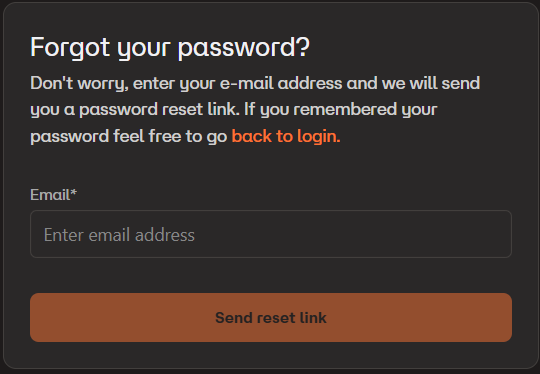
الآن أدخل عنوان البريد الإلكتروني لحساب Wingbits في حقل البريد الإلكتروني وانقر على "إرسال رابط إعادة التعيين"
لوحة "نسيت كلمة المرور"
### تحقق من بريدك الإلكتروني
اذهب وتحقق من حساب بريدك الإلكتروني بحثًا عن رسالة من Wingbits بعنوان "رمز التحقق الخاص بك" وابحث بداخلها عن الرمز المكون من 6 أرقام، ثم انقر على زر "الانتقال إلى إعادة التعيين" في اللوحة التالية.
لوحة التحقق من بريدك الإلكتروني
### تغيير كلمة المرور
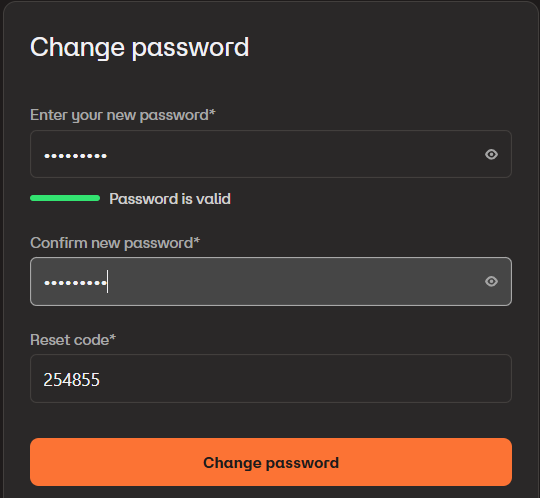
أدخل كلمة المرور الجديدة في لوحة "تغيير كلمة المرور"، في المربع الأول والمربع الثاني للتأكيد. ثم انسخ رمز التحقق من تلك الرسالة الإلكترونية إلى حقل "رمز إعادة التعيين" وانقر على زر "تغيير كلمة المرور".
لوحة تغيير كلمة المرور
### تم تغيير كلمة المرور!
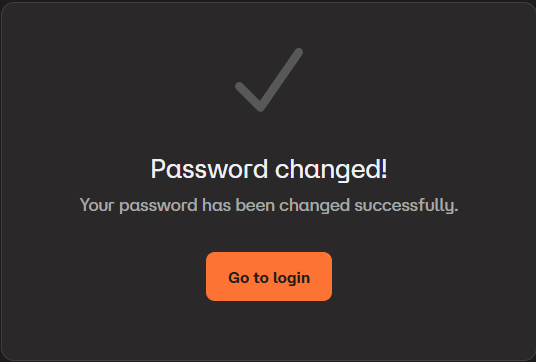
إذا كانت رسائلك الإلكترونية متطابقة وكان رمز التحقق لا يزال صالحًا (تنتهي صلاحيته بعد 15 دقيقة)، فيجب أن ترى النتائج التالية وأن تتمكن من النقر على "الانتقال إلى تسجيل الدخول" لاستخدام كلمة مرورك الجديدة مع عنوان البريد الإلكتروني لحساب Wingbits.
تم تغيير كلمة المرور!
---
# Agent Instructions
This documentation is published with GitBook. GitBook is the documentation platform designed so that both humans and AI agents can read, navigate, and reason over technical content effectively. Learn more at gitbook.com.
## Querying This Documentation
If you need additional information that is not directly available in this page, you can query the documentation by asking a question.
Perform an HTTP GET request on the following URL with the `ask` and `goal` query parameters:
```
GET https://docs.wingbits.com/wingbits/wingbits-english-ar/msaadh-aamh/account/change-password.md?ask=&goal=
```
`ask` is the immediate question: it should be specific, self-contained, and written in natural language.
`goal` is what the user is ultimately trying to achieve, the reason they need the answer. Sharing it helps GitBook give you a better, more relevant answer. A goal is most helpful when it describes the outcome the user wants rather than restating the question. For example, with `ask=how do I create an API token`, a goal like `automate deployments from our CI pipeline` lets GitBook tailor the answer to that use case.
The response will contain a direct answer to the question and relevant excerpts and sources from the documentation.
Use this mechanism when the answer is not explicitly present in the current page, you need clarification or additional context, or you want to retrieve related documentation sections.